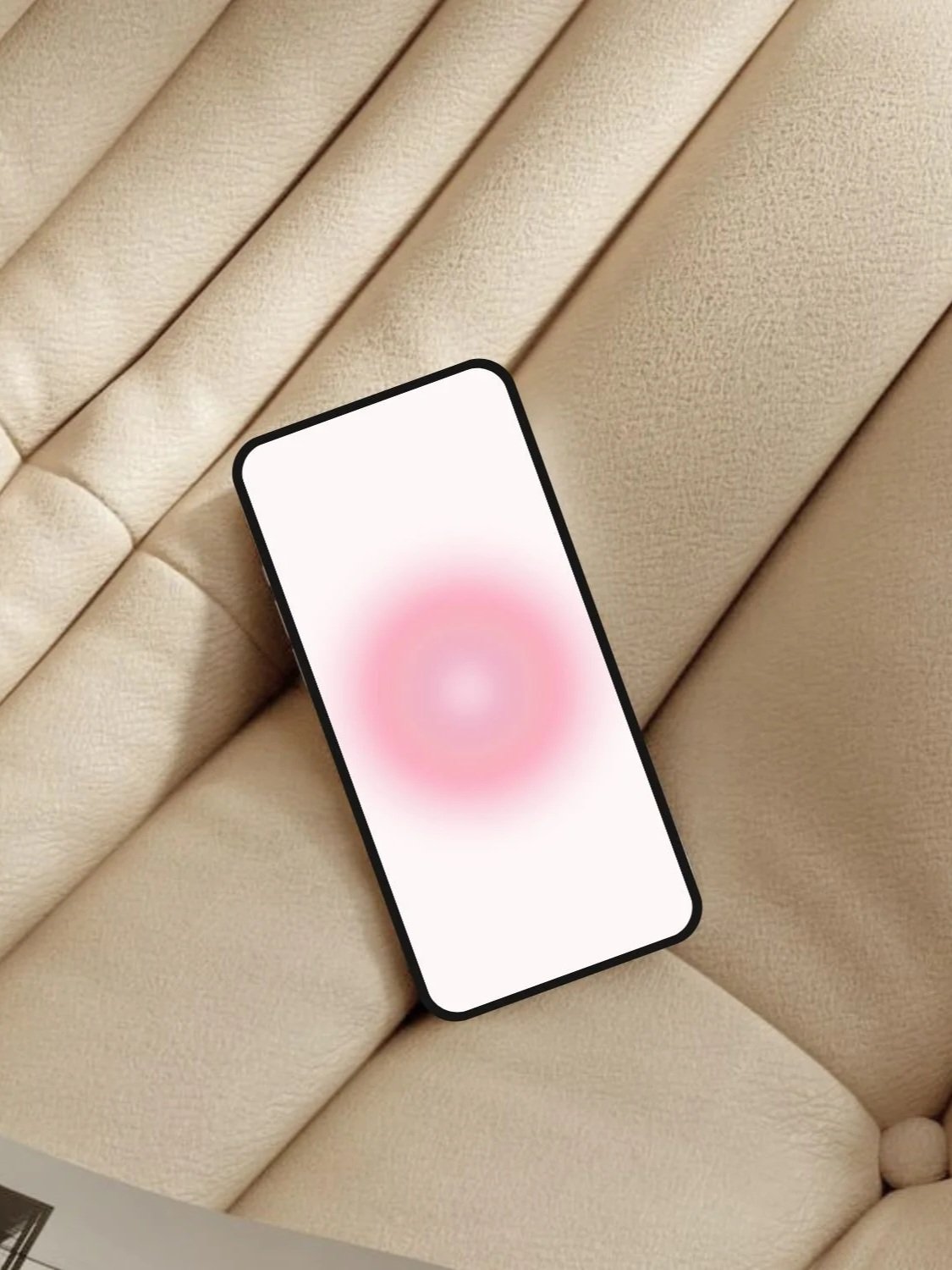
This post is a Canva tutorial about how to make aesthetic Aura wallpapers for your phone, computer, tablets, and more!
Aura wallpapers are everywhere right now and it’s easy to see why. The soft glowing colors and dreamy gradients instantly make your phone feel calmer and way more aesthetic. The best part? You don’t need any advanced design skills to make them yourself.
In this easy tutorial, I’ll show you how to create your own aesthetic aura wallpapers in Canva in just a few minutes. It’s super simple, totally beginner-friendly, and you can customize the colors to match whatever vibe you want for your phone. Let’s get started!
Super Easy Aura Wallpaper Canva Tutorial
Step #1: Set Up Your Canvas & Background Color
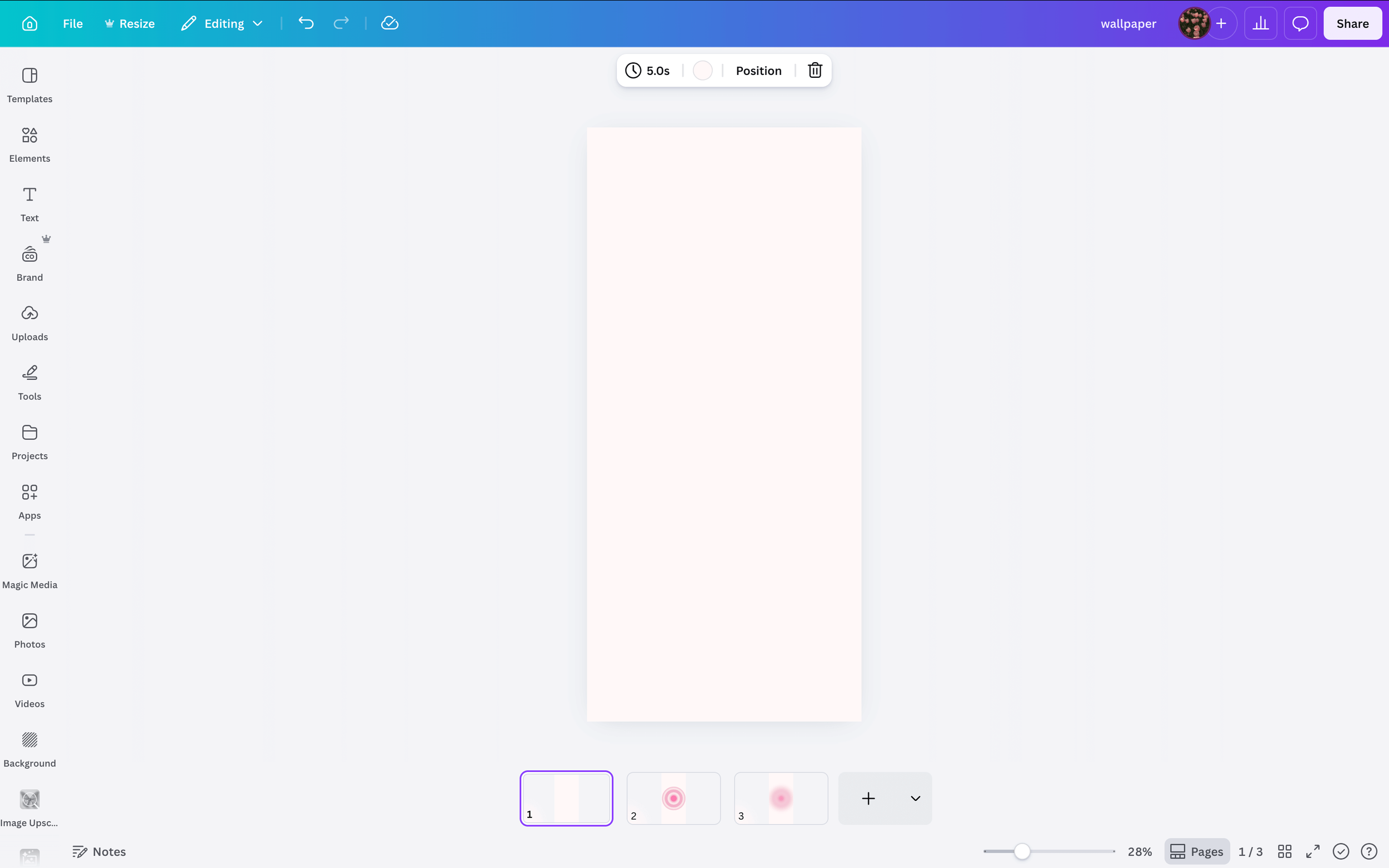
Set up your Canva document using the dimensions of whatever device you’re making your wallpapers for. Then, choose a background color by clicking on the canvas > click the circle color icon a the top > choose a color.
#2: Layer A Bunch Of Circles Over Each Other
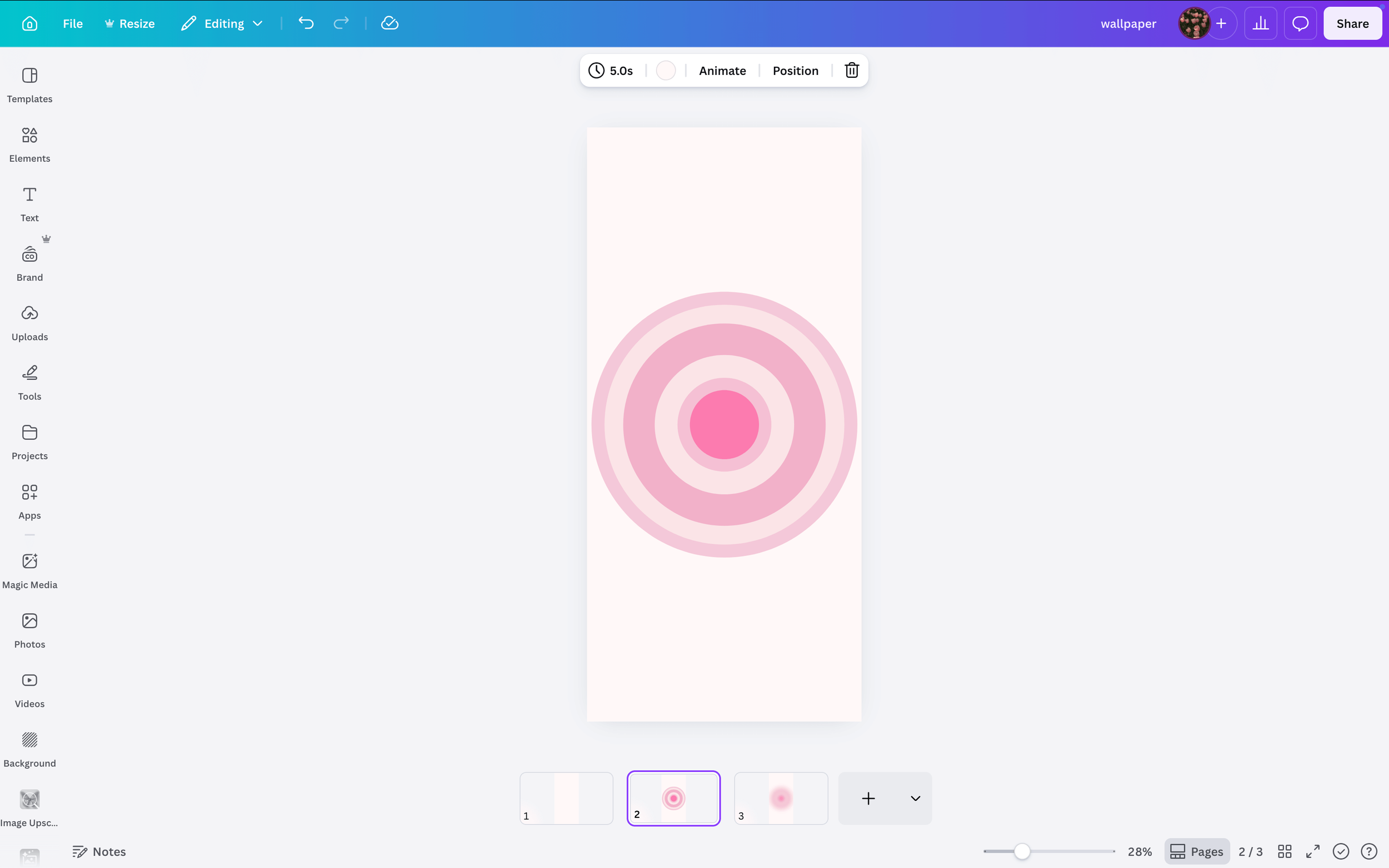
Next, you’re going to layer a bunch of circles over each other like in the image. Make sure to alternate colors. Also, you don’t have to do circles necessarily. A super fun idea is to do something like hearts or stars to switch it up.
Related: How To Customize Your iPhone With iOS 26 (Aesthetic Pink Aura Theme + Tutorial!)
#3: Download The Image
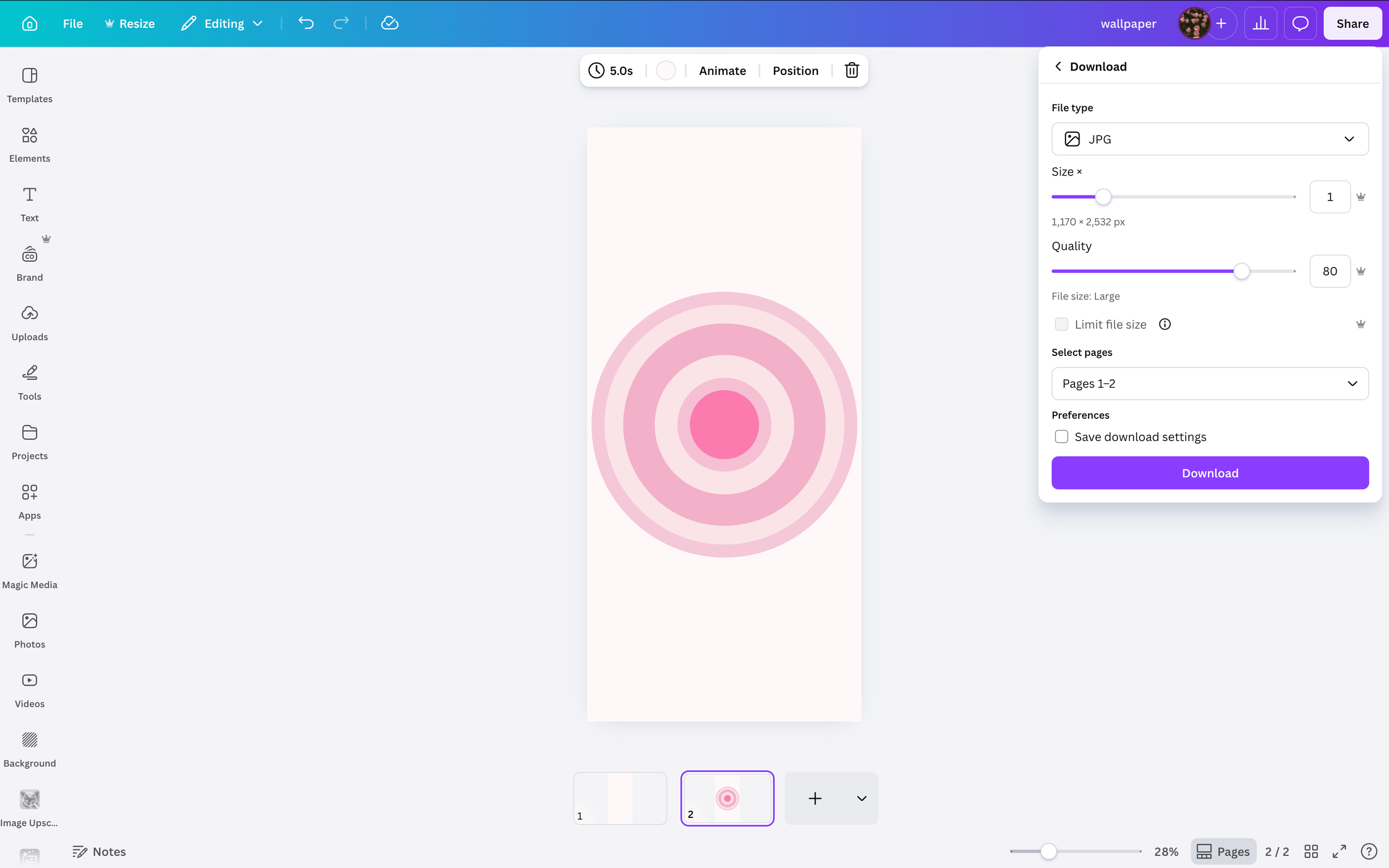
Next, you’re going to download the image exactly as is. Don’t worry, you’re not done (we’ll add that dreamy aura blur effect in the next step). Download the image by going to share > download > choose size and either PNG or JPG > download.
#4: Add A Blur Effect
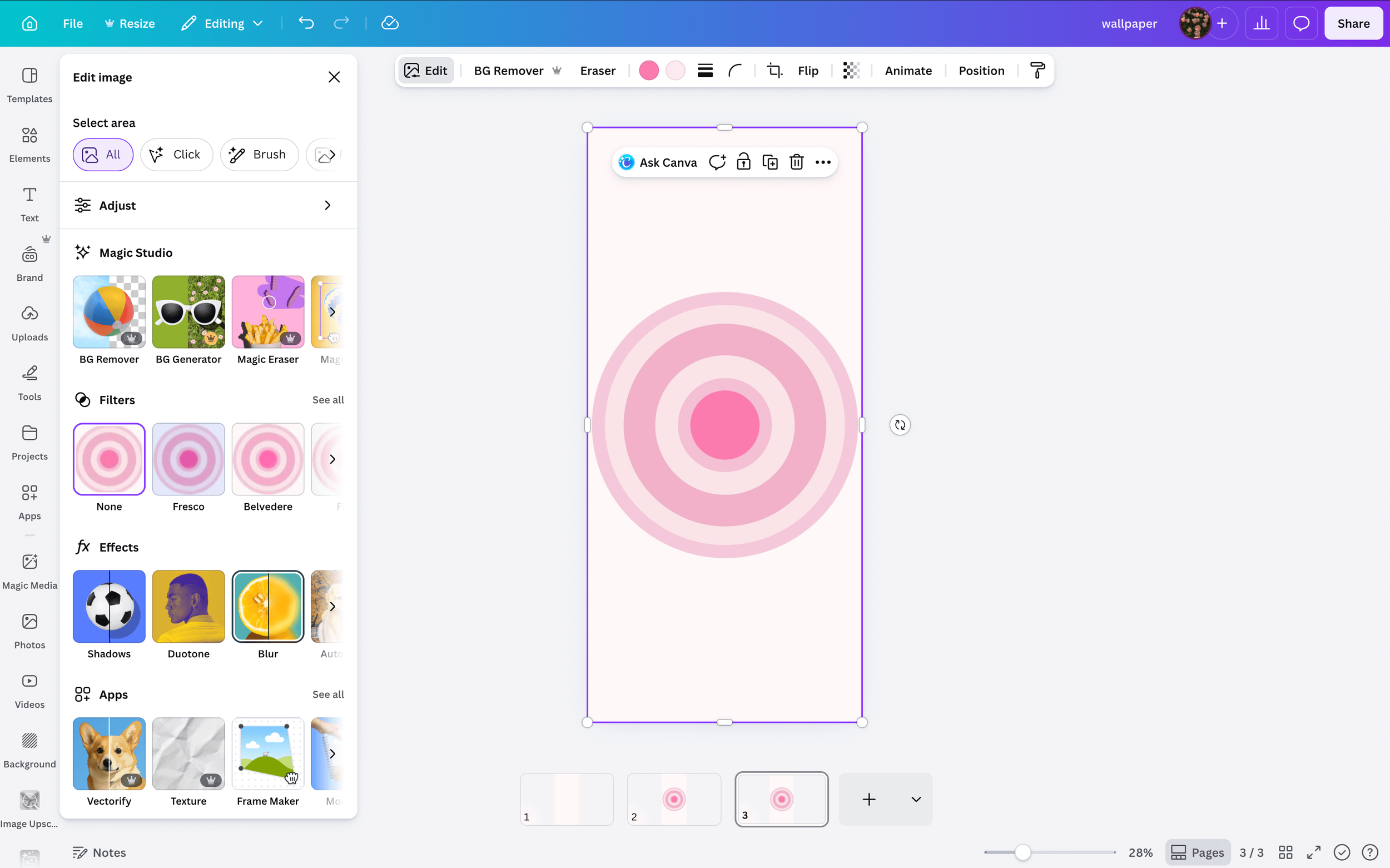
Now, re-uplaod the image you just downloaded by clicking uploads > upload files > upload your file from your desktop. Then, drag the image onto your canvas and make sure to stretch it all the way across so it fills the document.
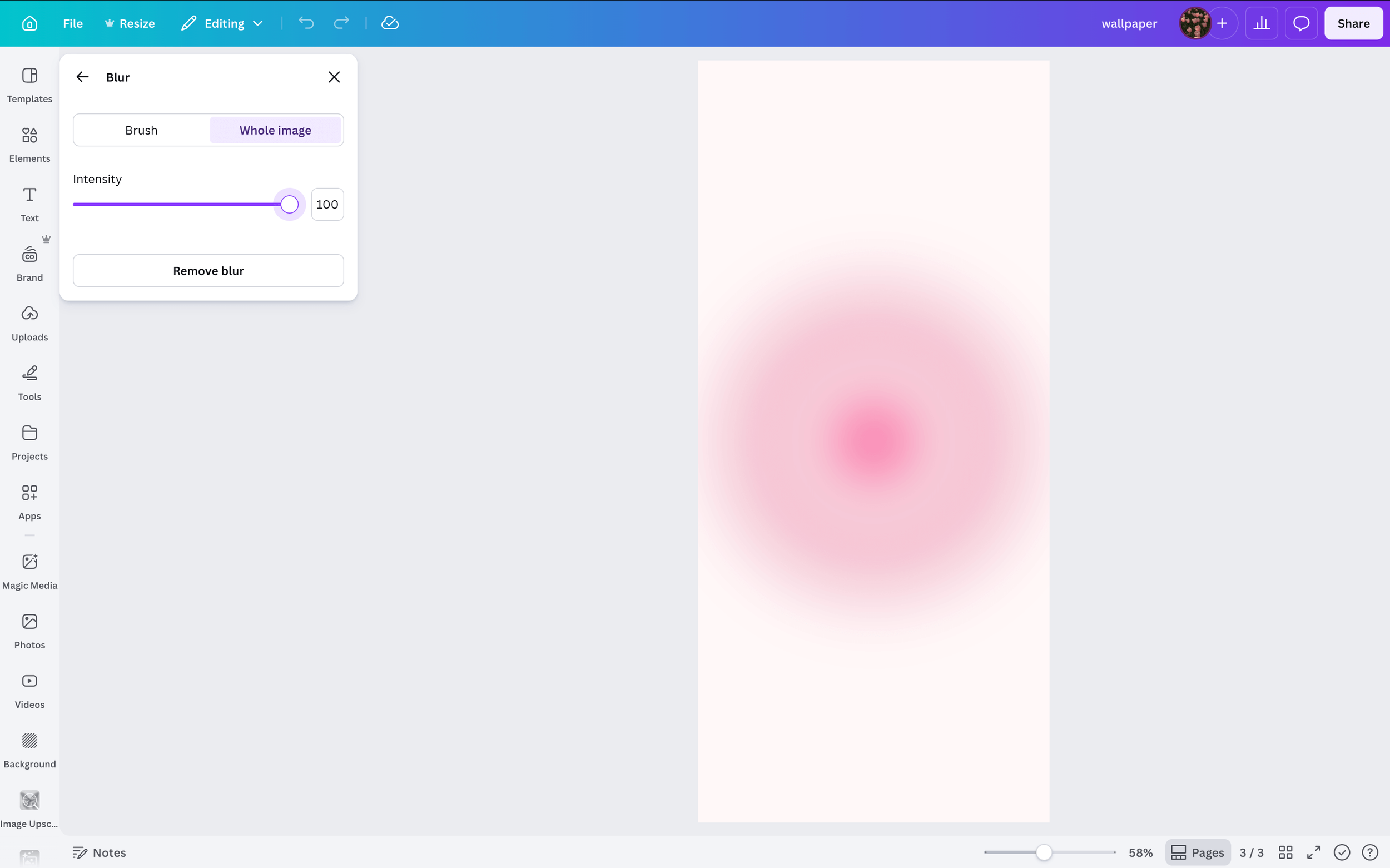
Now, we’re going to add that aura effect. Click the background > edit > on the left side of your screen, go down to effects and click blur > whole image > move the intensity slider to adjust the blur. I usually like to do anywhere from 90-100.
Related: How To Customize Your iPhone With iOS 26 (Aesthetic Pink Aura Theme + Tutorial!)
#5: Download Your Completed Wallpaper
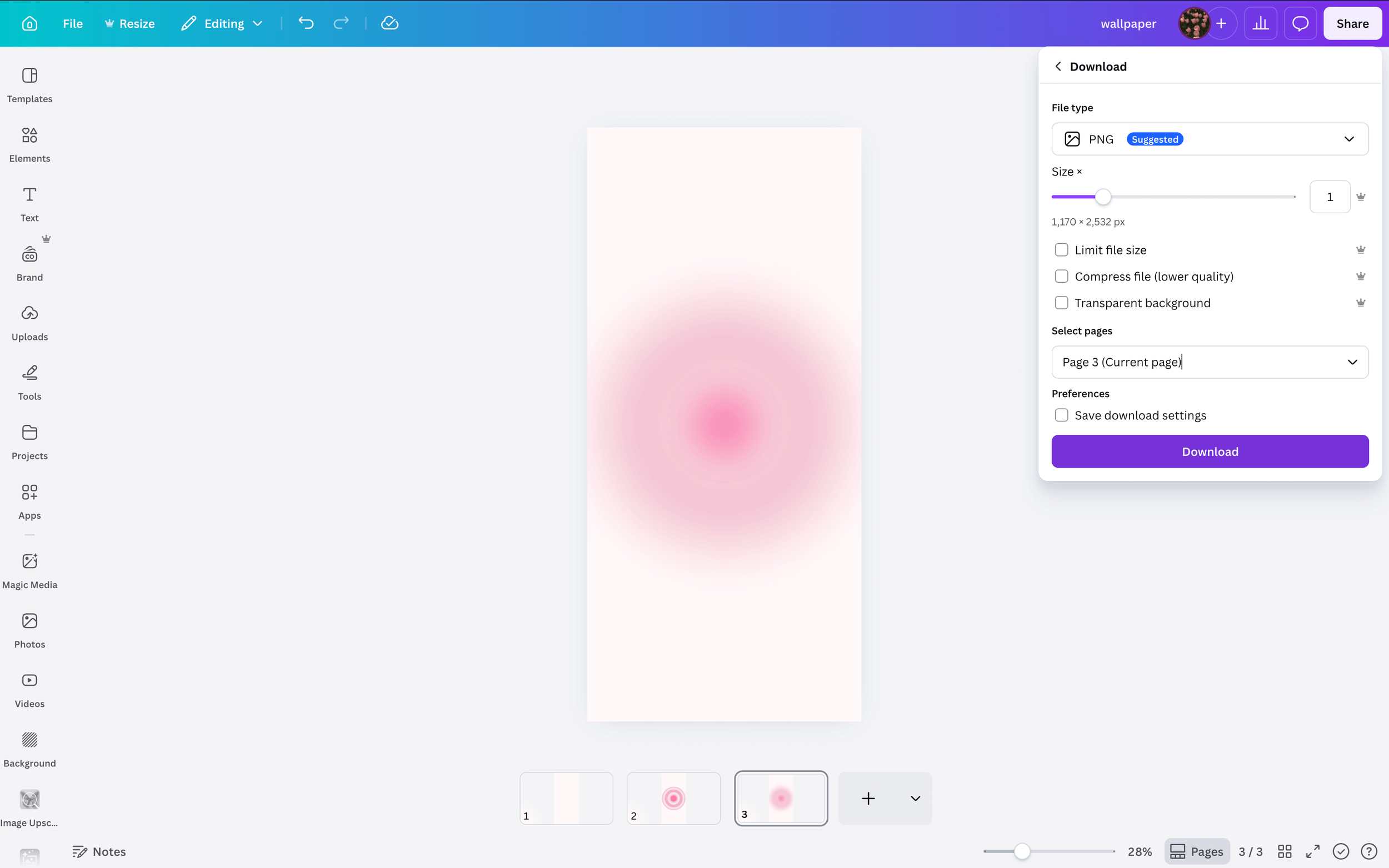
Finish adjusting the blur to your liking and then it’s time to download your new wallpaper! Download it by going to share > download > choose size and either PNG or JPG > download.
Either PNG or JPG works and I would keep the size as is to preserve image quality while maintaining a moderate file size. however, the overall size doesn’t matter too much.
Free Aesthetic Aura Wallpapers


Closing Thoughts
And that’s it! Once you know this simple trick, you can make endless aura wallpapers in whatever colors match your aesthetic. It’s a quick way to give your phone a fresh look without downloading a bunch of random wallpapers.
Play around with different color combinations, save a few favorites, and switch them out whenever you want a new mood for your home screen.
Thanks for stopping by my post “How To Make Aesthetic Aura Wallpapers (EASY Canva Tutorial).”
For handmade digital art prints, icon packs, wallpapers, & more designed by me, be sure to stop by my digital boutique: Designed By Nikki Lo.
Connect with me!