How To Customize Your iPhone With iOS 26 (Aesthetic Pink Aura Theme + Tutorial!)
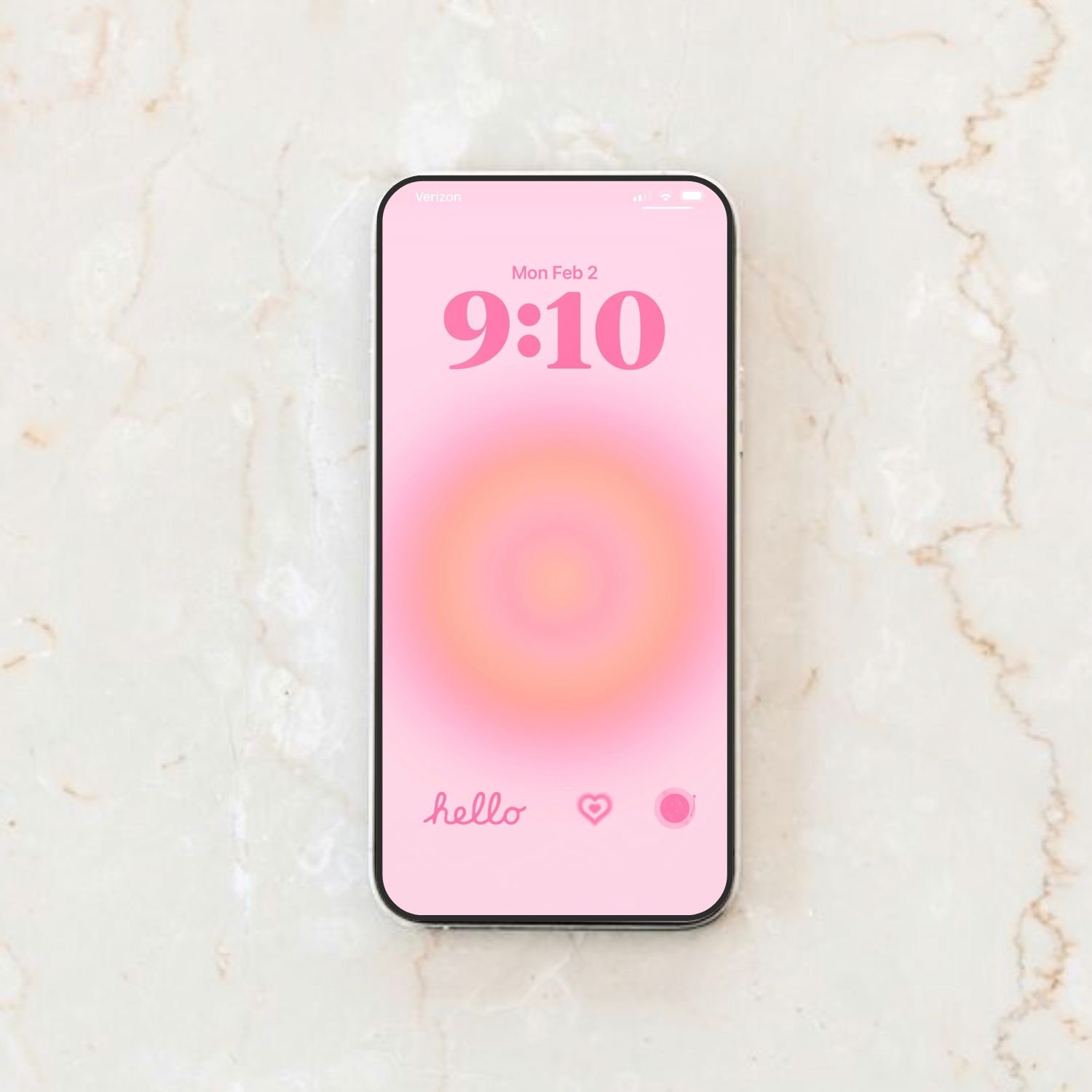
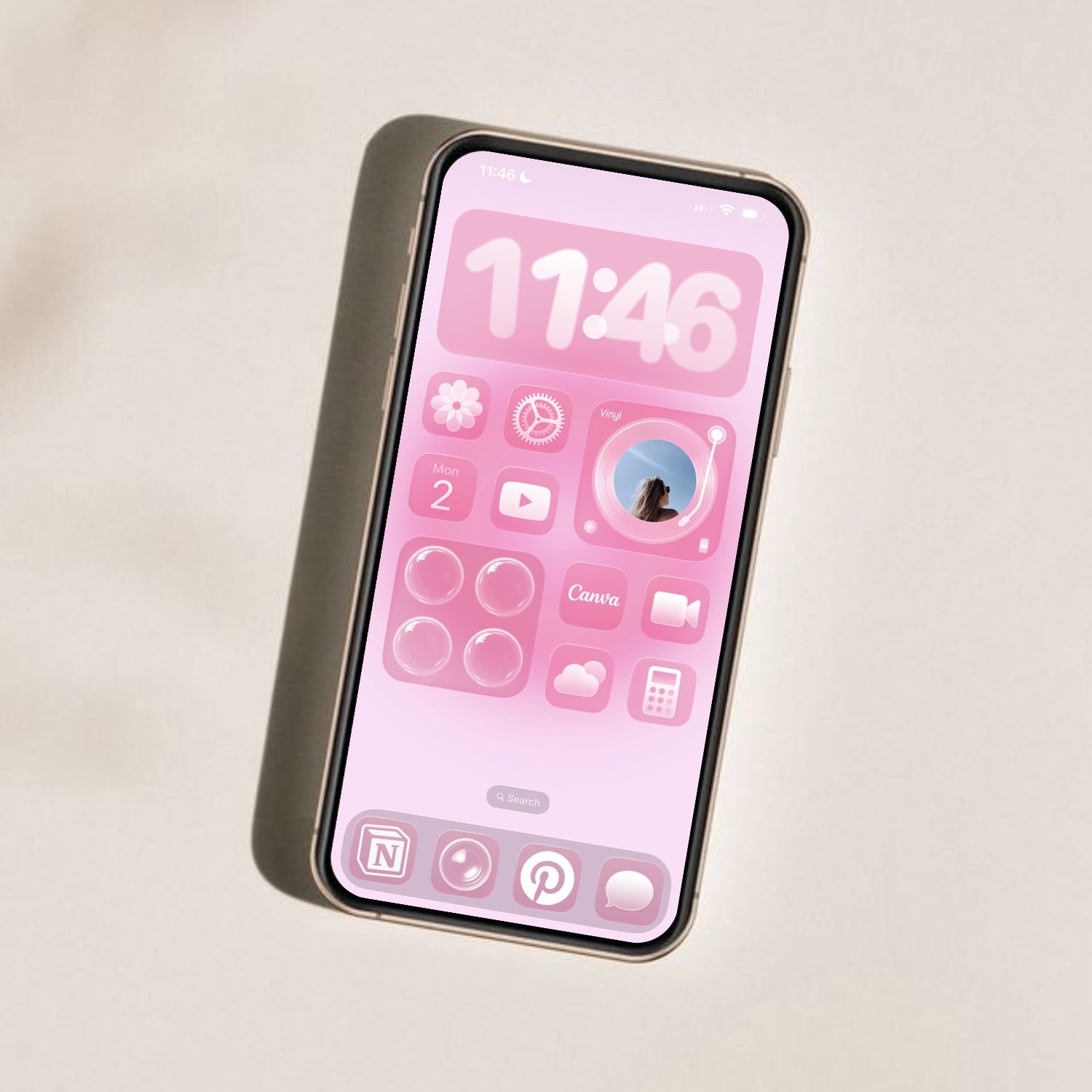
This post is about how to customize your iPhone with iOS 26 using a pretty pink aura phone theme.
Guys, I’m so ready for an iPhone refresh. I want a little pop of color and pretty auras to switch things up from my last setup which was more neutral.
So today, we’re going pink! Here’s how to customize your iPhone with iOS 26 and make it look aesthetic. I’m including all the wallpapers I’ll be using in this customization within this post for free (download below). Let’s get customizing!
I’ll also be including all the wallpapers and widget images I used for this theme so you can use them too if you want. Here’s what the theme looks like:
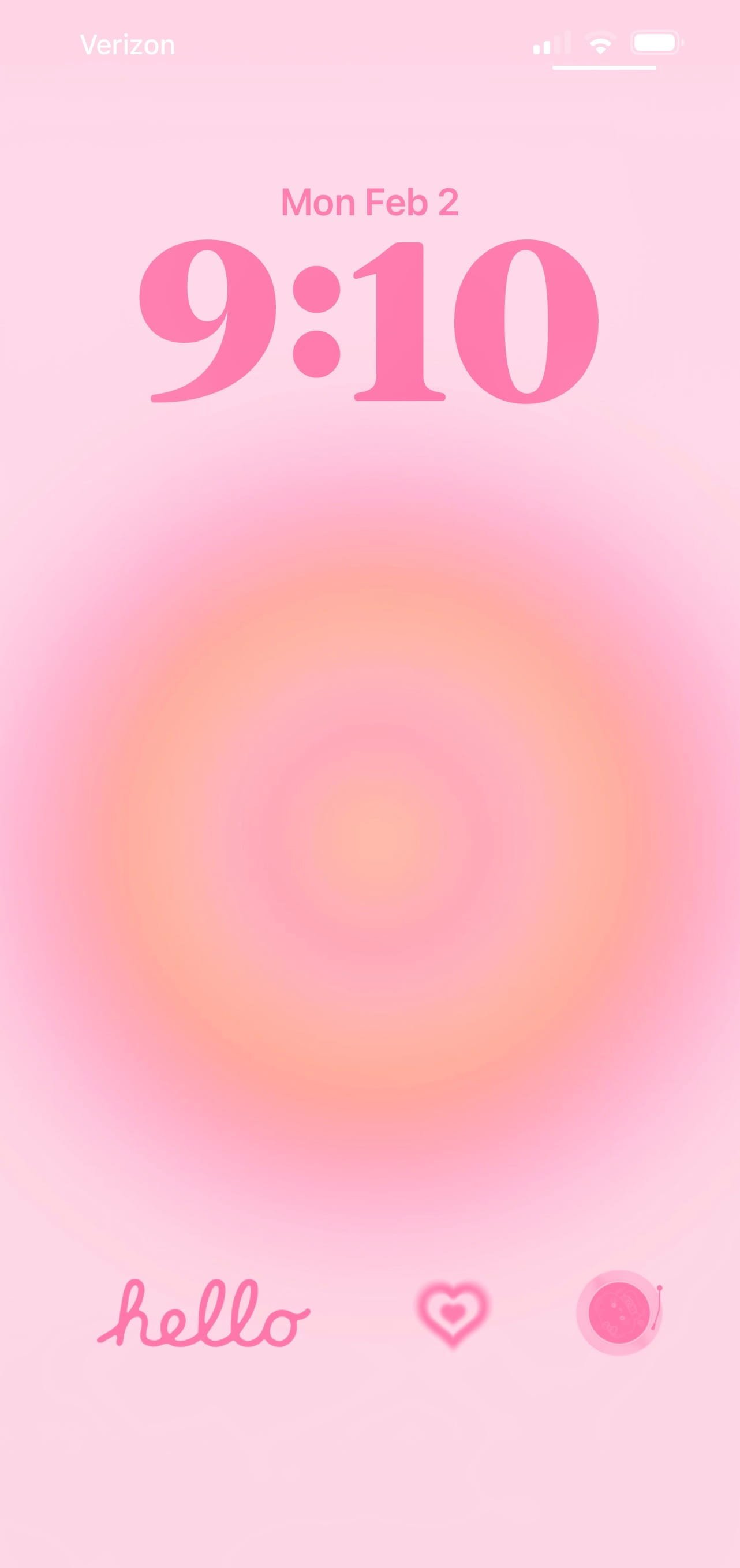
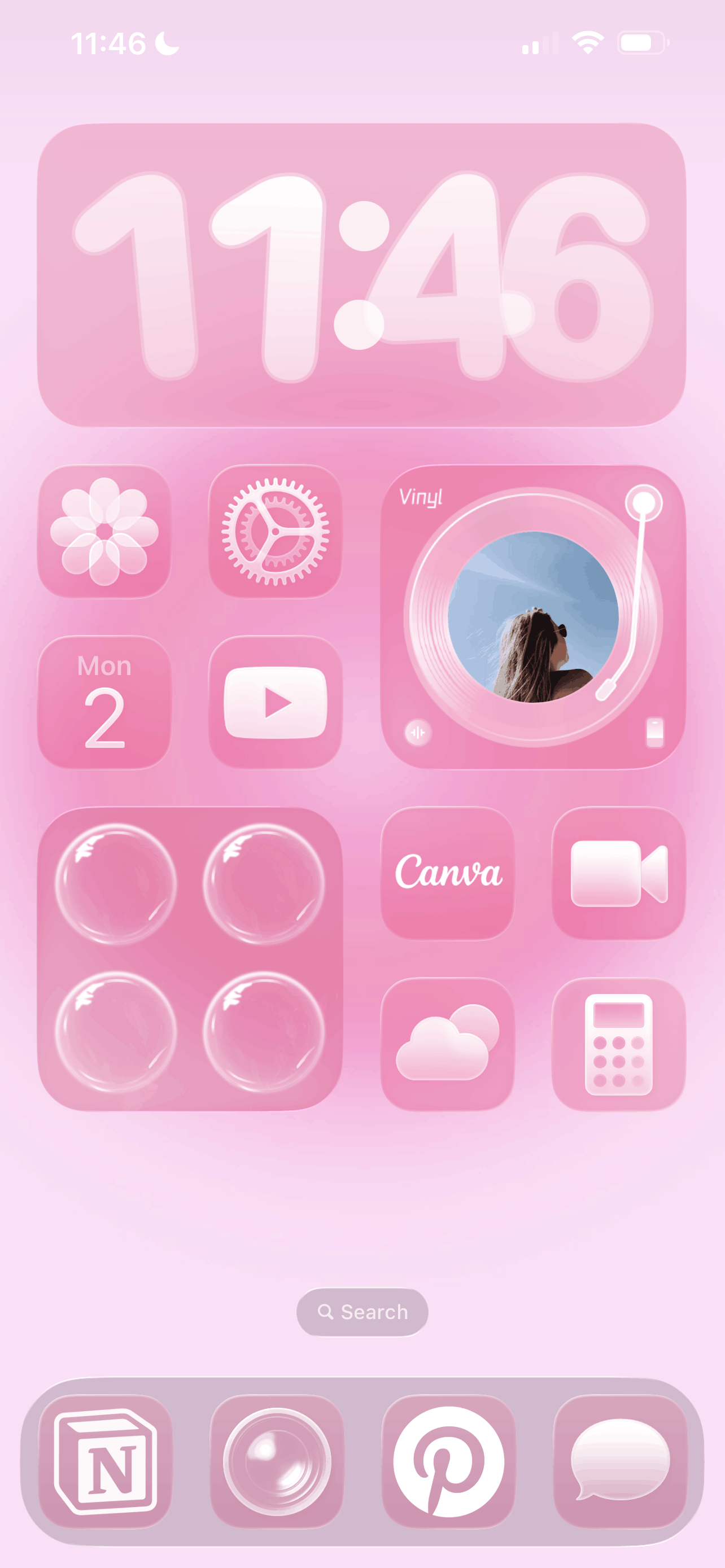
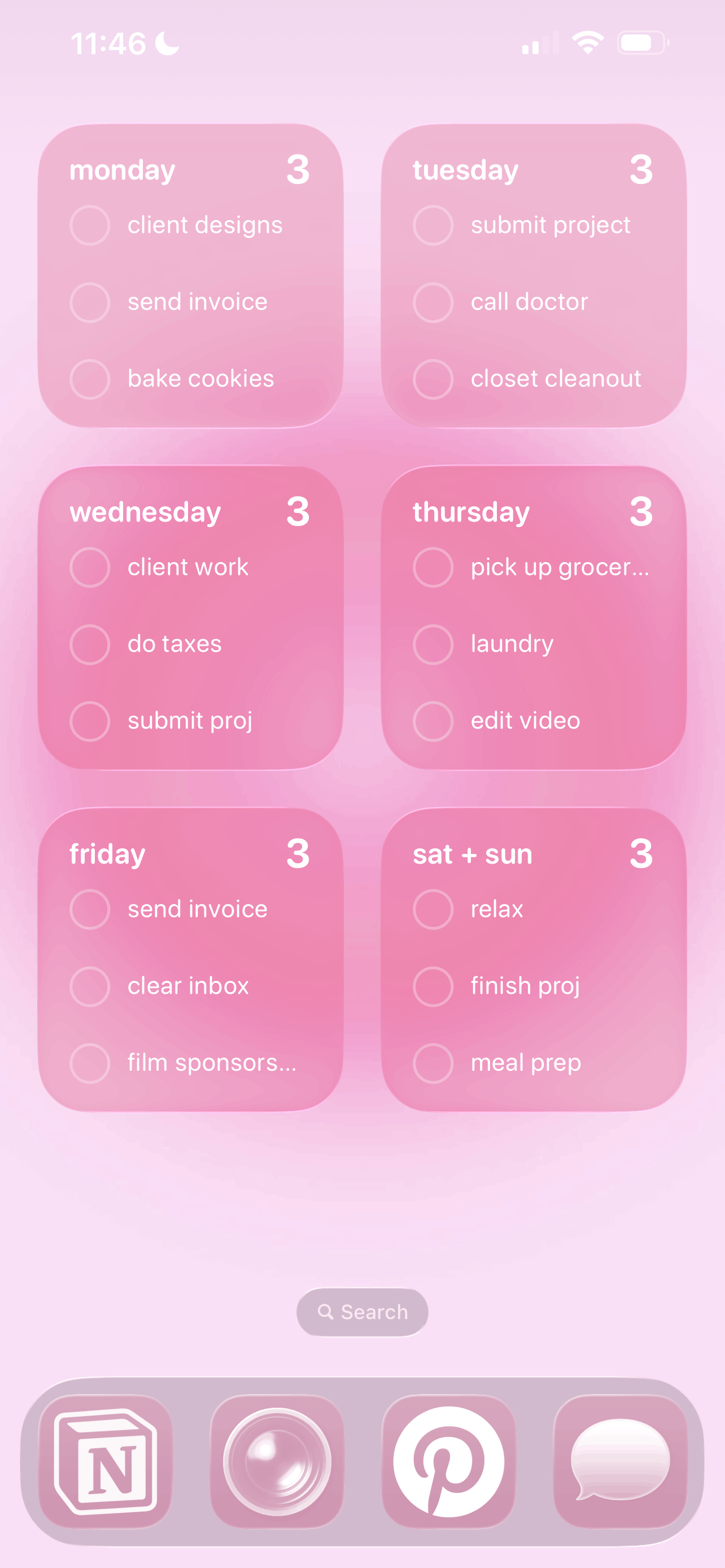
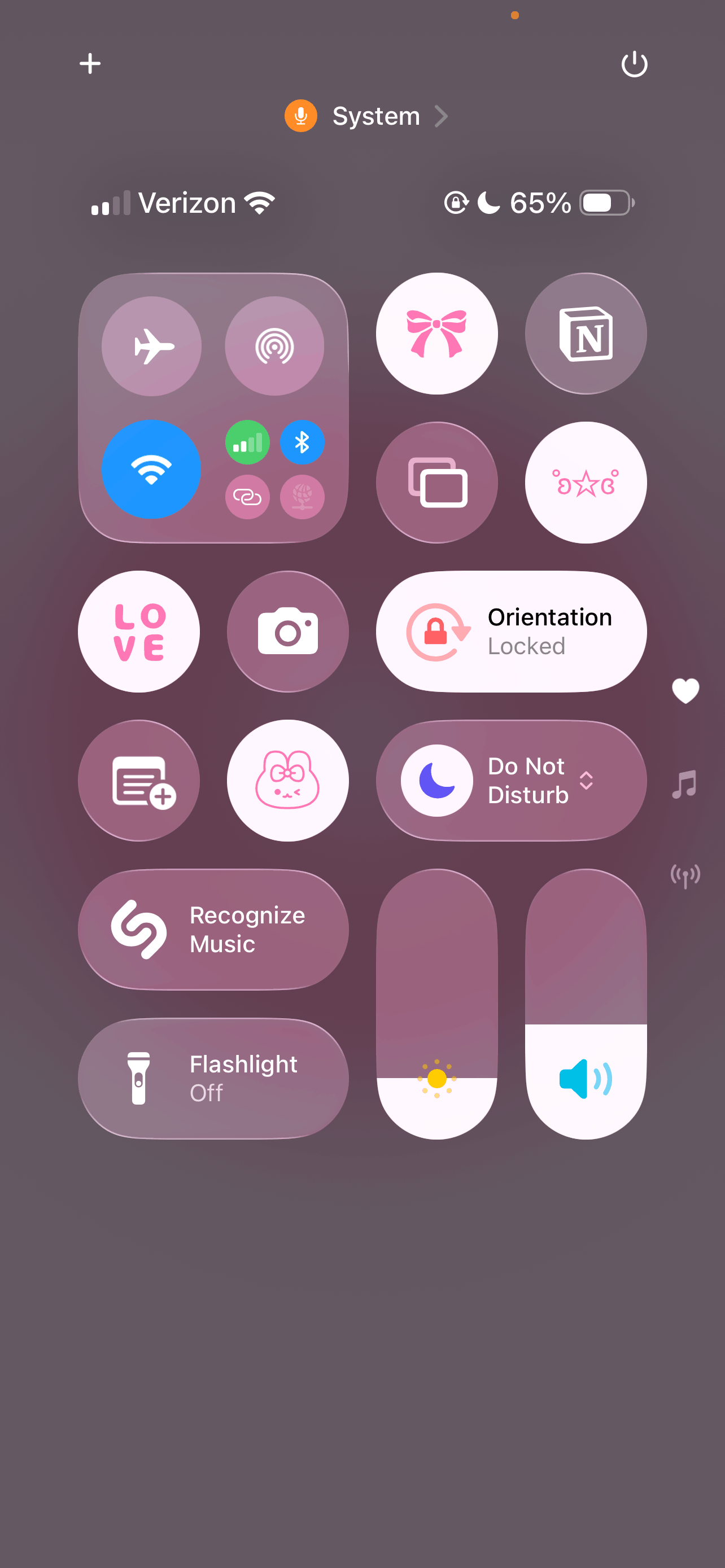
Download all the elements you’ll need to get this theme below.
How To Customize Your iPhone With iOS 26
#1: Download Your Wallpapers And The Mico + iScreen Apps
Before you start, I recommend having all of your assets downloaded and saved in your camera roll. I’ve included ready-to-go assets that you can use as is, including wallpapers.
For some of the widgets in this tutorial, I’ll be using the Mico and iScreen which are free in the app store. So, go ahead and download those before starting.
LOCK SCREEN WALLPAPER:

HOME SCREEN WALLPAPER:

Download them and save them to your camera roll!
#2: Upload And Customize Your Lock Screen Wallpaper
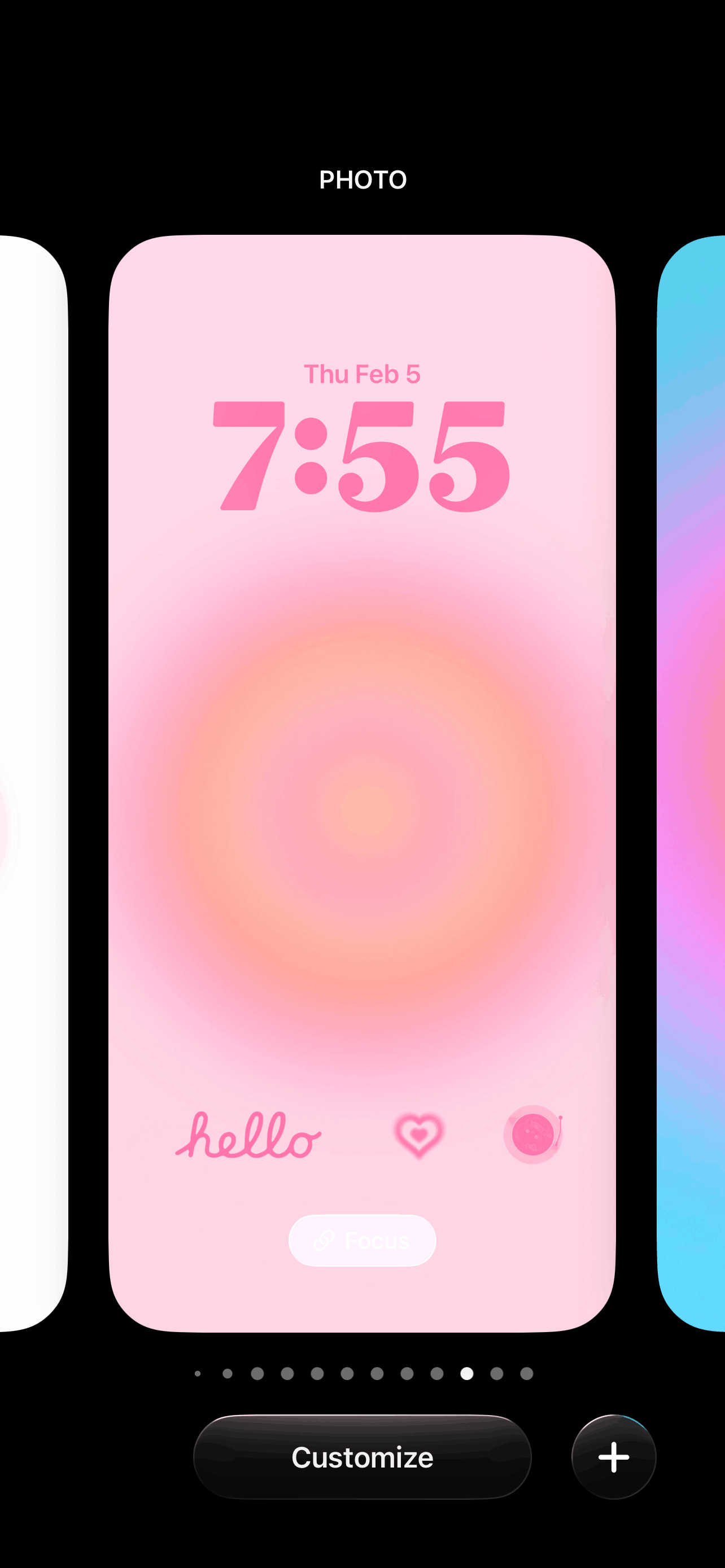
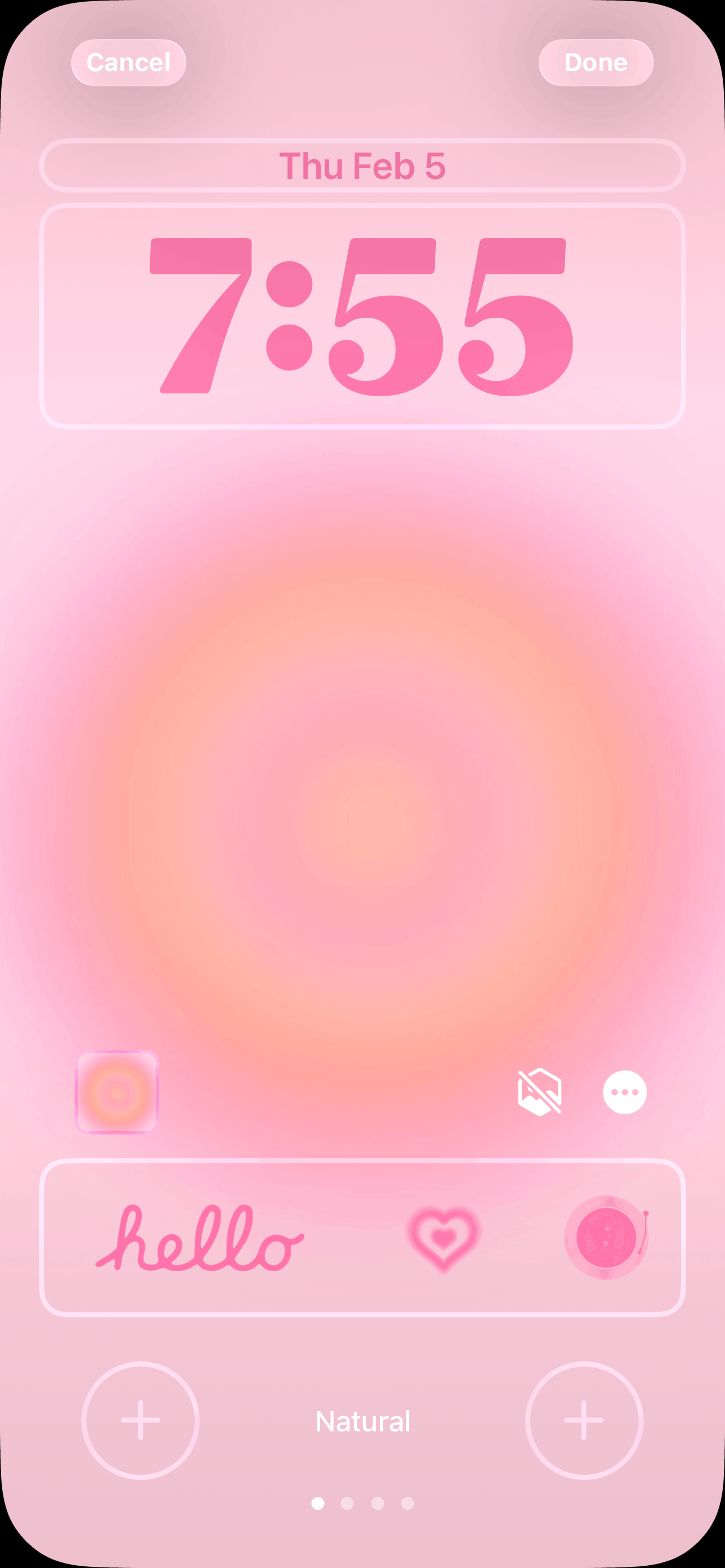
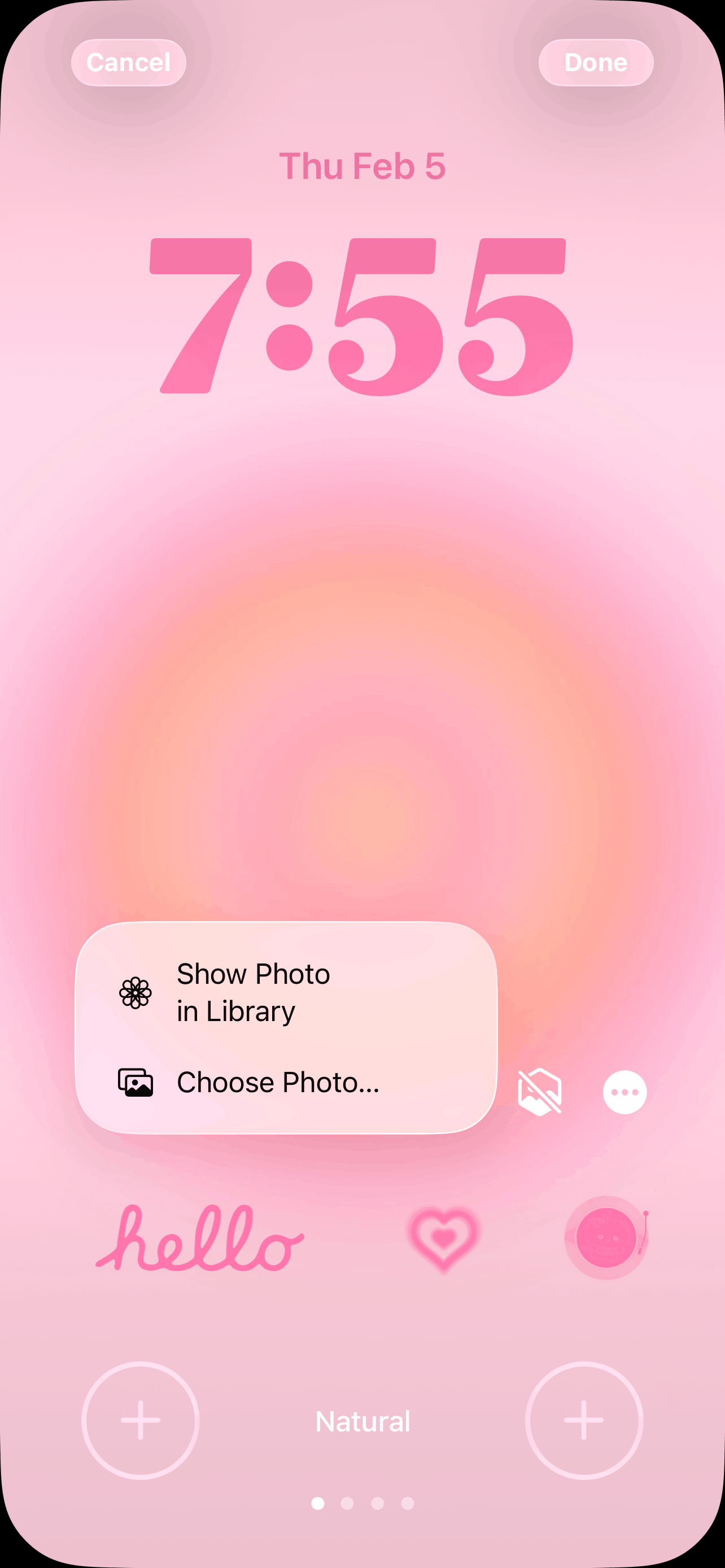
To change your lock screen wallpaper, go to your lock screen > long press > tap customize. Tap the photo icon > choose photo, and upload your lock screen wallpaper from your camera roll, then and done.
Related: 15 Ways To Customize Your Phone With iOS 26 (And Make It Aesthetic!)
#3: Customize Your Lock Screen Widgets In The Mico App

Now that your wallpaper is set, it’s time to add lock screen widgets. First, we have to customize and set our widgets in the Mico app before we can add them to our lock screen.
Once you open the app, browse the widget library and select your favorites. The ones I’m using along with their sizes are in bold below:
Icons-hello (Mico, rectangular widget),
Icons-Heart 1 (Mico, round widget),
Icons-Dynamic Vinyl (Mico, round Widget)
For each one, tap on it and use the options to customize it to your liking. Be sure to choose a “launch action” if you want one. This lets you select which app will be opened when you tap this widget. If you want your widget to be purely decorative, then don’t worry about that.
You can also usually adjust the opacity of the background as well. When you’re done, tap “save widget” or “ad unlock” to watch an ad and unlock the widget for free.
#4: Add Your Widgets To Your Lock Screen
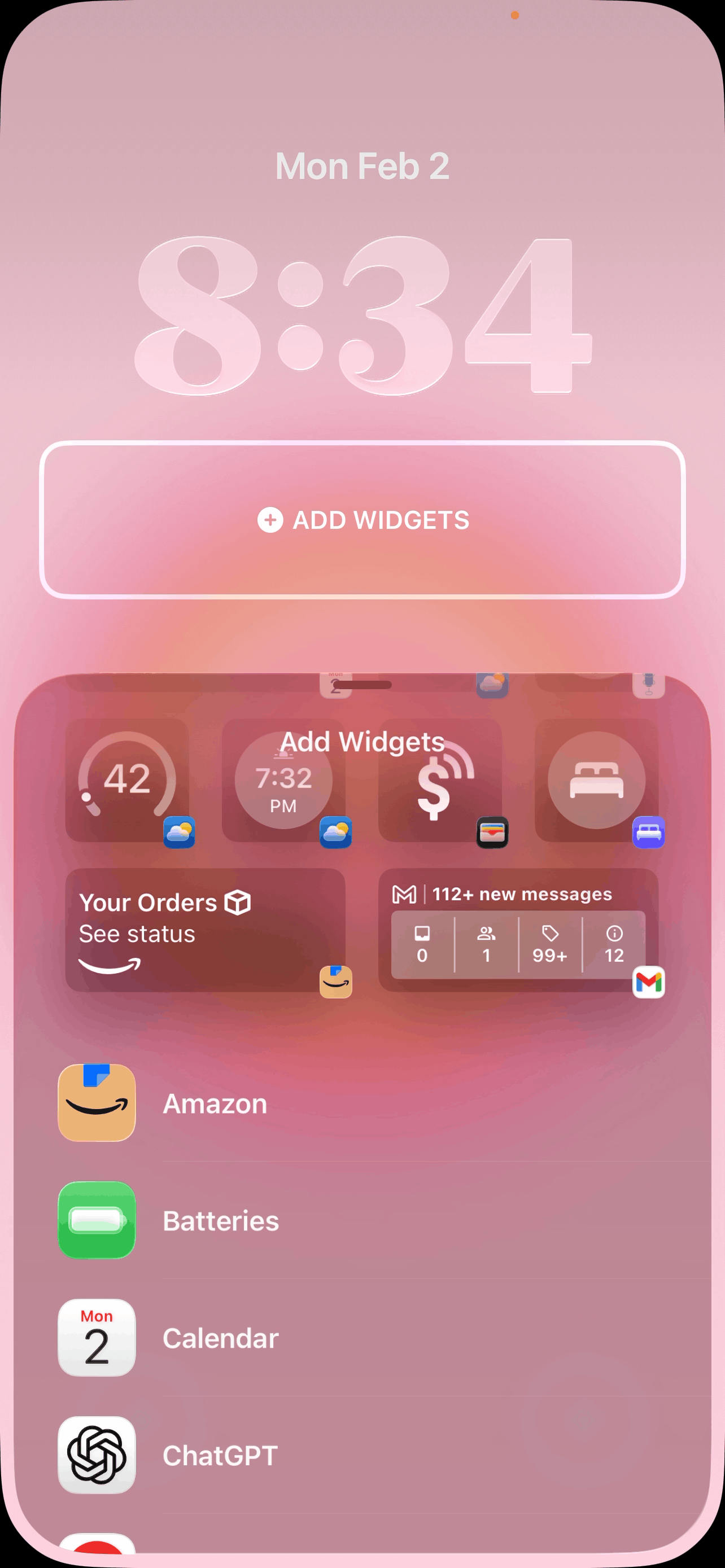
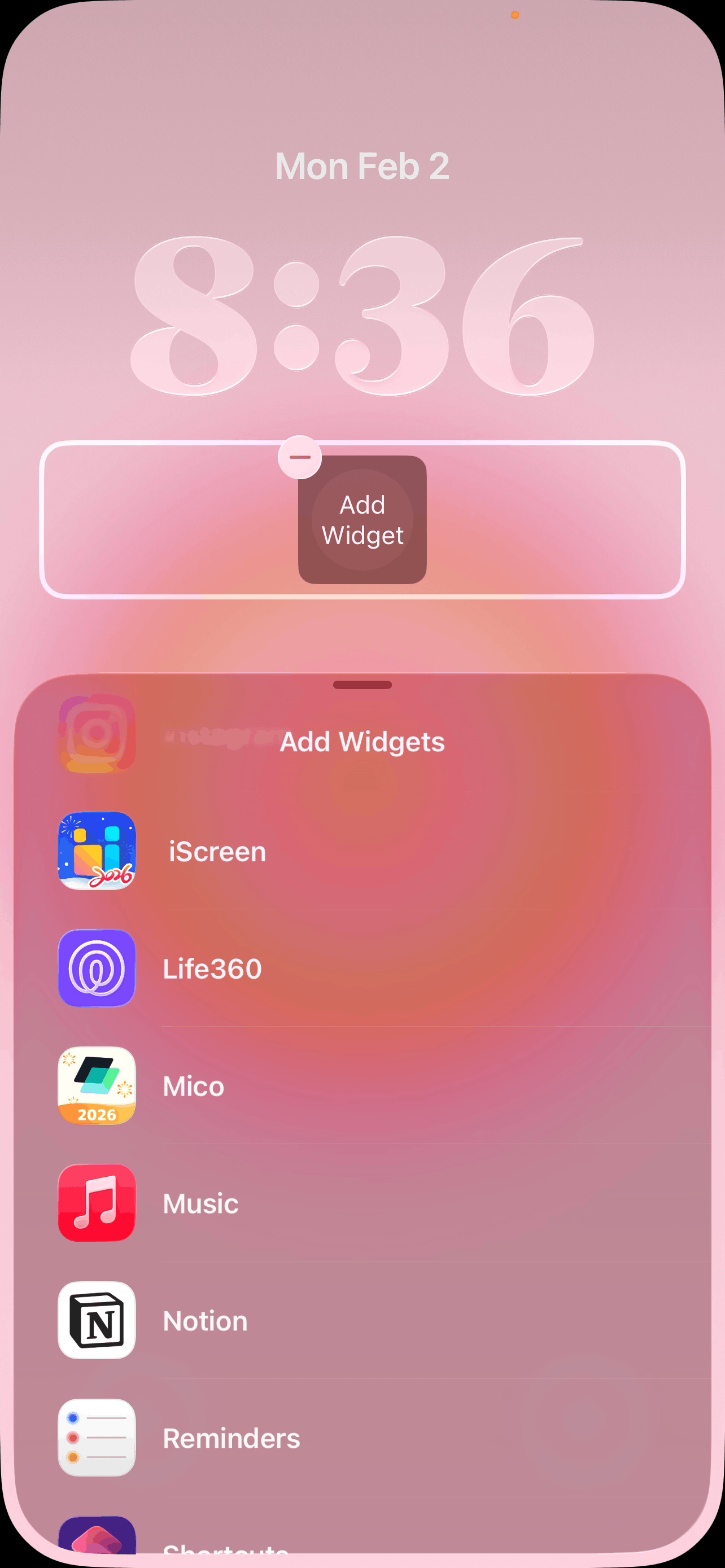
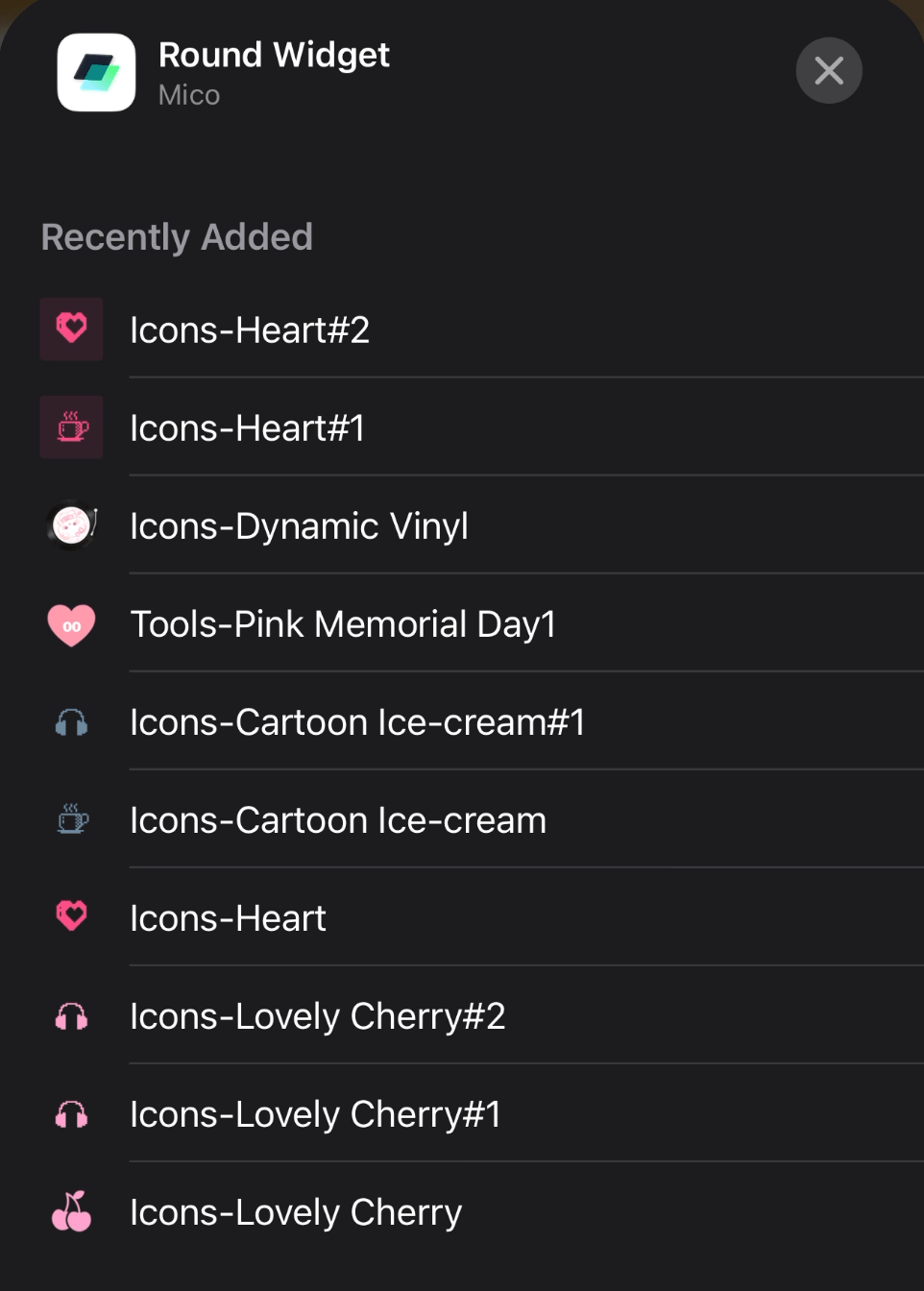
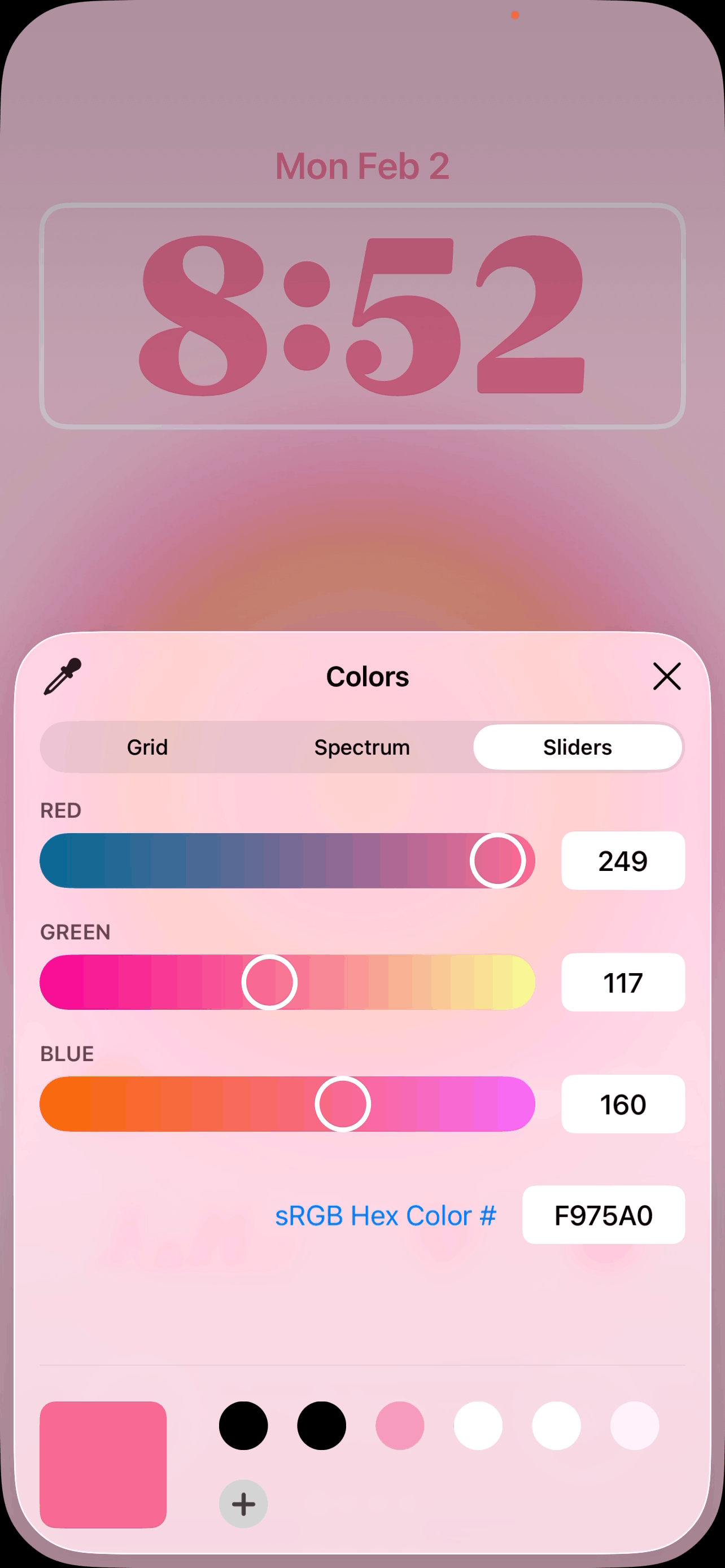
Go to your lock screen and long press, then select “customize.” Long press > tap add widget > then scroll down until you see “Mico” in the menu that comes up. Tap it! Then, select the size of the widget you want to add.
Mico will add a default widget. To add your custom widget, tap the default widget and select your custom widget from the menu that pops up.
In this step, you can also use the color sliders/eyedropper/grid tool to customize the color of your time. Access the color menu simply by tapping on your time.
#5: Change Your Home Screen Wallpaper

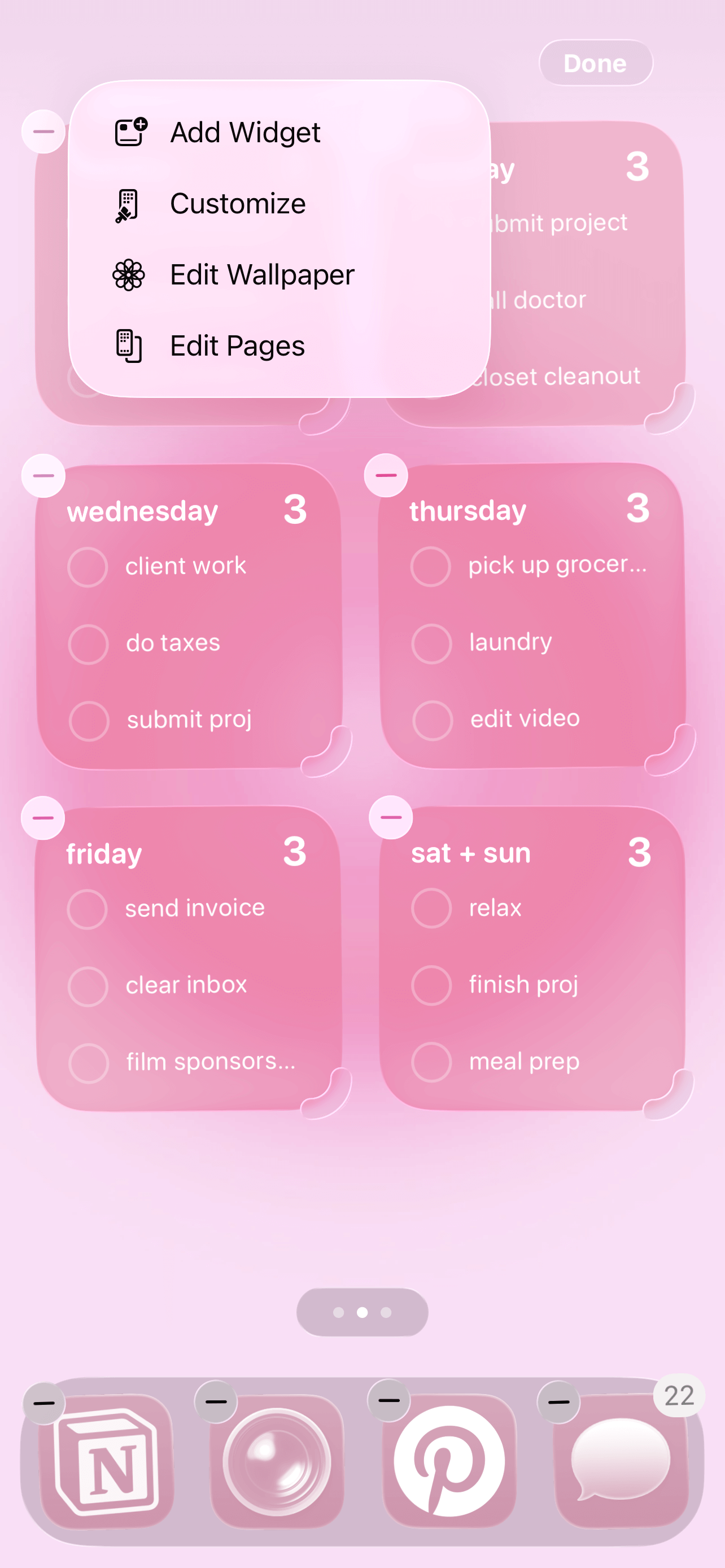
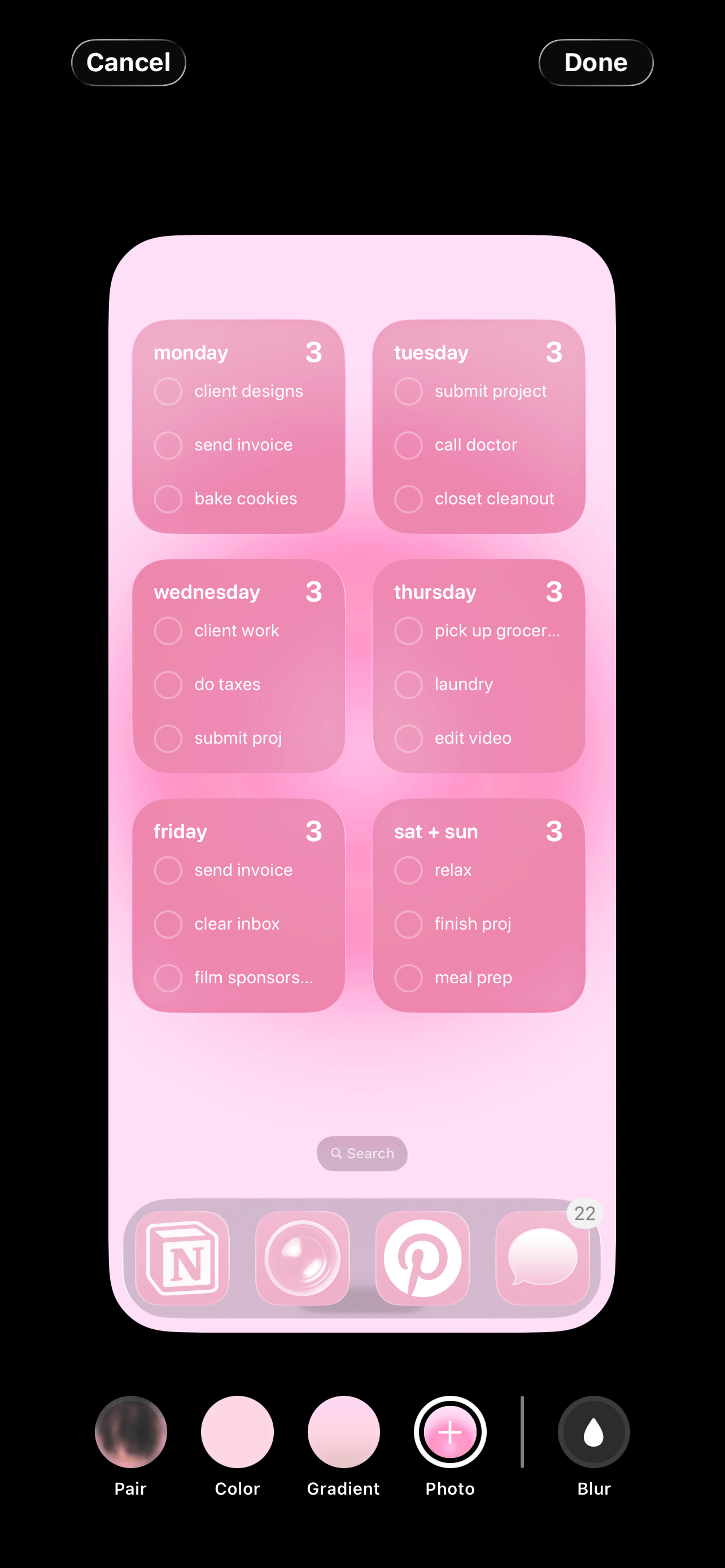
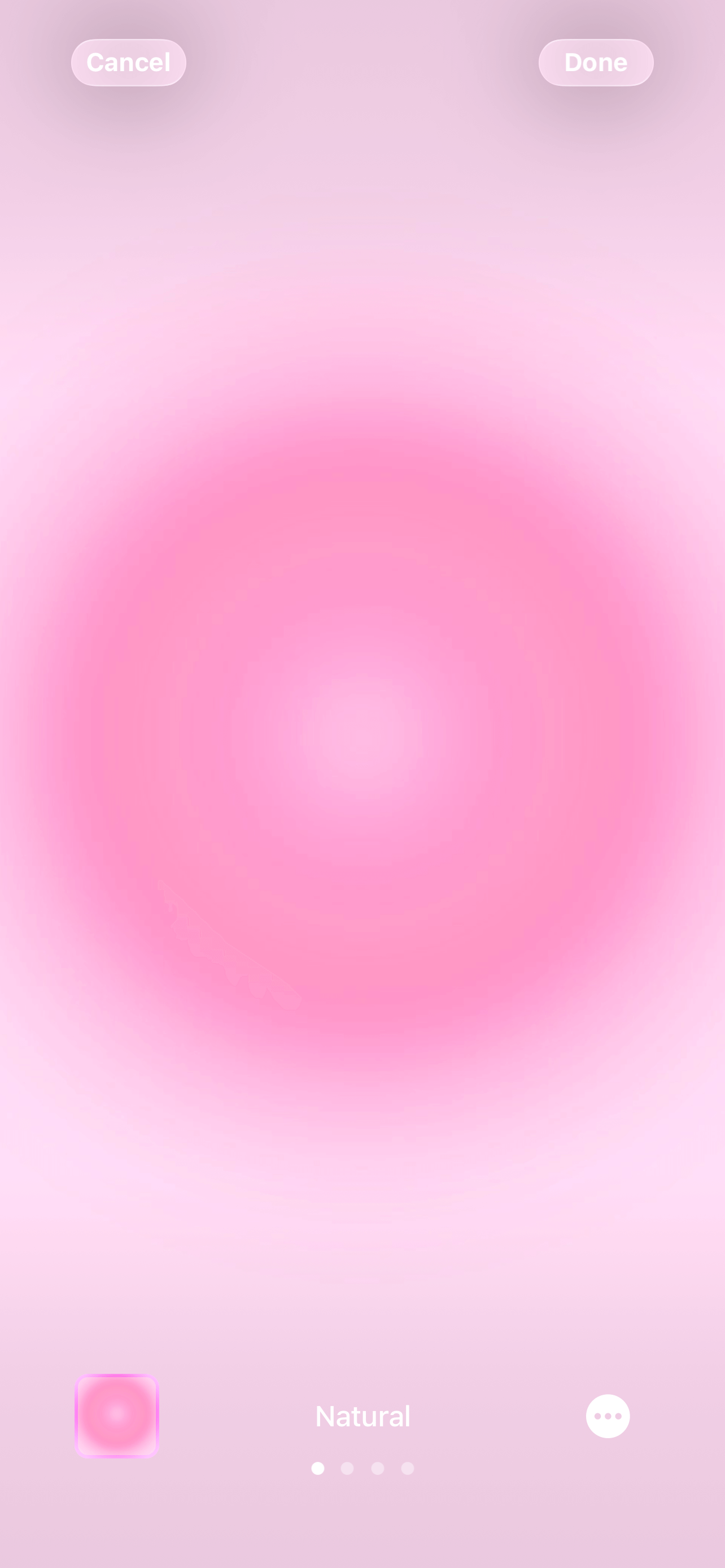
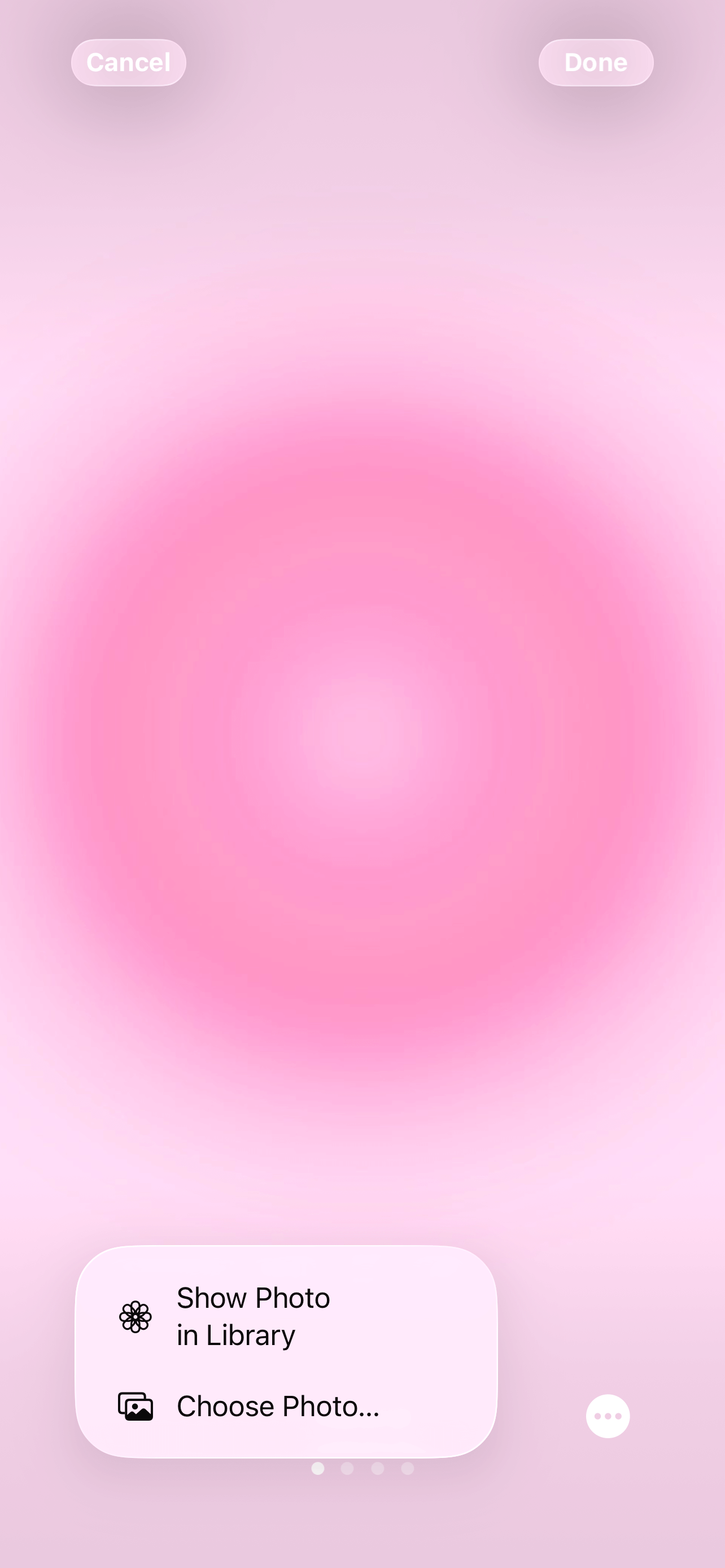
Change your home screen wallpaper by long pressing on your home screen > tap edit > tap edit wallpaper > tap photo at the bottom > tap the square in the lower left corner > tap choose photo > select your wallpaper from your camera roll and tap “done.”
Related: How To Make Aesthetic Aura Wallpapers (EASY Canva Tutorial)
#6: Create To-Do Lists In Reminders (That You’ll Later Add As Widgets)
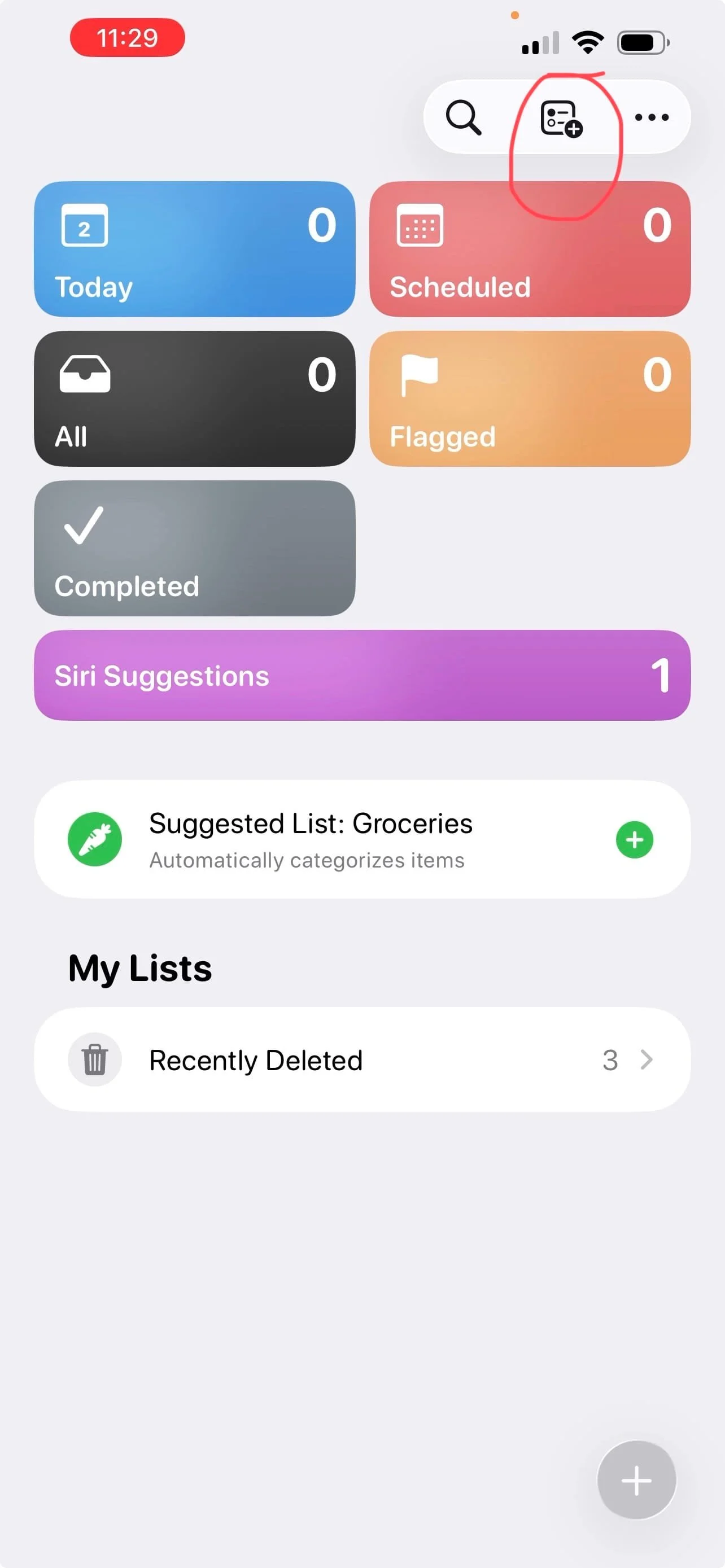
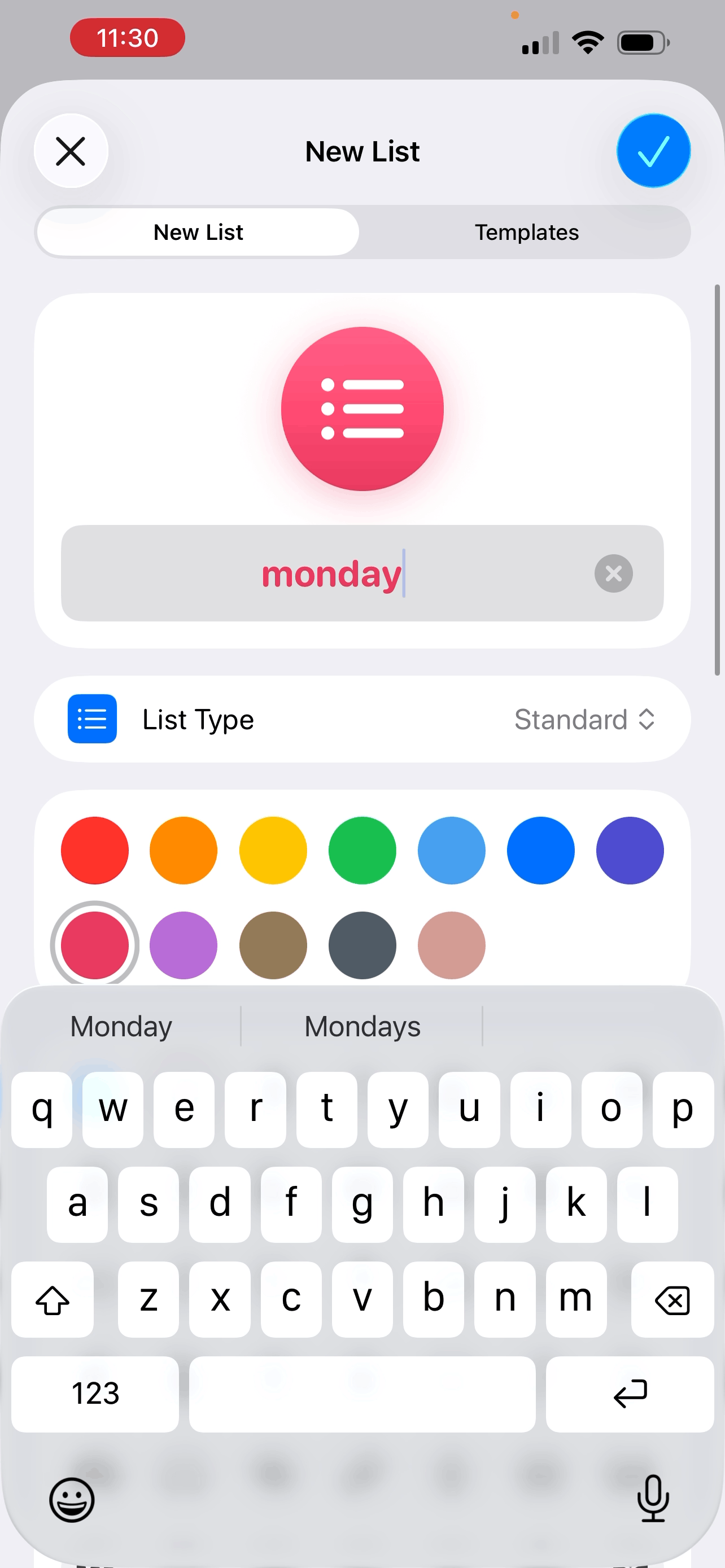
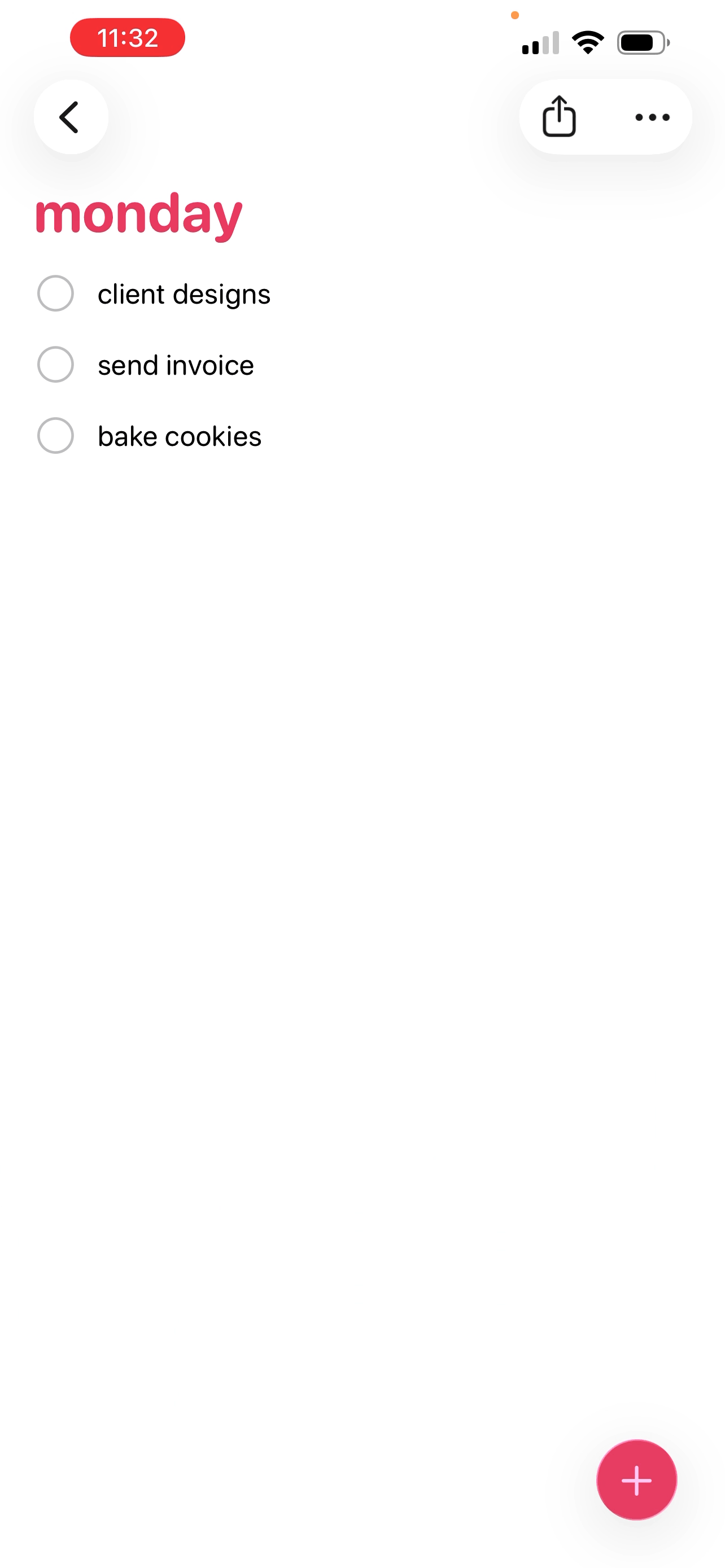
To make to-do list widgets, open your Reminders app, then tap the plus icon at the top. This will pull up the option to add a new list. Name your list, then tap the checkmark, then type to make your list. Once you’re done, tap the checkmark again.
Repeat this for however many to-do list widgets you want. I have six total: one for each day of the week and a combined Saturday + Sunday list.
#7: Add Your Widgets To Your Home Screen
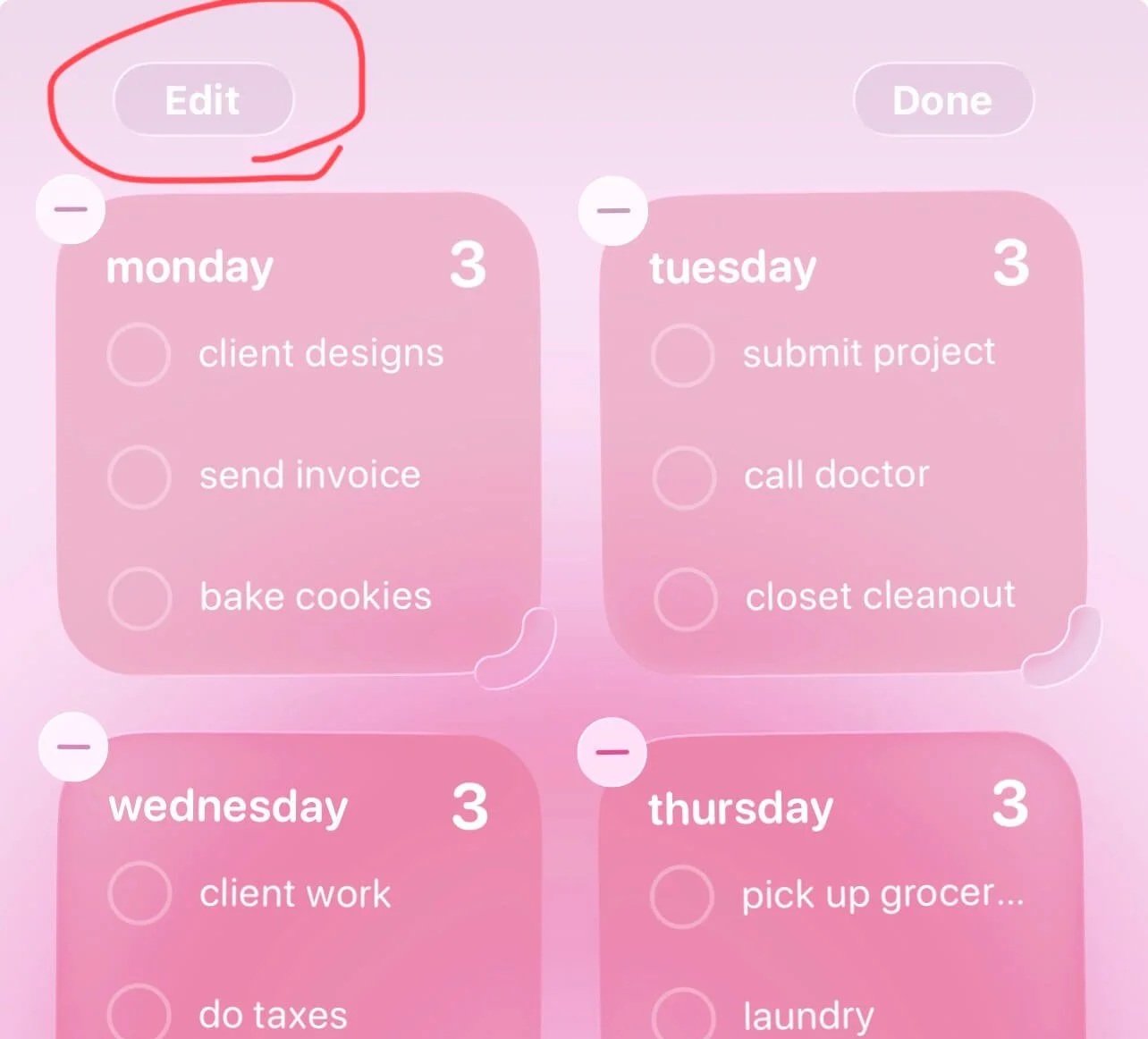
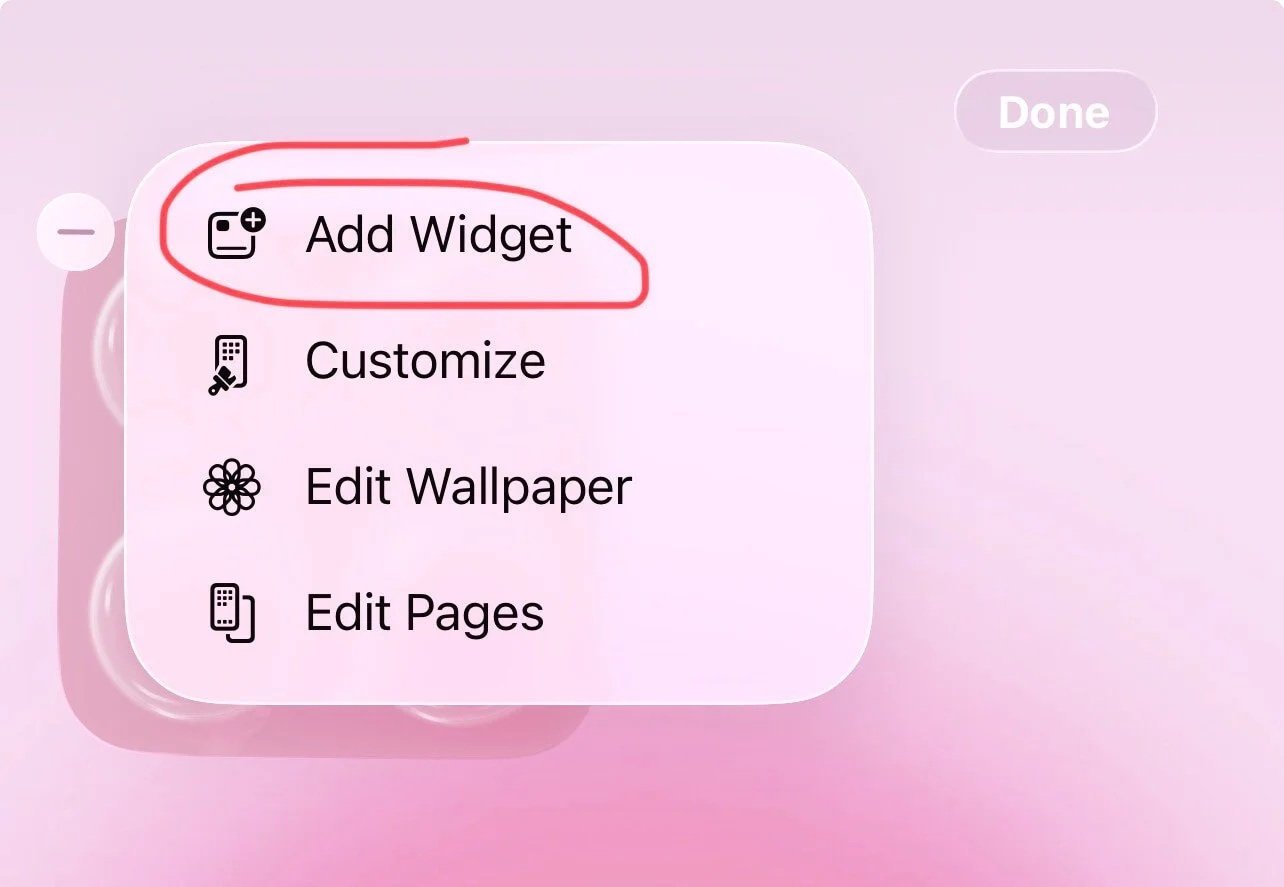
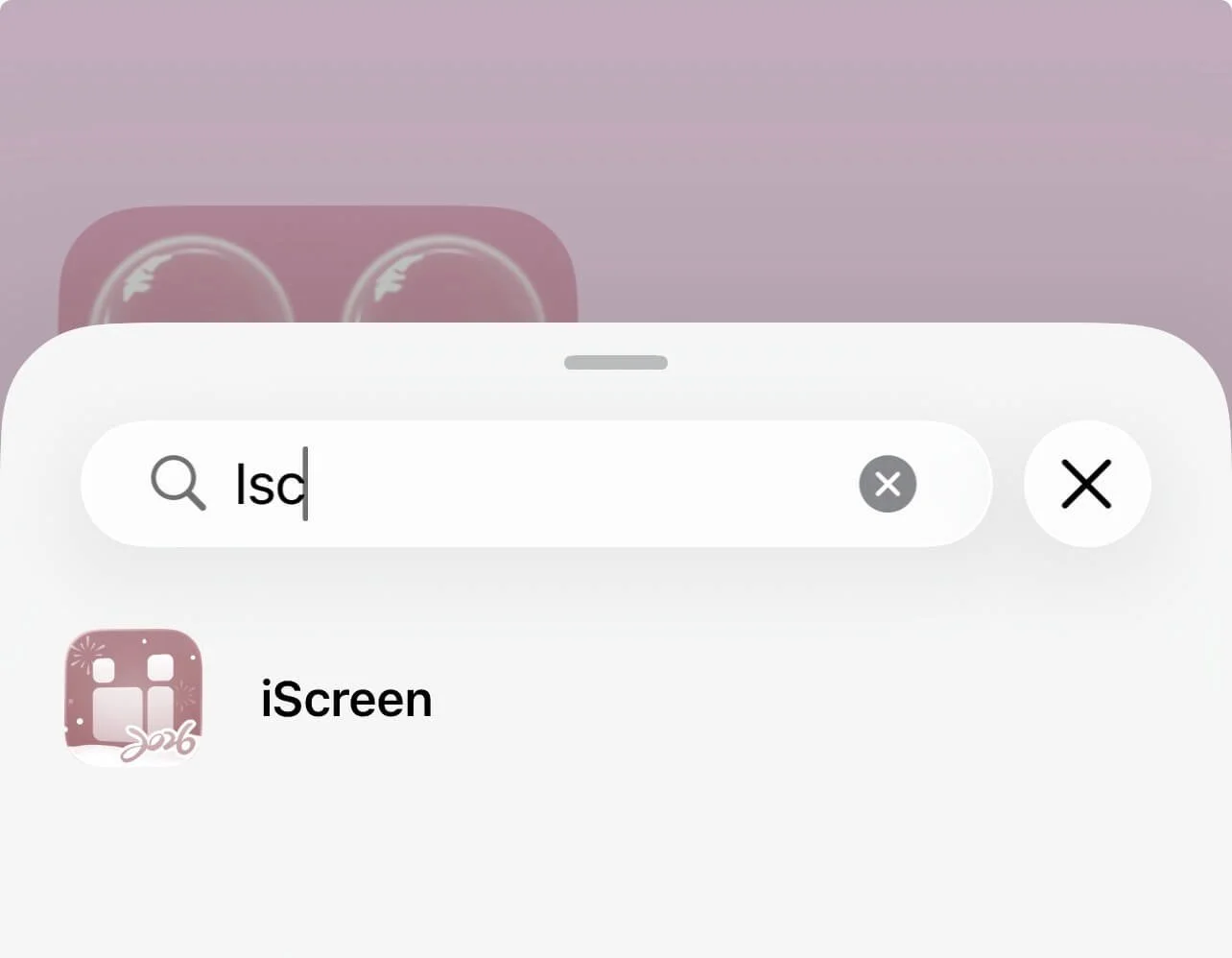
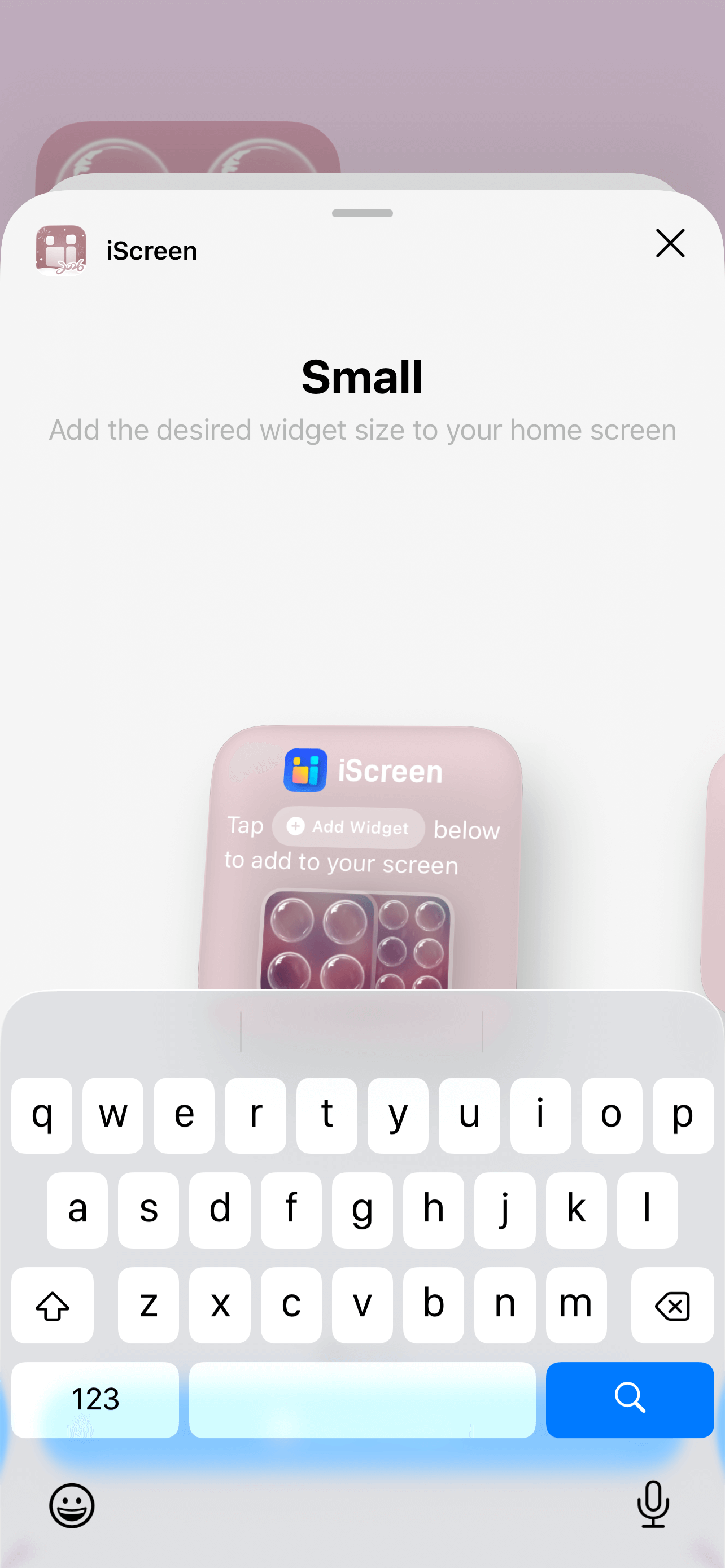
Now that your widgets are in your app, you can add them to your home screen. Long press > edit > add widget > search for iScreen > choose your widget size > add widget. Repeat for all widgets.
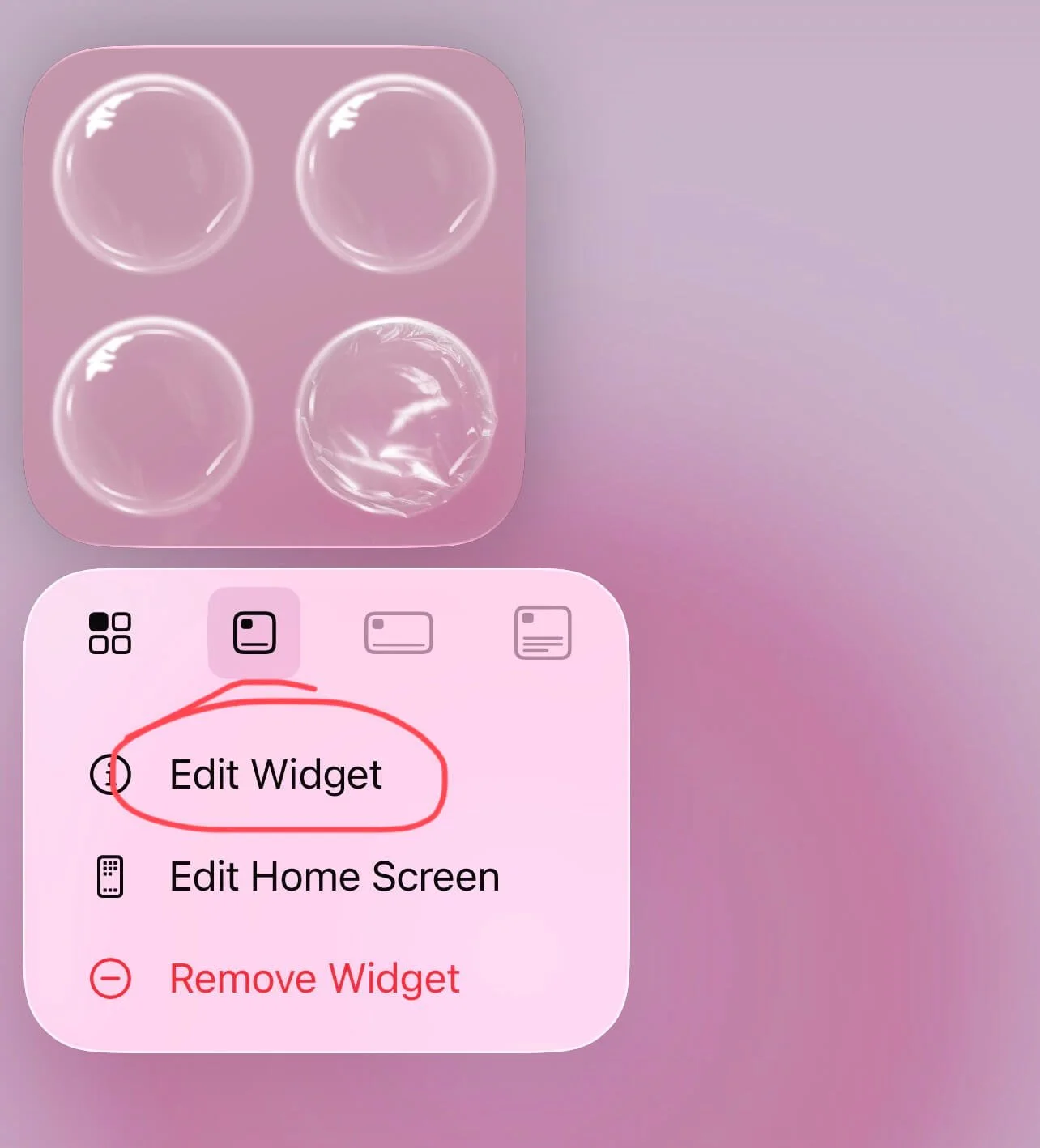
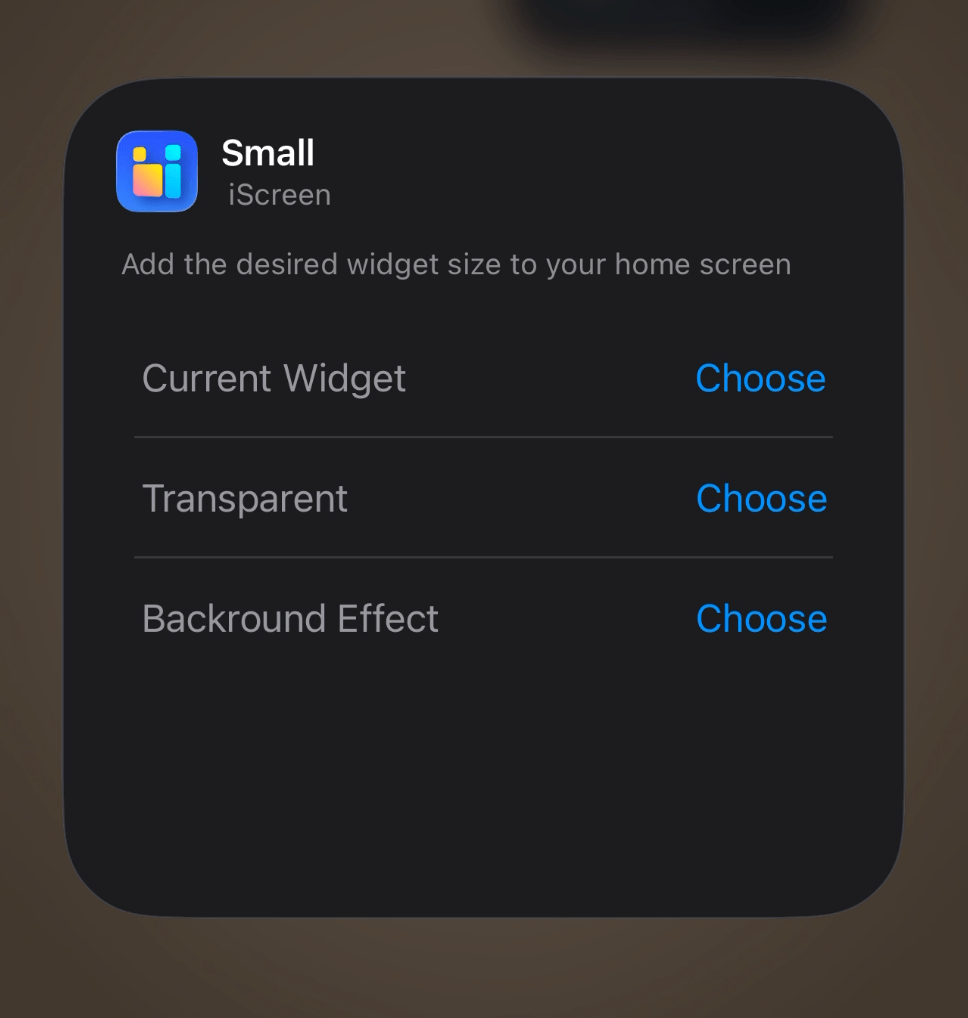
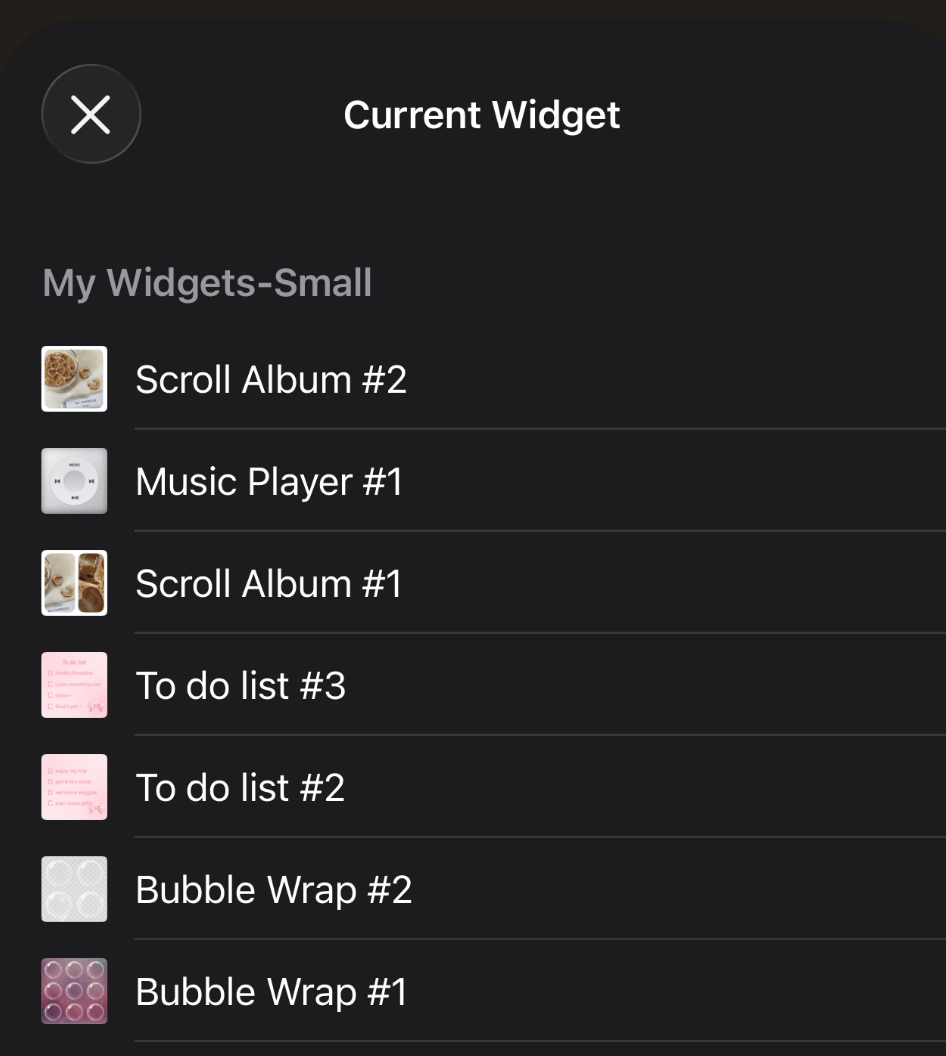
Your widgets will be added as default iScreen widgets. To select the exact widget you want, long press on it > edit widget > next to “current widget” select choose > choose your widget.
To add your to-do lists, follow the same steps but search for “reminders” instead. Your reminders widget will have a default list added. Change it by long pressing on it and tapping “edit widget,” then selecting the list you want.
The to-lists are interactive by the way! Tap the circles to mark things complete.
Home screen widgets I’m using:
iOS clock (iScreen, medium size)
Super CD (iScreen, small size)
Bubble wrap (iScreen, small size)
Reminders (native to Apple, small size)
#8: Add/Arrange Your Apps
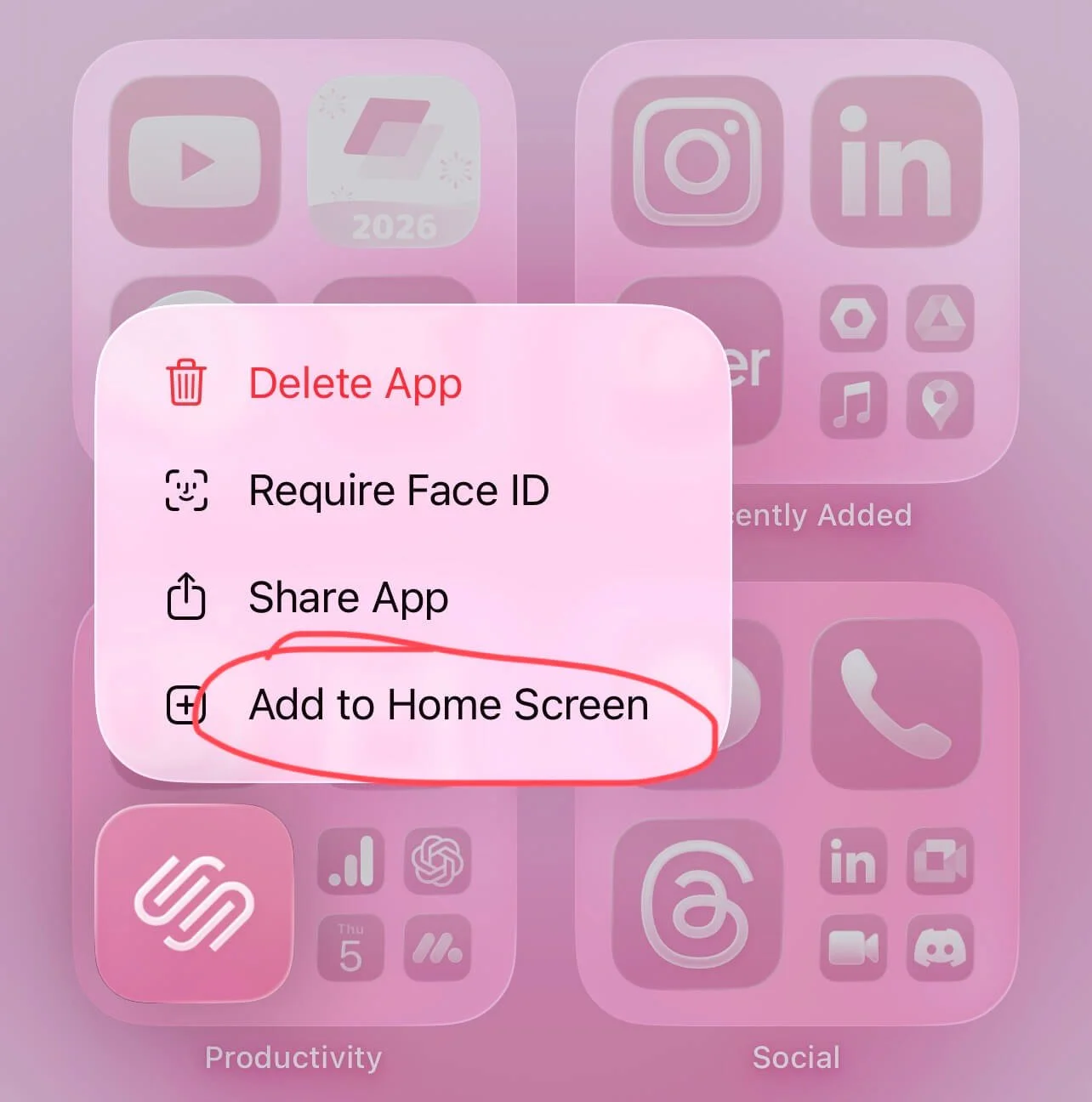
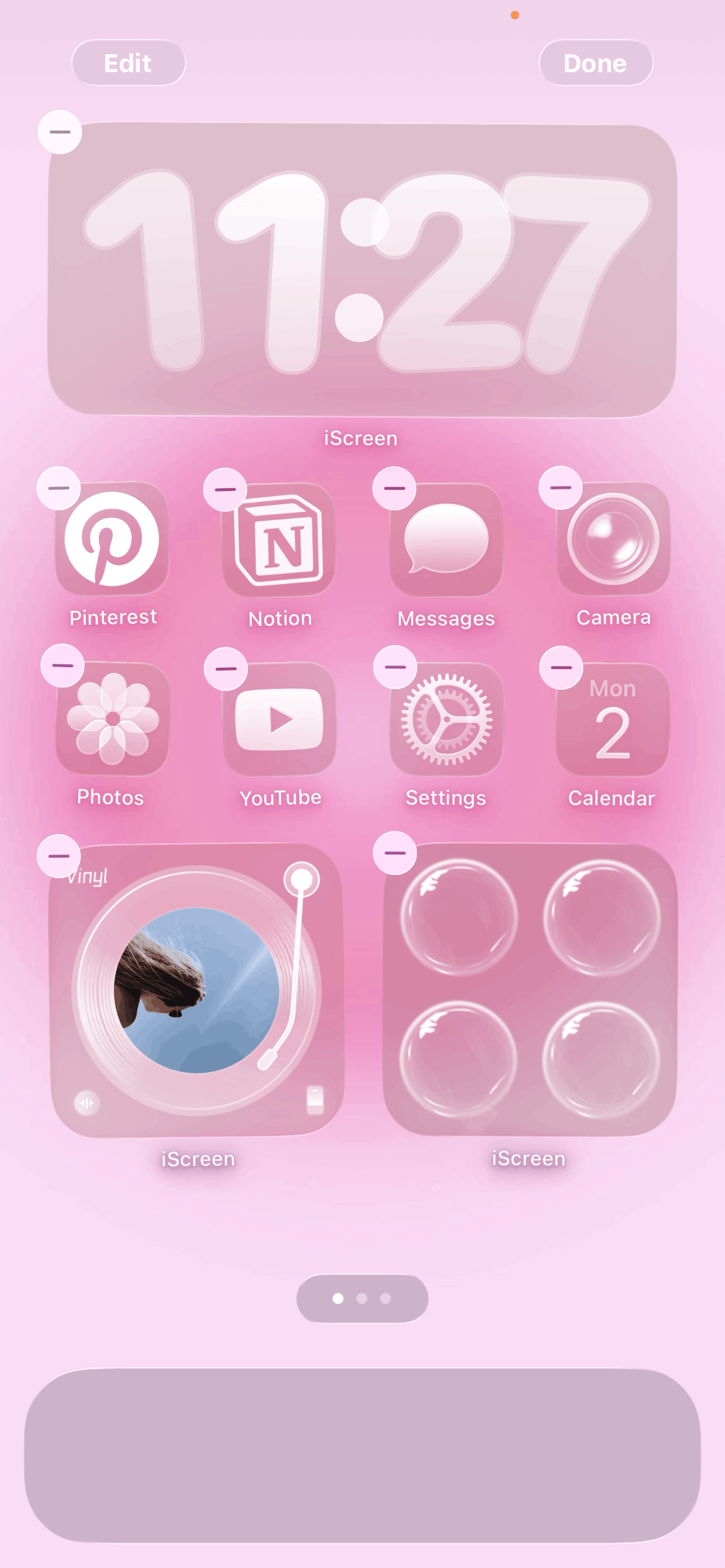
Add any apps to your home screen by scrolling all the way to the right until you reach the app library. Long press on an app you want to add and select “add to home screen.” On your home screen, long press and drag your apps where you want them.
Related: How To Make Your iPhone Aesthetic With iOS 26! (Customization Tutorial + Cozy Brown Phone Theme)
#9: Tint Your App Icons + More Home Screen Customizations

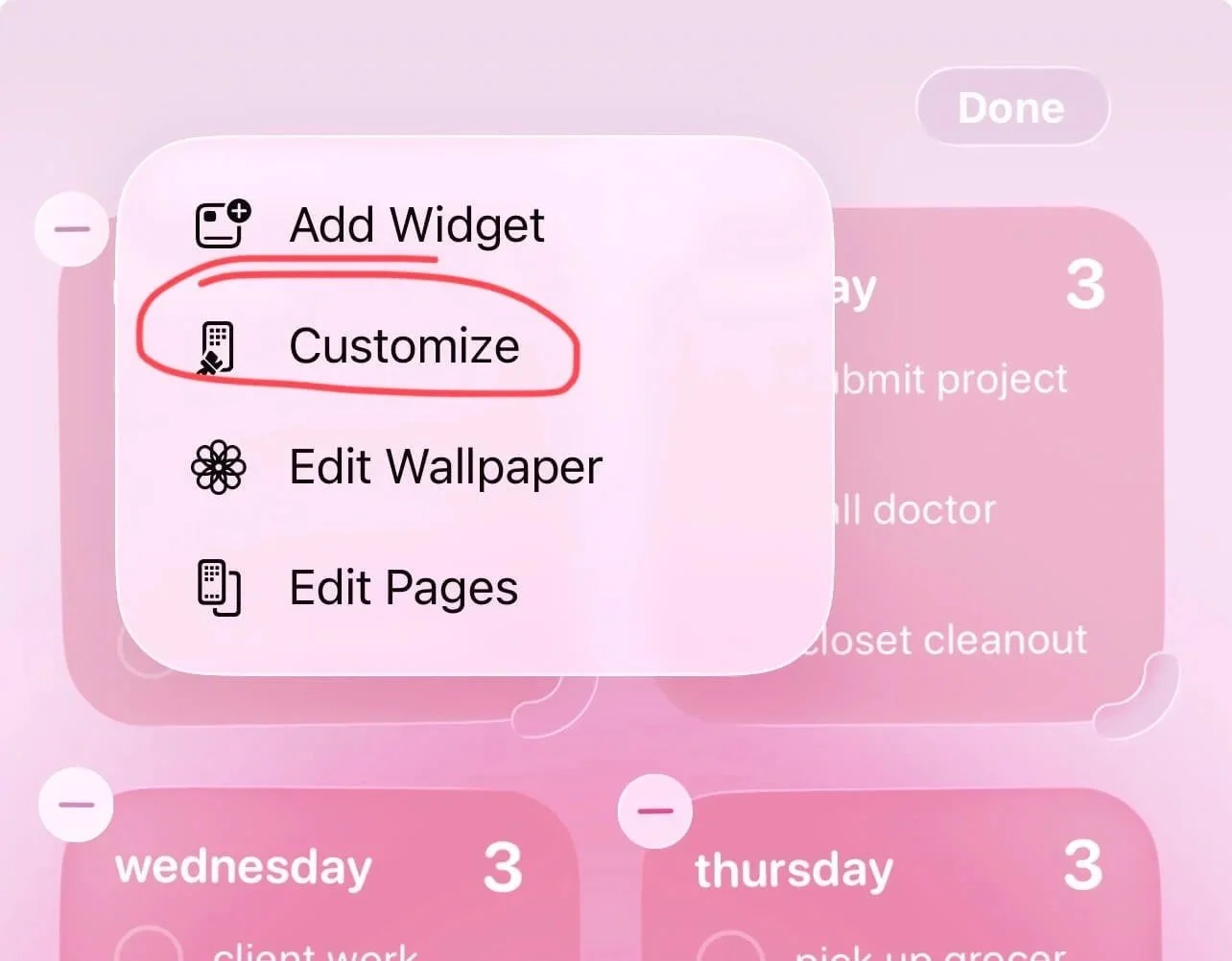
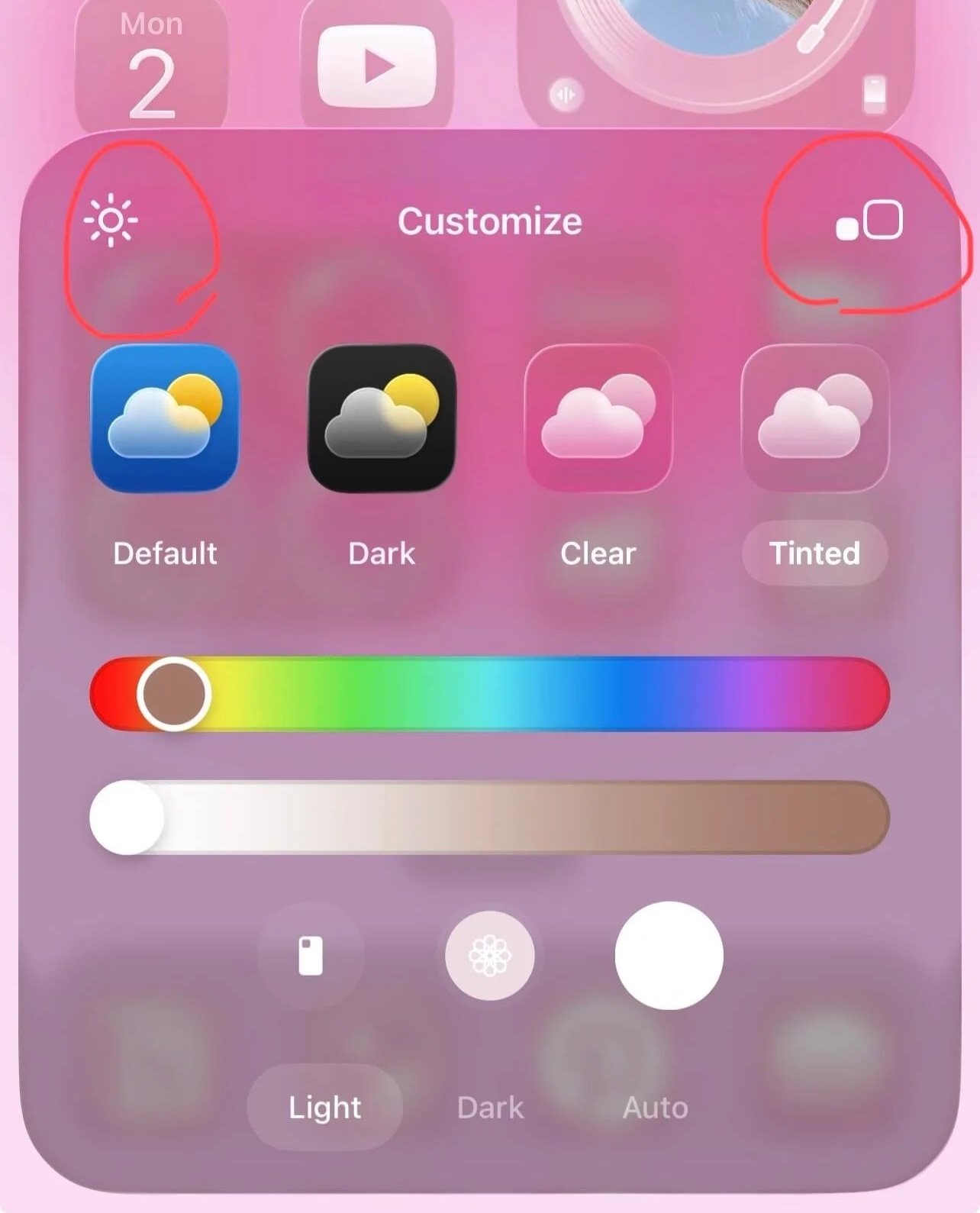
Long press your home screen and tap edit > customize. Use the sliders to find your perfect color. Or, a helpful tip is to use the little eye dropper tool to choose a color from your wallpaper. This helps create a cohesive look for your phone.
The other customization options I selected were “tinted” and “light mode.” I kept the light background by tapping the little sun icon. I also made the icons bigger/removed the app names by tapping the icon with the two little squares in the upper right corner.
#10: Customize Your Control Center
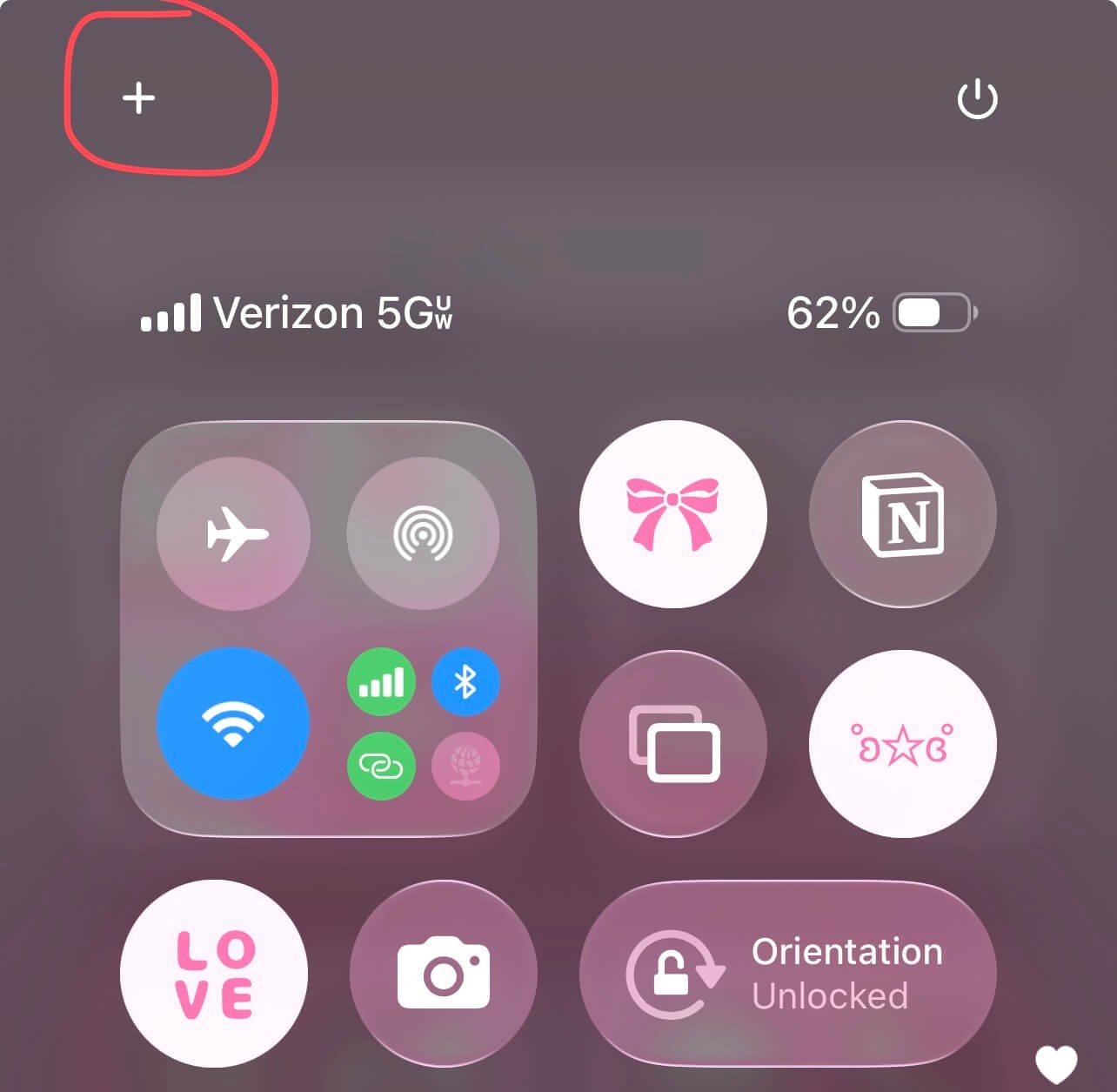
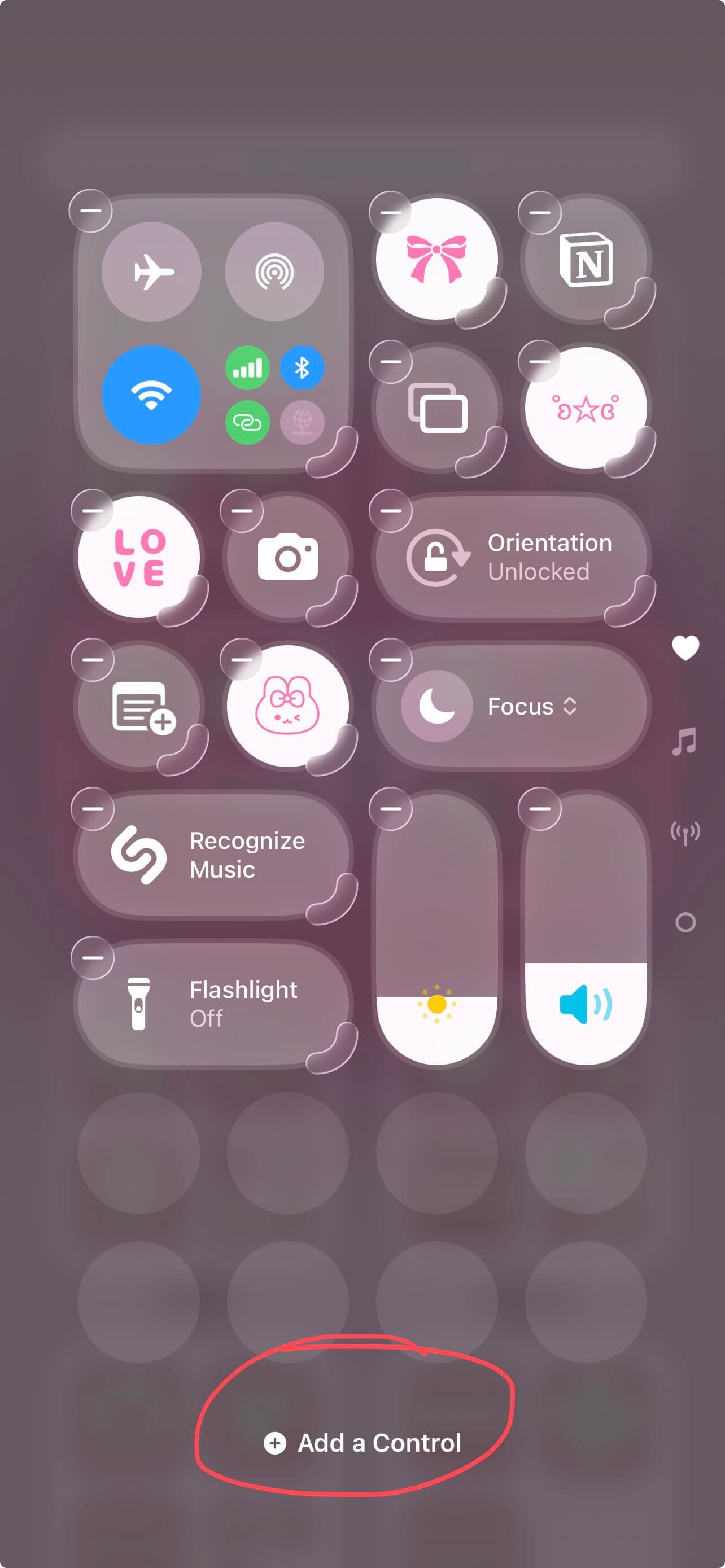
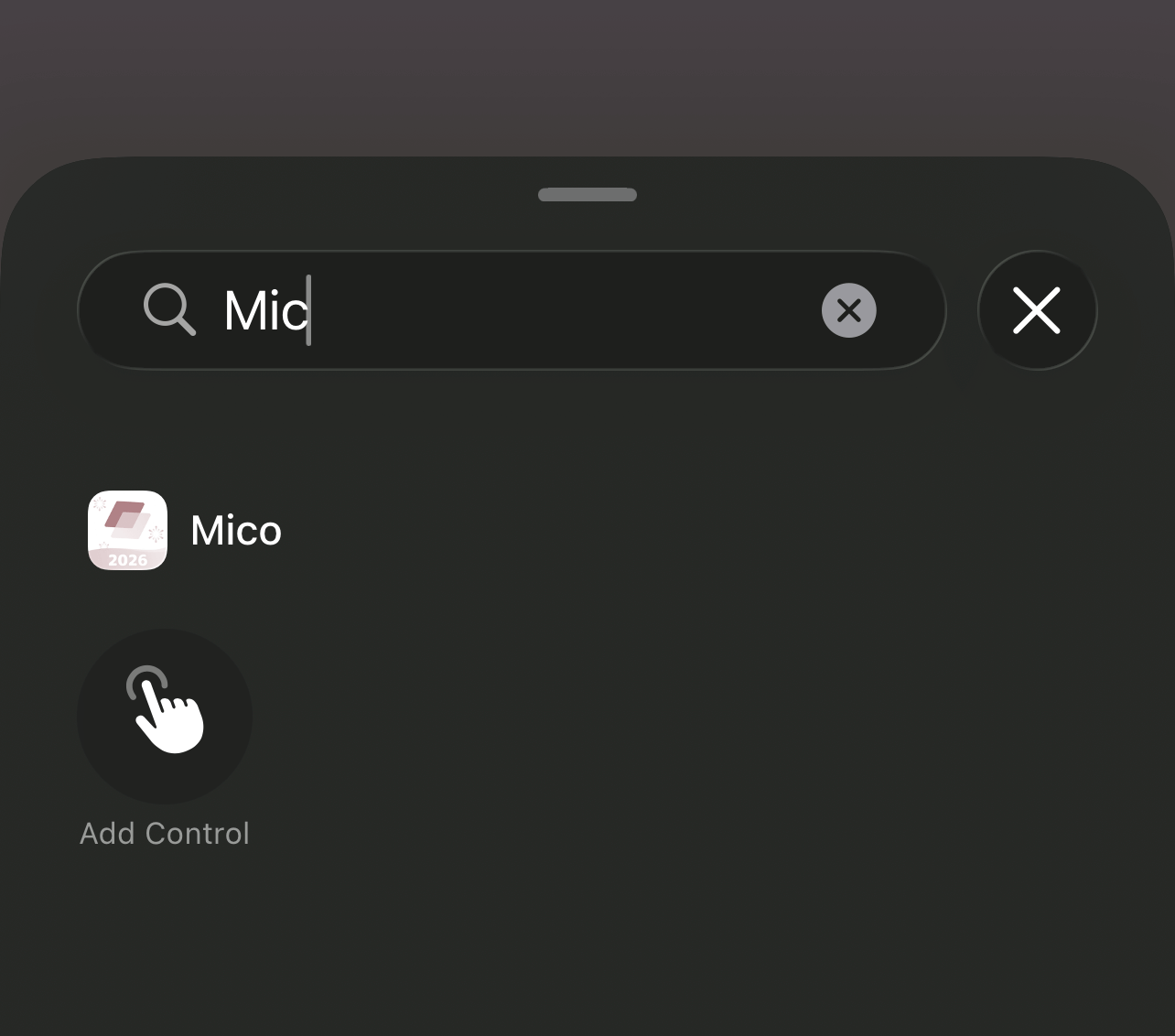
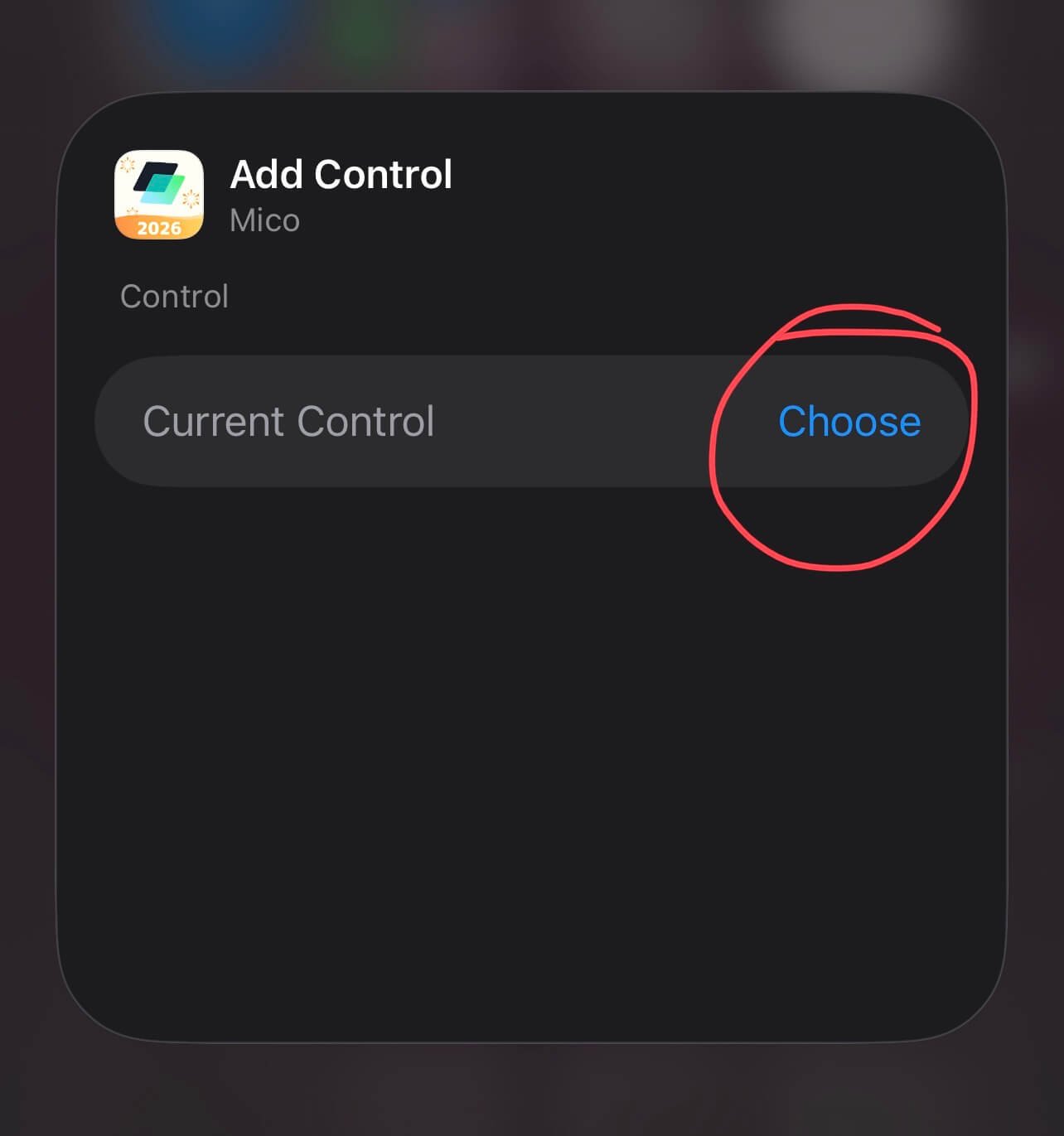
Drag down from the upper right side of your screen to open your control center. Then tap the plus icon in the upper left hand corner to access the customization page. Tap “add a control” at the bottom and then scroll to/search for Mico or any widgets you want to add. Tap it, tap “choose,” then tap on the control you want to add.
To further customize the control center, long press and drag your controls around. You can also drag the corners of certain controls to make them longer/shorter. Then you’re done!
Related video:
Closing Thoughts
Thanks for reading my iOS 26 customization tutorial! Hopefully this guide helped you make your phone more aesthetic and that it brightens your day.
For handmade digital art prints, icon packs, wallpapers, & more designed by me, be sure to stop by my digital boutique: Designed By Nikki Lo.
Connect with me!