27 Ways To Make Apple Notes Aesthetic! (MUST-KNOW Customization Tricks)
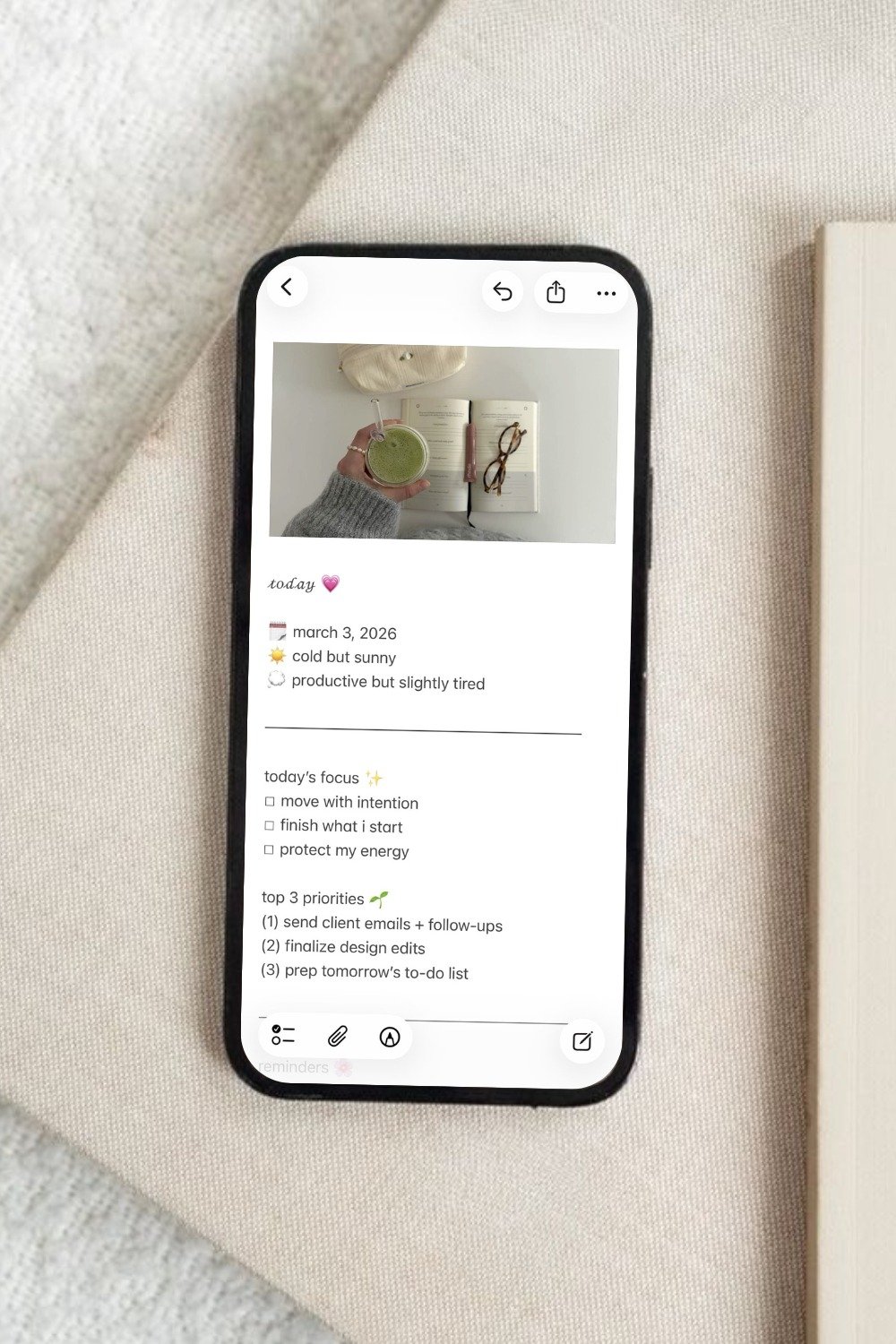
This post is about how to make your Apple Notes aesthetic and organized with some must-try customization tricks.
If your Apple Notes app feels more chaotic than calming, it might be time for a digital glow up! Apple Notes isn’t just a place to dump random thoughts. With a few intentional tweaks, it can become a clean, aesthetic space that feels like your all-in-one digital planner.
From smart folders and cute fonts to subtle formatting tricks, here are 27 simple ways to transform your Apple notes app into something that looks as good as it functions.
27 Apple Notes Customization Tips & Tricks
#1: Create A Banner
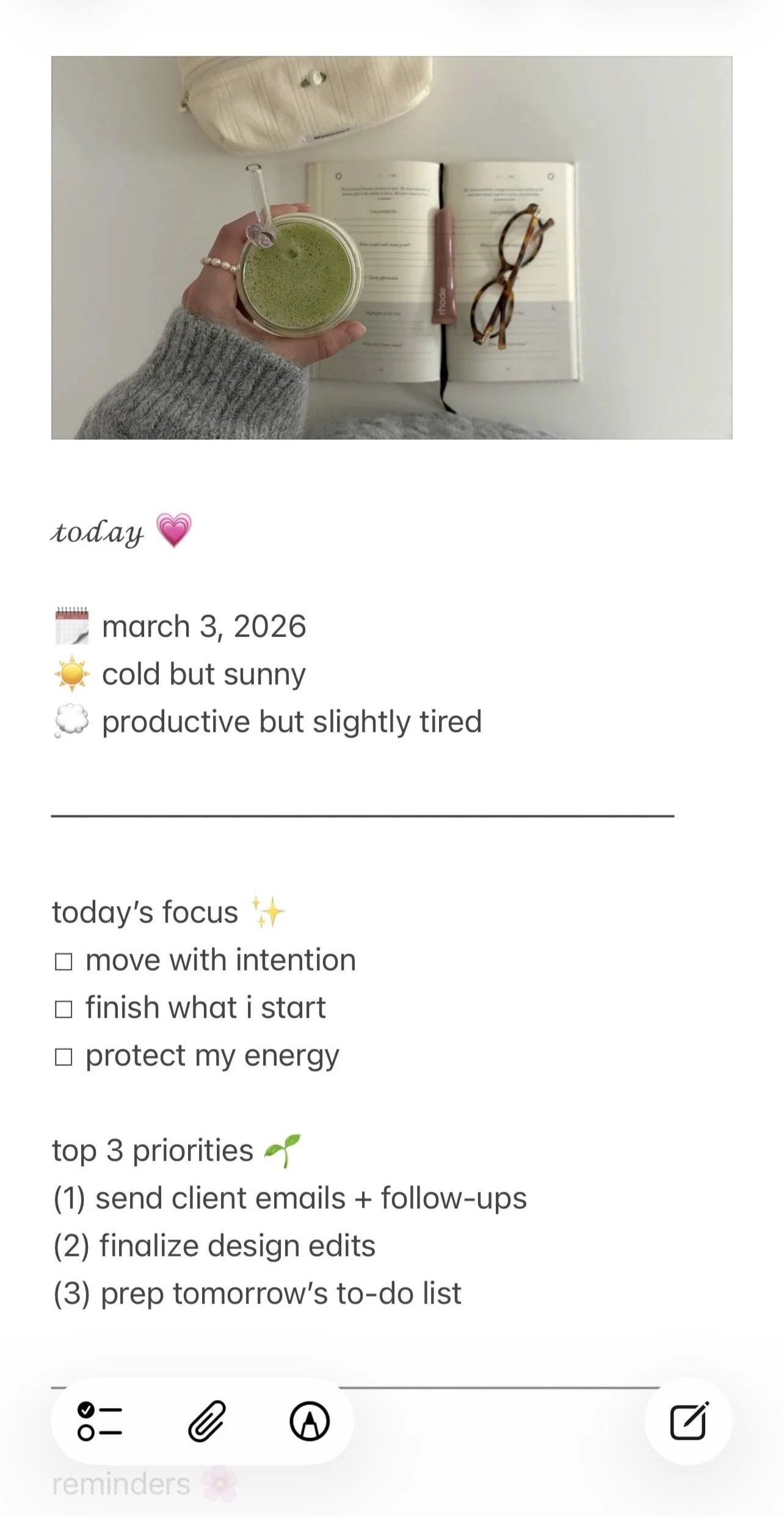
A super fun idea to decorate your notes is to add an image at the top that acts like a cute banner.
To add an image, tap in your notes > tap the paperclip icon in the toolbar above the keyboard > choose photo or video, upload image from your photo library.
#2: Use Smart Folders & Tags
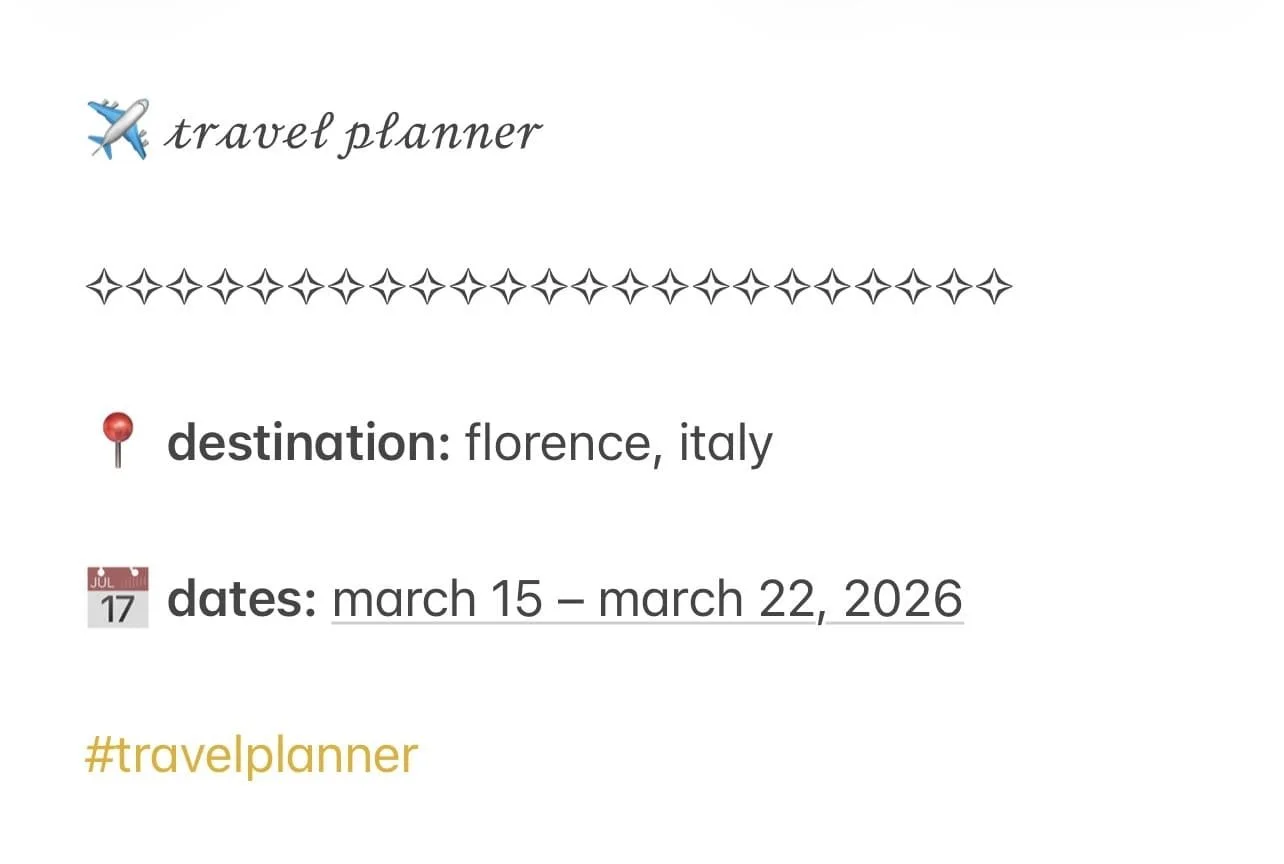
A smart folder is a folder that automatically organizes notes for you using tags. Instead of dragging notes into folders manually, you add a simple hashtag inside your note and Apple Notes sorts it for you.
Inside any note, type a hashtag word like: #contentideas. Make sure to not include any spaces in the actual tag, but press space when you’re done typing and make sure the hashtag turns yellow.
And that’s it! You don’t have to put it anywhere special. Just type it naturally in the note. Once you type the tag, it becomes clickable.
To access your notes via their tags, go to your main Apple Notes screen > tags > tap a tag > all note with that tag will appear.
#3: Insert Videos
You can insert videos into Apple Notes by saving them to your Photos app and adding them the same way you’d add an image. This is such a fun way to add some life to your Apple Notes and make it look cute, too!
Sadly, they won’t automatically play, but they’ll have a play button so you can play them quickly and easily.
Related: 30 Ways To Customize Your Apple Calendar (EASY Tricks To Make It Aesthetic)
#4: Pin Your Most Important Notes
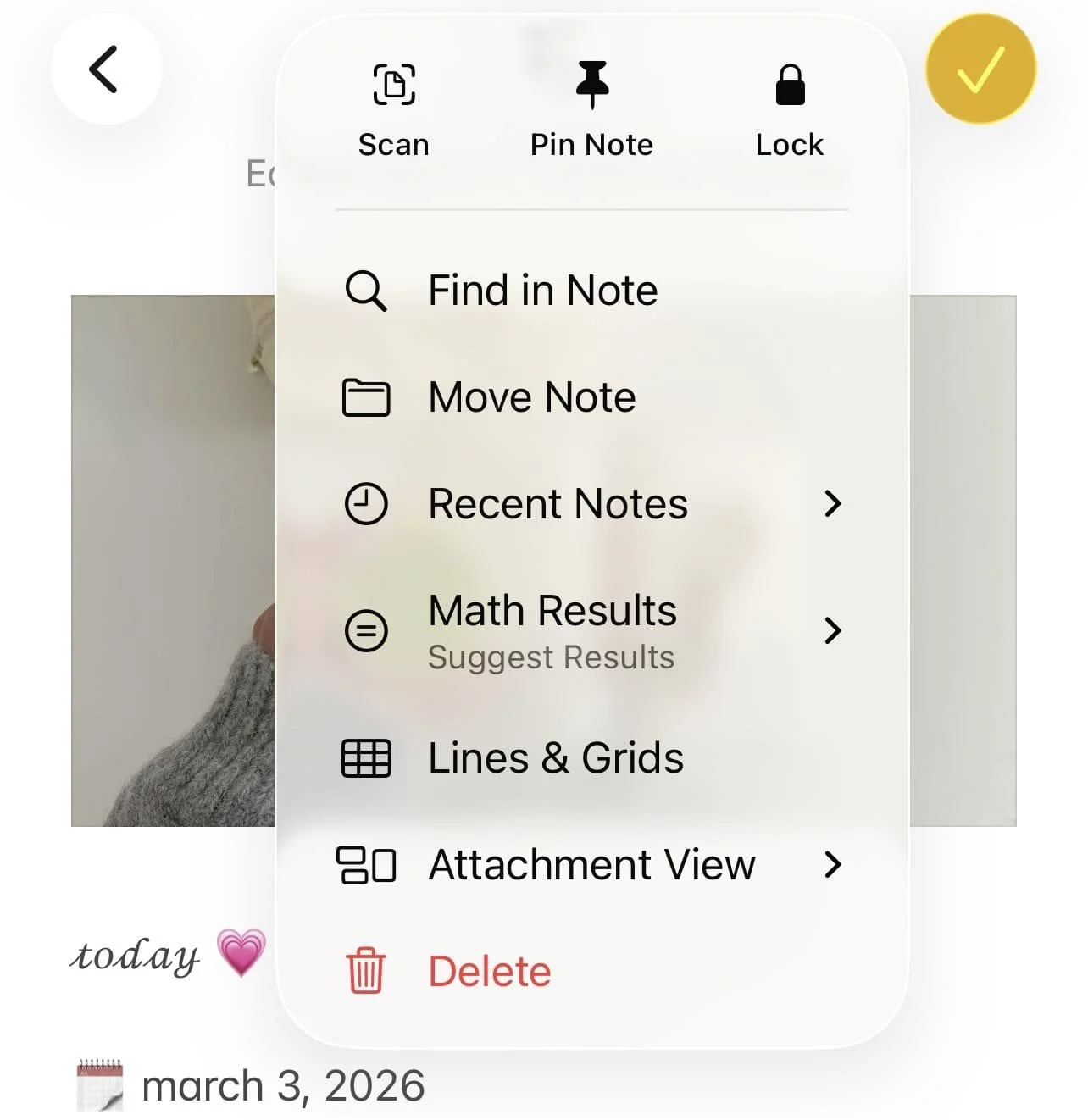
You can also pin notes to the top of your main page so they’re easier and faster to access. To do this, tap the three dots icon > tap the pin icon. To unpin the note, tap it again. This keeps your most-used notes at the top of your screen even if you create new ones.
#5: Create A “Main Dashboard” Note
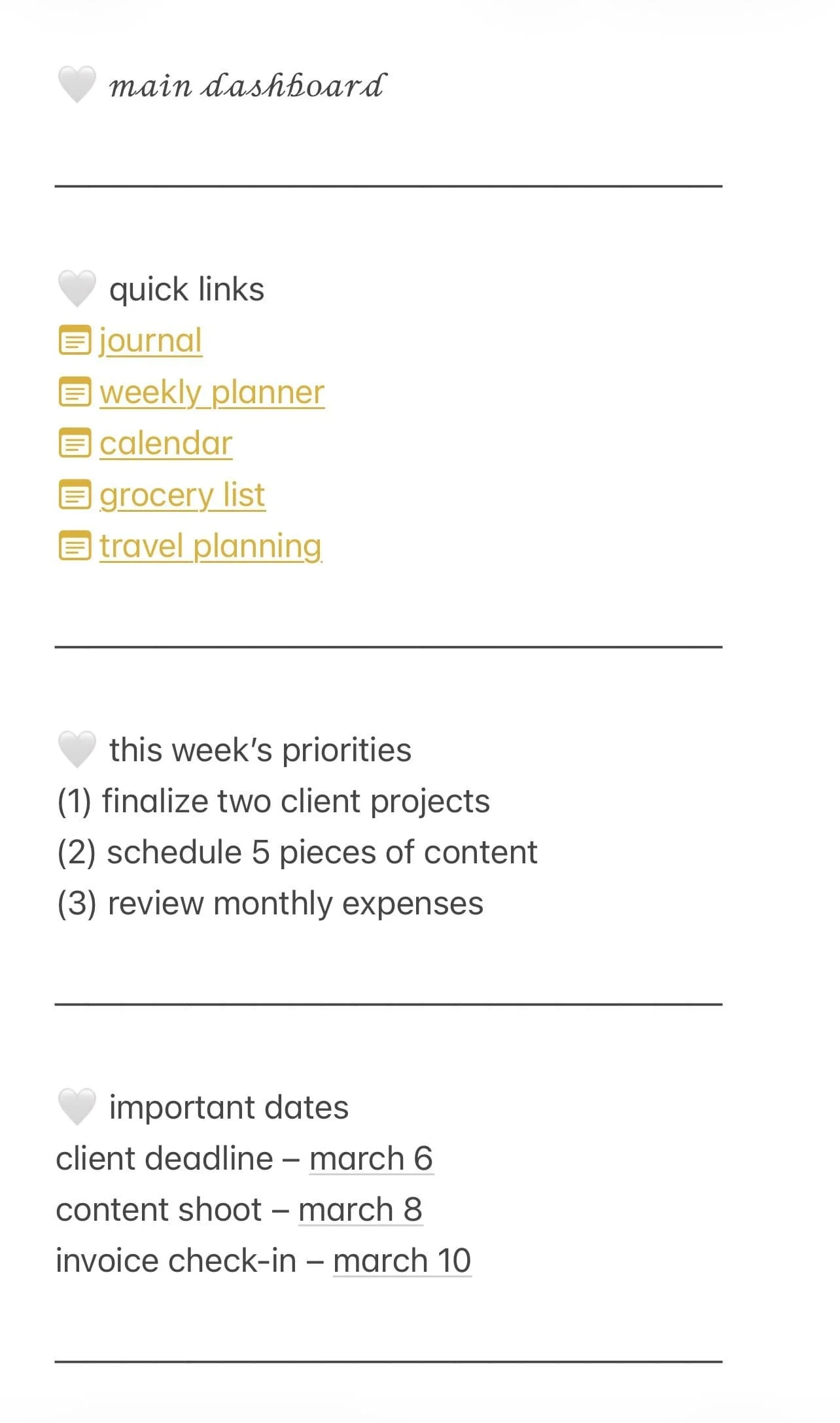
A main dashboard is one single note that acts kinda like your homepage inside Apple Notes.
Instead of opening the app and seeing a long, random list of notes, you open your main dashboard and immediately land on one clean, intentional space that shows what you’re working on, what matters right now, where everything lives, and so on.
Definitely pin this one to the top of your notes for quick access!
#6: Use Tables
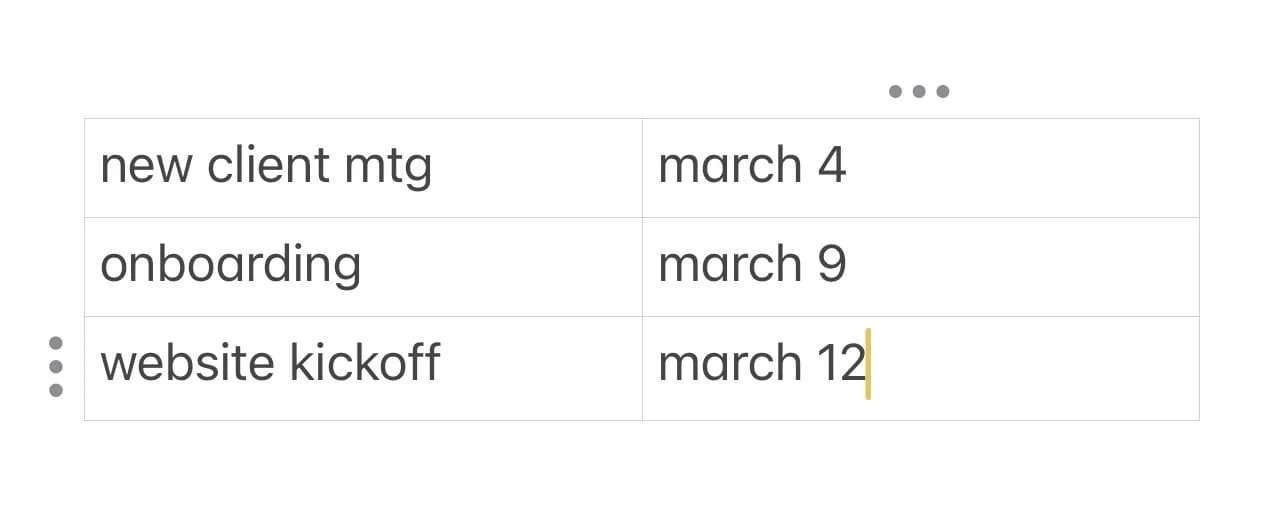
Tables in Apple Notes are seriously underrated when it comes to creating a clean, aesthetic setup. Instead of messy lists, you can use tables to organize habit trackers, content calendars, budget breakdowns, and more in a way that looks structured and intentional. The neat rows and columns instantly make everything feel more put-together.
To add a table, tap inside your note > tap the little grid icon in the menu above the keyboard. It will insert a simple grid that you can customize by adding or deleting rows and columns as needed (tap the dots on the top/side of the table). Tap inside the boxes to type.
#7: Make a Color Highlight System

To keep your notes nice and easy to decipher, use highlight colors strategically by creating a system. For example, yellow = important, pink = personal, green = completed.
#8: Add Notes As A Widget
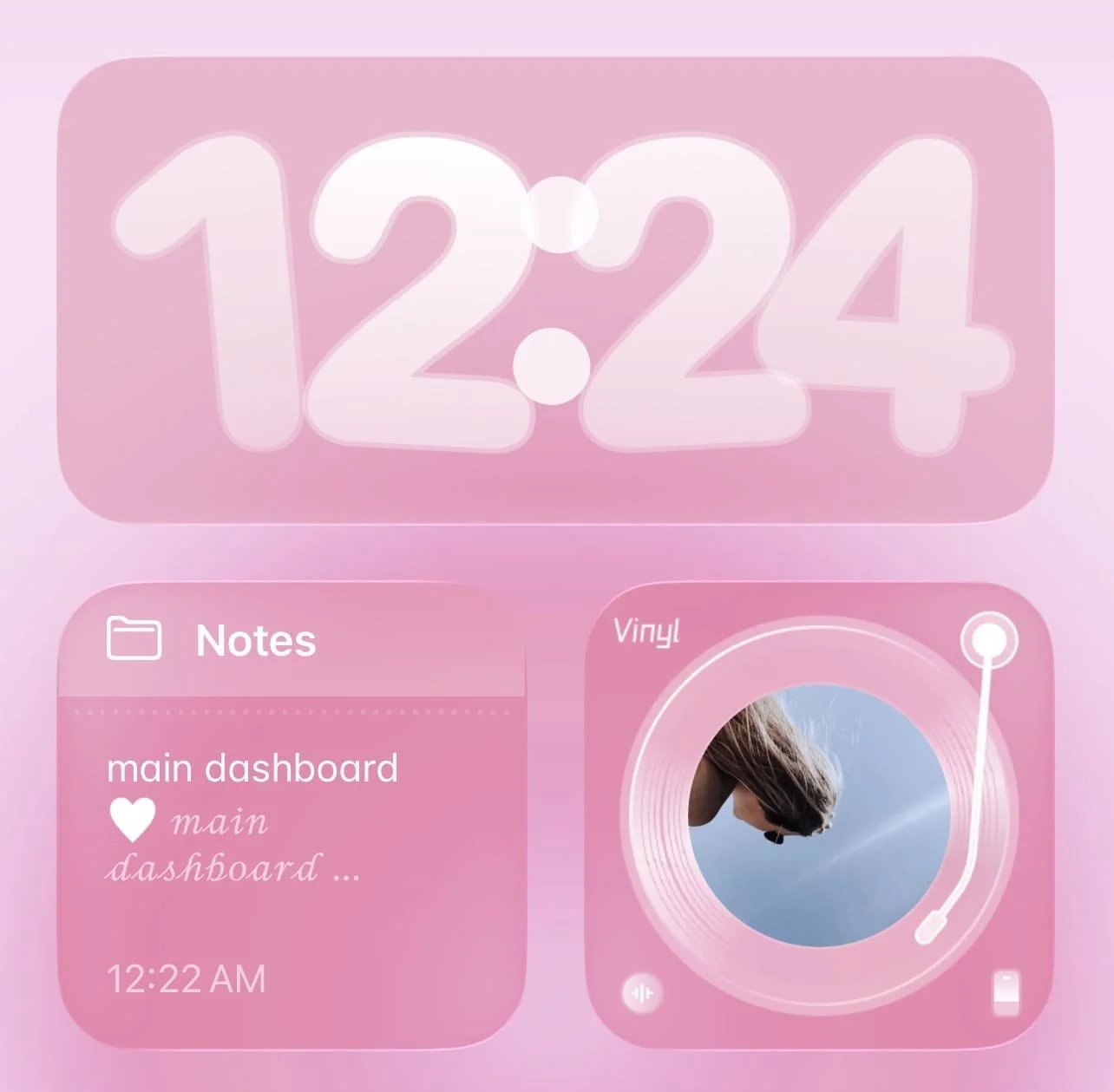
Having your notes on your homepage is a perfect way to keep important reminders in sight all day. Plus, you can tap them to go directly to your notes.
How to get a widget on your homepage in iOS 26/27: long press on your home screen > edit > add widget > Notes > choose size > add widget.
#9: Use Monospaced Font for Minimal Sections
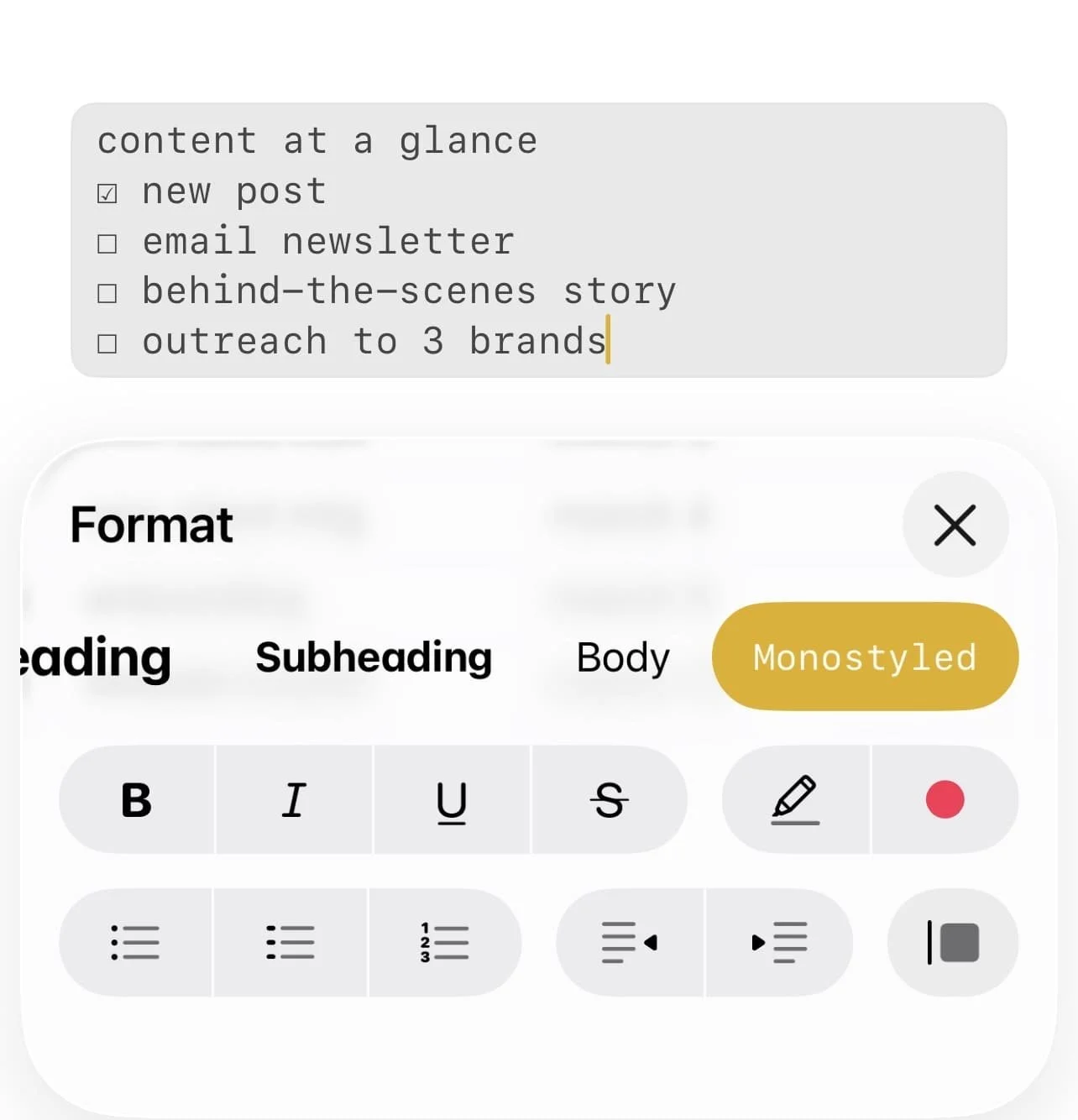
Monospaced text creates a clean, editorial feel that always looks adorable. This is especially perfect for quotes, headers, journals, etc. To get the look, tap inside your notes > highlight text > tap format (Aa) > scroll right and tap monospaced.
#10: Link Notes Together

Type “>>” and start typing another note’s name to link it directly to the note you’re in. A menu with all your notes should pop up - tap the note you want to link. Super convenient if you need to quickly cross-reference another note while typing.
#11: Use Images In Fun & Creative Ways
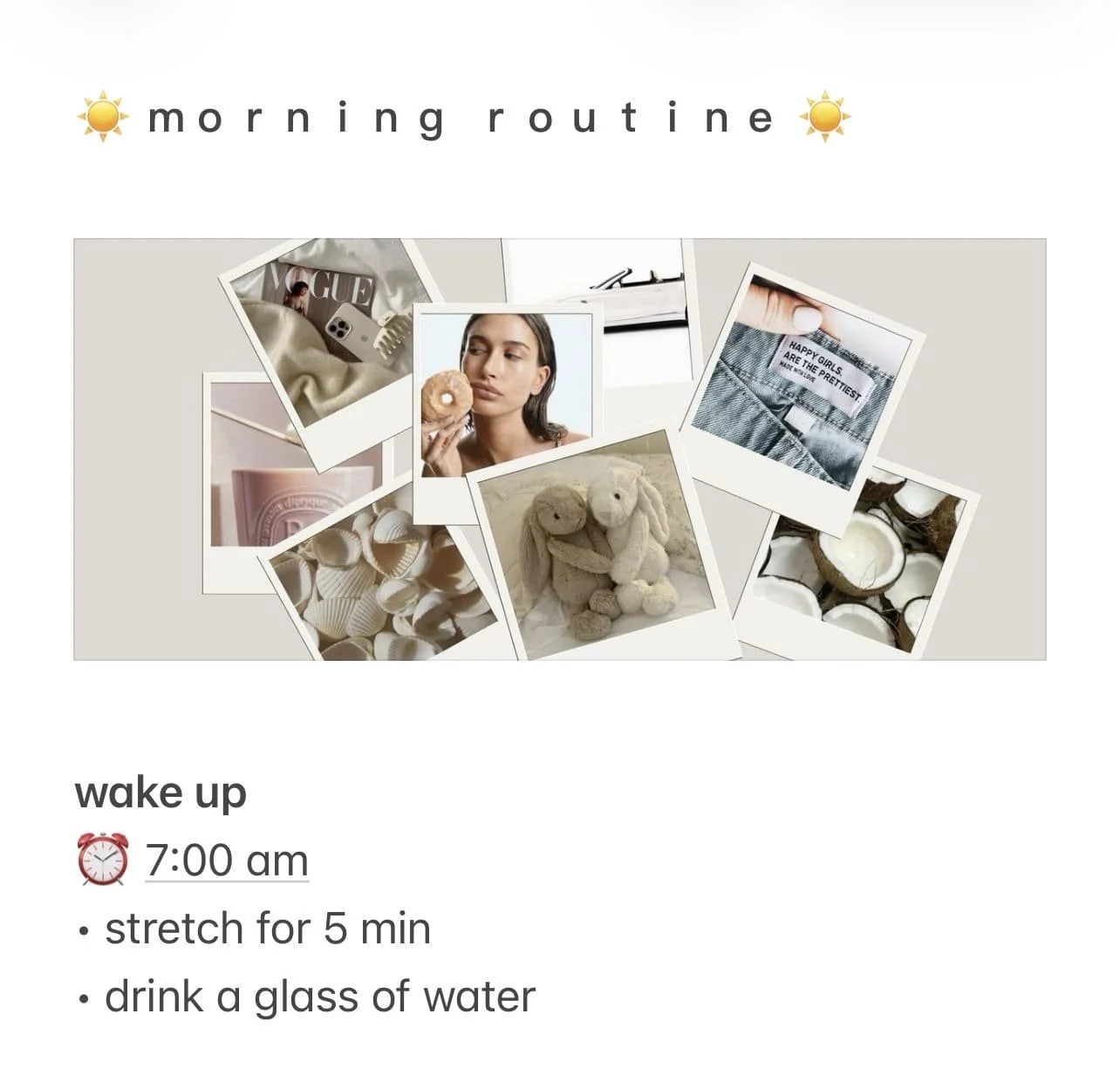
There are lots of fun ways you can incorporate images into your Apple Notes! Think mood boards, transparent PNGs for icons, section dividers, decorative elements, and so much more.
Related: How To Customize Apple Watch Series 12 (watchOS 27)
#12: Use Date Stamps
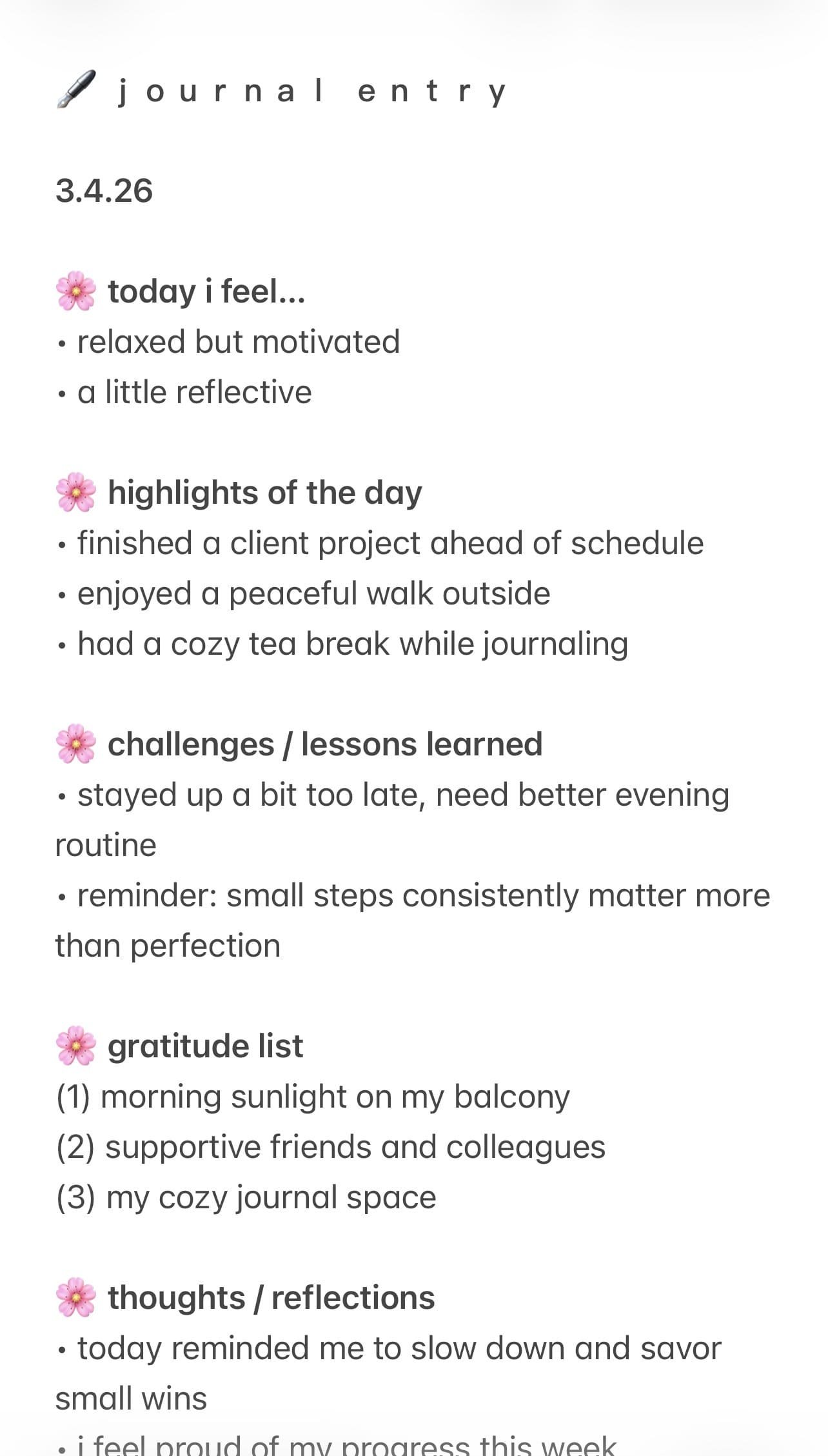
If you use Apple Notes for journaling, you’ll love this. At the top of personal entries, add the current date such as: 3.2.26. Maybe add some cute symbols and emojis, too. This makes your page feel like a soft diary rather than a random note.
Related: How To Customize Your iPhone With iOS 26 (Aesthetic Pink Aura Theme + Tutorial!)
#13: Use Templates
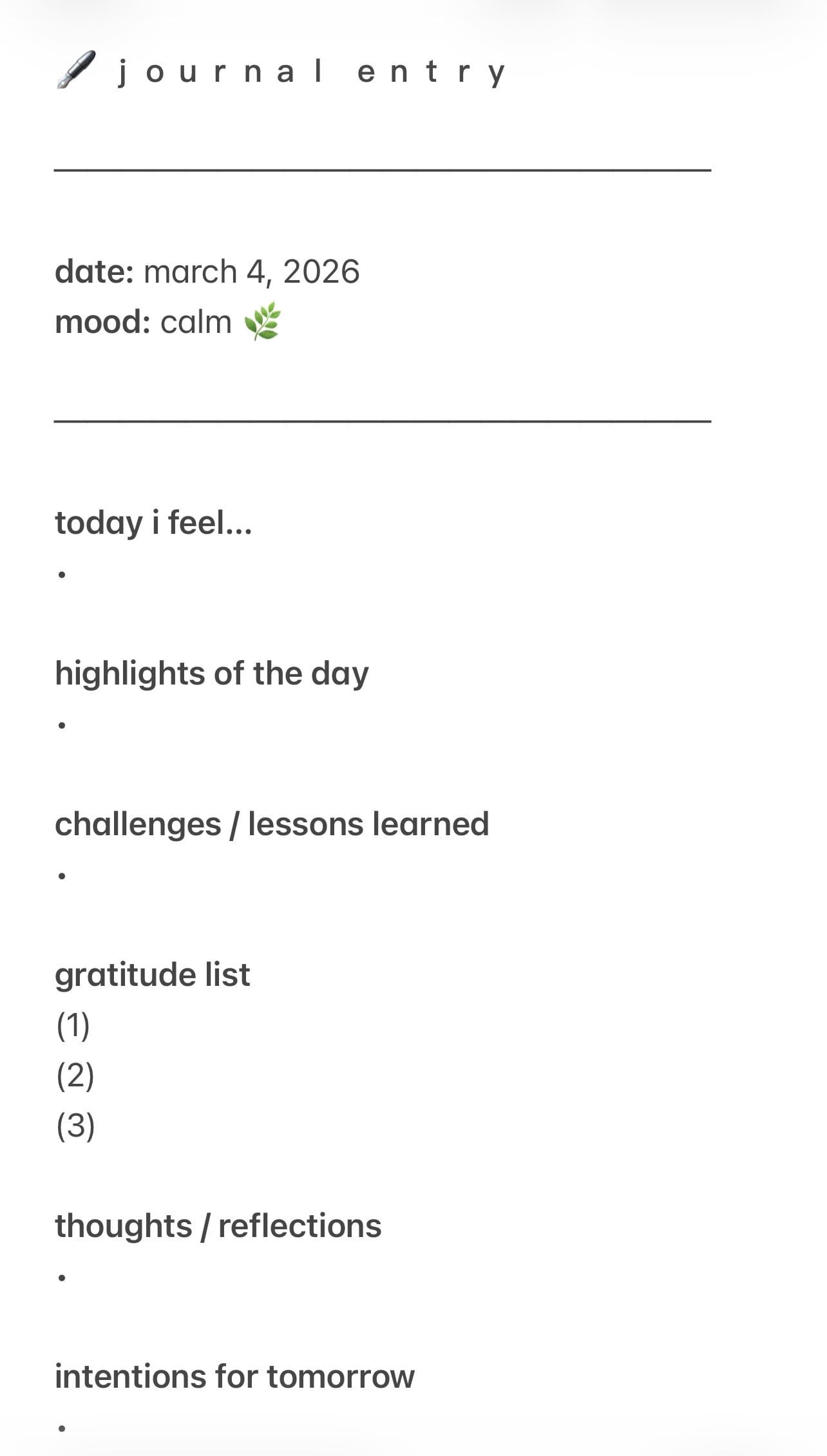
If you create a lot of notes on the same topic, for example, recipes or video scripts, you might want to create a template for those notes and duplicate it each time you create a new note. This is such a time-saver!
#14: Add Aesthetic Quotes At The Top
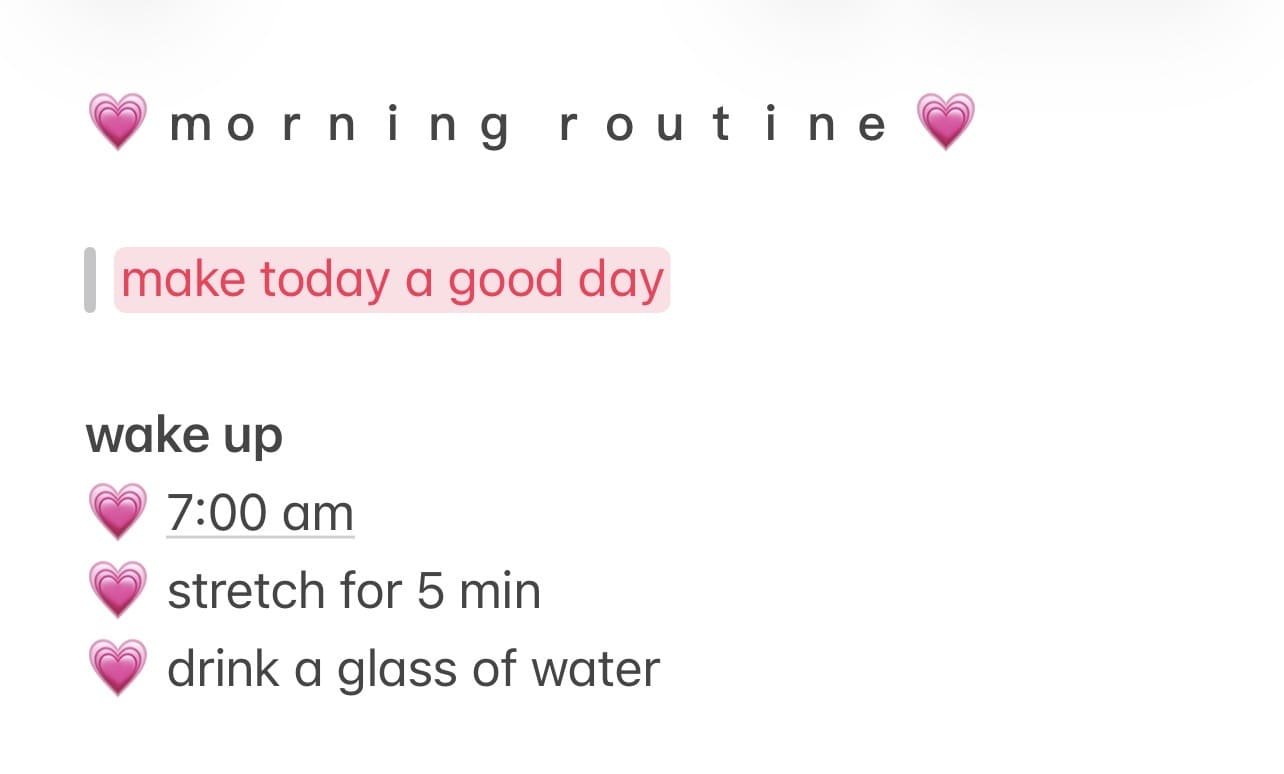
Start notes with a cute quote! It makes your notes feel intentional, not just functional. Add fun styling like monospacing, quotation marks, highlighting, or a callout.
#15: Use Collapsible Lists/Sections

If you're on newer iOS/macOS versions, you can collapse lists and sections. Use this for long lists, study notes, brain dumps, weekly planning, and more. Clean when closed, detailed when open!
To create a collapsible section, create a bulleted or checkmarked list, highlight the heading > format (Aa) > select either title, heading, or subheading > tap the little arrow that appears on the left side of the heading.
#16: Pick A Note Personality
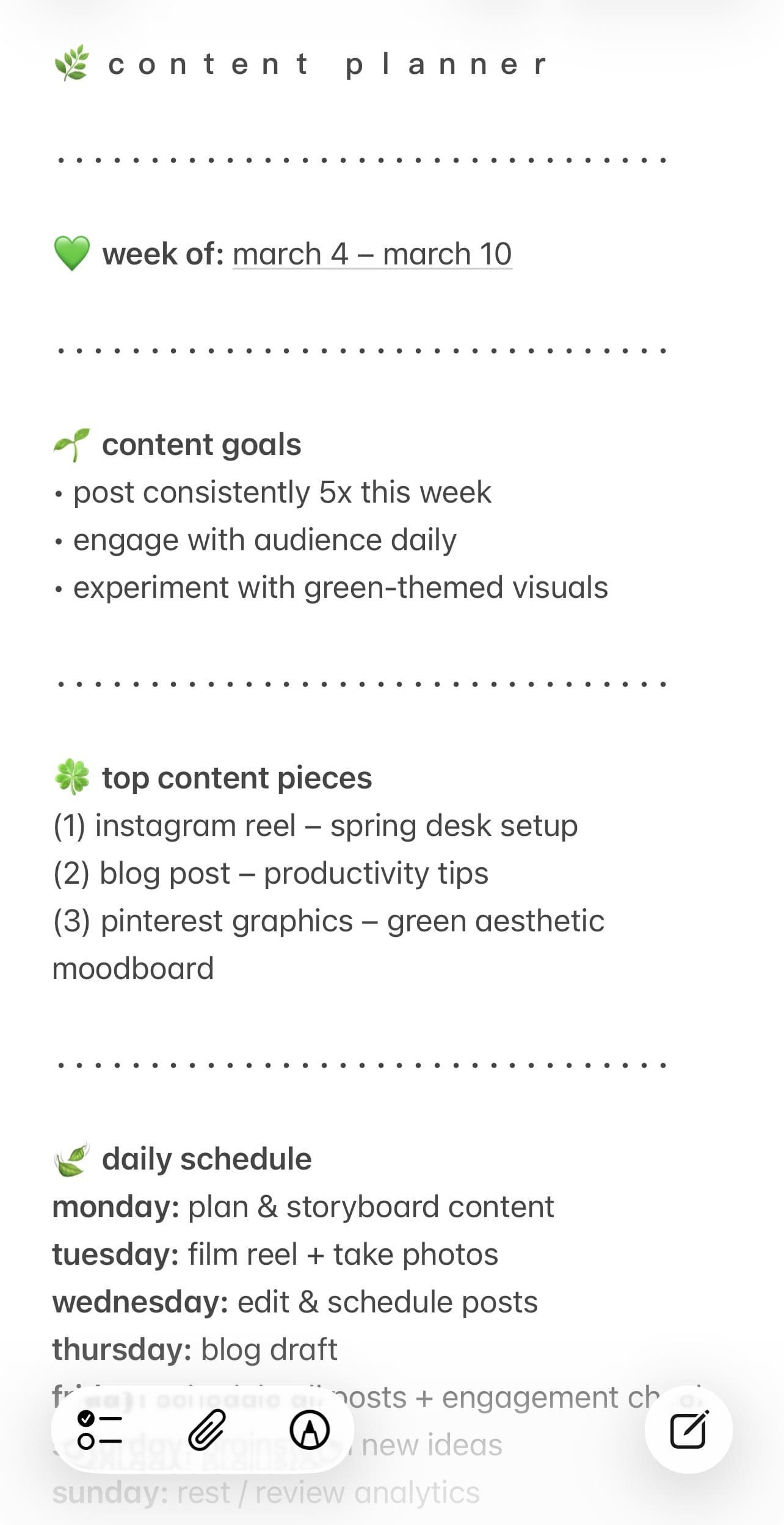
Decide your style! Consistency makes your notes look cute and curated. Some ideas could be lowercase only, no punctuation, extra spacing, themed emojis, monospaced text, highlight color codes, and so much more.
#17: Add An End Cap
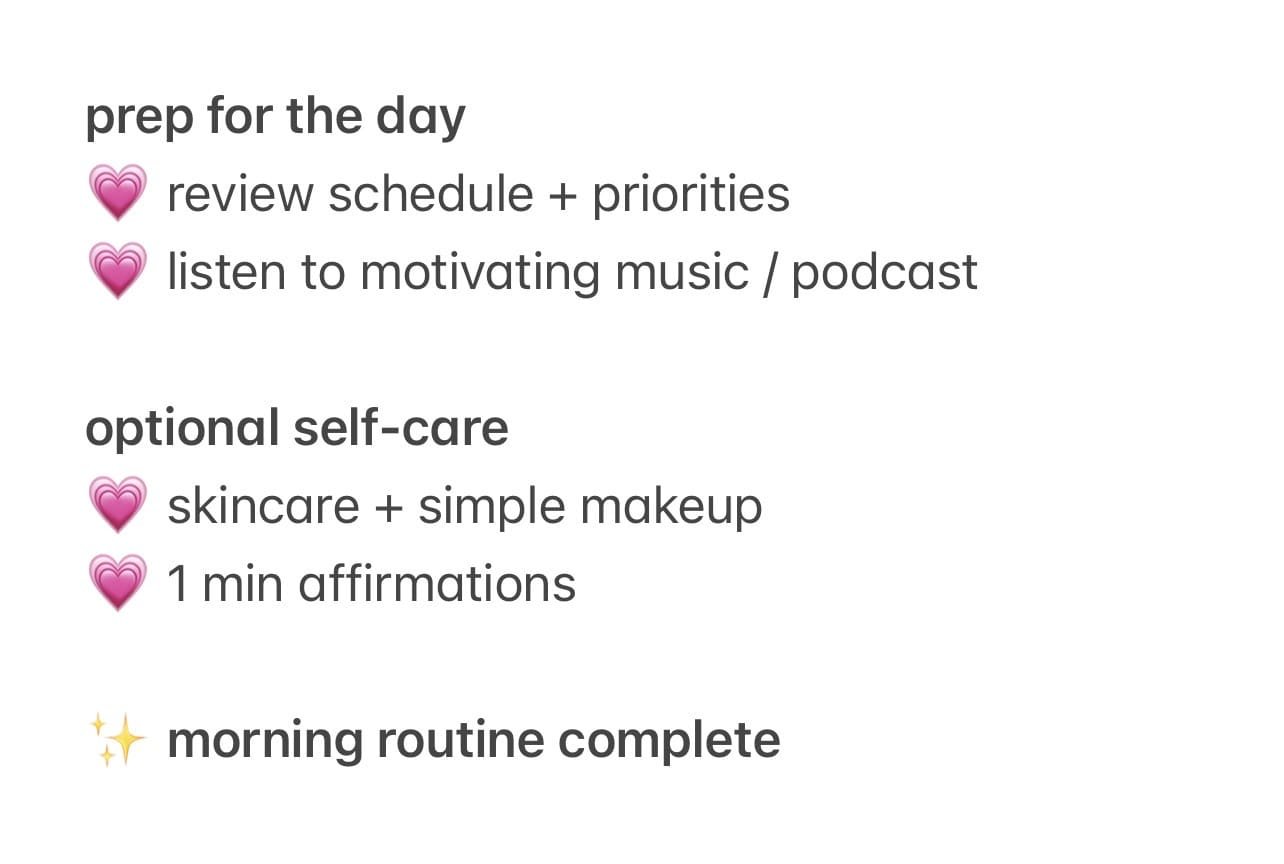
In Apple Notes, most notes just….end. An end cap gives your note a soft, intentional closing kinda a like the final page of a journal instead of a random draft. It’s a small line, phrase, or symbol at the bottom of your note that signals “this is complete.” Example: reset complete ✨
#18: Use Symbol/Emoji Dividers
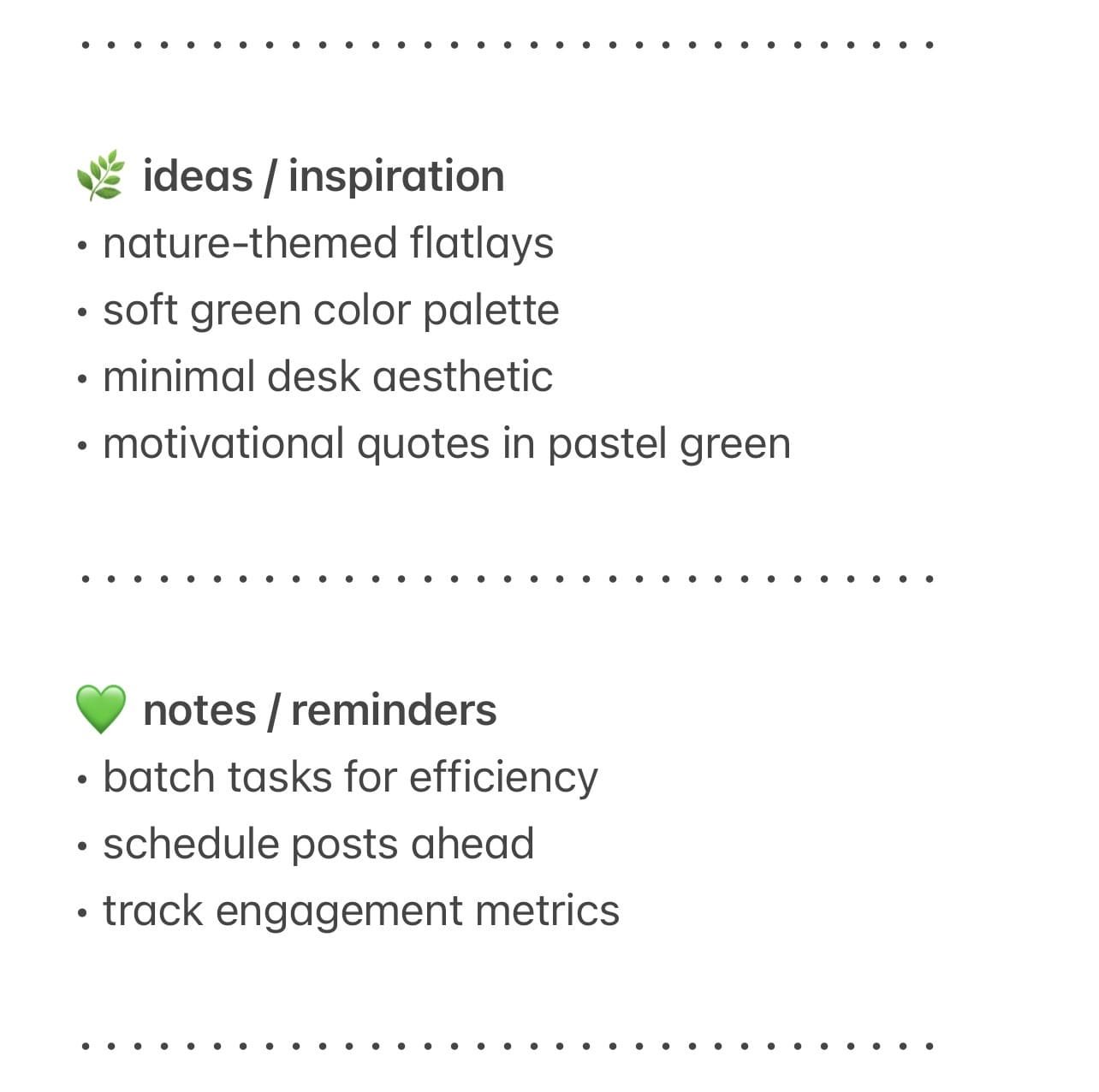
Instead of plain lines to separate sections, try aesthetic symbol and emoji combos. Feel free to copy and paste the ones below:
✿ ─────────────────── ✿
🪩 🌿 ──────────────── 🌿 🪩
♡ ──────── ୨୧ ──────── ♡
┈ ┈ ┈ ┈ ┈ ┈ ┈ ┈ ┈ ┈ ┈ ┈ ┈ ┈ ┈ ┈
🌷 ・ 。゚☆ ──────────── ☆゚。 ・ 🌷
☾ ⋆ ───────────────────────────── ⋆ ☾
⟡ ⟡ ⟡ ⟡ ⟡ ⟡ ⟡ ⟡ ⟡ ⟡ ⟡ ⟡ ⟡ ⟡ ⟡ ⟡ ⟡ ⟡ ⟡ ⟡ ⟡
💗 ──────── 💌 ──────── 💗
⋅⋅⋅⋅⋅⋅⋅⋅⋅⋅⋅⋅⋅⋅⋅⋅⋅⋅⋅⋅⋅⋅⋅⋅⋅⋅⋅⋅⋅⋅⋅⋅⋅⋅⋅⋅⋅⋅⋅⋅⋅⋅⋅⋅⋅
#19: Lock & Hide Private Notes
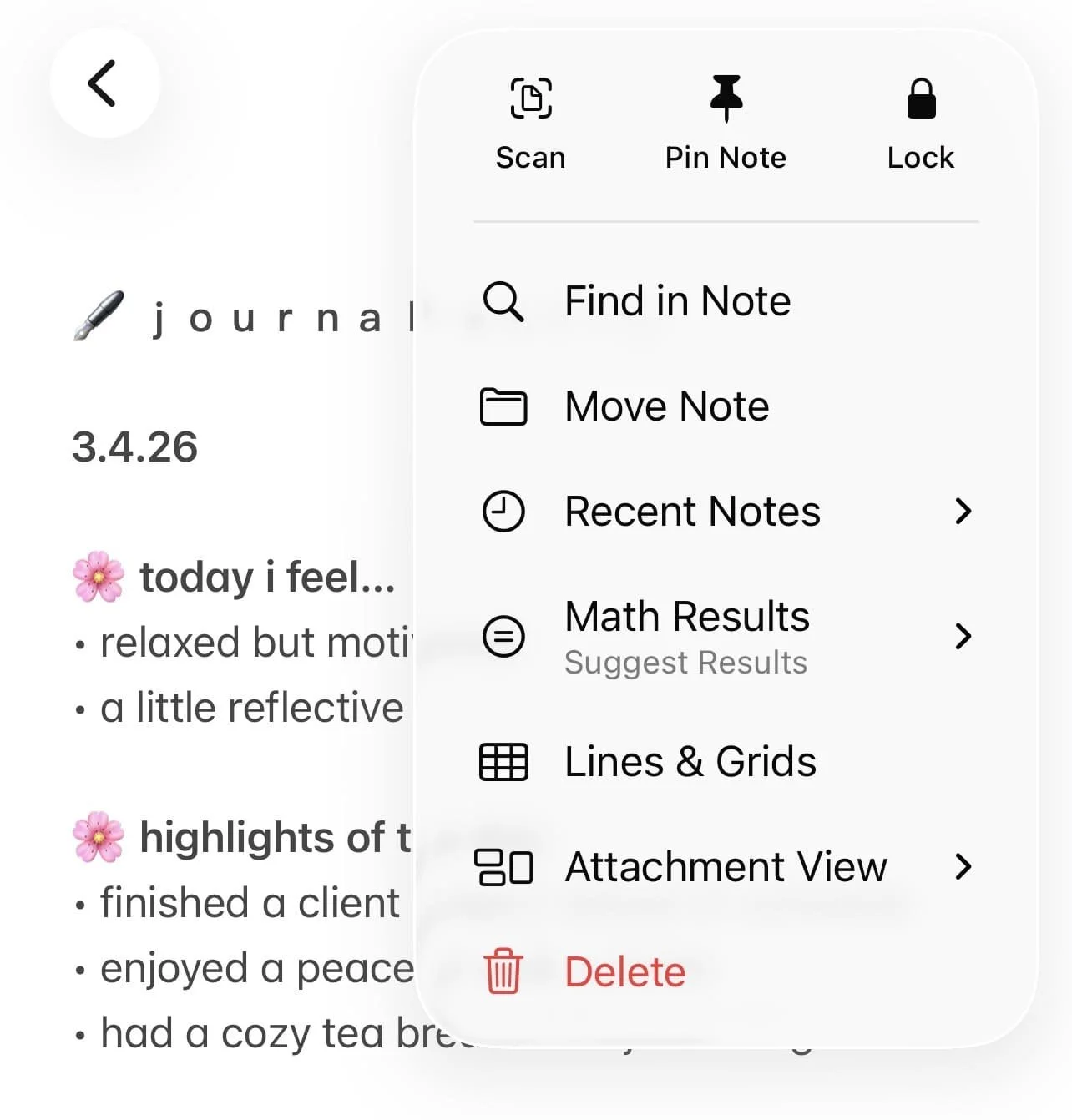
You can lock individual notes to keep things like sensitive info and personal journals private. To do this, open a note > tap the dots > tap lock.
#20: Copy & Paste Aesthetic Fonts
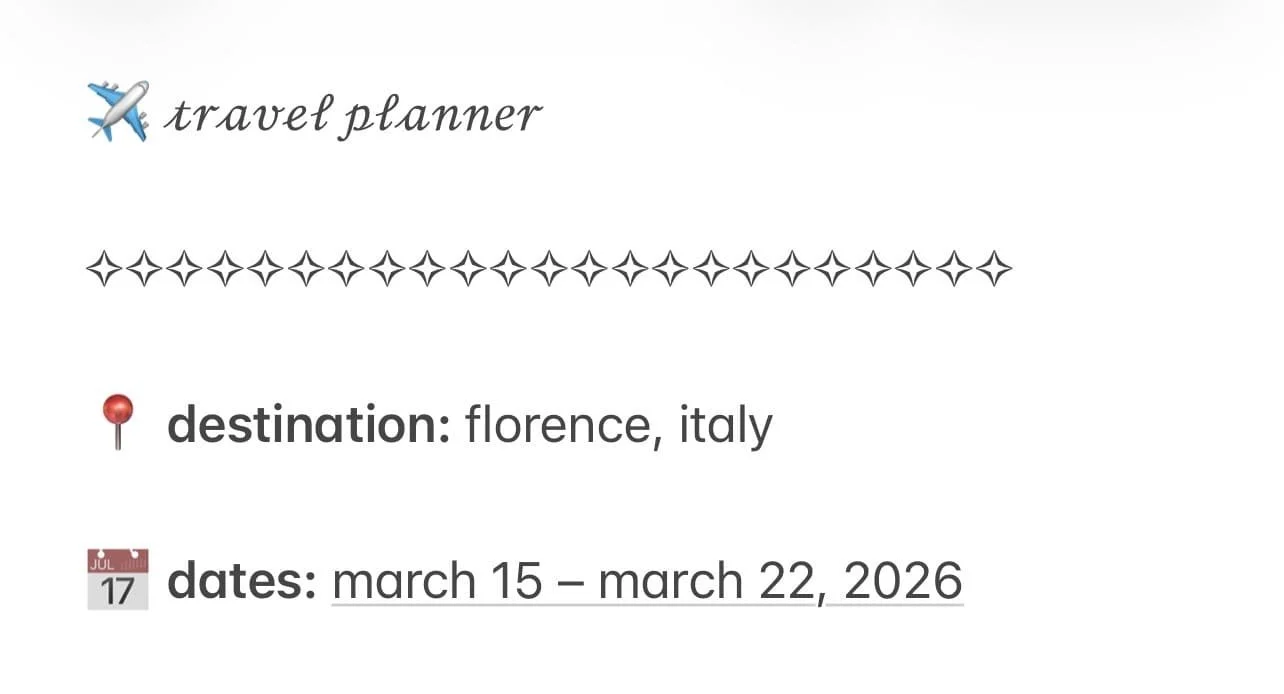
Paste in some fun fonts to instantly make your notes sooo much cuter! My favorite site to use for that is this one: lingojam.com/AestheticFontsGenerator. Just type in your text and copy the aesthetic version when it’s generated. From there, paste it right into your notes.
#21: Match Your Notes To Your iPhone Theme
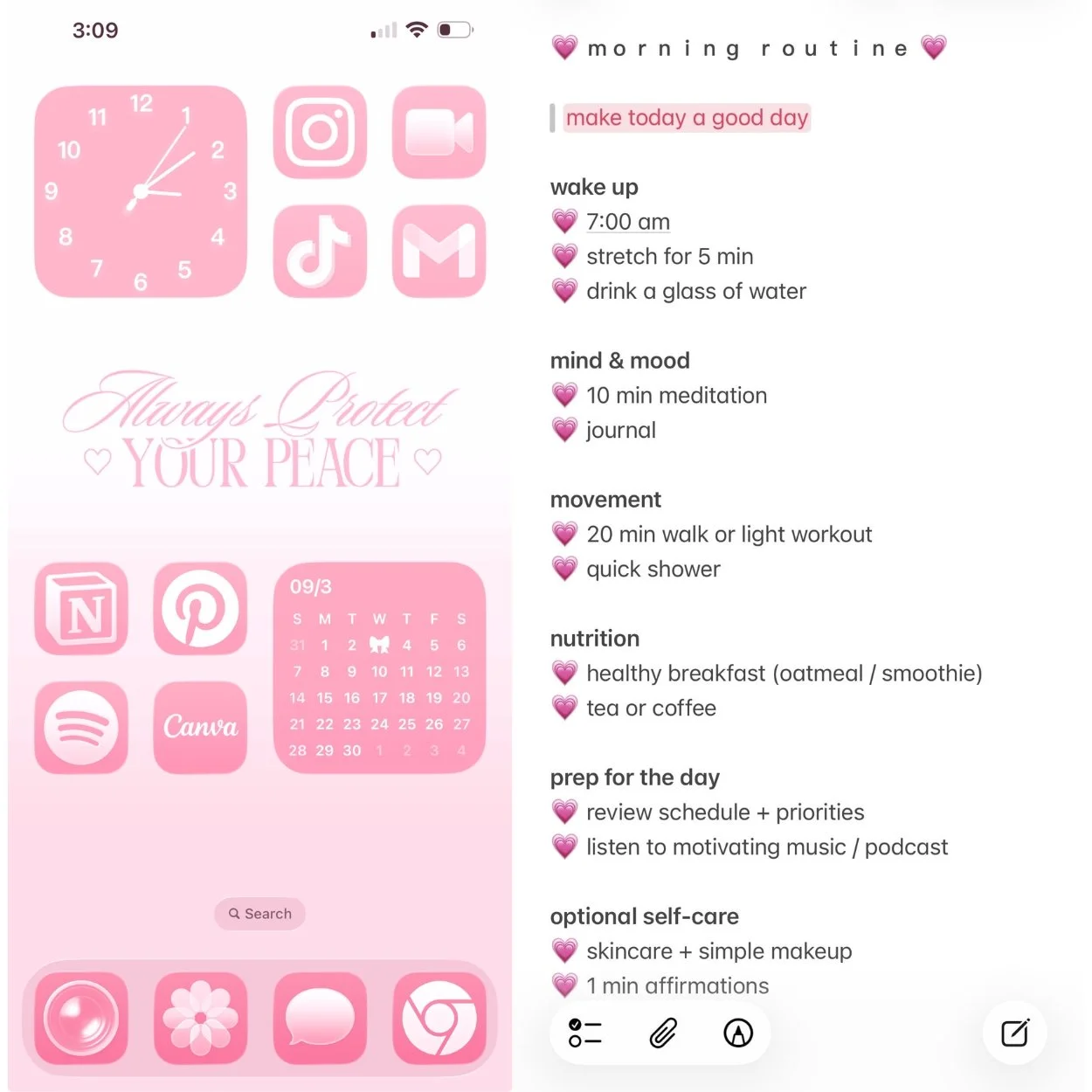
Keep your digital life cohesive by having consistent theme! This makes your notes feel like an extension of your home screen.
Related: 15 Ways To Reset & Refresh Your iPhone (Digital Declutter & Organization Routine)
#22: Add Extra Spacing
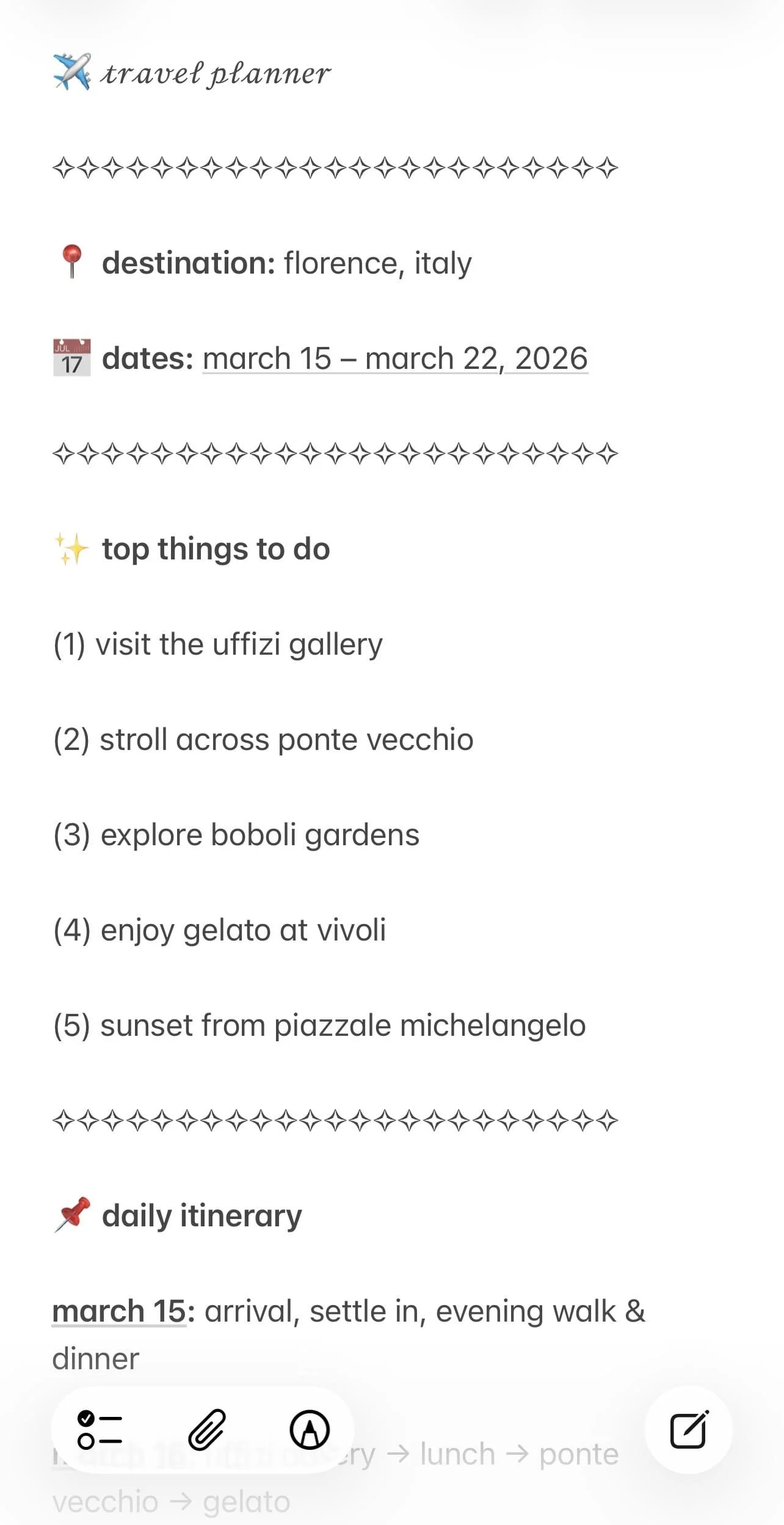
Add extra spacing intentionally for a clean, airy, and minimalist look. For example, keep 1-2 blank lines between sections. If your notes look cluttered and overwhelming, I bet all it needs is some white space!
#23: Create A Digital Design Kit
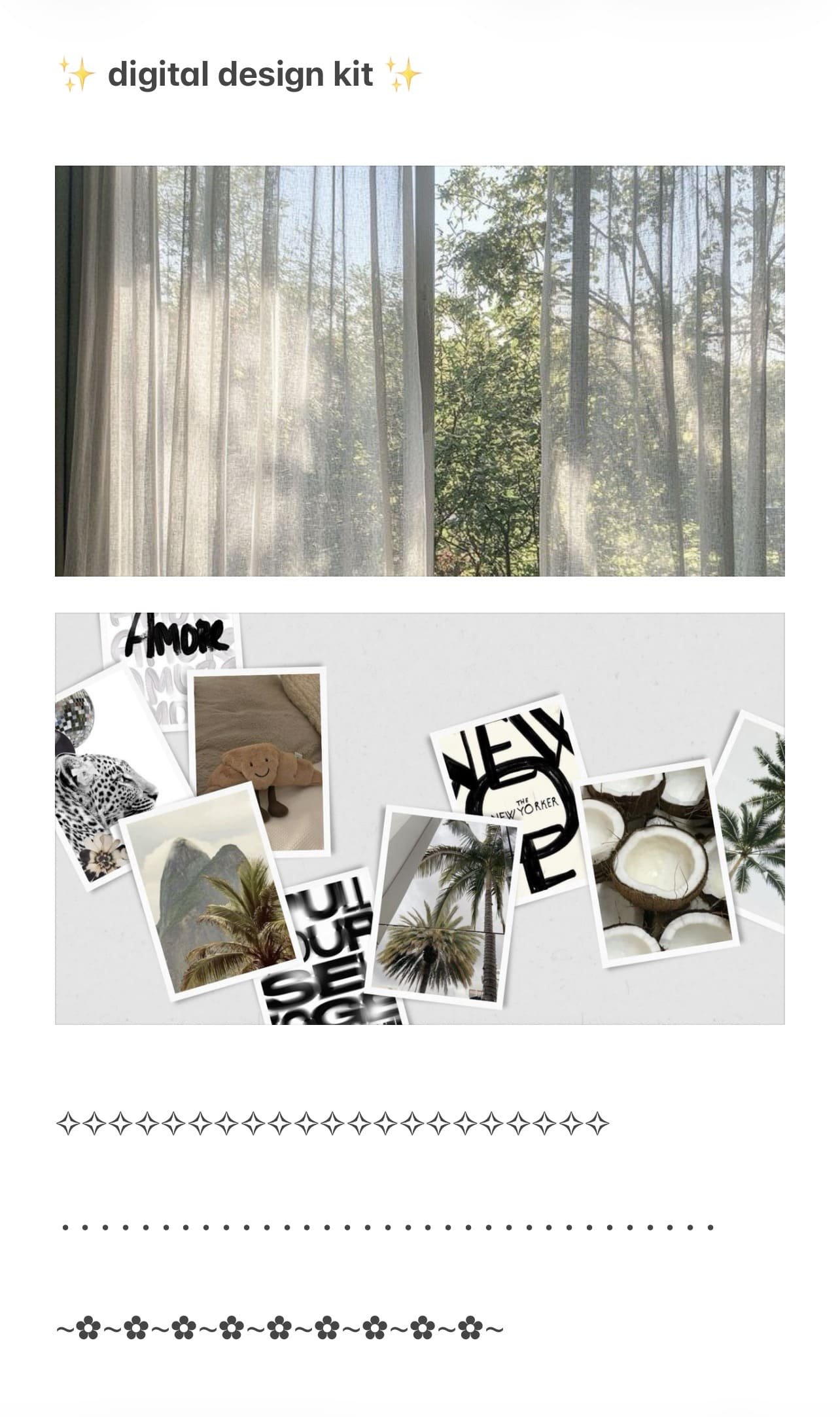
To easily access your favorite decorative elements, make one note that’s just made up of aesthetic dividers, emoji combos, symbol headers, banners, template blocks, and more. Copy/paste from it whenever you start a new note or need some aesthetic touches. It’s like your design kit inside Apple Notes!
#24: Sort Notes By
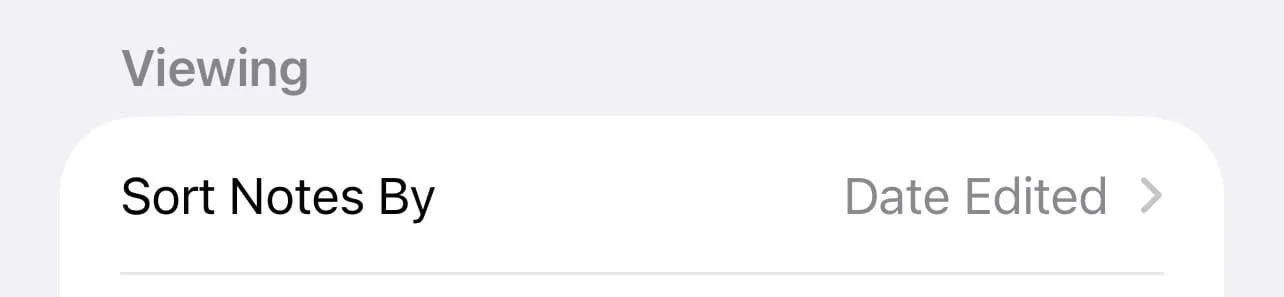
The last couple tips have to do with Apple Notes settings that are found within the iPhone Settings app. “Sort notes by” lets you choose the order in which your notes appear in a folder.
You can sort them by date edited, date created, or title. This means, for example, if you pick “date edited,” the notes you worked on most recently will show at the top, making it easier to find your latest updates.
It’s a simple way to keep your notes organized based on what matters most to you. To access this, go to settings > apps > notes.
#25: New Notes Start With
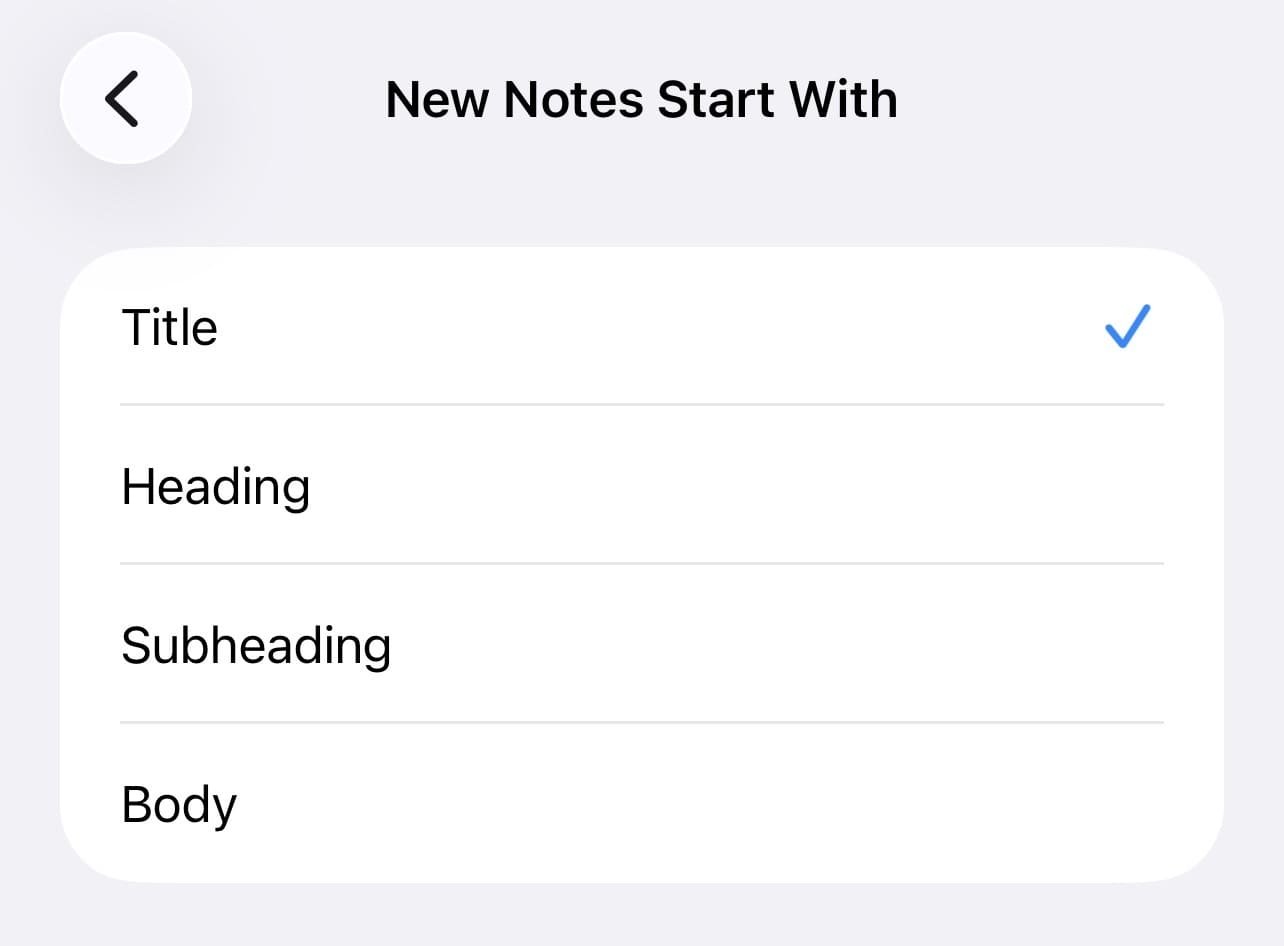
The “new notes start with” setting in Apple Notes on iPhone determines whether a new note begins with a title or with the body text. If you choose “title,” each new note opens with a space for a heading.
If you choose body, the note opens directly to the main text area, letting you start writing immediately. To access this, go to settings > apps > notes.
Related: 20 FREE Aesthetic iPhone Apps You NEED! (Planning, Productivity, Mindfulness, & More)
#26: Sort Checked Items
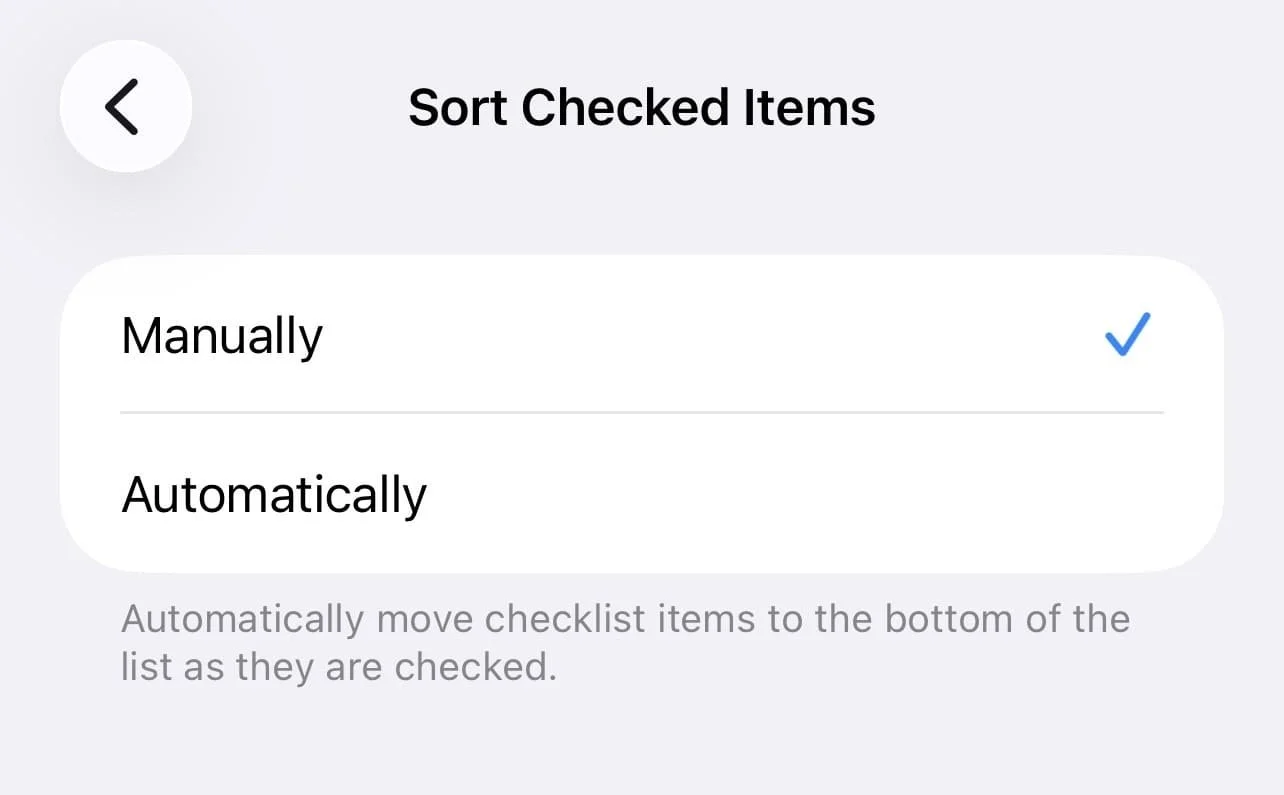
The “sort checked items” setting controls what happens to items in a checklist after you mark them complete. You can choose whether checked items stay in place or move to the bottom of the list.
This helps keep your active tasks at the top while finished items are neatly out of the way. To access this, go to settings > apps > notes.
#27: Note Backgrounds
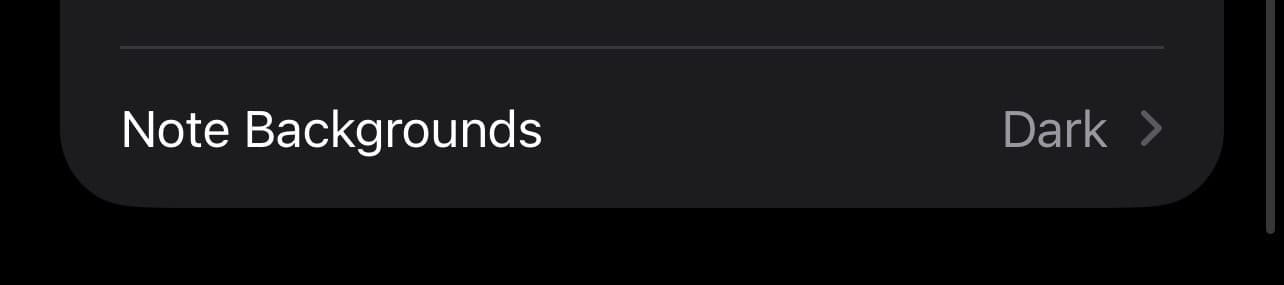
NOTE: This setting only shows up when your iPhone is in dark mode.
The “note backgrounds” setting in Apple Notes on iPhone lets you choose whether new notes have a light or dark background. This changes the appearance of your notes to match your preference or make them easier to read in different lighting. To access this, go to settings > apps > notes.
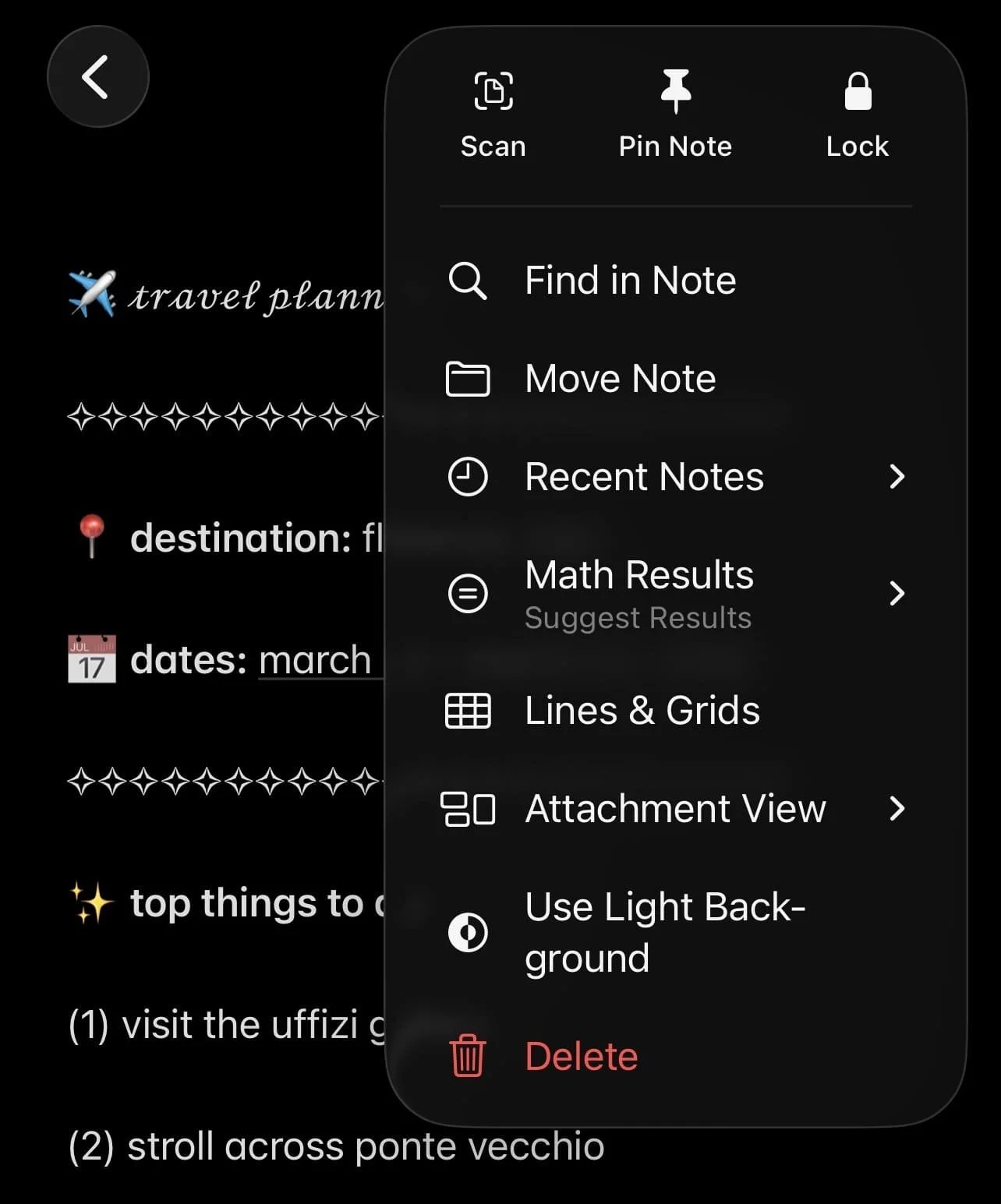
Extra little tip for you! The “notes background” setting will adjust all of your notes, but if you want to customize a light or dark background for each note individually, just open a note > tap the three dots > tap use light/dark background.
Related: 26 Ways To Make Apple Journal Aesthetic! (Customization Tricks To Romanticize Your Journal)
Closing Thoughts
With some consistent formatting and a few cute touches, your notes can go from messy to curated and aesthetic in minutes. And honestly, when your notes actually look good, you’ll actually want to open them!
Thanks for stopping by my post “27 Ways To Make Apple Notes Aesthetic (MUST-KNOW Customization Tricks).”
For handmade digital art prints, icon packs, wallpapers, & more designed by me, be sure to stop by my digital boutique: Designed By Nikki Lo.
Connect with me!