26 Ways To Make Apple Journal Aesthetic! (Customization Tricks To Romanticize Your Journal)
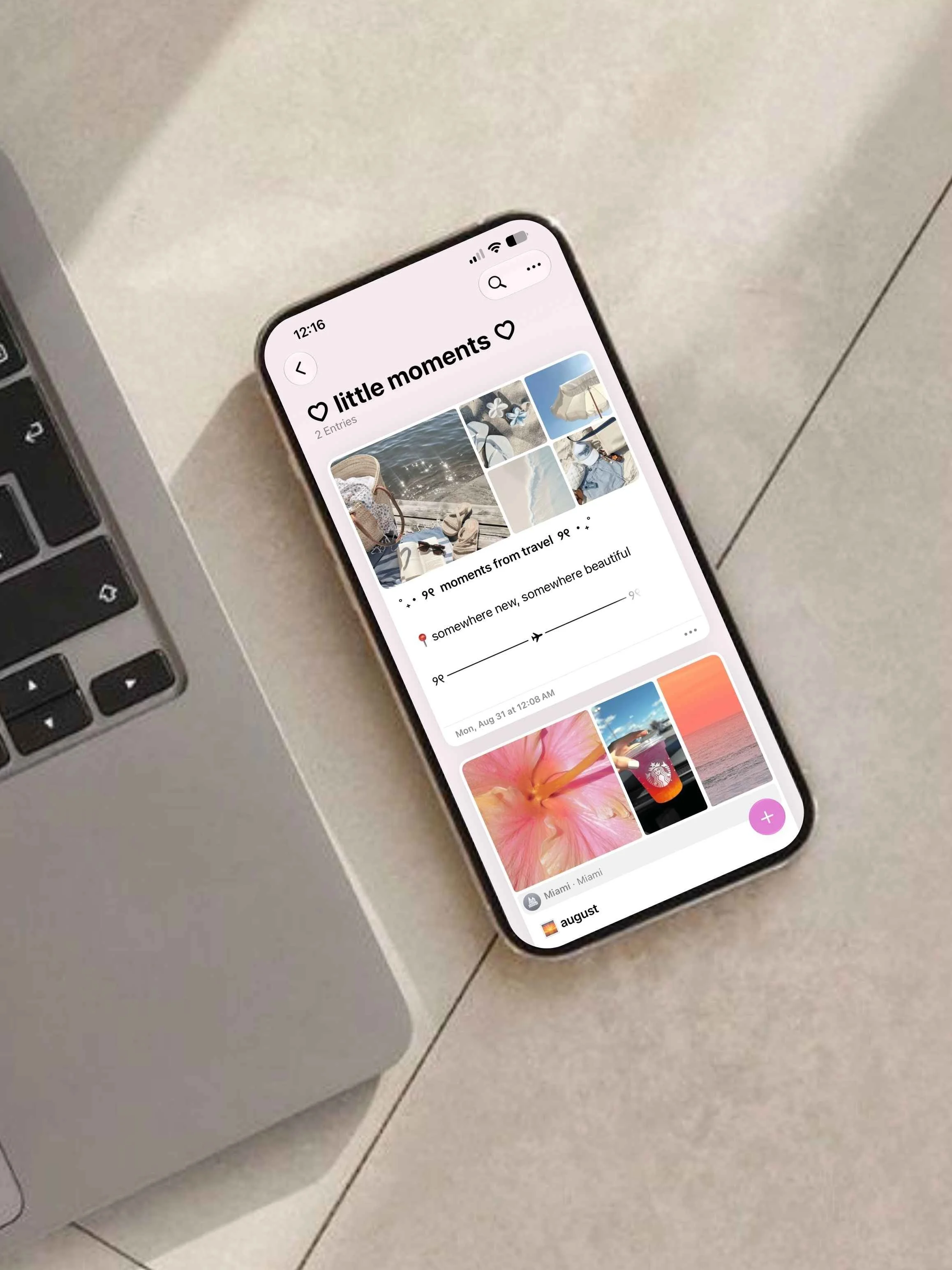
This post is about how to make your Apple Journal aesthetic and organized with some must-try customization tricks.
You can do SO much with Apple Journal once you know a few simple tricks! Today, I’m diving into a bunch of different ways to make Journal aesthetic plus sharing some surprising things I bet you didn’t know the app could do.
I’m covering the whole app from adding images, locations, drawings, text formatting, and more. I guarantee these are going to make journaling so much more fun and help you romanticize the experience as well! Let’s jump in.
26 Apple Journal Customization Tips & Tricks
#1: Have Multiple Journals
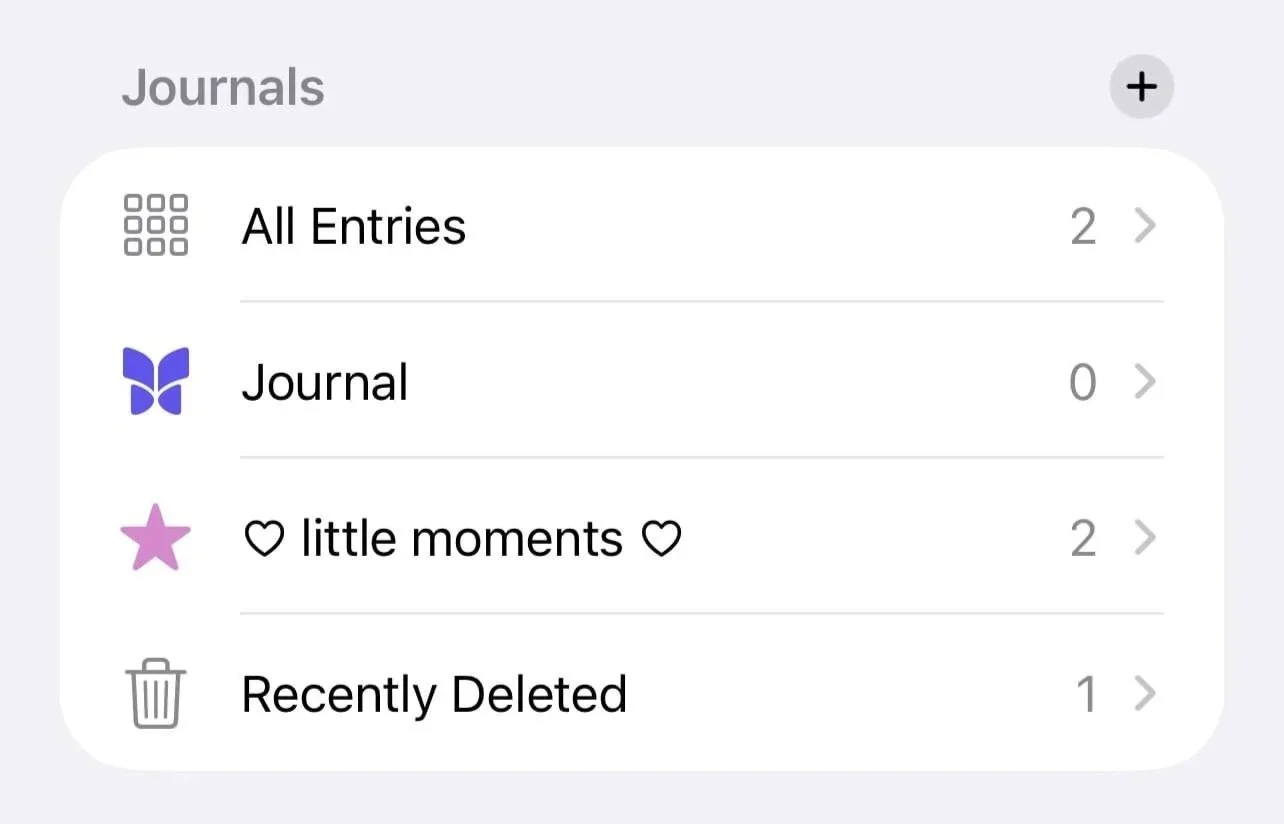
We’re starting with an absolute must-know tip that every Apple Journal user should know. You can make separate journals in the app and use them for things like different periods of your life like high school/college, different months/years, different topics, etc.
To make a new journal, go to the main Apple Journal page > Journals > plus icon > type name/choose color & icon > tap check mark to save.
#2: Add Photos & Photo Collages
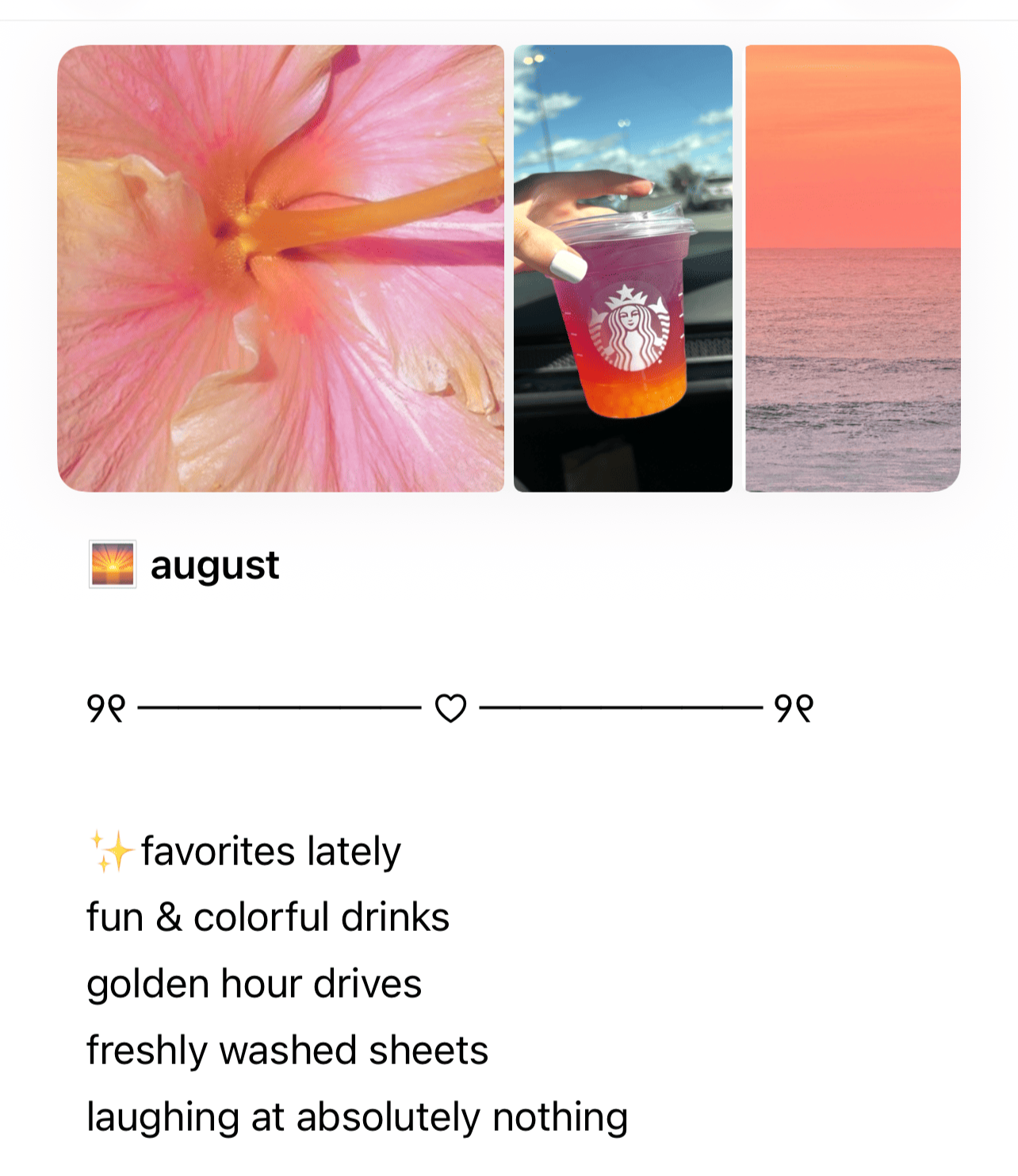
Another must-know tip! Photos are something that instantly brings your journal entries to life. You can also add multiple photos for a cute collage look.
To add one or more photos, tap into a journal entry > edit > photos icon > choose photo(s) > tap checkmark to save.
#3: Customize Your Layouts
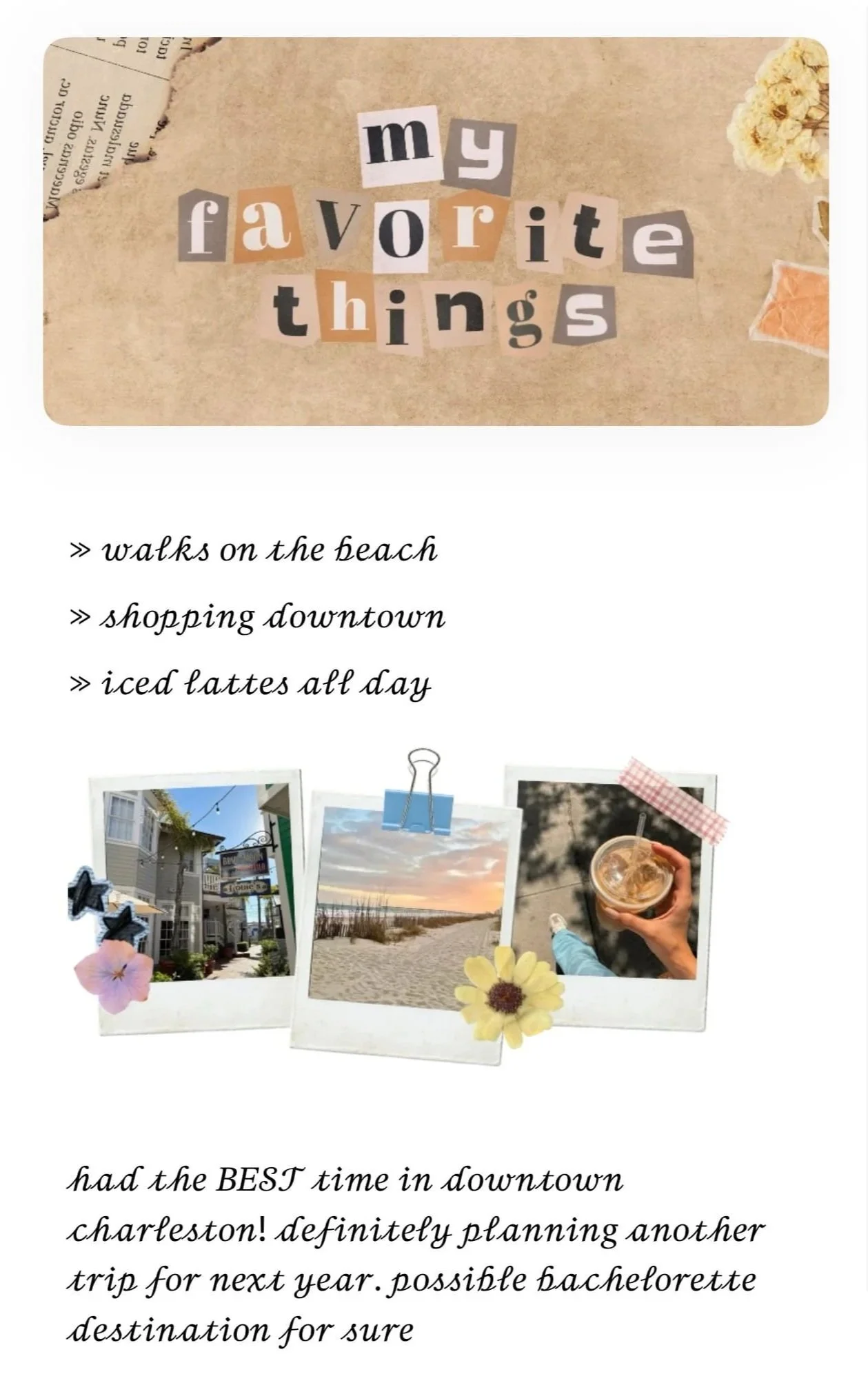
Your photos don’t have to stay at the top! Long press on them and drag and drop them somewhere else in your journal entry to create a custom layout.
Related: 30 Ways To Customize Your Apple Calendar (EASY Tricks To Make It Aesthetic)
#4: Add Cute Little Captions Under Photos
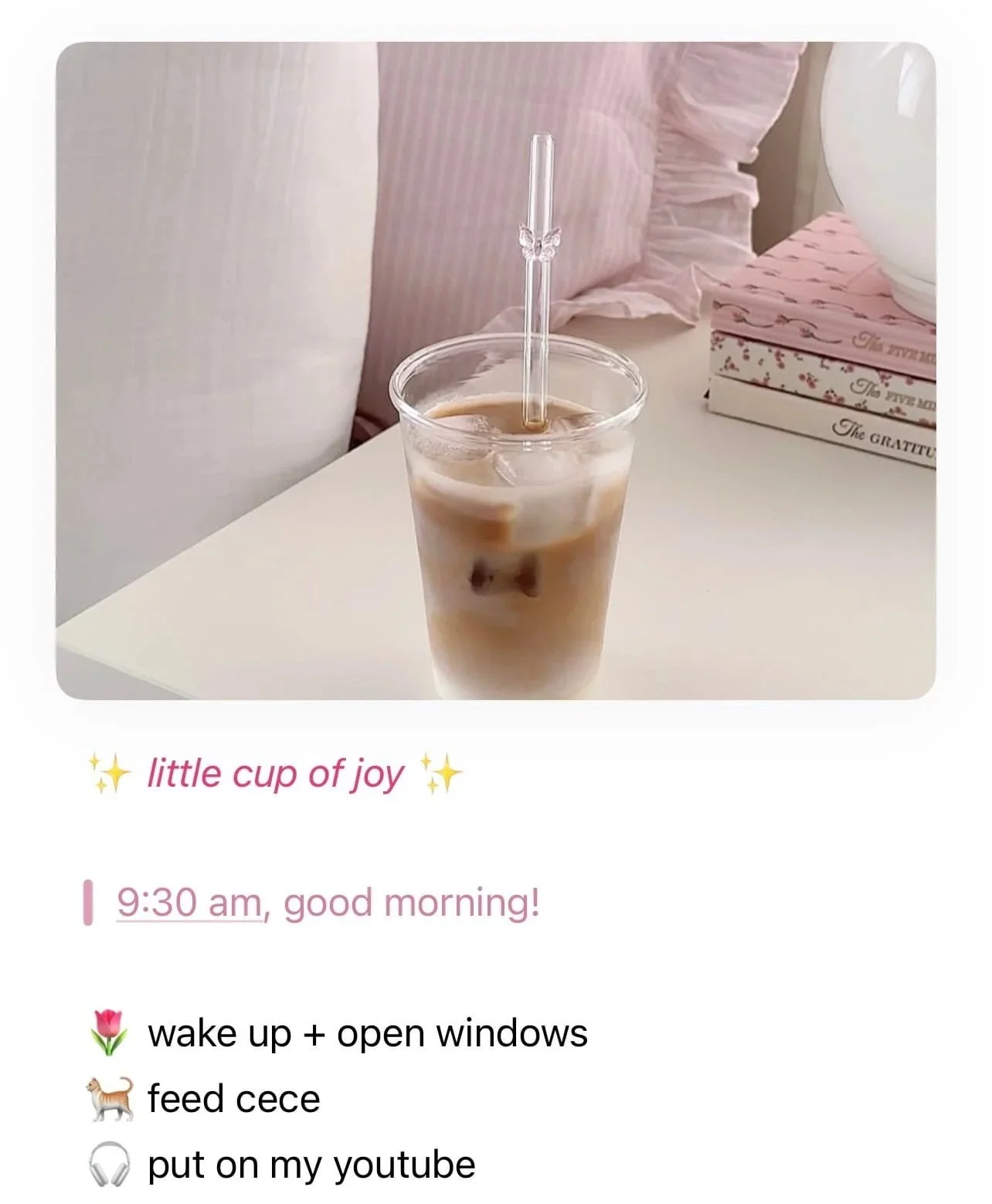
How adorable is this idea? Not a necessity but just a fun little thing you can do to make your notes feel more personalized.
#5: Add Doodles

Did you know you can draw directly in Apple Journal? I love using this trick to add fun little doodles like hearts, stars, smileys, and more.
To draw in Journal, tap into a journal entry > edit > long press on an empty spot > insert drawing > use the different digital pens/markers/erasers to draw > tap checkmark to save.
#6: Add Location
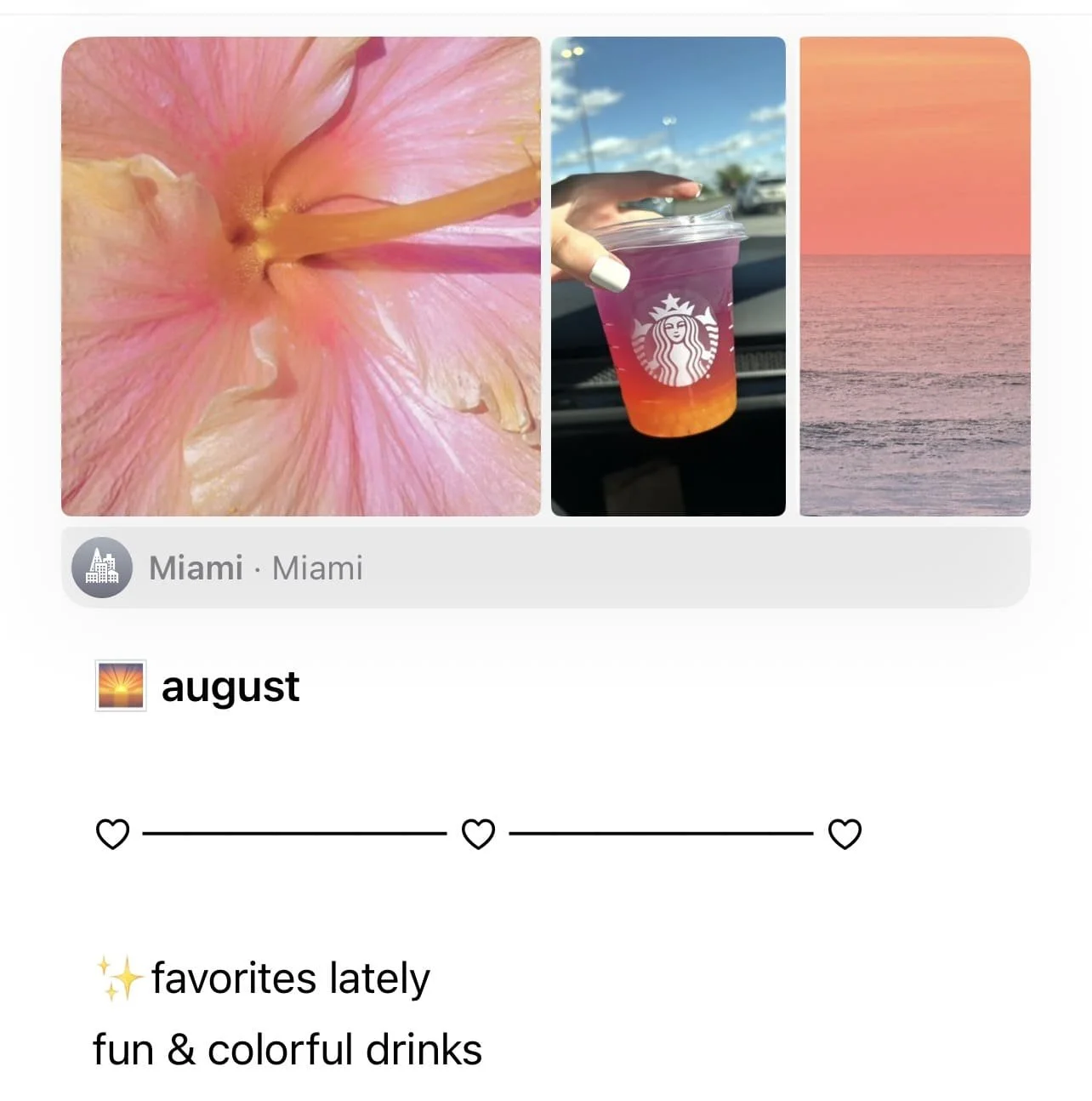
This is a super fun thing to add for things like travel entries or other location-specific entries.
To add a location tag, tap into a journal entry > edit > tap the arrow icon on the bottom menu > add location and choose size > tap checkmark to save.
#7: Use Aesthetic Dividers
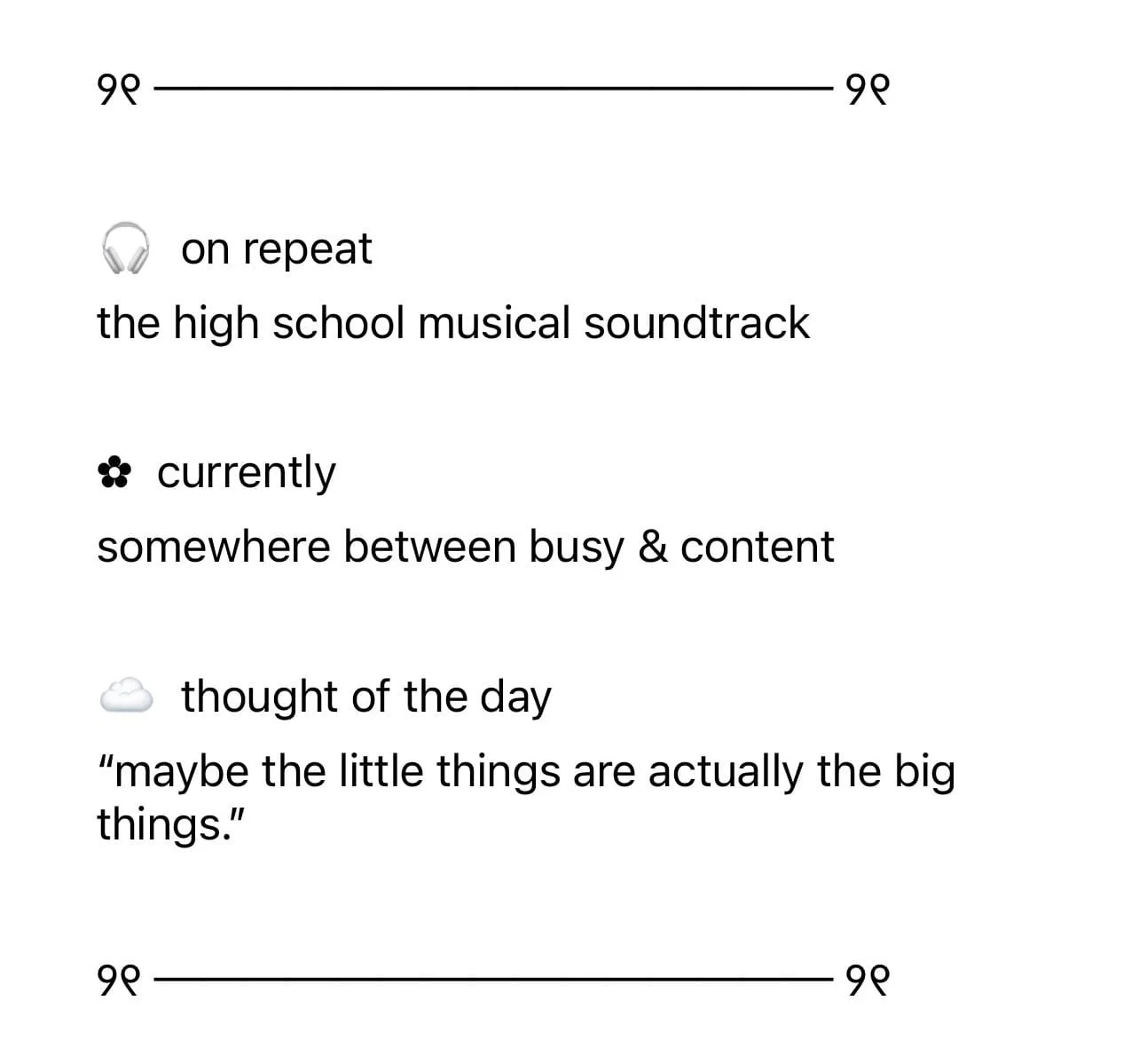
Instead of plain lines to separate sections, try aesthetic symbol and emoji combos. Feel free to copy and paste the ones below:
✿ ─────────────────── ✿
🪩 🌿 ──────────────── 🌿 🪩
♡ ──────── ୨୧ ──────── ♡
┈ ┈ ┈ ┈ ┈ ┈ ┈ ┈ ┈ ┈ ┈ ┈ ┈ ┈ ┈ ┈
🌷 ・ 。゚☆ ──────────── ☆゚。 ・ 🌷
☾ ⋆ ───────────────────────────── ⋆ ☾
⟡ ⟡ ⟡ ⟡ ⟡ ⟡ ⟡ ⟡ ⟡ ⟡ ⟡ ⟡ ⟡ ⟡ ⟡ ⟡ ⟡ ⟡ ⟡ ⟡ ⟡
💗 ──────── 💌 ──────── 💗
⋅⋅⋅⋅⋅⋅⋅⋅⋅⋅⋅⋅⋅⋅⋅⋅⋅⋅⋅⋅⋅⋅⋅⋅⋅⋅⋅⋅⋅⋅⋅⋅⋅⋅⋅⋅⋅⋅⋅⋅⋅⋅⋅⋅⋅
#8: Add Voice Recordings
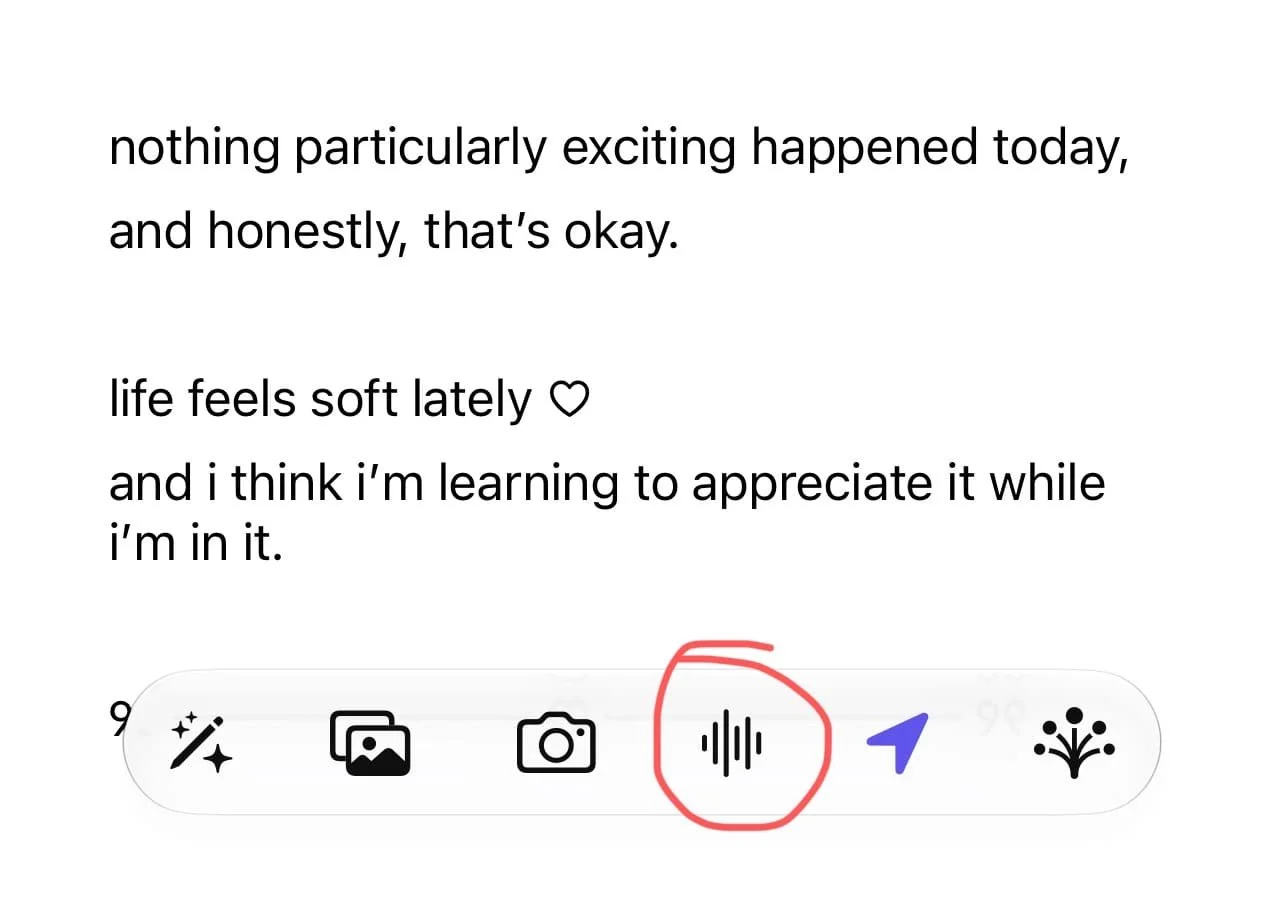
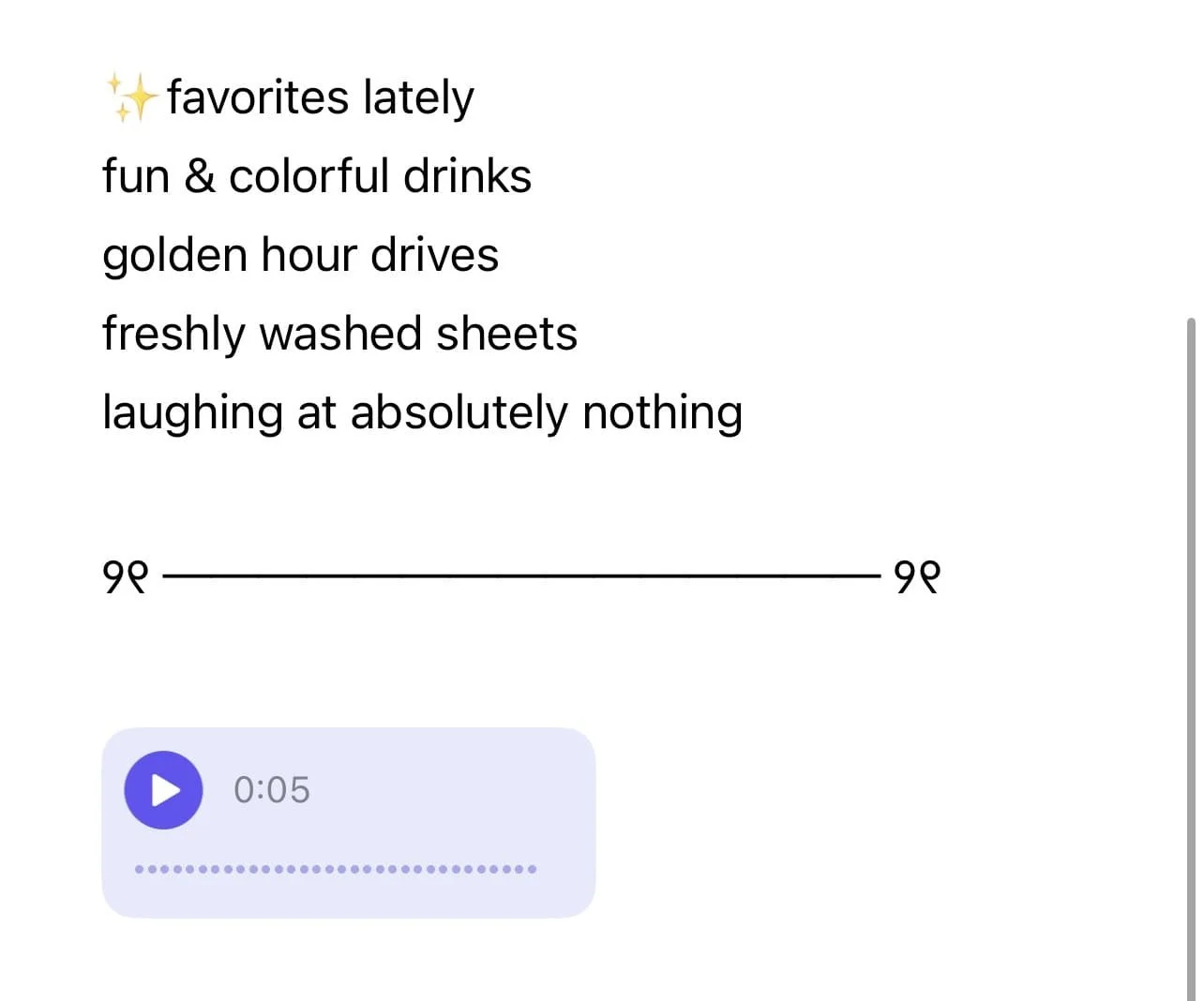
If you prefer to journal using your voice instead of typing, you can do that! You’re able to record your voice and insert it directly into your journal entry.
To add a voice recording, tap into a journal entry > edit > tap the record icon on the bottom menu (looks like a bunch of vertical lines) > tap button to record and then tap again to stop > tap checkmark to save.
#9: Use Emojis/Symbols As Bullet Points
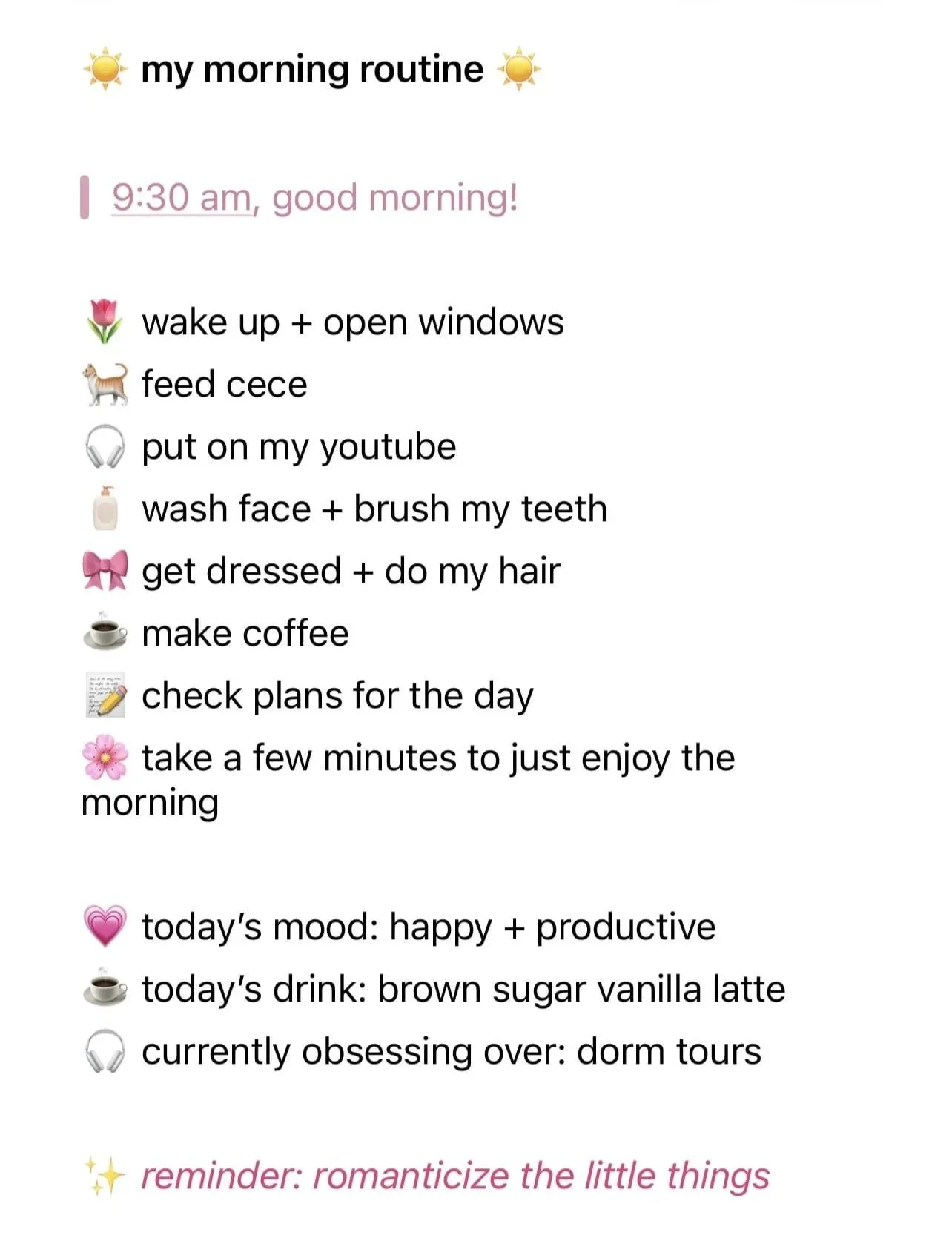
Emojis and symbols always make any entry look a million times cuter! When making lists, use them as bullet points instead of standard bullet points or numbers to make your page more aesthetic.
#10: Add Digital Artifacts
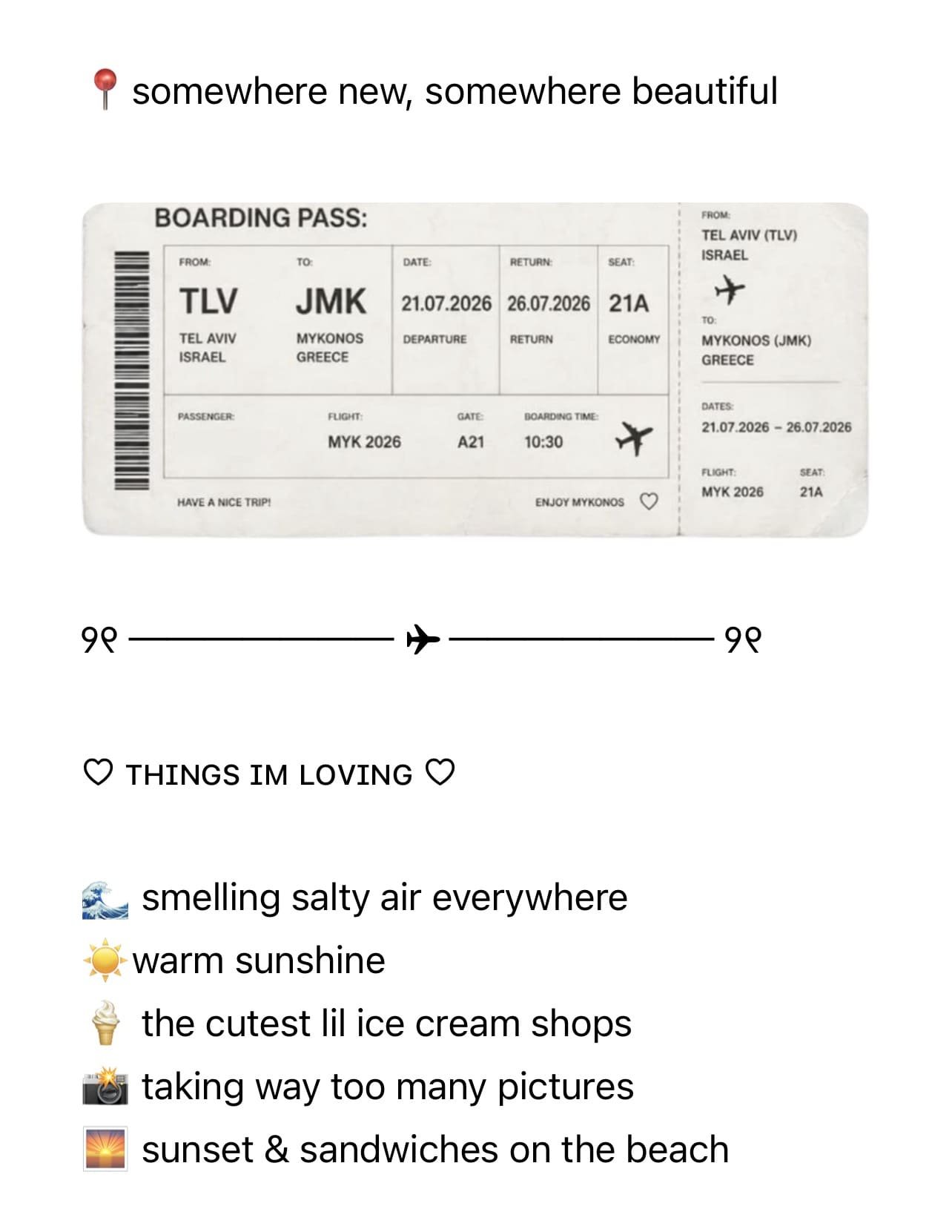
Add digital artifacts related to what you’re journaling about! For example, add a screenshot of your plane tickets if you’re taking a trip. Other things you can add include tickets, documents, maps, invitations, menus, receipts, reservation confirmations.
#11: Use The Prompts In Journal
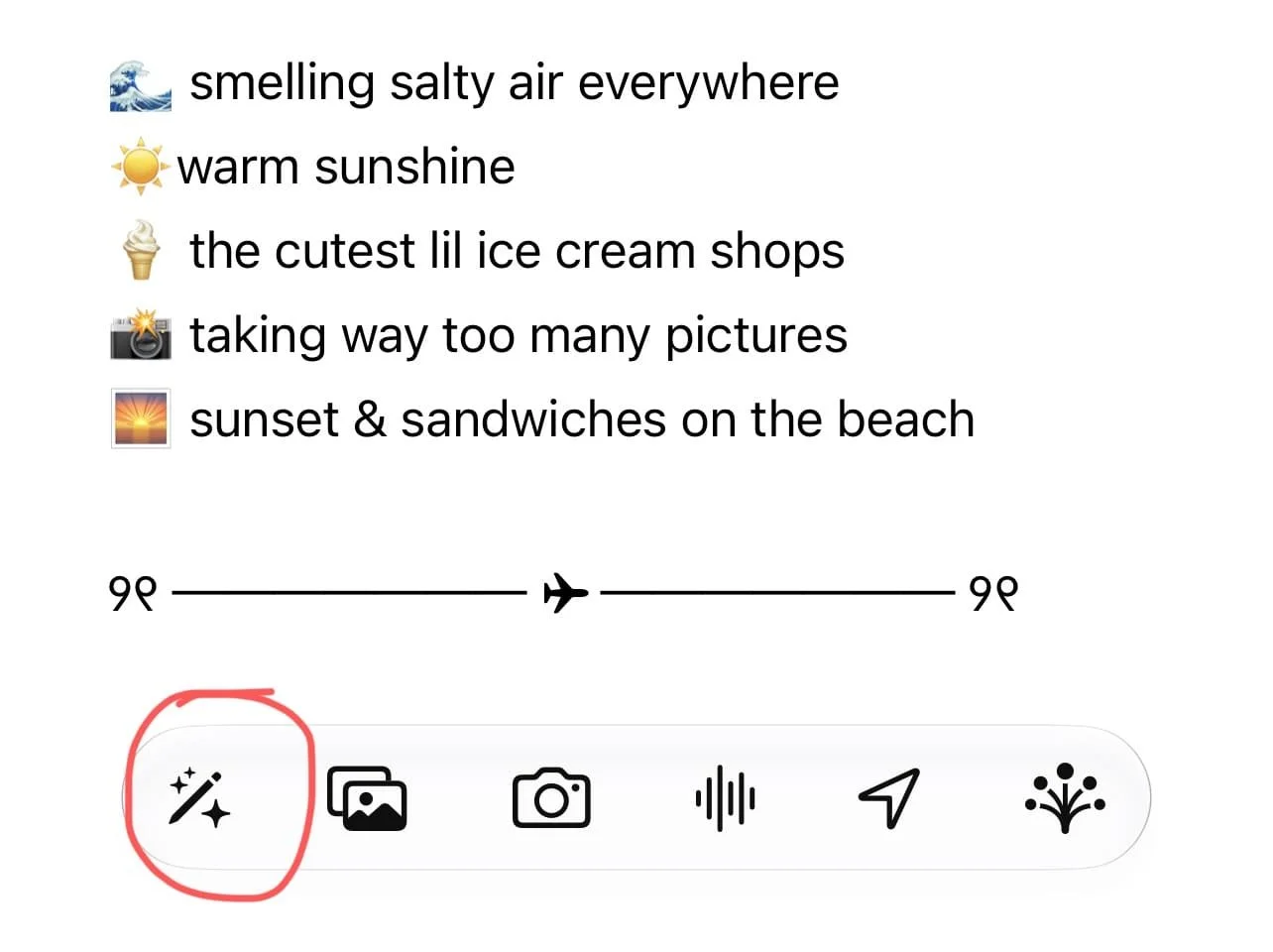
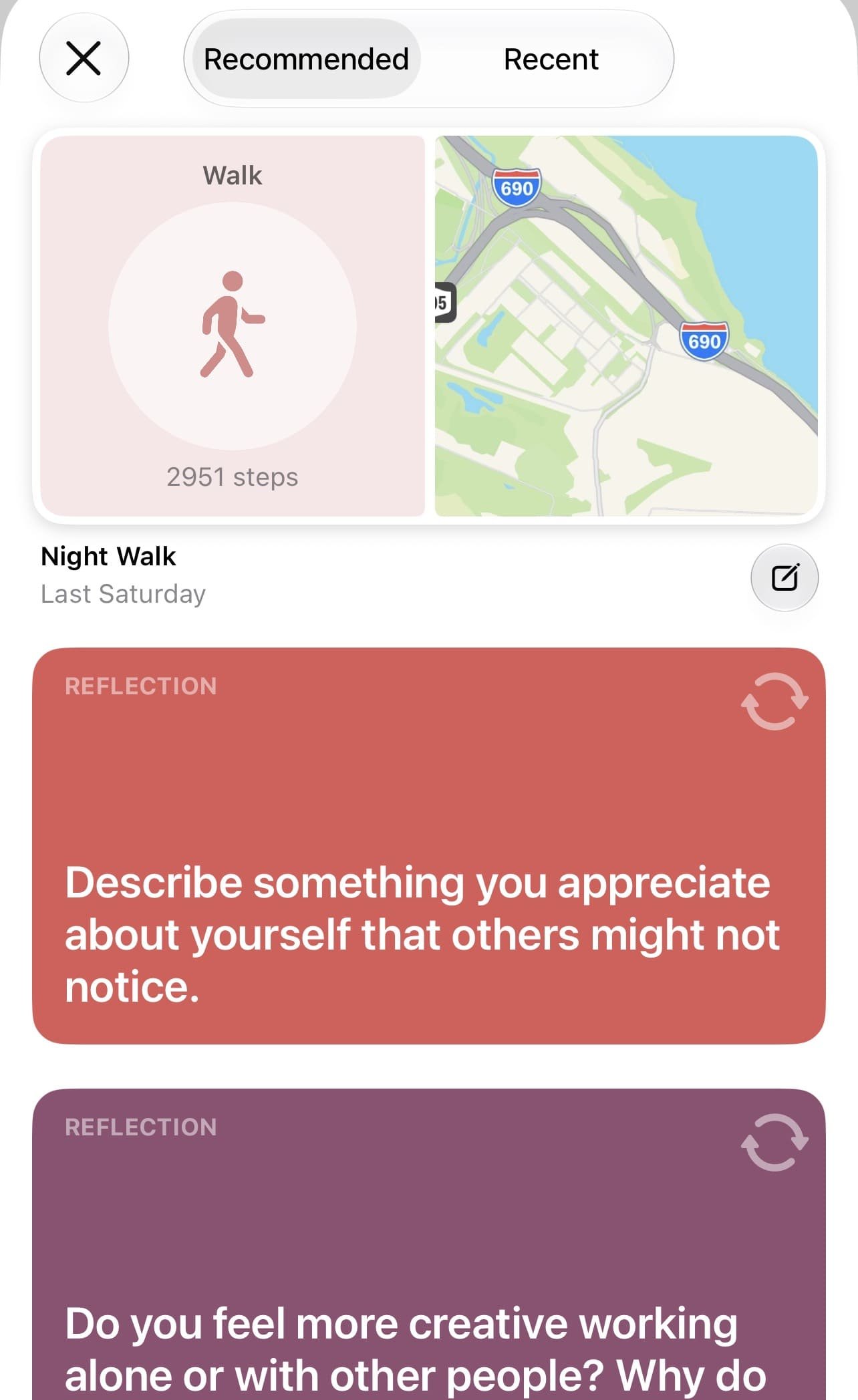
Feeling stuck on what to write about? Journal can help with that! The app has built-in prompts you can use to jump-start your entries with.
To get prompts, tap into a journal entry > edit > tap the pen with stars icon on the bottom menu > choose recommended for reflection prompts or recent to pull up people you’ve contacted recently > tap a prompt > tap checkmark to save.
#12: Use Text Formatting
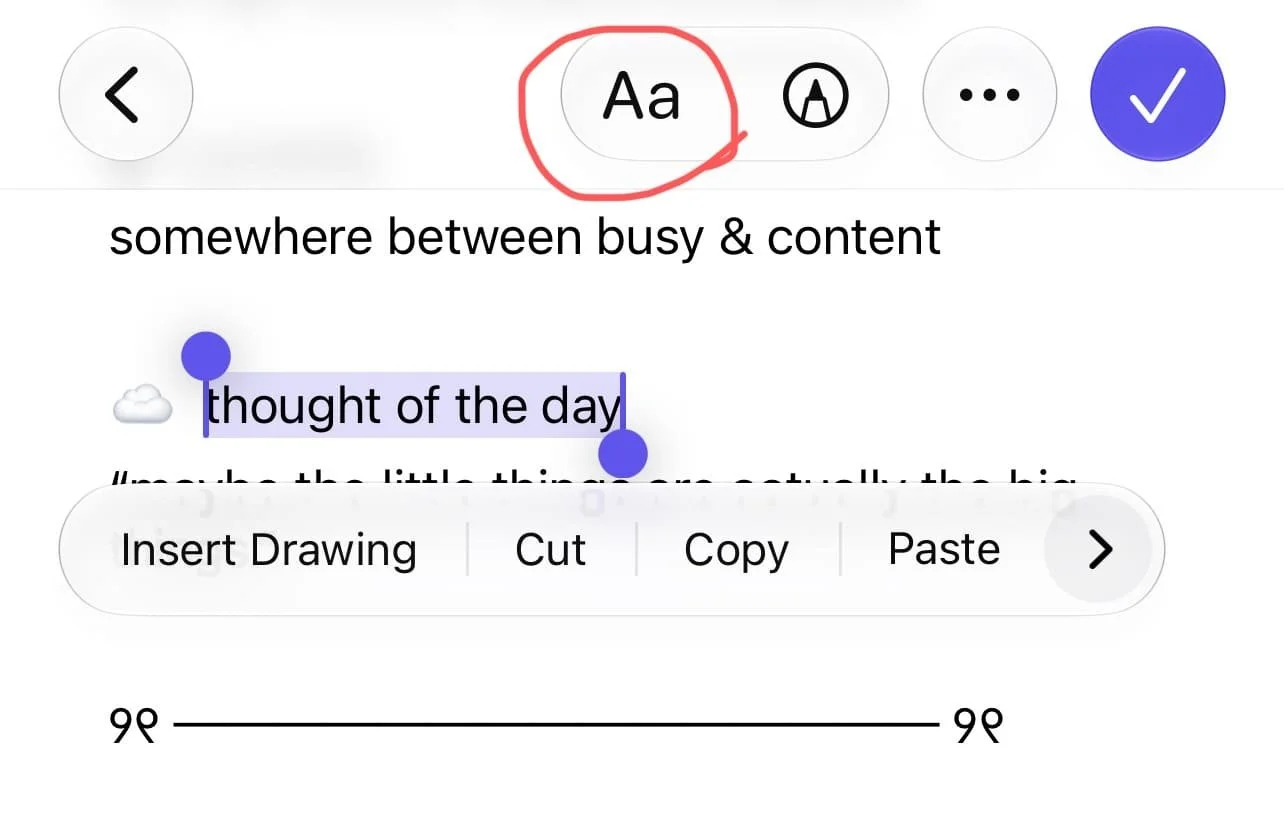

Say goodbye to boring text because you can use text formatting to make journal entries so so so much more aesthetic! In Journal, you can do things like change text color, italicize, bold, etc.
Tap into a journal entry > edit > tap Aa and choose your formatting > type and tap checkmark to save.
Related: How To Customize Your iPhone With iOS 26 (Aesthetic Pink Aura Theme + Tutorial!)
#13: Use Aesthetic Fonts
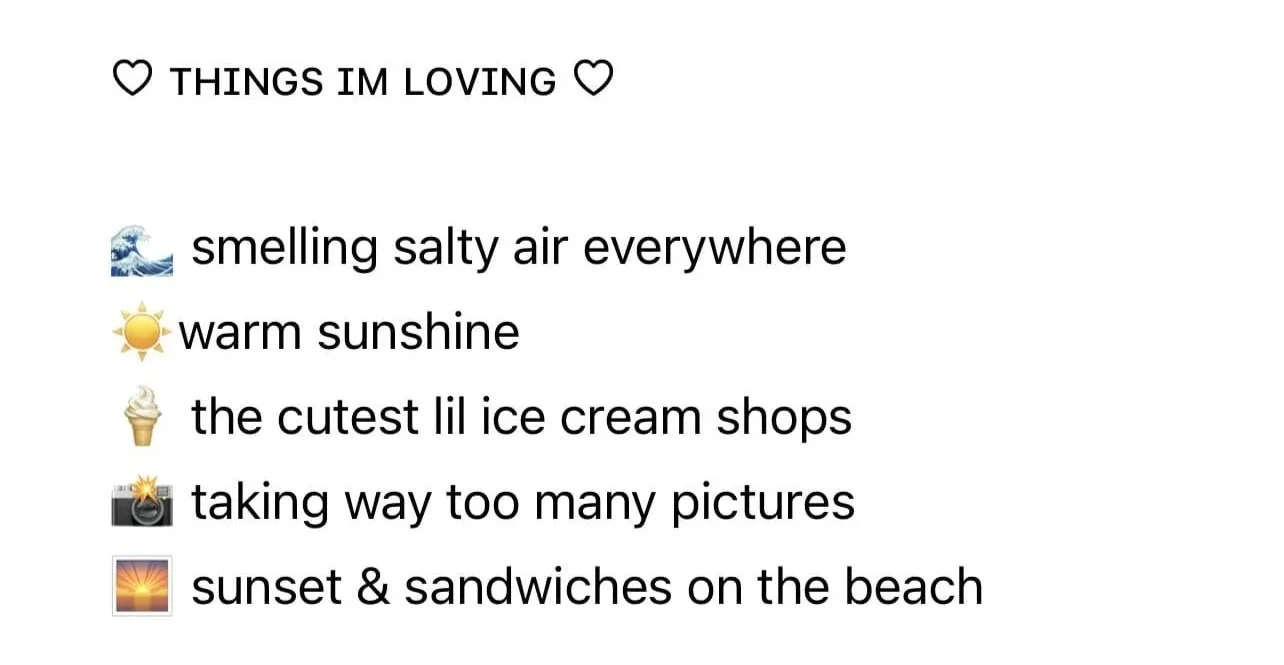
Paste in some fun fonts to instantly make your journal sooo much cuter! My favorite site to use for that is this one: lingojam.com/AestheticFontsGenerator. Just type in your text and copy the aesthetic version when it’s generated. From there, paste it right into your journal.
#14: Log Your Emotions
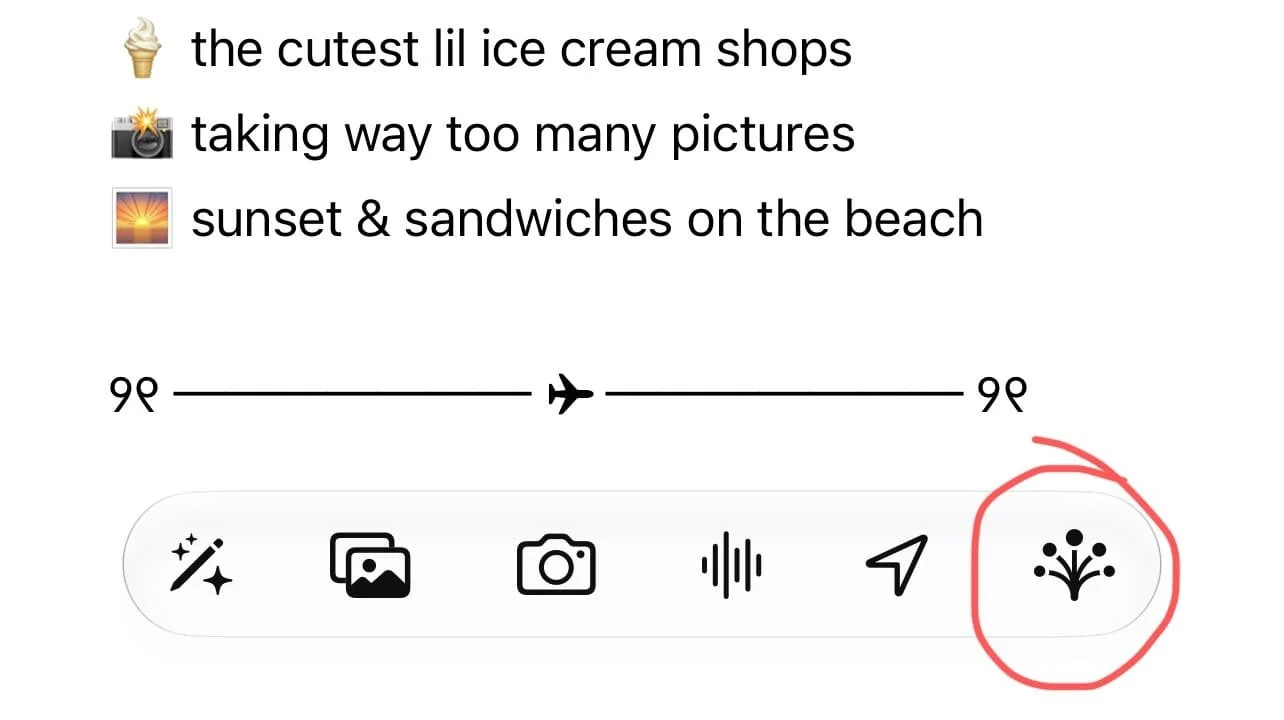
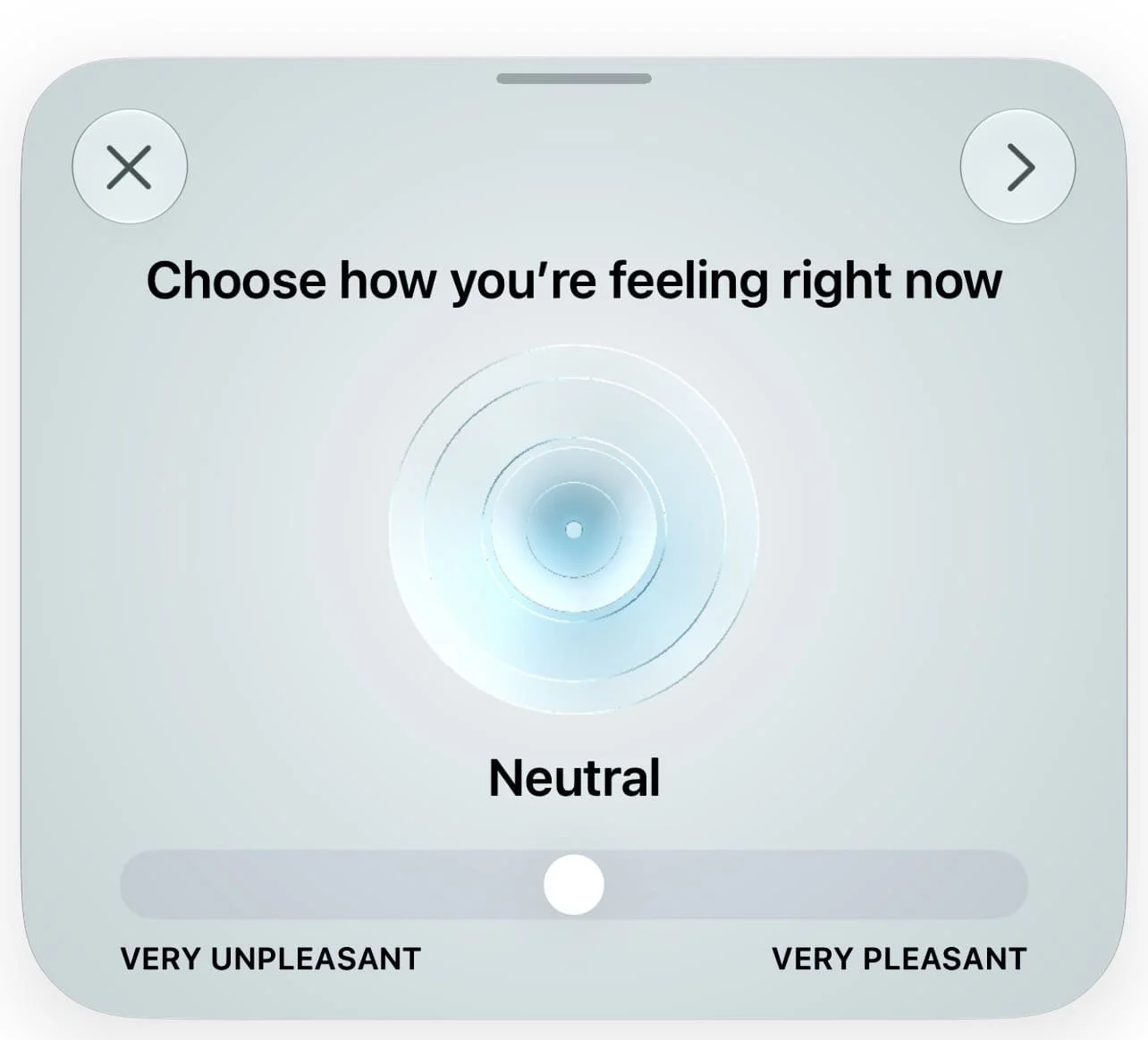
Did you know you can keep a log of your emotions and current mindset in Journal?
Tap into a journal entry > edit > tap the tree icon on the bottom menu > follow the prompts to log your emotions.
#15: Add Cute Frames Around Your Images
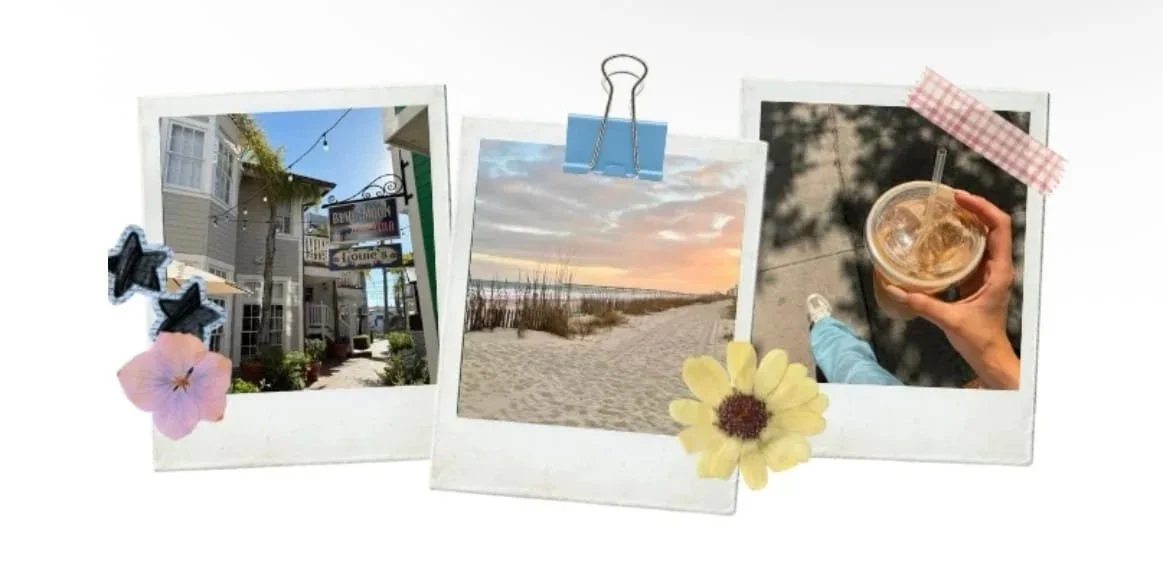
Image frames are such a fun way to romanticize your Apple Journal entries and make things feel super custom. I recommend doing this in Canva.
Find a frame you like and import into Canva > place overtop your image > download > import as a photo into your journal entry,
#16: Make Journal Feel Like A Scrapbook
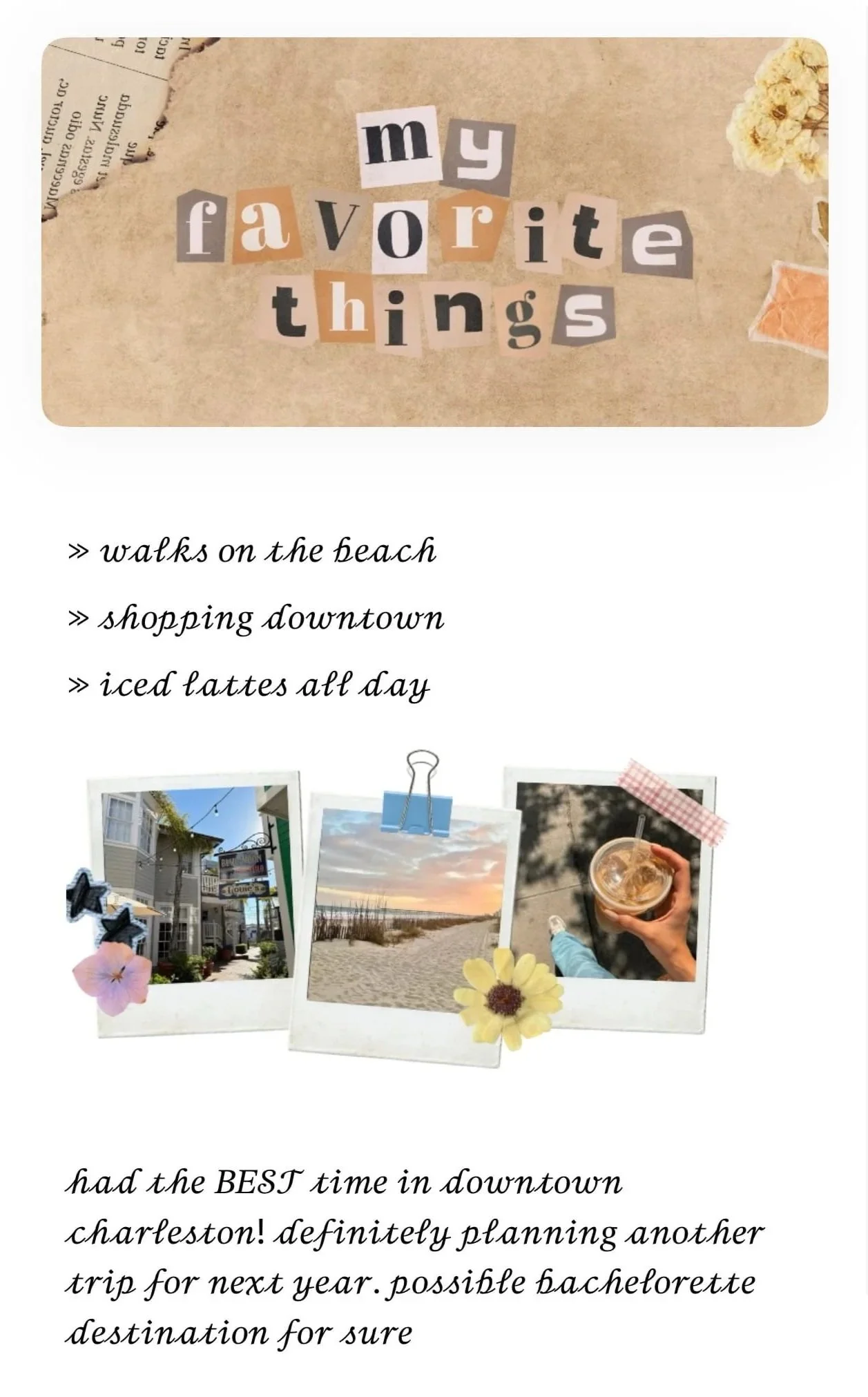
If you love the aesthetic of physical journals but prefer digitally journaling, you can still incorporate aesthetic elements of a physical journal when using Apple Journal.
Some ways to do this include pasting in a handwriting font, adding doodles/drawings, and using scrapbook-y Canva templates that have fun frames, paper clips, tape, ripped paper, etc. You can put these together in Canva and then download and import into Journal.
#17: Add Journal As A Widget
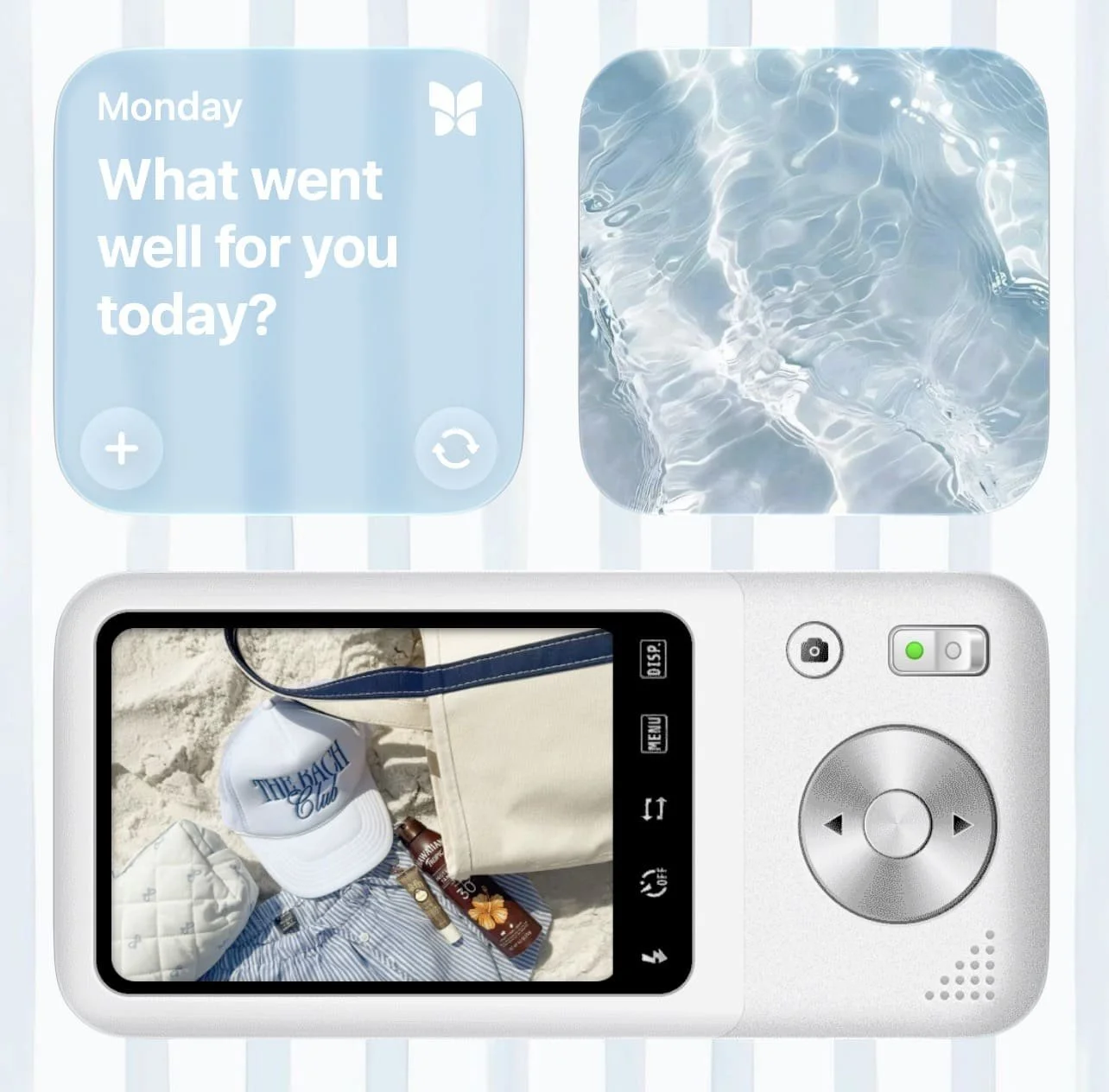
You can add Apple Journal as a widget on your home screen and have it either show your journaling streak or prompts. If you tap the widget, it takes you right to the app.
Tap the arrows and you’ll get a new prompt. Tap the plus and Journal creates a new entry for you.
Add the widget by long pressing on your home screen > tap the paint brush (or whatever button appears in the upper left corner) > add widget > tap Apple Journal > choose size/variety > add widget.
#18: Lock Your Apple Journal
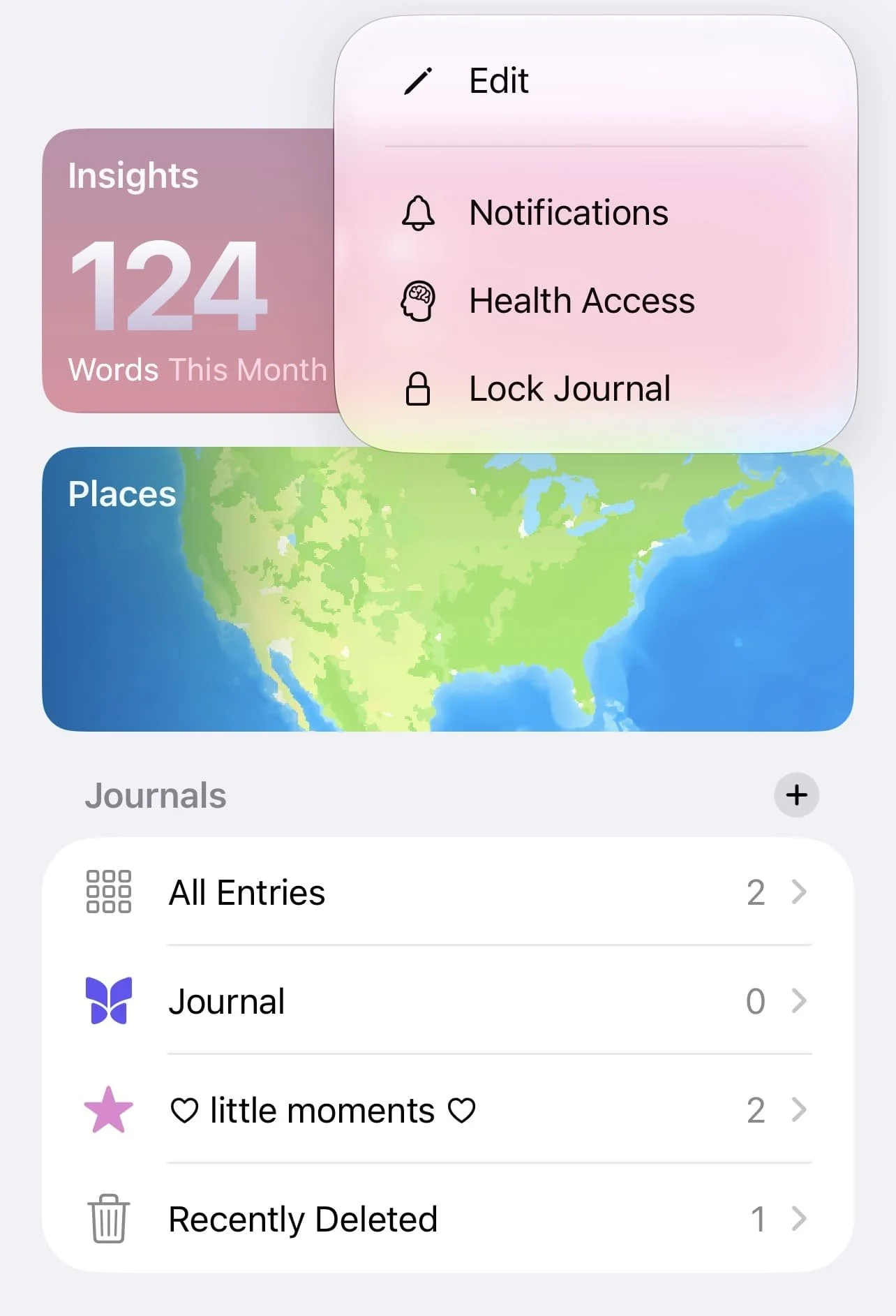
You can lock your whole journal app to keep things like sensitive info and personal journals private.
To do this, go to the main page in Apple Journal > tap the three dots in the upper right corner > lock journal > follow prompts.
#19: Look At Your Insights
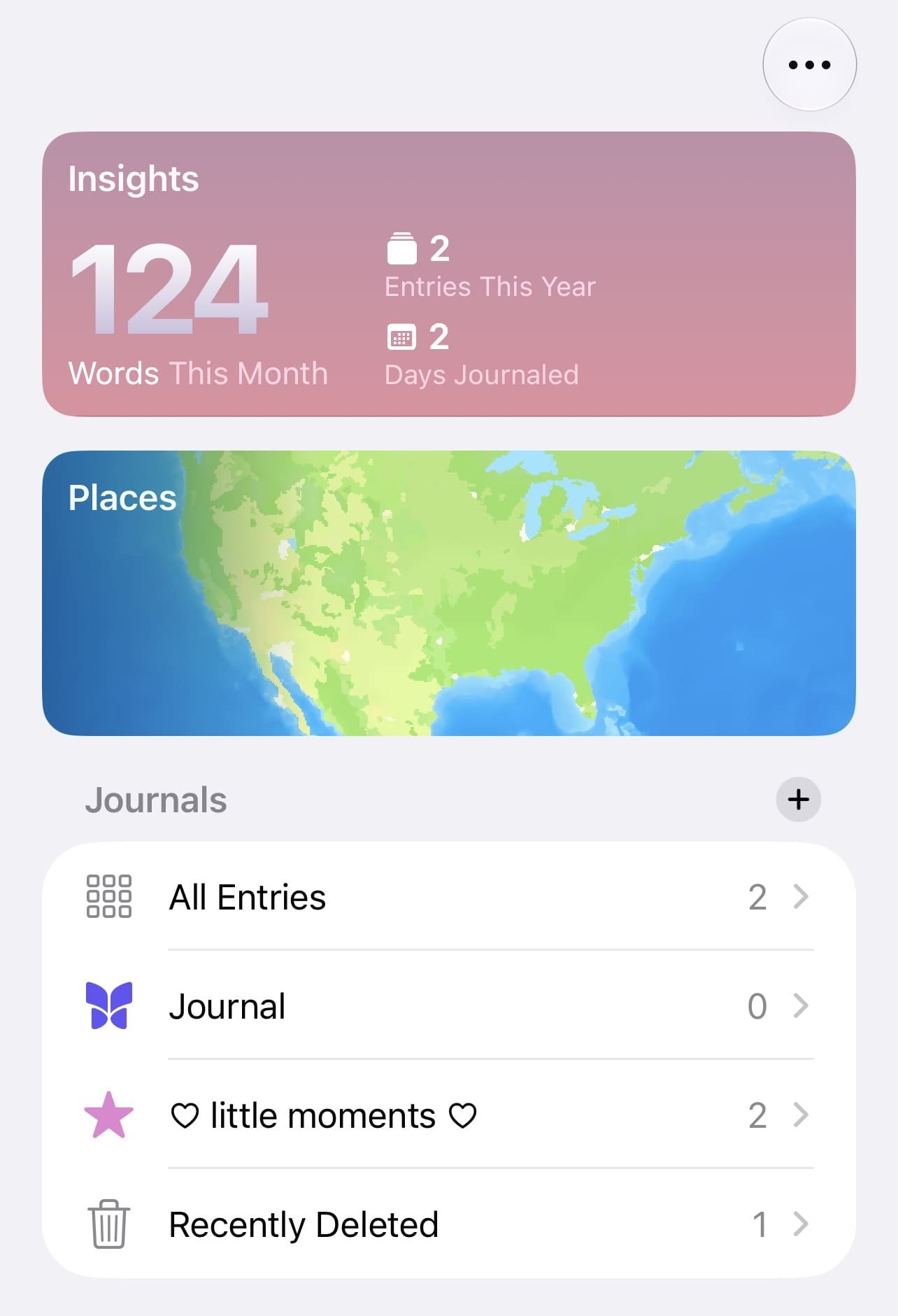
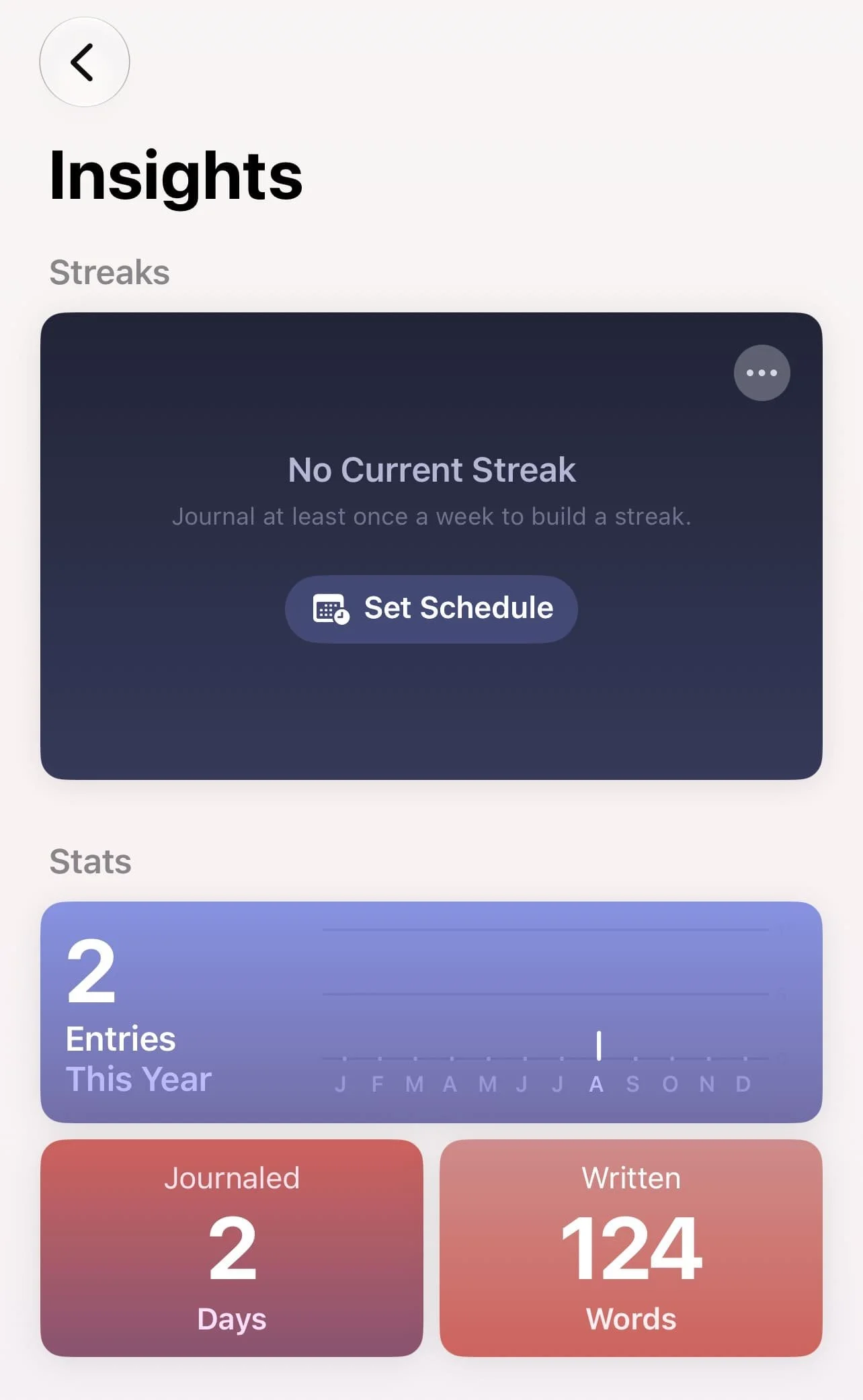
There’s a section in Journal where you can see all your journaling stats like streaks, words written, and more.
Find it by going to the main page in Journal > Insights.
#20: Change The Date Of An Entry
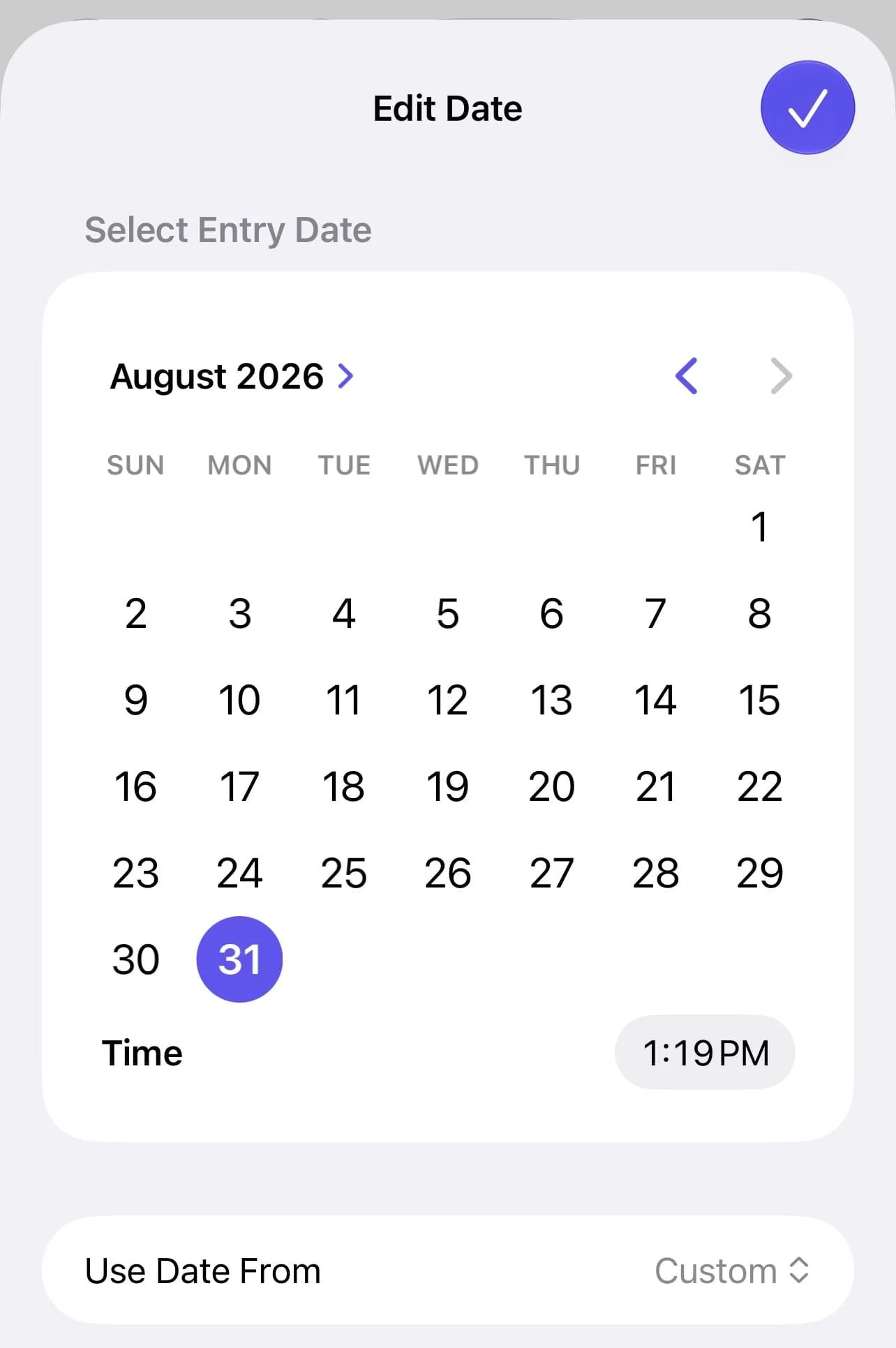
The date of a journal entry doesn’t have to match the date when you’re writing it - you can set it to any date. For example, this comes in handy when you’re journaling about a past event and you want to add the date of that event in your entry.
To change the date, tap into a journal entry > edit > next to the date, tap edit > choose date > tap checkmark to save.
#21: Add Extra Spacing
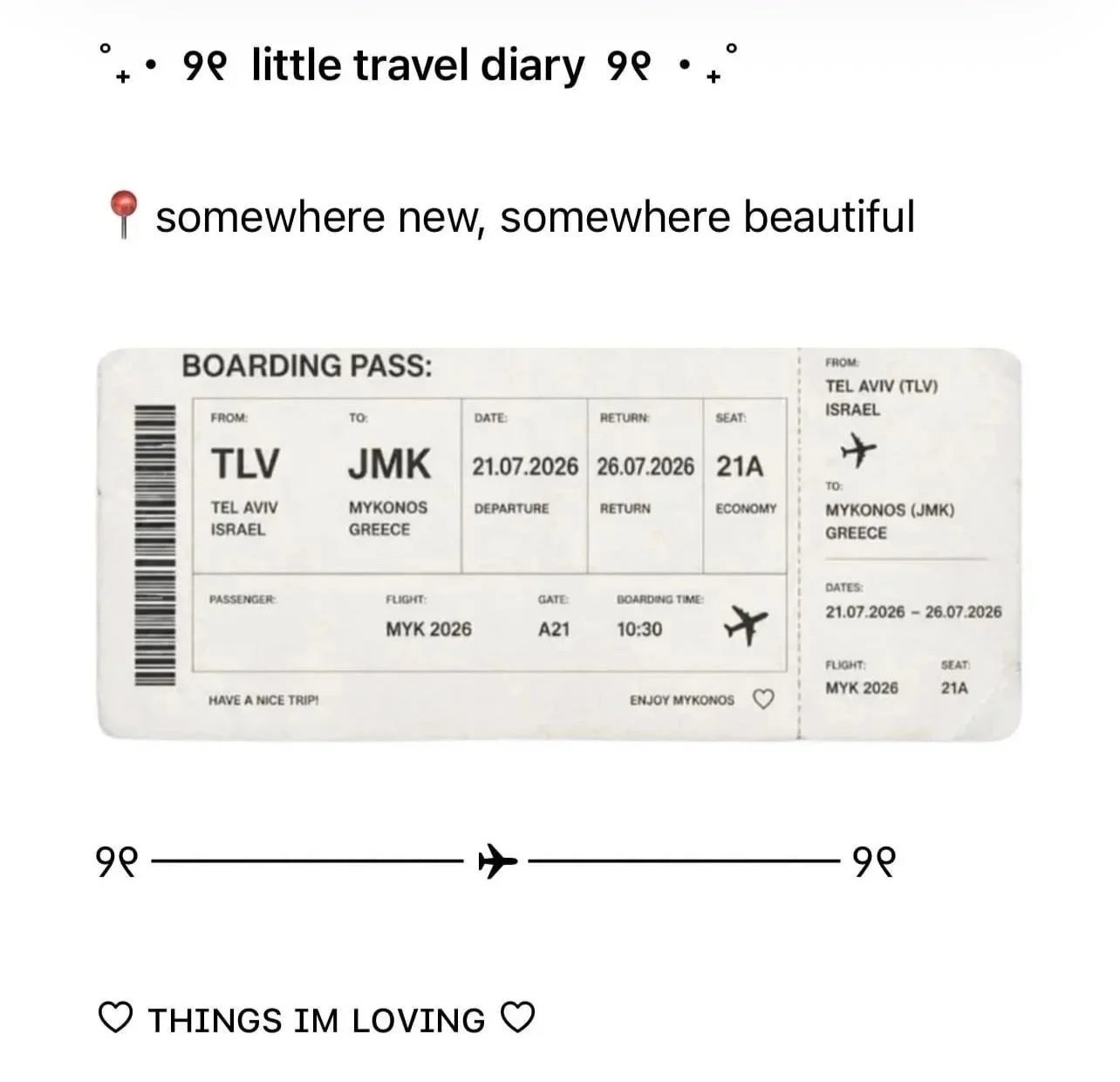
Add extra spacing intentionally for a clean, airy, and minimalist look. For example, keep 1-2 blank lines between sections. If your entry looks cluttered and overwhelming, I bet all it needs is some white space!
Related: 27 Ways To Make Apple Notes Aesthetic! (MUST-KNOW Customization Tricks)
#22: Add Entries To Multiple Journals
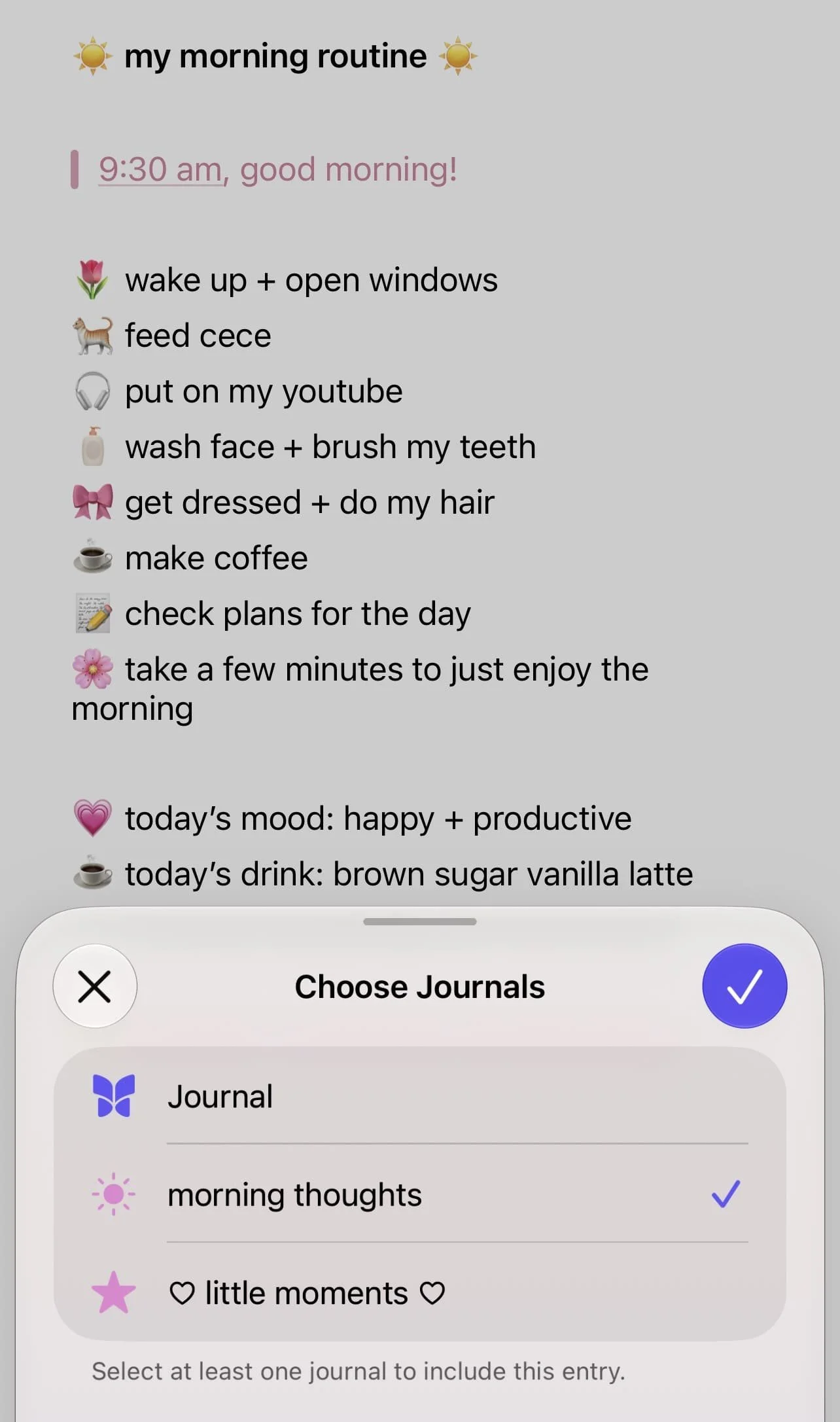
If you have an entry that is relevant to multiple journals, you’re able to add it to all of them.
Do this by tapping into a journal entry > edit > tap the three dots at the top > choose journals > tap the journals you want to add the entry to and make sure there’s a checkmark > tap checkmark to save.
#23: Add Quotes
Journaling is a safe space to express your thoughts and feelings, and is a perfect place to add relevant quotes. If you want, add some cute formatting or a fun font to make the quote feel extra special.
#24: Stick To A Theme
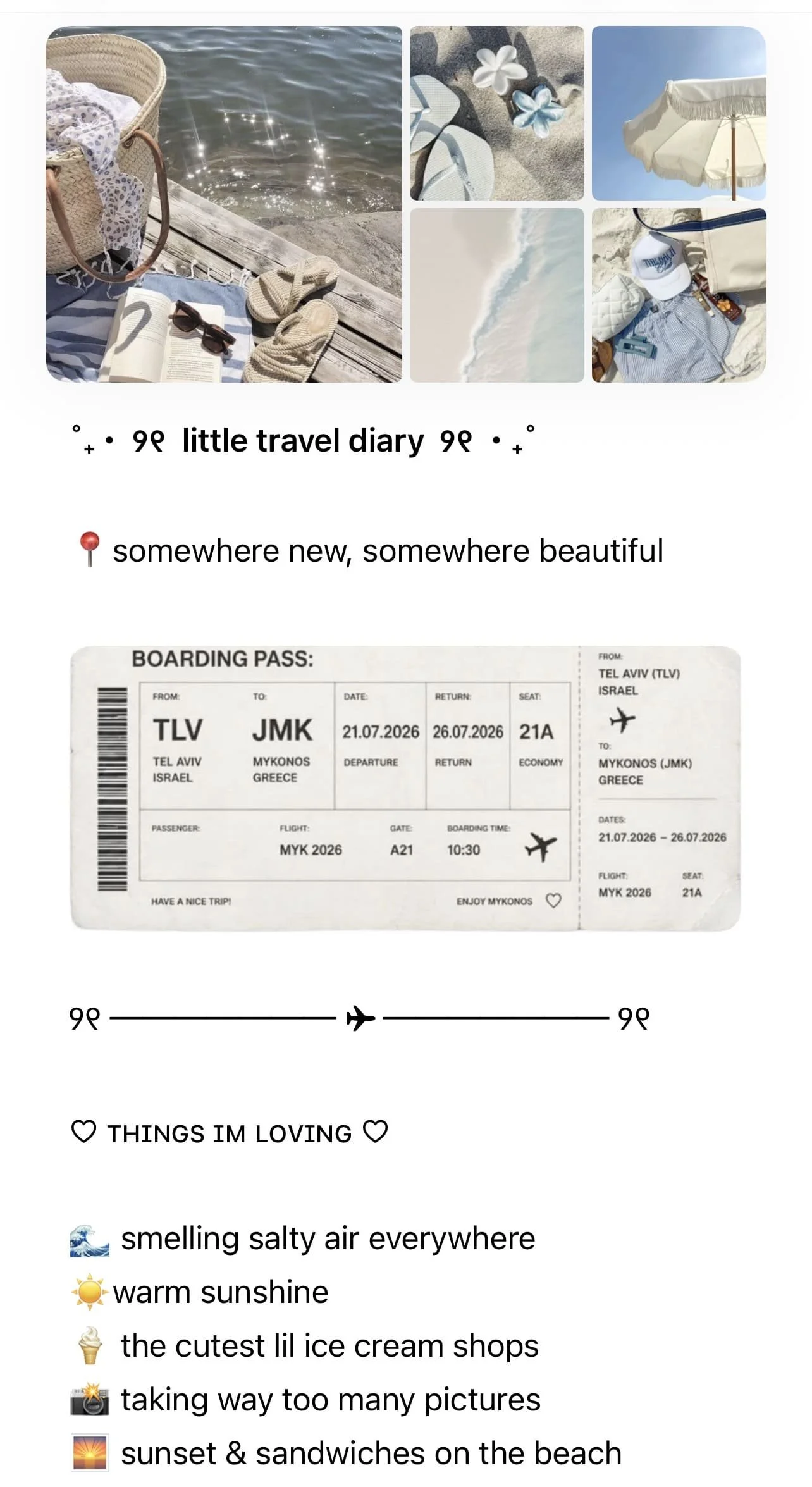
One of my best general tips to make your Apple Journal entries aesthetic is to simplify and stick to a theme. The theme can be anything: colors, locations, font/text styling, you can even choose Pinterest-y themes like east coast summer, coquette, minimalist, and build it around that.
Sticking to one theme is a super easy way to make your journal entries feel visually cohesive, clean, and organized.
Related: 20 FREE Aesthetic iPhone Apps You NEED! (Planning, Productivity, Mindfulness, & More)
#25: Remove Title
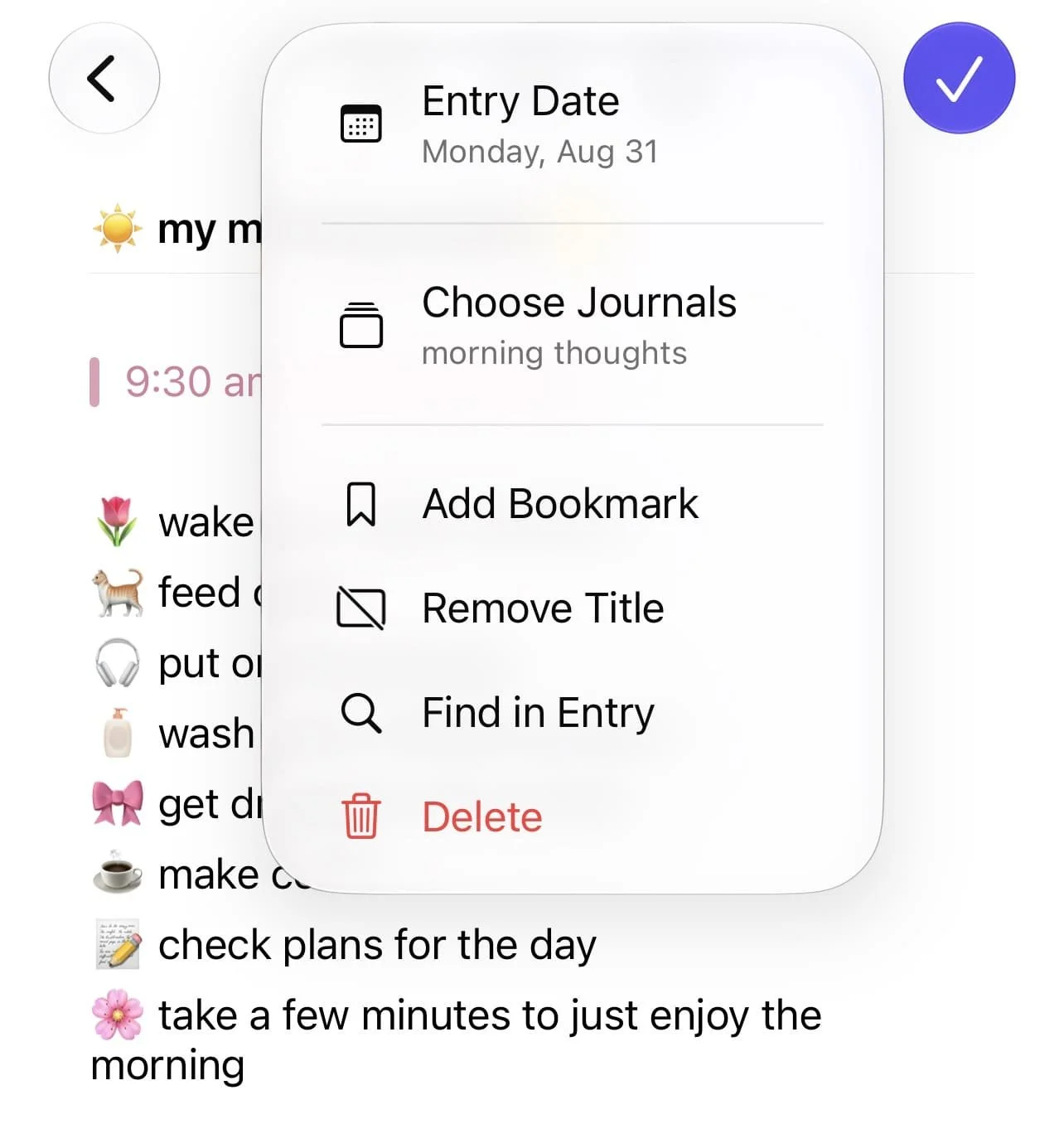
You can remove the title in Apple Notes for a more minimal look!
Do this by tapping into a journal entry > edit > tap the three dots at the top > remove title > tap checkmark to save. You can re-tap the dots and tap “add title” to add the title back.
#26: Make Fun & Creative Journals
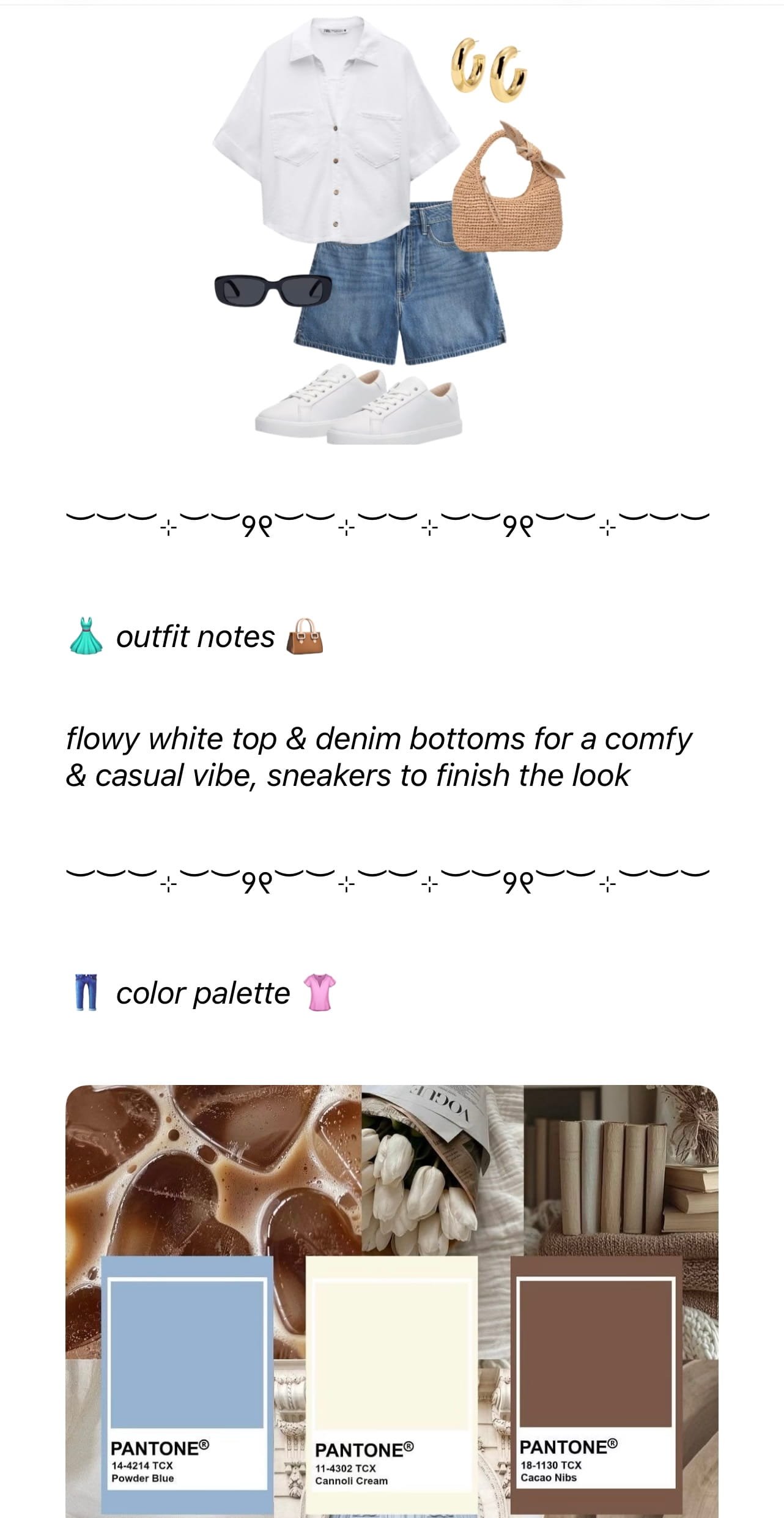
And finally, I want to leave you with some fun and Pinterest-y journaling ideas to do in Apple Notes:
Monthly photo dumps/monthly journals
Seasonal journals
Things that made me laugh: can be literally anything! Photos, recordings, links to things, screenshots of messages or random stuff online. Come back to this journal anytime you want to laugh.
“On repeat” - songs you’re obsessed with. Screenshot Apple Music or Spotify and place it in your entry!
Travel diaries
Outfit journals, each entry can be an OOTD!
Document a journey with something: can relate to skills like learning a language, fitness goals, hair growth journey, skin improvement journey, spiritual journey
“Favorites” journal: favorite products, outfits, songs, places, foods, shows
Morning/night routine entries
Little moments: thoughts, photos, and moments from everyday life
Wishlist! For Christmas, general things you want, themed, etc.
Things I don’t want to forget - anything big or small that’s meaningful to you that you want to be able to look back on
One photo a day - a daily snapshot from each day of your life
Closing Thoughts
Thanks for stopping by my post “26 Ways To Make Apple Journal Aesthetic! (Customization Tricks To Romanticize Your Journal).”
For handmade digital art prints, icon packs, wallpapers, & more designed by me, be sure to stop by my digital boutique: Designed By Nikki Lo.
Connect with me!