5 BEST MacBook Productivity Tricks (That Will Save You SO Much Time! Must-Know!)

This post is about absolute must-know MacBook productivity tricks. Trust me on these!
If you feel like you're constantly clicking through menus, opening a million tabs, or doing things the hard way on your MacBook, I’m gonna help you change that!
Your Mac can do so much more than you probably realize, and some of the best productivity features are hiding right in plain sight.
So today, we're getting into 5 ridiculously useful MacBook productivity tricks that can save you a ton of time and make everyday tasks wayyyy easier. These tips will leave you thinking, “wait…why did I not know about this?!”
5 Game-Changing MacBook Productivity Features You’ll Wish You Knew Sooner
#1: Copy Text From Photos & Screenshots With Live Text
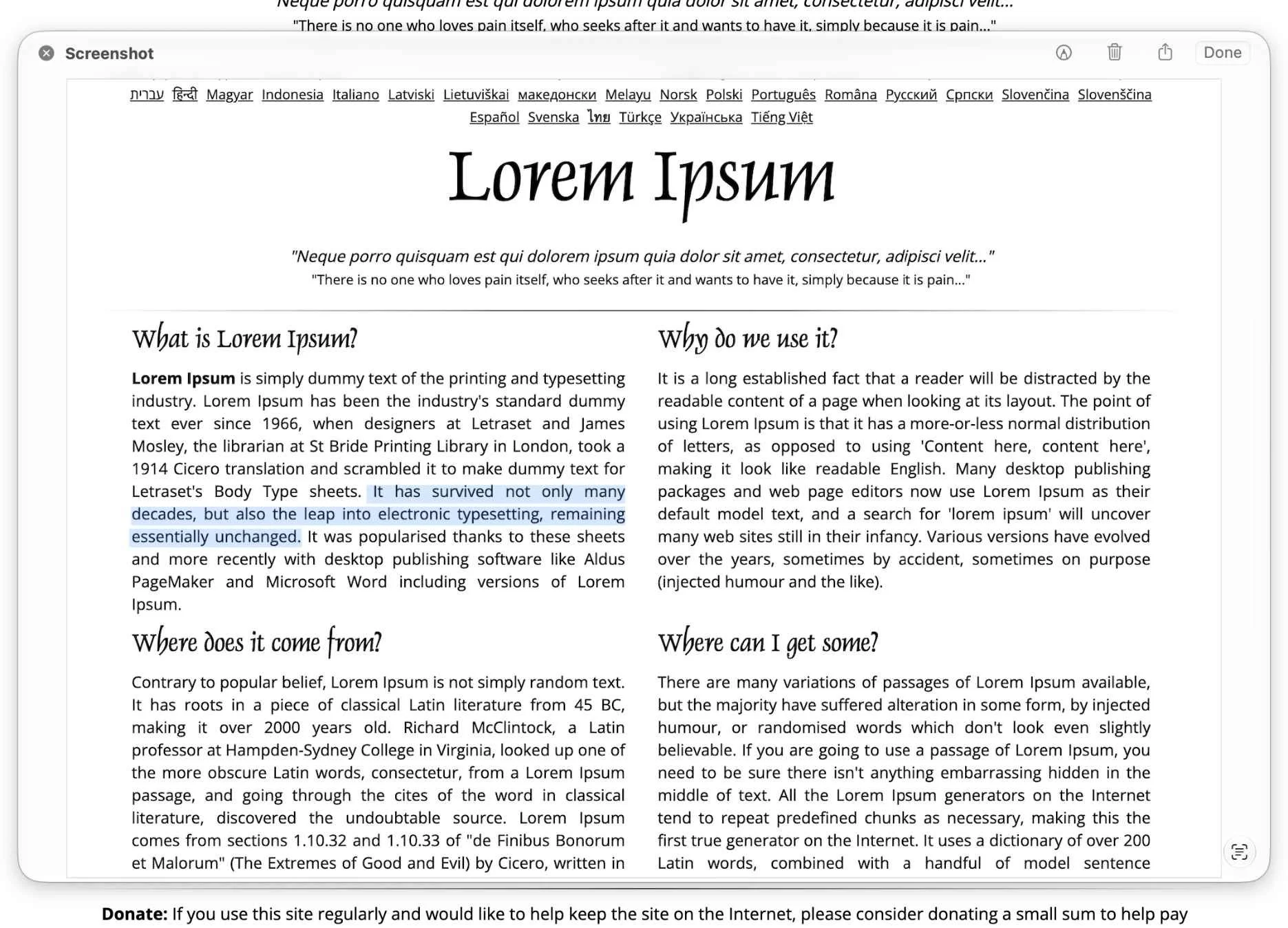
Ever had a screenshot with a website, address, recipe, or random piece of text that you wanted to copy? Instead of typing it all out manually, your Mac can recognize the text for you.
Live Text lets you select and copy text directly from images, screenshots, and photos basically like the text was in a normal document.
How to use live text: open an image or screenshot > hover over the text > highlight the text > right-click > copy. You can then paste the text anywhere you need it.
#2: Copy Something On Your iPhone & Paste It On Your MacBook
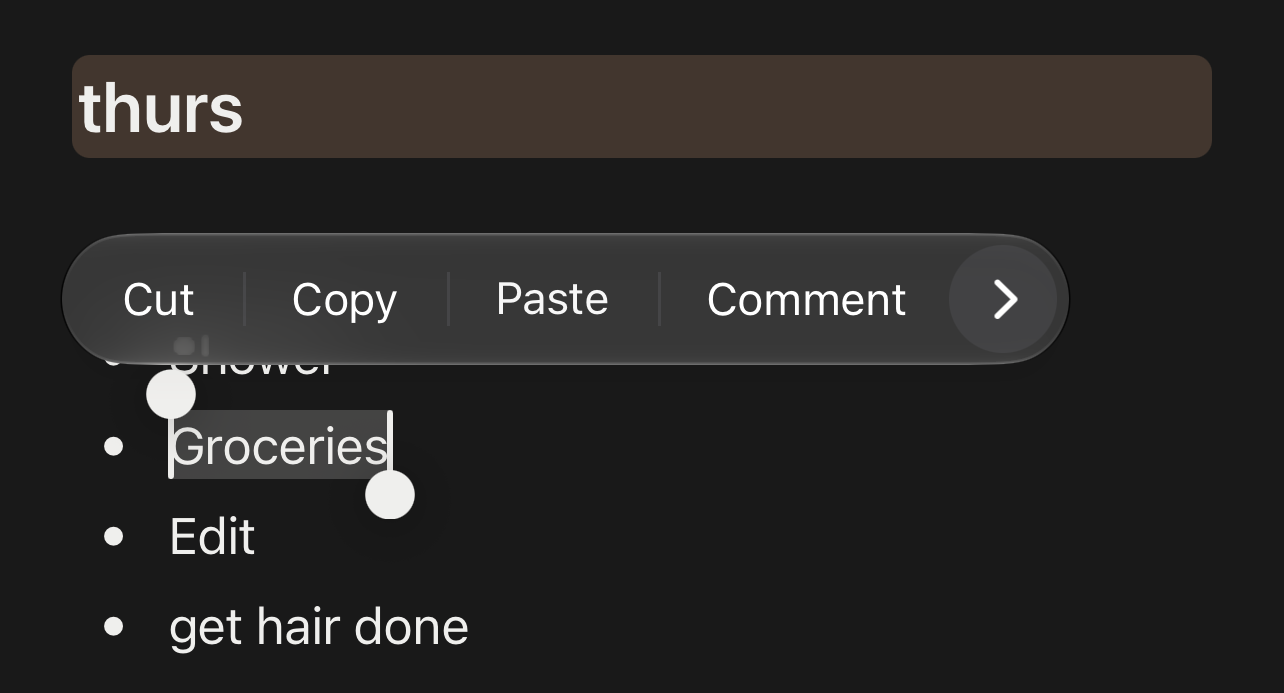
This might be one of the most useful Apple features you didn't realize you were already capable of using.
With Universal Clipboard, you can copy something on one Apple device and paste it on another. For example, you could copy an address from your phone and immediately paste it into an email on your Mac without sending the address to yourself.
How to use universal clipboard: iPhone > copy text, photo, or file. Then: MacBook > click where you want it > command + v to paste.
For this to work, your devices need to be signed into the same Apple Account and have Wi-Fi and Bluetooth turned on.
Related: 13 Genius Ways To Fix Your Chaotic iPhone (And Make It Aesthetic)
#3: Use Text Replacements to Type Faster
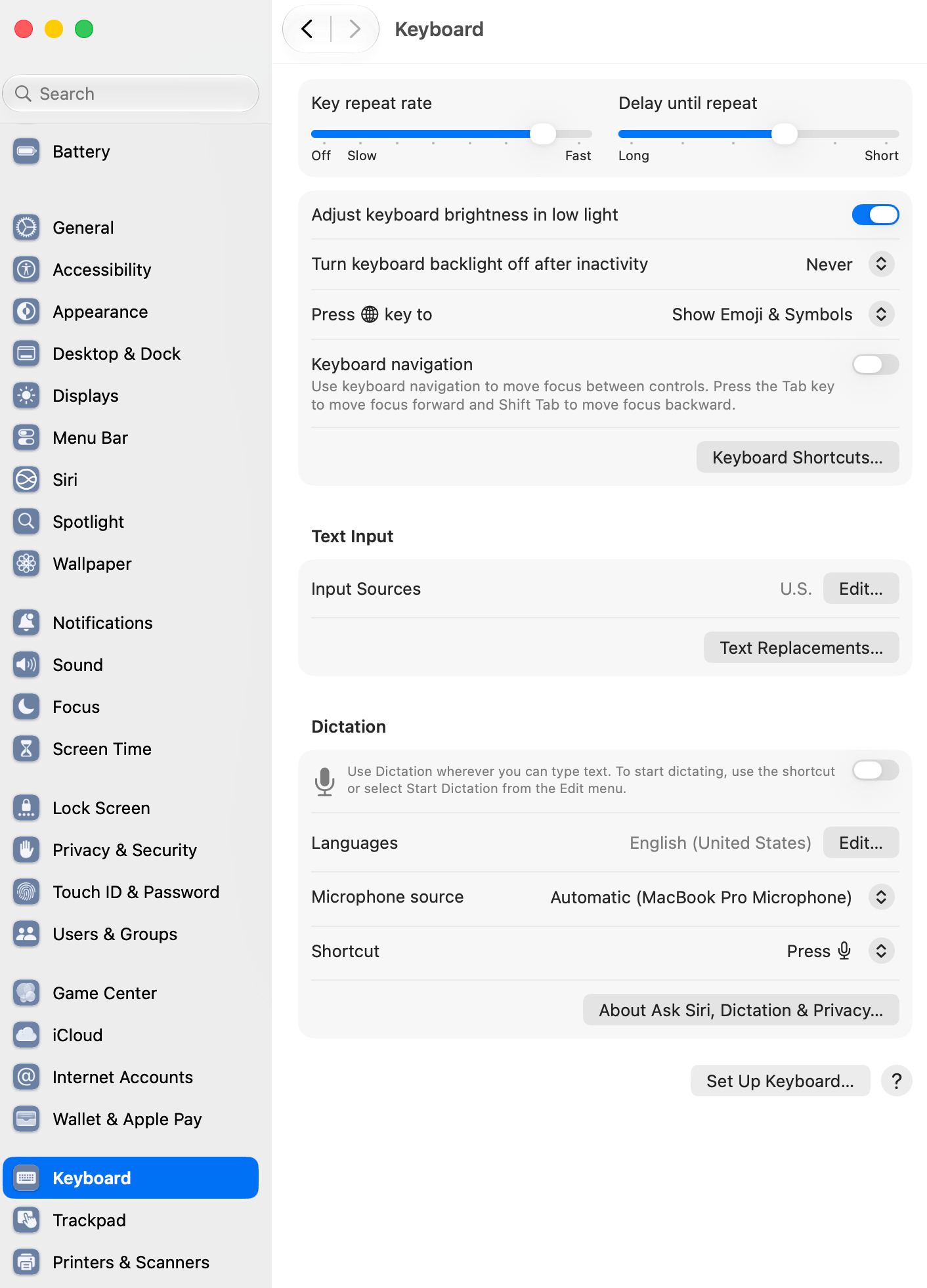
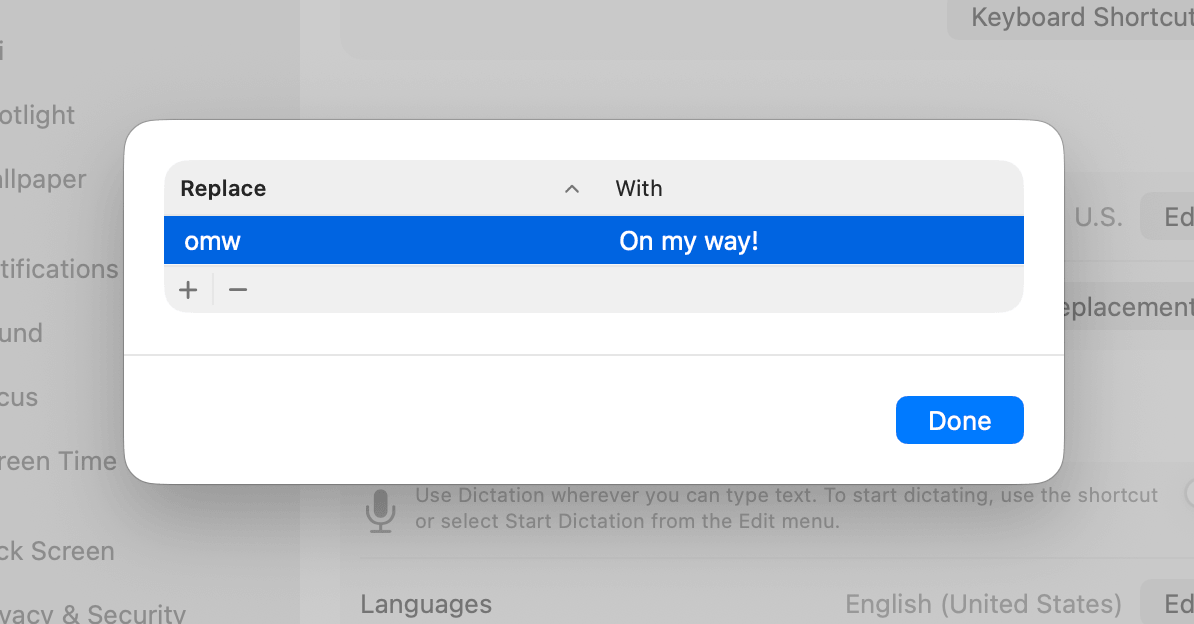
If you constantly type the same things like your email address, phone number, or even entire responses, you can make your MacBook type them for you! For example, you could set @@ to automatically expand into your email address.
How to create a text replacement: system settings > keyboard > text replacements. Then: replace > type your shortcut > with > type the full text > done.
Now whenever you type your shortcut, your MacBook will automatically replace it with the longer text.
Related: 13 Genius Ways To Fix Your Chaotic iPhone (And Make It Aesthetic)
#4: Use Spotlight

Spotlight is basically a mini command center hiding inside your MacBook! You can use it to find files and apps, but it can also do calculations, conversions, definitions, and more all without opening another app.
How to use spotlight: command + space > type what you need. Try things like: 250x0.15, 50 USD in CAD, 135 minutes in hours, search for an app to open, define words, etc.
#5: Use Hot Corners To Trigger Actions Instantly
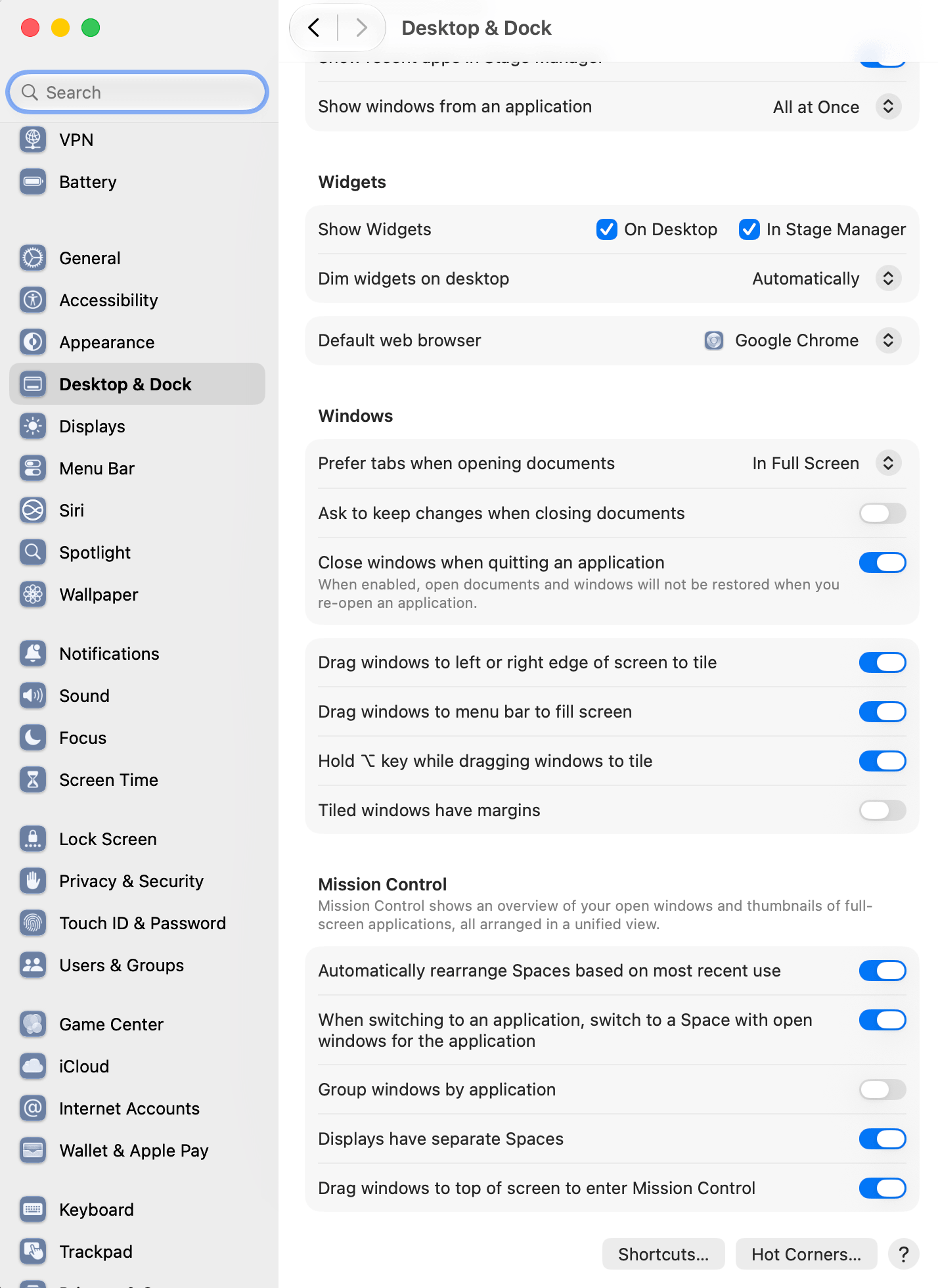
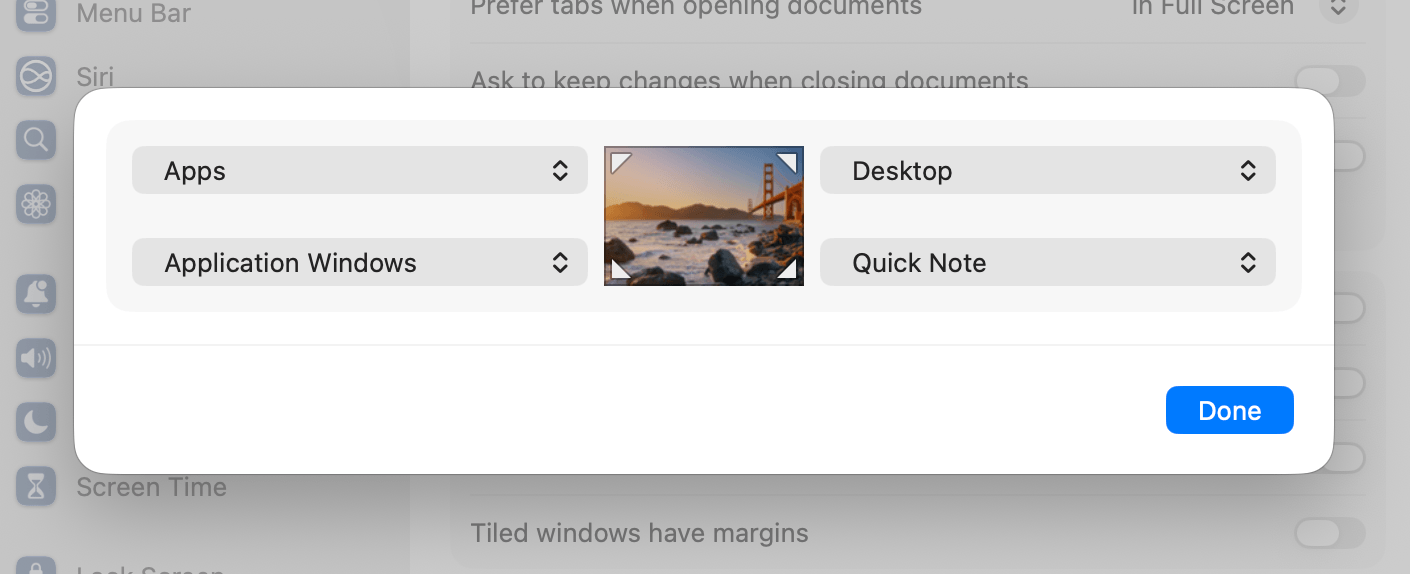
Hot Corners lets you assign an action to each corner of your screen. Then, whenever you move your cursor into that corner, your MacBook automatically performs the action. You could set one corner to show your desktop, another to open Quick Note, and so much more.
How to set up hot corners: system settings > desktop & dock > hot corners. Then: choose a corner > select an action > done.
A little tip: don't assign something you might accidentally trigger constantly and get annoyed by. “Show desktop” and “lock screen” are especially useful choices and favorites of mine, but choose what’s most useful for you.
Related: 19 Aesthetic Ways To Customize Your MacBook With macOS 27 Golden Gate
Closing Thoughts
And there you have it! These are 5 MacBook features that can make your everyday workflow sooo much easier. Once you start using these, you'll probably find yourself wondering how you ever lived without them (I know I did!)
Thanks for stopping by my post “5 BEST MacBook Productivity Tricks (That Will Save You SO Much Time! Must-Know!)”
For handmade digital art prints, icon packs, wallpapers, & more designed by me, be sure to stop by my digital boutique: Designed By Nikki Lo.
Connect with me!