9 Quick & Easy Steps To Declutter Your MacBook (Ultimate Digital Reset Routine)
This post is about how to declutter your MacBook in 11 quick and easy steps.
It’s so easy to feel super overwhelmed when your MacBook starts getting cluttered, but we’re gonna fix that! I’m sharing my super simple 11-step MacBook decluttering routine that I come back to regularly to keep my device feeling nice, organized, and so much less chaotic.
This is an easy-to-follow routine that you can knock out fairly quickly whenever your MacBook needs a little reset. We’re covering everything from deleting old files and decluttering your browser to sorting through your apps, cleaning up your photos, and more. So grab your MacBook, and let’s jump in!
11 Quick MacBook Decluttering Tricks That Make a HUGE Difference
#1: Force Quit
Start by force quitting any apps you don’t need open right now - this is going to make the decluttering process so much easier and instantly clear up your dock as well.
On the menu bar, click the apple icon in the upper left corner > force quit > choose the apps you want to quit > force quit. Just make sure all your work is saved before you quit.
#2: Declutter Your Dock

Next, let’s declutter your dock! Your dock should hold your most essential and commonly used apps.
Right click and quit any apps you don’t need right now. For apps you don’t want on your dock, right click > options > remove from dock. When you open an app, it will automatically be added to your dock.
Related: 5 BEST MacBook Productivity Tricks (That Will Save You SO Much Time! Must-Know!)
#3: Simplify Your Menu Bar

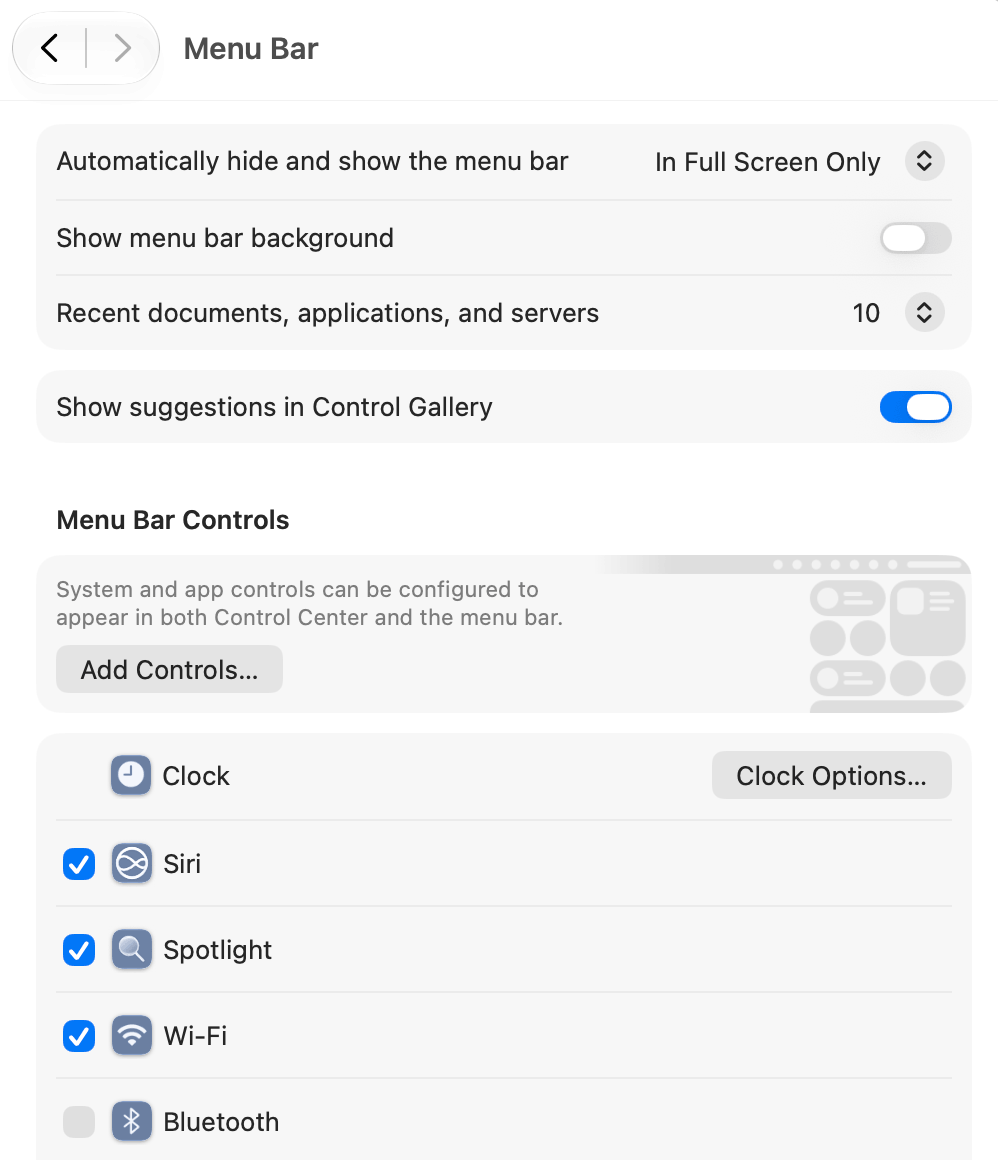
Your menu bar is the black bar across the top of your MacBook screen. To customize your menu bar, go to system settings > menu bar and choose which controls you want to show in your menu bar.
Turn on options like battery, sound, wi-fi, bluetooth, focus, or screen mirroring to keep your most-used features easily accessible.
You can also hold command (⌘) and drag menu bar icons around to rearrange their order. Directly on your menu bar, you can also right click > remove to delete things from your bar.
Related: 13 Genius Ways To Fix Your Chaotic iPhone (And Make It Aesthetic)
#4: Delete & Organize Apps
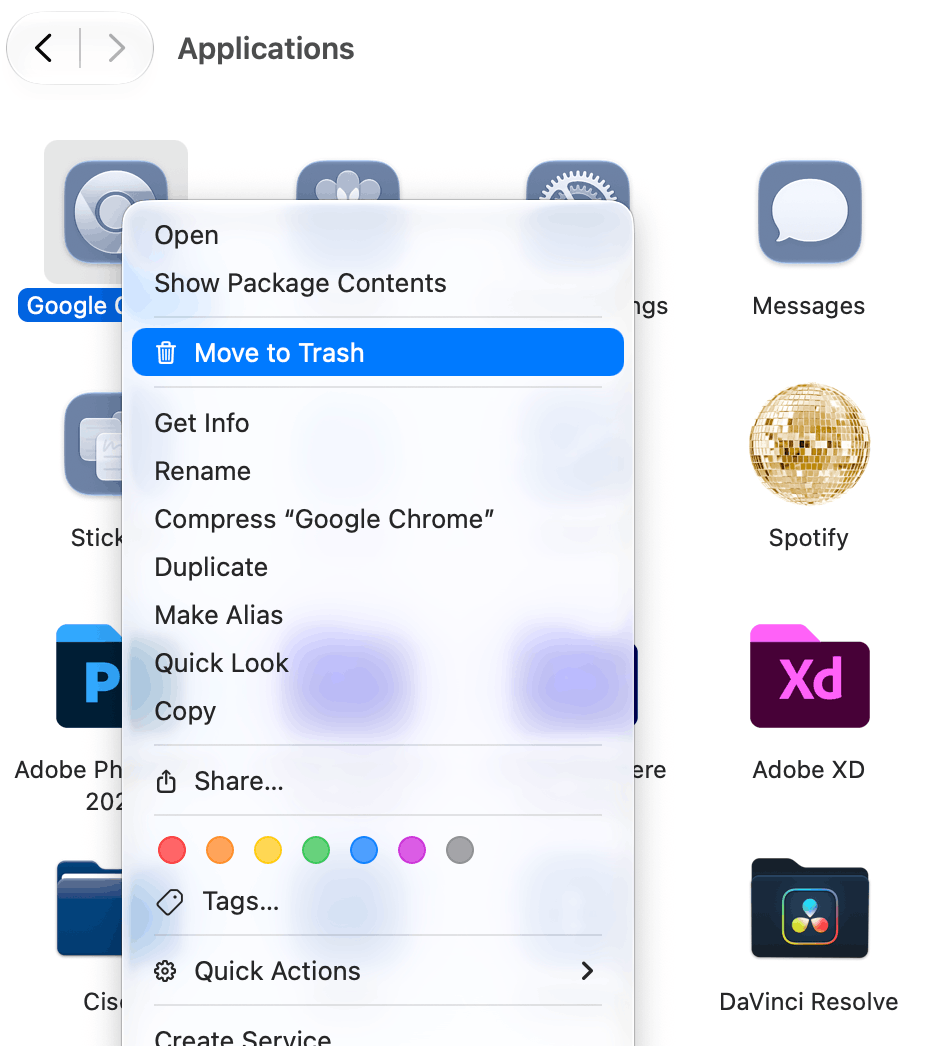
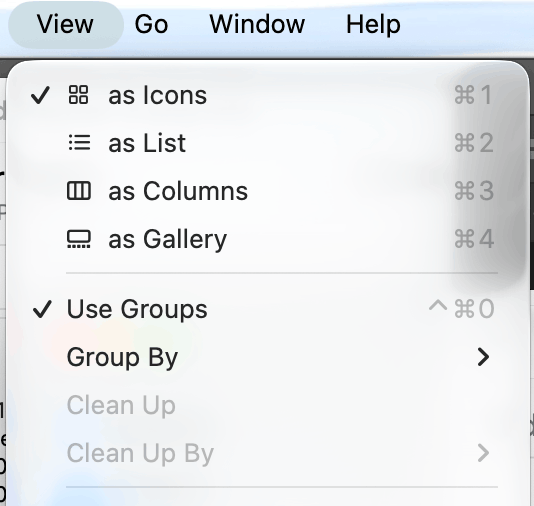
Next, let’s tackle your apps. Go to Finder > applications (left hand side) and right click > move to trash for anything you want to delete.
Categorize your apps by adding them to relevant folders. To create a folder, right click on an empty space > new folder > type to name the folder. Then click and drag the apps you want into the folder.
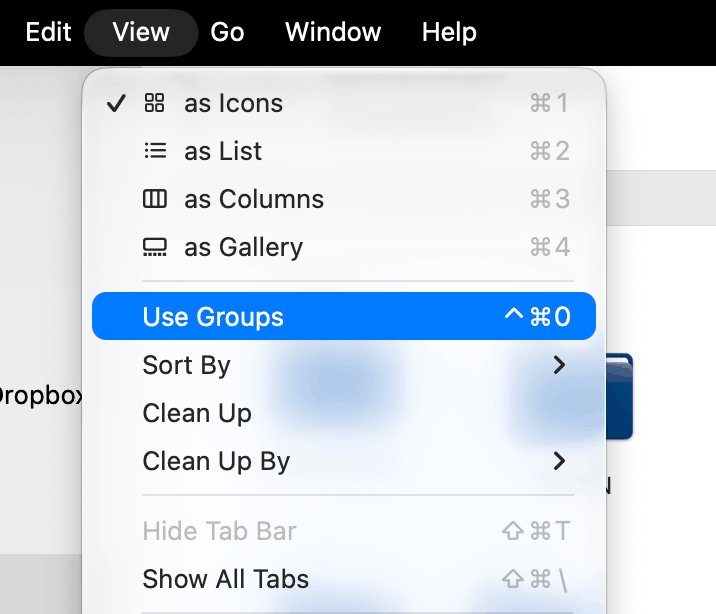
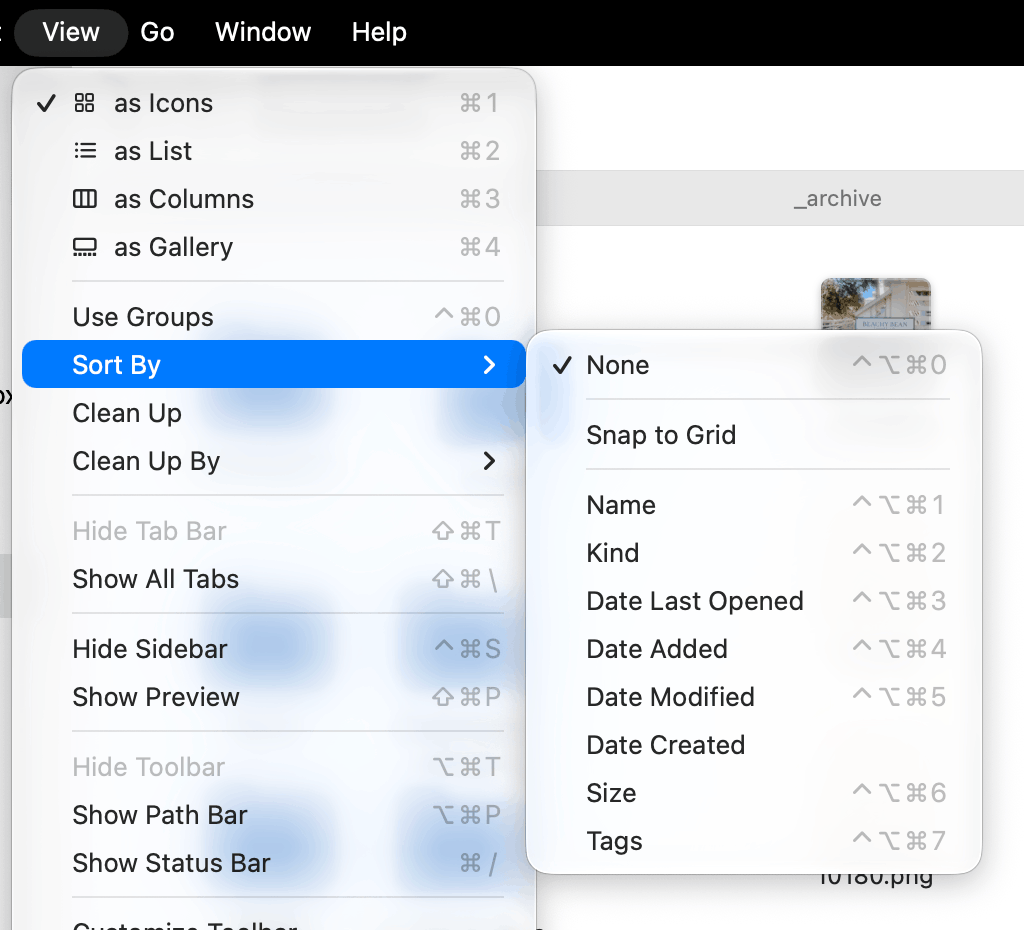
Now, let’s quickly sort these apps to make them easier for you to find! In the menu bar at the top, go to view > as icons/list/gallery/columns depending on your preference.
Then go back to view > sort by > choose your preference. Your apps will be sorted based on the criteria you choose. Personally, I like choosing “date modified” so the apps I used most recently are at the top. I also suggest choosing view > sort by > snap to grid so your apps stay in a nice, neat grid.
#5: Delete & Organize Files
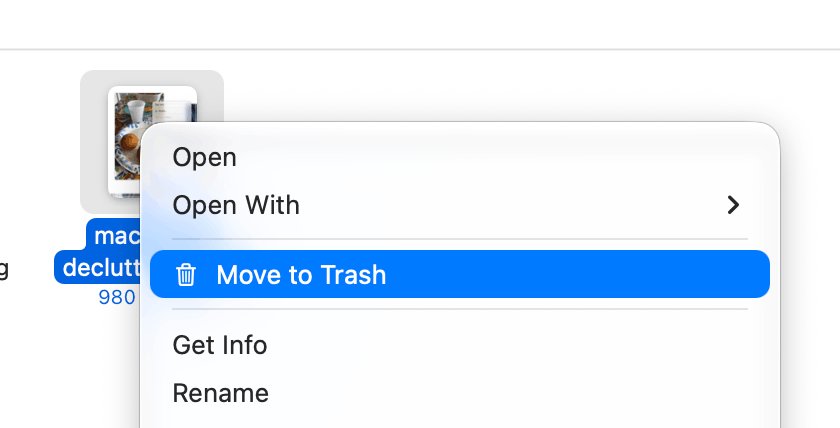
Let’s do the same process but for your files! You’ll want to do these steps for the files in desktop, documents, and downloads (left hand side menu in Finder).
Go to Finder > applications (left hand side) and right click > move to trash for anything you want to delete.
Categorize your files by adding them to relevant folders. To create a folder, right click on an empty space > new folder > type to name the folder. Then click and drag the files you want into the folder.
Sort your files by using the menu bar at the top. Go to view > as icons/list/gallery/columns depending on your preference.
Then go back to view > sort by > choose your preference. Your files will be sorted based on the criteria you choose. Again, I like choosing “date modified” so the files I used most recently are at the top.
And of course, definitely recommend choosing view > sort by > snap to grid so everything stays in a grid instead of chaotic piles across your screen.
#6: Declutter Your iCloud Drive
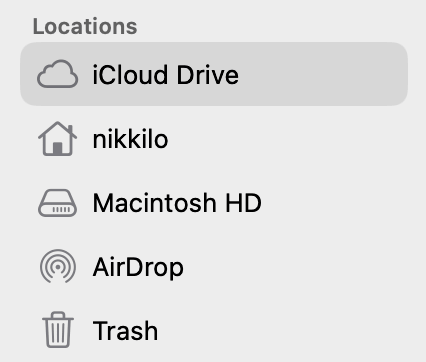
If enabled, files you save on your desktop or in your documents folder can automatically sync to your iCloud Drive. Clear out your drive by going to Finder > iCloud Drive (left side menu).
Take a few minutes to delete old files, duplicate documents, random downloads, and projects you’ve completely forgotten about.
You can control what gets synced to your drive and what doesn’t by going to system settings > iCloud > see all.
#7: Clear Photos App
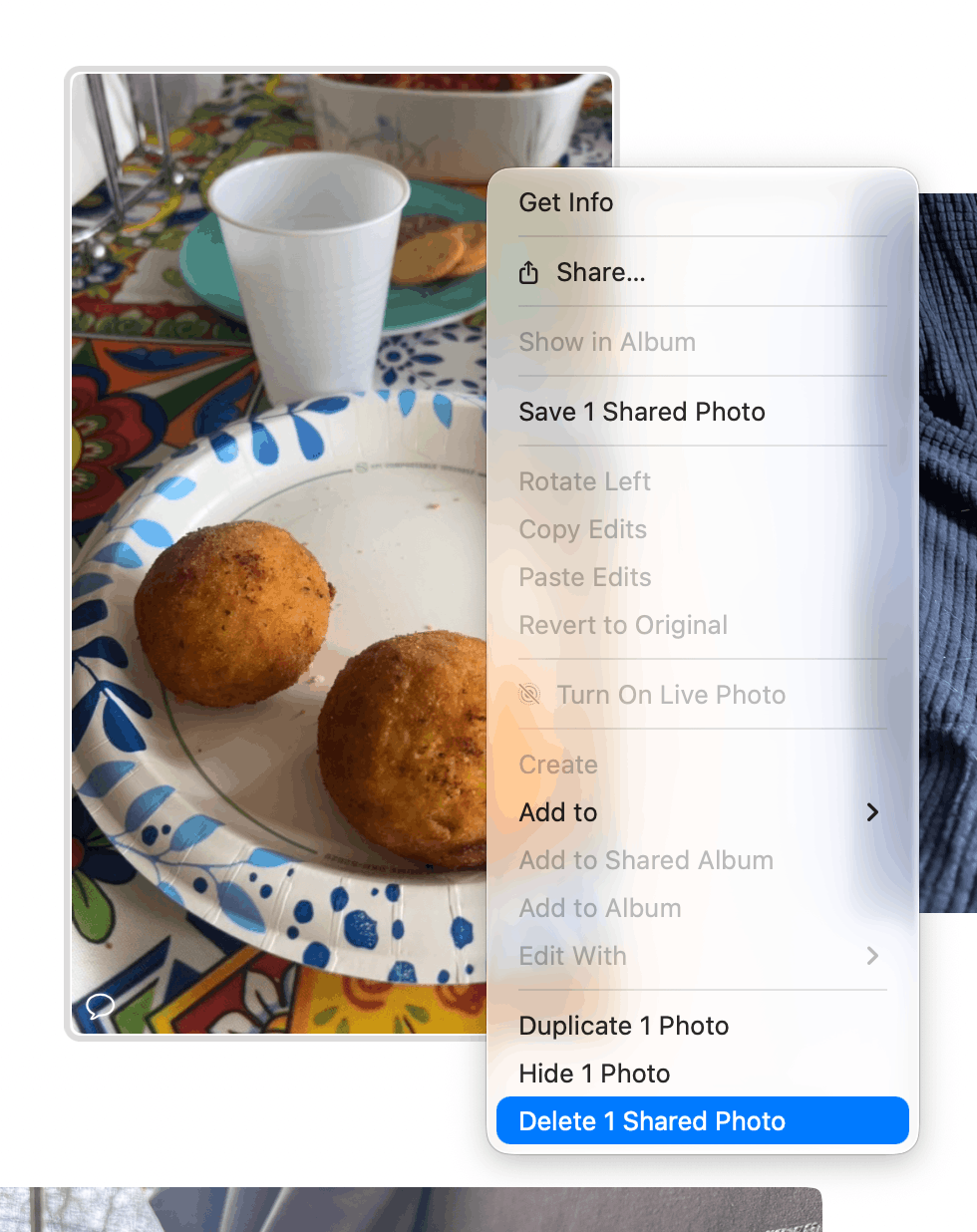
This is a spot that can easily get chaotic! To delete photos, open up your Photos app and right click on a photo > delete.
This is also a good time to delete/organize your albums, too. You can right click > delete for these as well.
Related: 15 Ways To Reset & Refresh Your iPhone (Digital Declutter & Organization Routine)
#8: Close Browser Tabs

Okay, the next few steps are going to be geared towards decluttering your browser. I’m a Google Chrome user but of course you can do this routine on any browser.
First things first - close your tabs! If you force quitted your apps earlier, your tabs will have automatically closed. But if you didn’t, go ahead and manually close them.
Safari users listen up! This trick is life-changing. Open Safari and from the menu bar, go to Safari > settings > tabs > customize the settings to keep your tabs organized. The best feature here (in my opinion) is automatically close tabs > choose manually/after one day/week/month.
This lets your MacBook automatically clean them up for you so you never have to manually do a massive tab purge again.
#9: Declutter Your Bookmarks
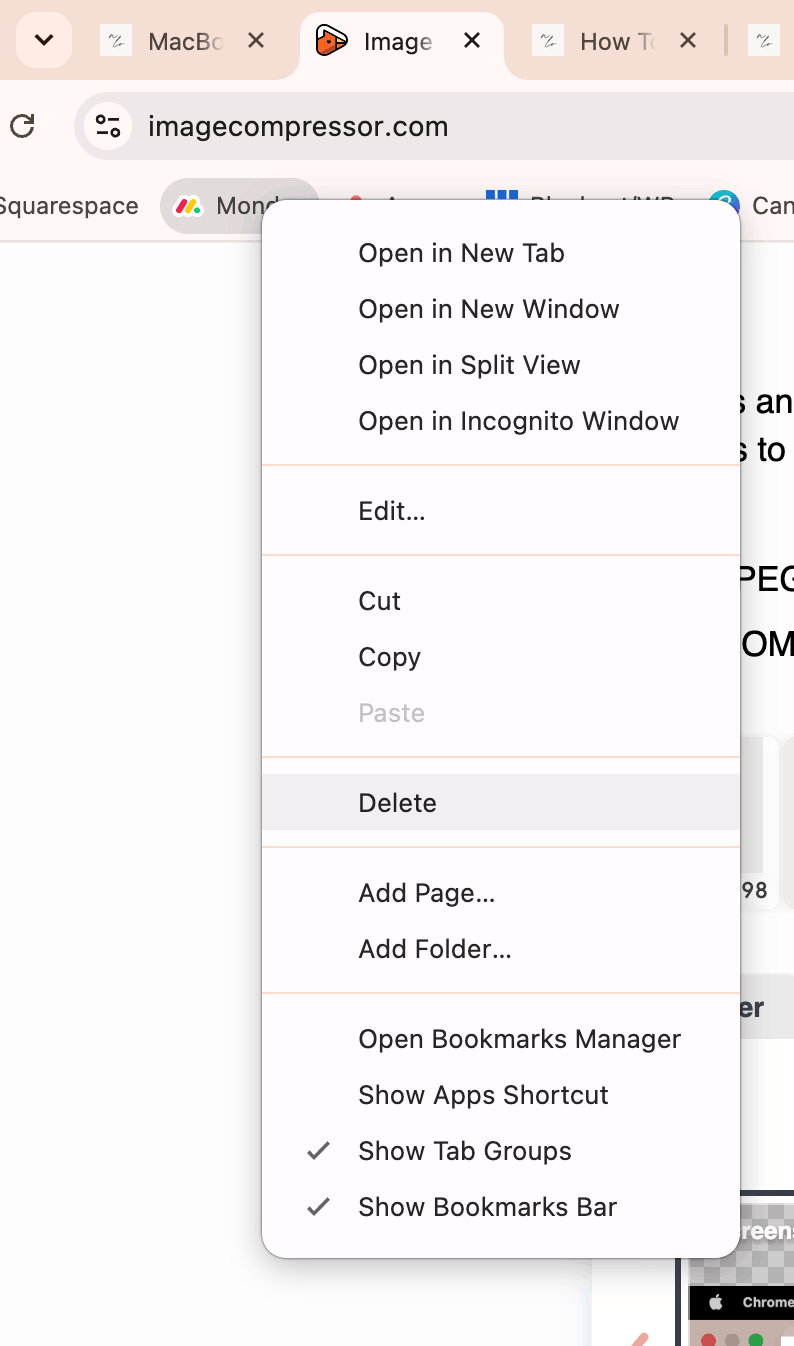
If you’re anything like me, you probably have a bunch of old bookmarks from years ago you don’t use anymore. Let’s fix that!
On Chrome, you can delete a bookmark by right clicking > delete. You can click and drag bookmarks around on your bookmark bar to customize the order they appear in.
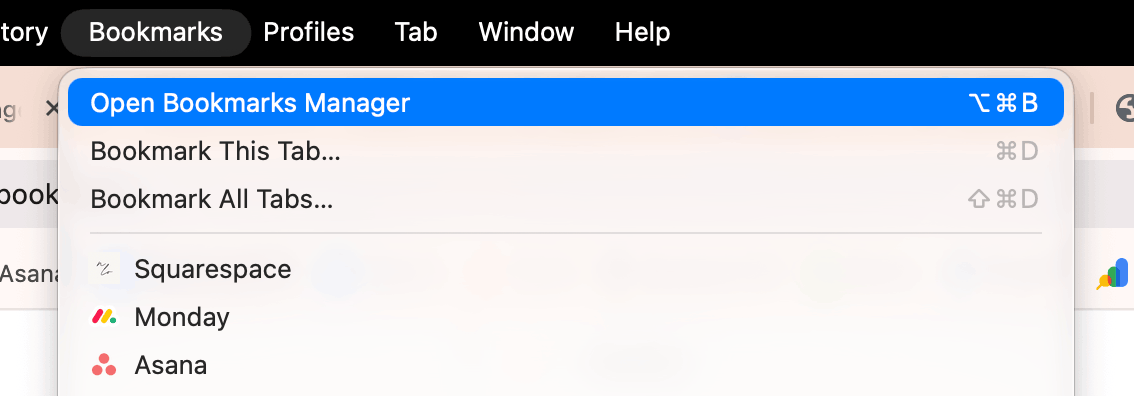
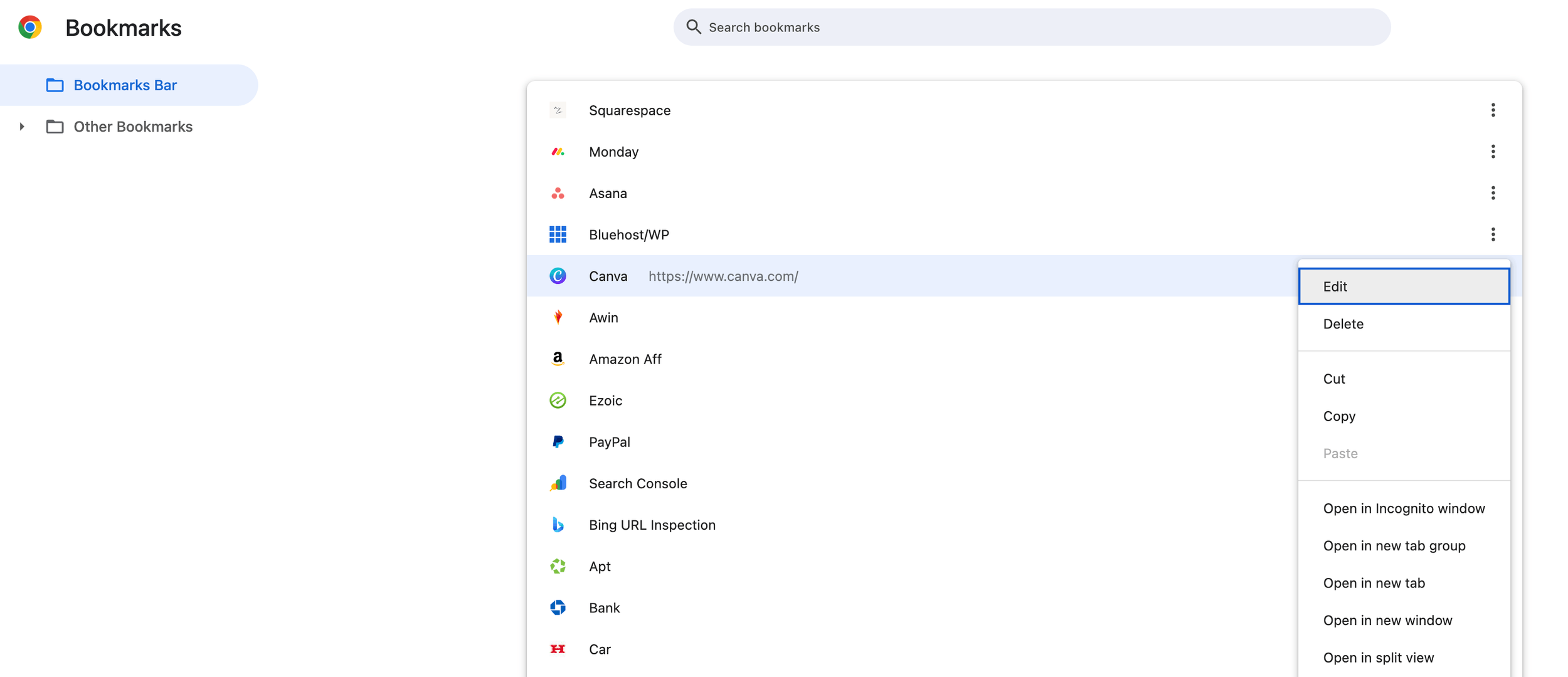
To see all your bookmarks and manage them even more, open the bookmarks manager by clicking on bookmarks (menu bar) > open bookmarks manager. Click the three dots on each bookmark for options like delete, copy, etc.
Related: How To Customize Your MacBook With macOS 27 Golden Gate (Aesthetic Tutorial)
#10: Clear Extensions
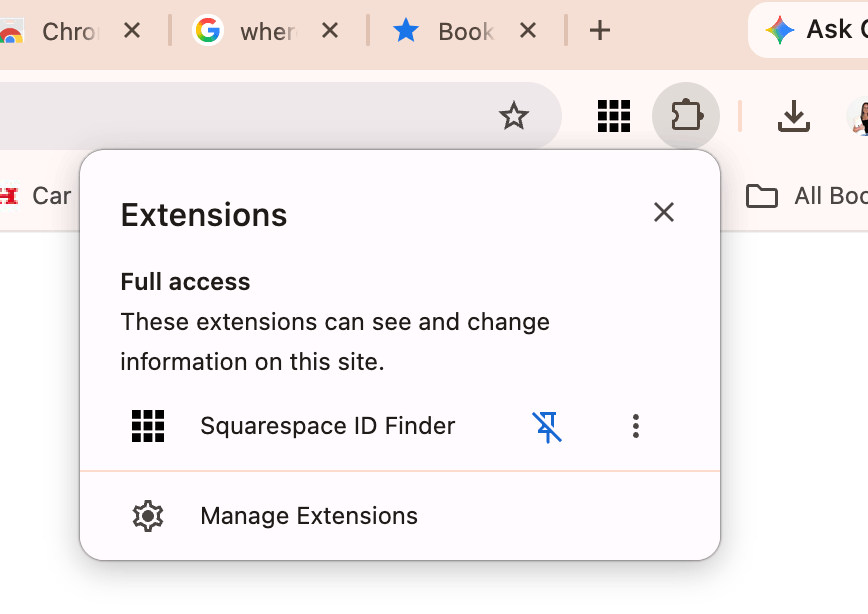
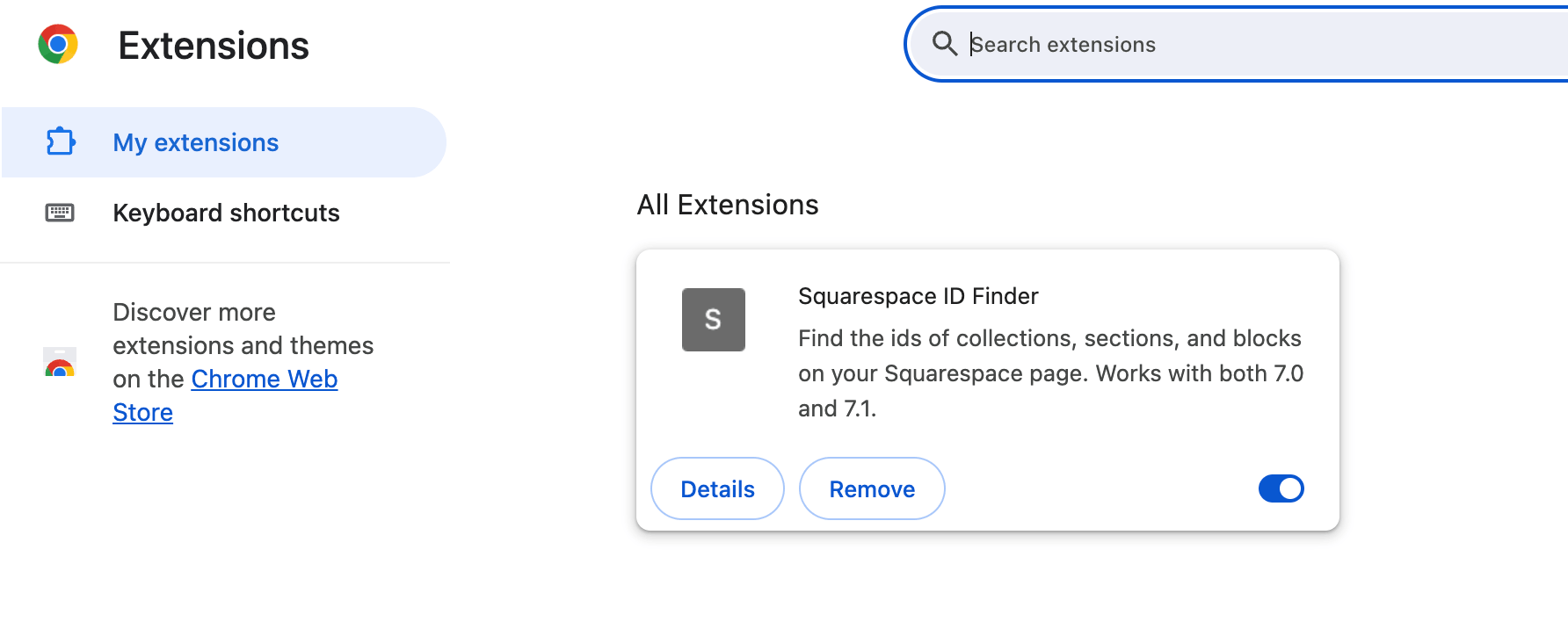
On to extensions! On Chrome, click the puzzle piece icon (right side of address bar) to pull up your extensions list.
Pin and unpin extensions (pinning means extensions will be easily accessible right next to the address bar) based on your preferences, or click the three dots > remove from Chrome to delete.
You can also click on “manage extensions” at the bottom to get a full screen menu to delete/add/organize them even more.
#11: Clear Browsing Data
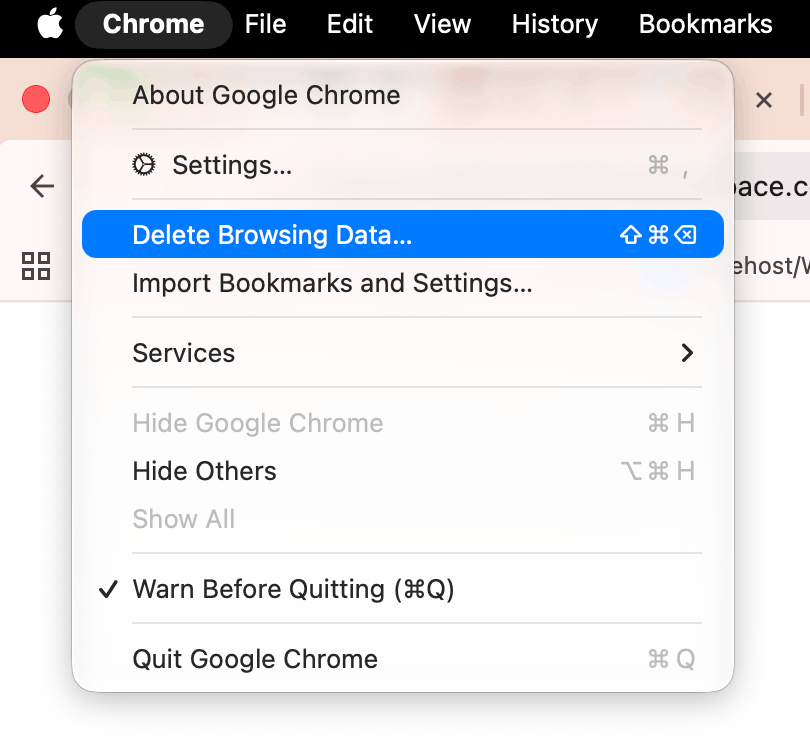
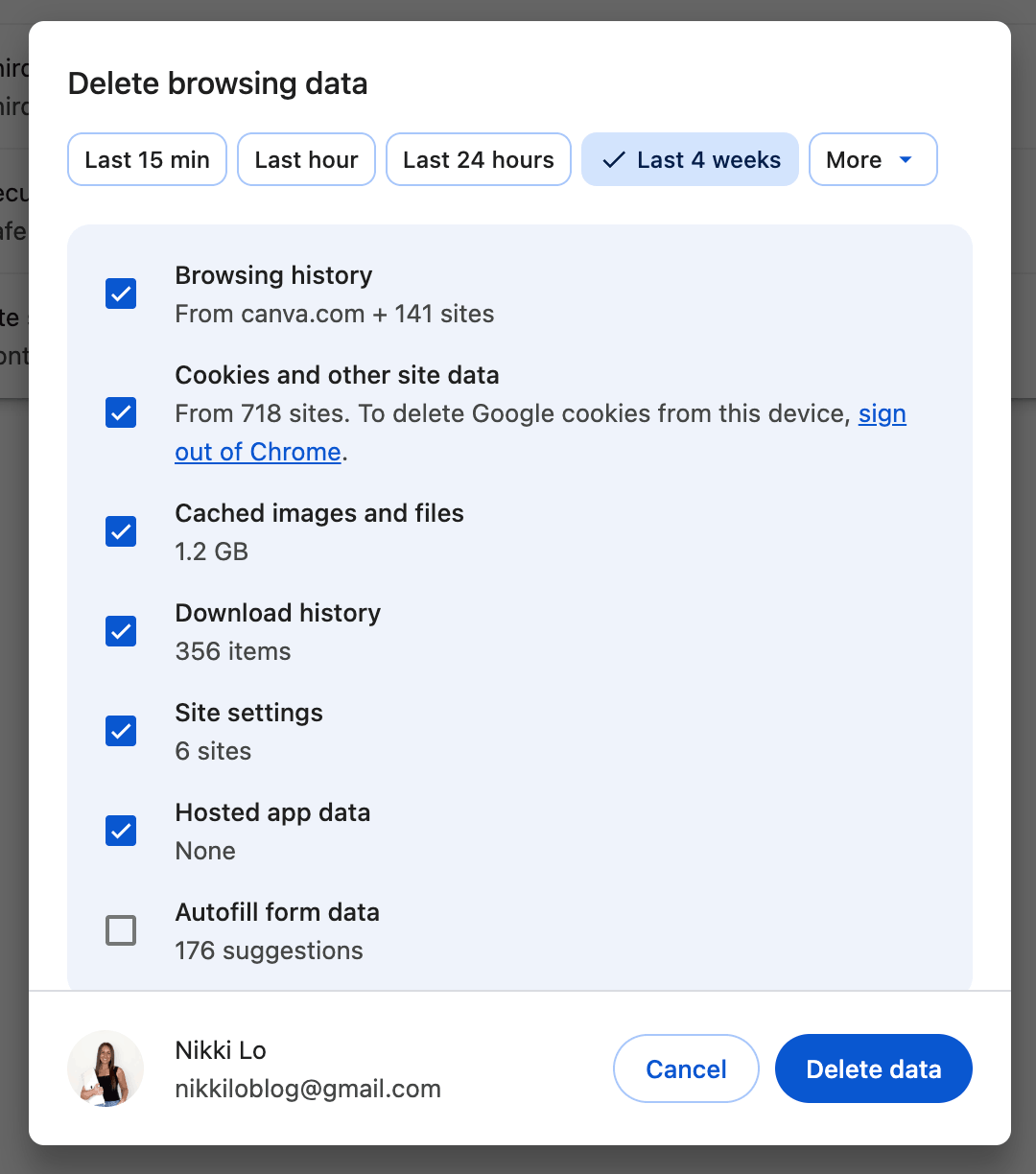
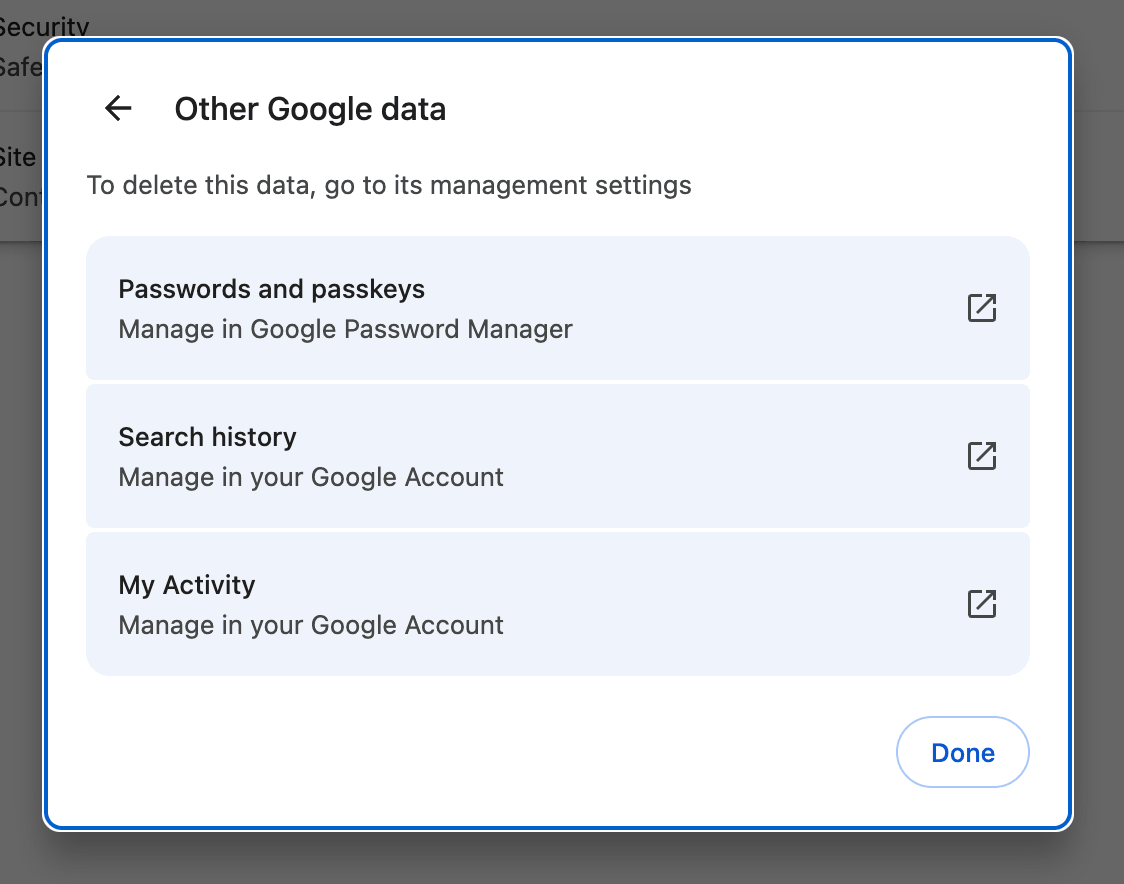
Let’s clear some of your Chrome data with a super quick clean up. On the menu bar, go to Chrome > delete browsing data. This will open a menu where you can check/uncheck different items based on whether or not you want to delete them. Then click “delete data.”
You can also click “manage other Google data” at the bottom to manage passwords, search history, and Google activity (things like your overall activity on Chrome, YouTube history, Google Play history, etc.)
Related: 19 Aesthetic Ways To Customize Your MacBook With macOS 27 Golden Gate
Closing Thoughts
I hope this helped! Thanks for stopping by my post “11 Quick & Easy Steps To Declutter Your MacBook (Ultimate Digital Reset Routine).”
For handmade digital art prints, icon packs, wallpapers, & more designed by me, be sure to stop by my digital boutique: Designed By Nikki Lo.
Connect with me!