How To Customize Your MacBook With macOS 27 Golden Gate *Aesthetic* (Easy Tutorial)
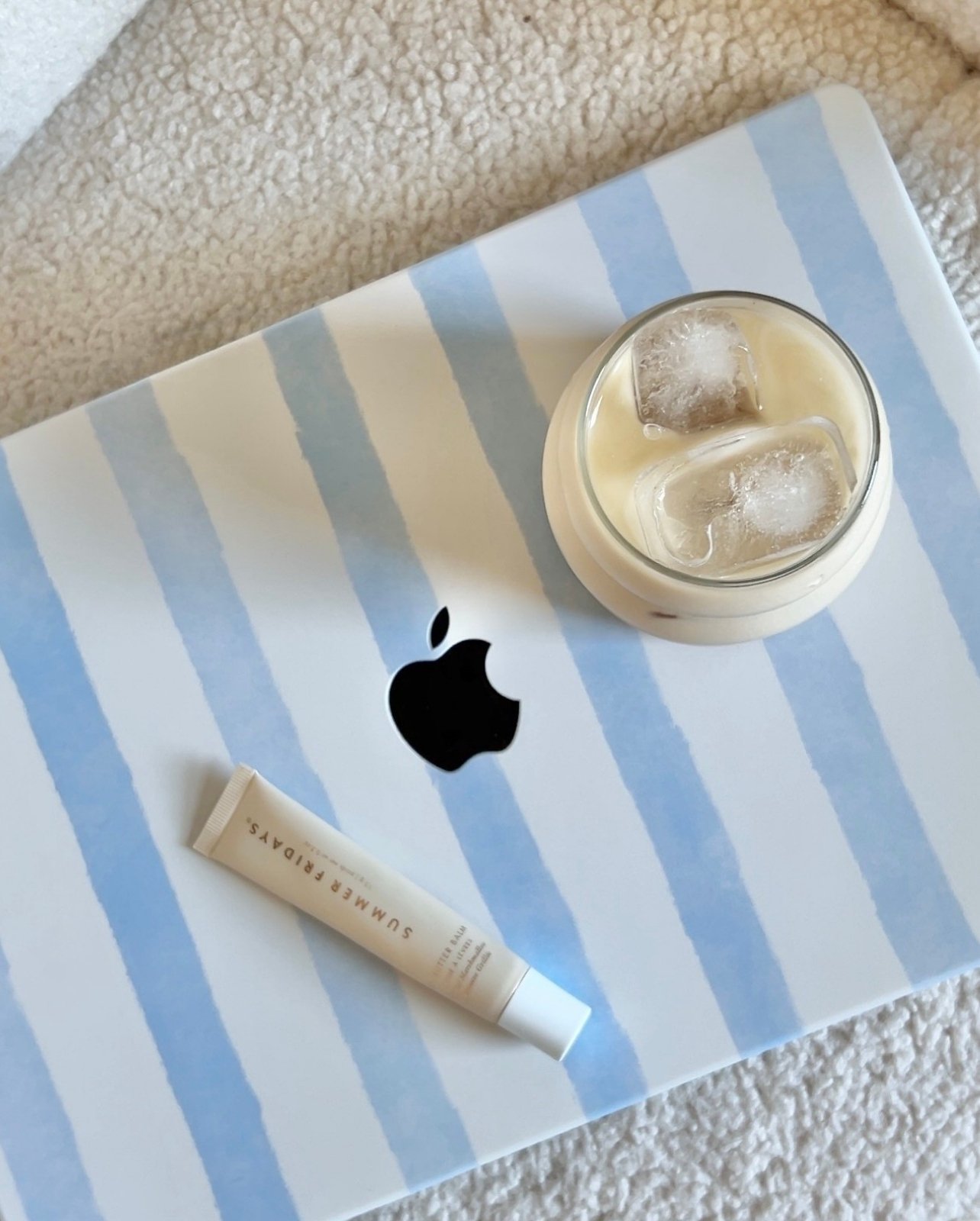
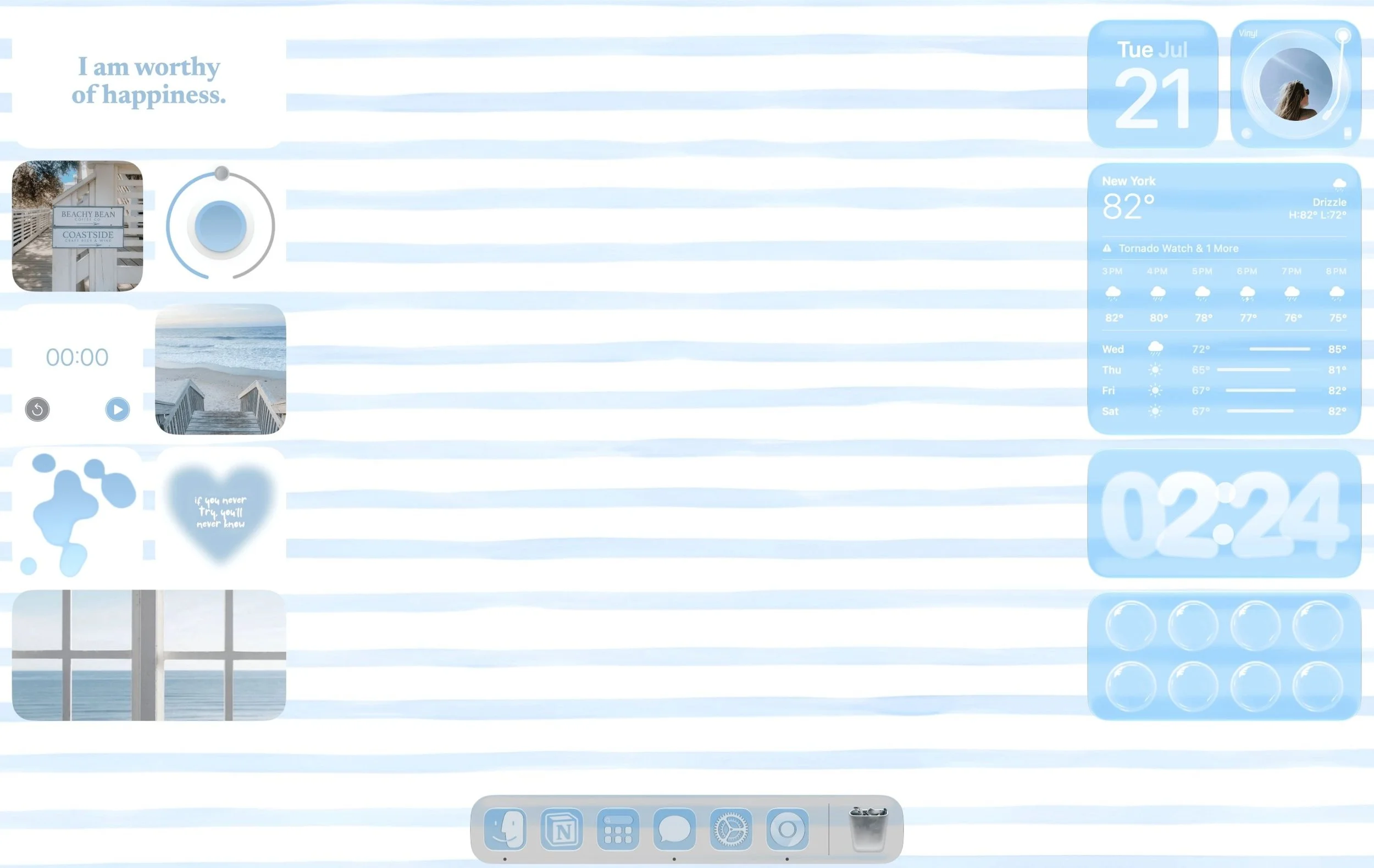
This post is a MacBook customization tutorial showing you how to make your MacBook aesthetic with macOS 27 Golden Gate. I did this customization using the developer beta (the public version of the software comes out this fall).
macOS 27 is almost here (or might already be here by the time you’re reading this)! I just customized my MacBook with a cutest soft coastal blue theme (see above) and I’m so excited to teach you how to make your device look cute.
This is the perfect time to revamp your desktop too, especially if you’re a student and heading back to school soon. Or if you’re like me and just want an aesthetic setup. I’m also including the wallpaper and widget images I used if you want to use them too. Let’s begin!
Wallpaper

Source: Pinterest
Related: 19 Aesthetic Ways To Customize Your MacBook With macOS 27 Golden Gate
Widget Images

Source: Pinterest

Source: Pinterest

Source: Pinterest

Source: Pinterest
#1: Set Your Wallpaper
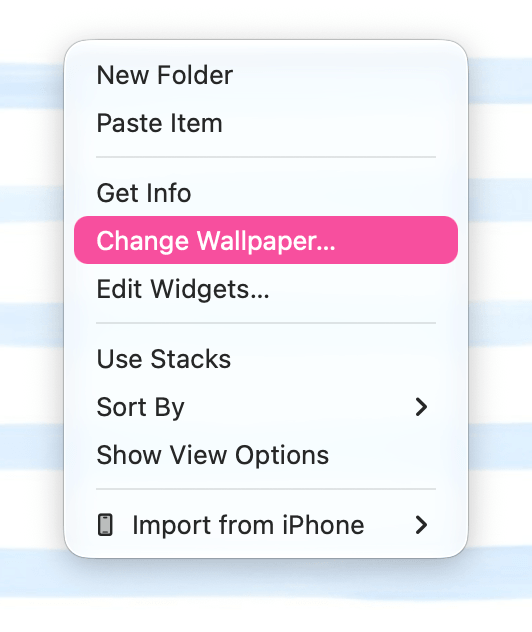
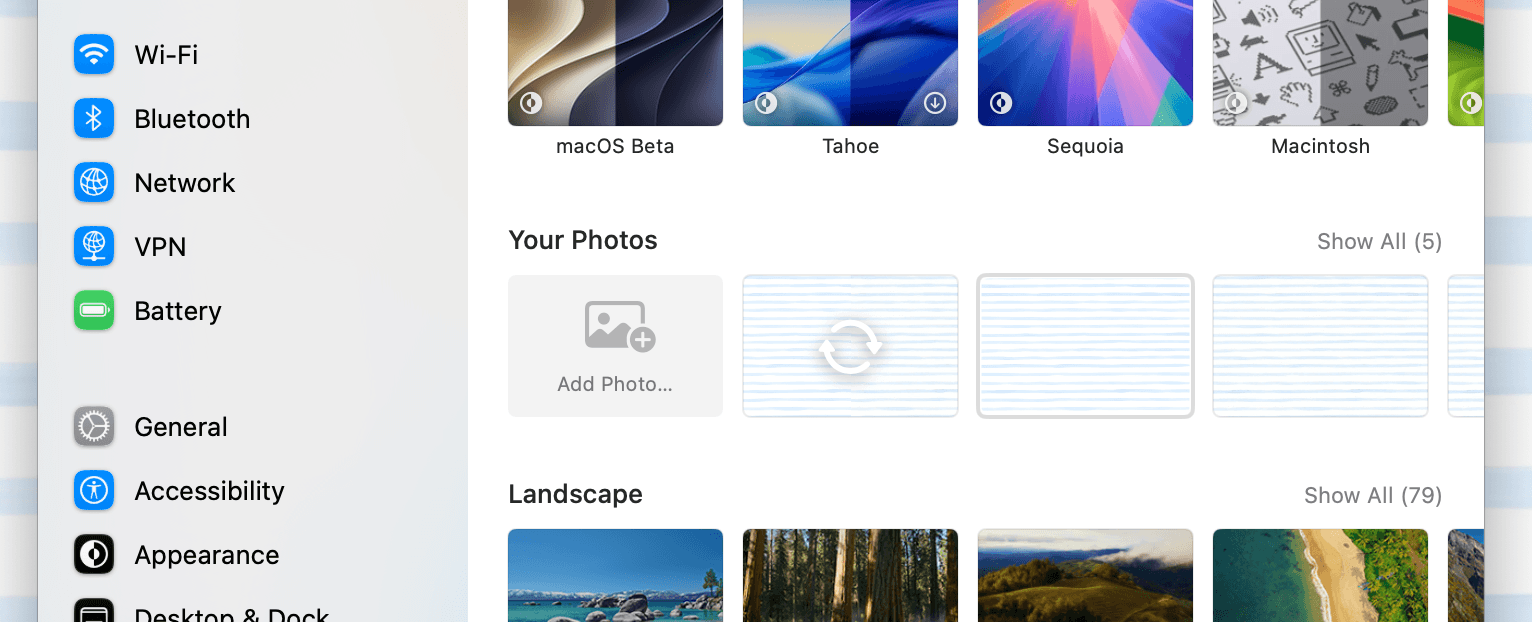
Make sure your wallpaper image is downloaded. From your desktop, right click on an empty area > change wallpaper. From there, add your wallpaper from your files.
Related: How To Customize Your MacBook To Be PINK & Aesthetic! (Tutorial With Free Wallpapers & Icons)
#2: Add Widgets


From your desktop, right click on an empty area > edit widgets.
The widget menu will pop up and display all the Apple native widgets and widgets you’re using on your iPhone (yes, your iPhone widgets show up here - make sure both devices are signed into the same Apple ID). Click on the plus icon on each widget to add it to your desktop.
Some of the widgets are from WidgetWall (free on the App Store). To add widgets from here, download and open WidgetWall. Scroll through the widgets and click on the plus icon on each widget to add it.
Widgets I’m using in this customization and where they’re from:
Left side:
Top left quote (WidgetWall)
Photo widgets (WidgetWall, download the images you want, then select the photo widget in WW. On your desk top, right click the widget > source > set to files. Then import > browse > select images.)
Confetti (the circular button, click it for confetti to appear, from WidgetWall)
Timer (WidgetWall)
Lava lamp (it moves btw! WidgetWall)
Right side:
Calendar (Apple native)
Record player (iScreen app, from my iPhone. To get iScreen widgets on your Mac, download the free app on your phone and customize/save your widget within the app. This widget rotates too!)
Weather (Apple native)
Time (iScreen)
Bubble wrap (iScreen)
Many of these widgets have a ton of additional ways to customize them, from size, motion, font, etc. Right click them on your desktop to find these additional customizations.
#3: Customize Your Dock

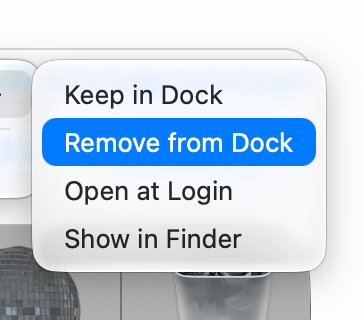
It always feels amazing clearing your dock! Right click and quit any apps you don’t need right now. For apps you don’t want on your dock , right click > options > remove from dock.
#4: Customize Liquid Glass & Set Accent Color

Open system settings and go to “appearance.” Slide the liquid glass slider to increase or reduce the glass effect. I usually just have it in the middle.
Right below it under “theme,” choose an accent color from the list. The change will apply immediately across buttons, highlights, and other interface elements across your MacBook. I chose blue for this customization.
Related: 30 Ways To Customize Your Apple Calendar (EASY Tricks To Make It Aesthetic)
#5: Tint Widgets, Folders, & App Icons


This is the step where everything really starts to come together! We’re going to give everything on your MacBook the same color tint so it looks nice and cohesive.
Go to system settings > appearance > scroll down to theme. Select tinted (or another option of your choosing). Then click choose color, and either select a default color from the list or click choose color again to set a custom color.
From here, you can use the sliders to customize your color tint or select color picker to use the eye dropper tool to grab a color directly from your wallpaper or widgets.
#6: Customize Mouse Size & Color

Open system settings and go to “accessibility,” then select “display.” Scroll down to the pointer section and adjust the pointer size slider to make your cursor larger or smaller.
Use the color options to change the pointer fill and outline. Your changes will apply instantly, making the cursor easier to see and match your aesthetic!
Related: 7 NEW Ways To Customize Your iPhone In iOS 27 (Fun & Aesthetic Features)
Closing Thoughts
And that’s it! Now you know how to make your MacBook aesthetic with macOS 27 Golden Gate.
With these simple tweaks, my MacBook feels organized, aesthetic, and totally personalized. I hope this inspires you to give your own desktop a little glow-up. Have fun customizing and making it truly yours!
Thank you for reading “How To Customize Your MacBook With macOS 27 Golden Gate (Easy Tutorial).”
Read this next: How To Customize Your iPhone With iOS 27 (Tutorial With Aesthetic Blue Coastal Theme)
For handmade digital art prints, icon packs, wallpapers, & more designed by me, be sure to stop by my digital boutique: Designed By Nikki Lo.
Connect with me!