How To Customize Your iPhone With iOS 27 (Tutorial With Aesthetic Blue Coastal Theme)
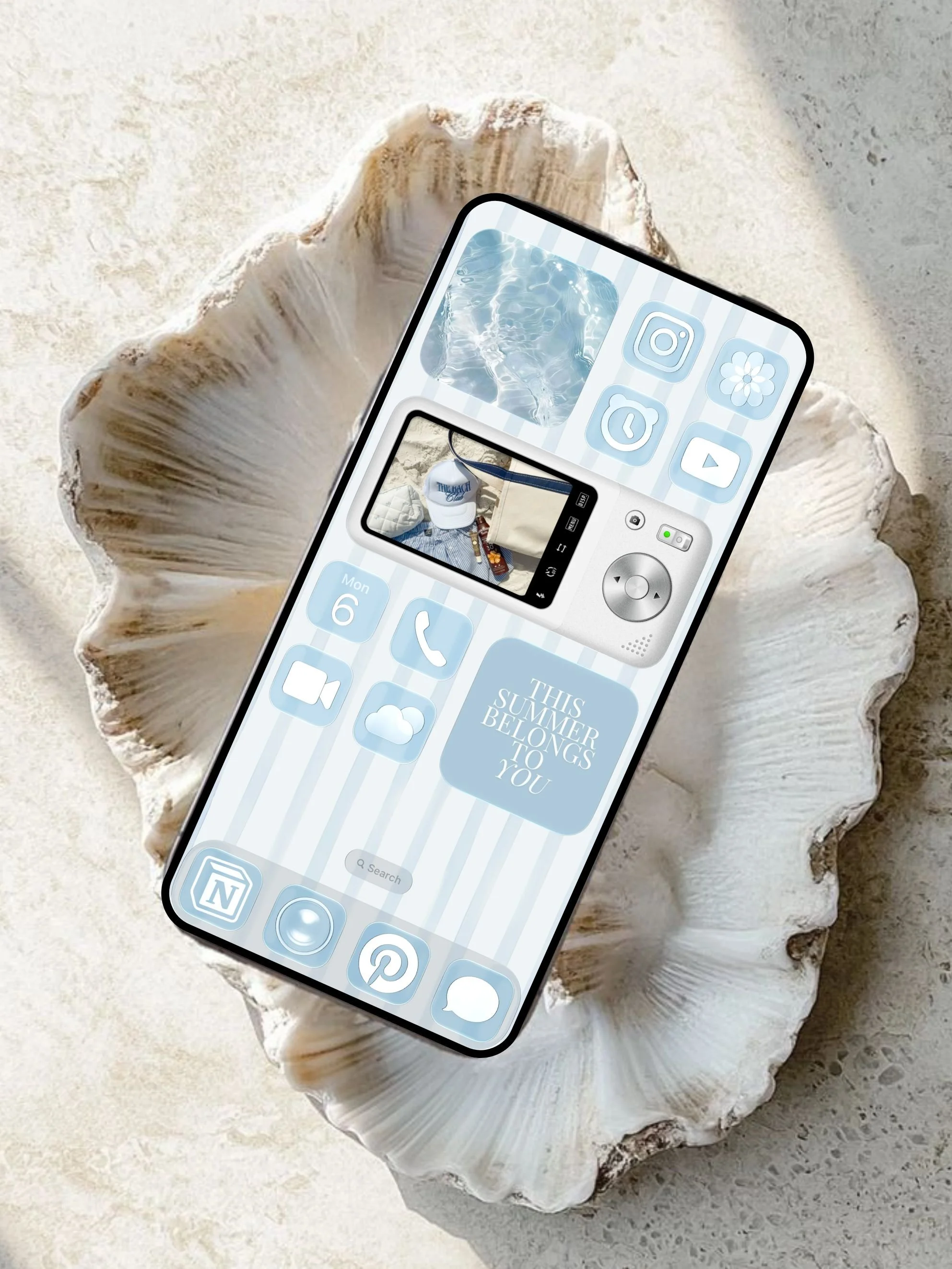
This post is about how to customize your iPhone with iOS 27 and make it aesthetic. Note, I did this customization with iOS 27 developer beta! The official public release will be this September.
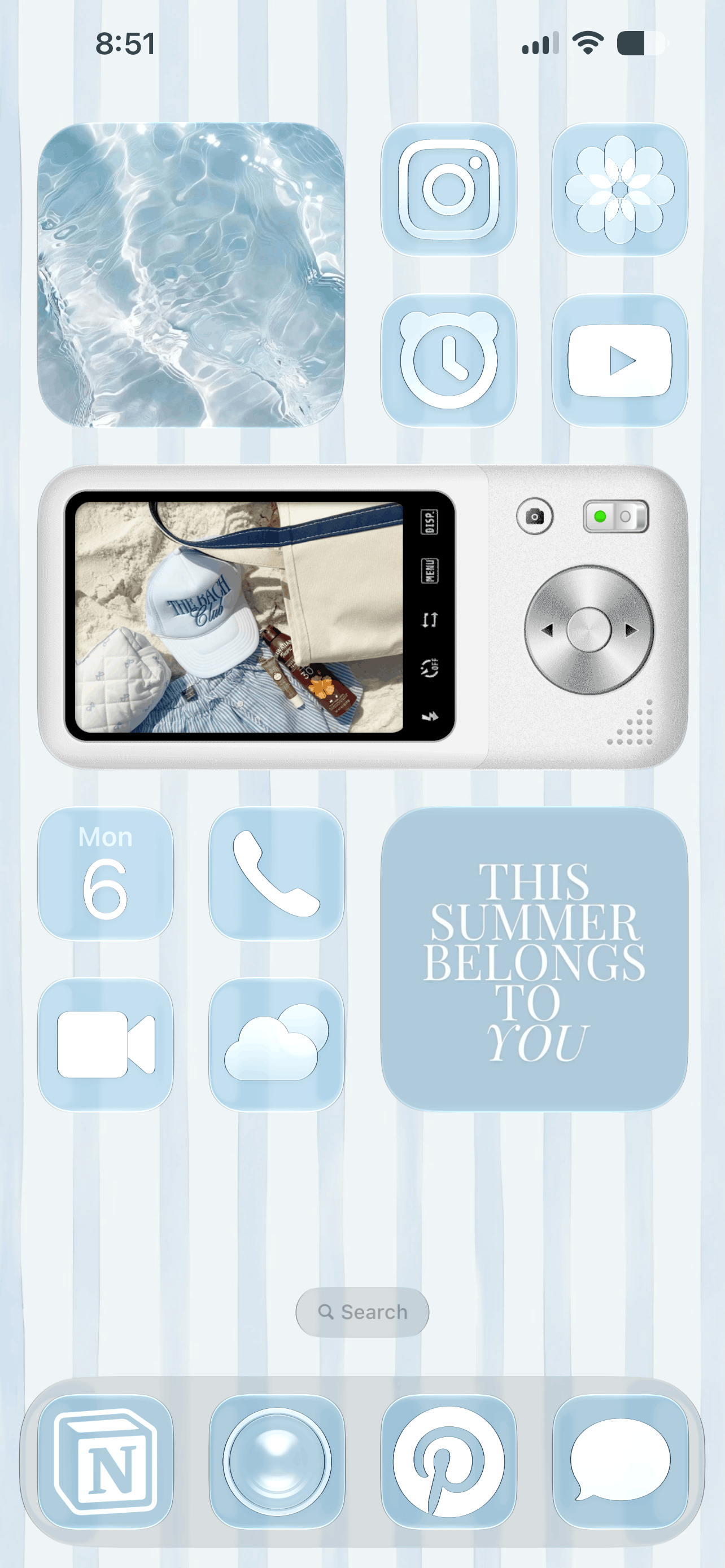
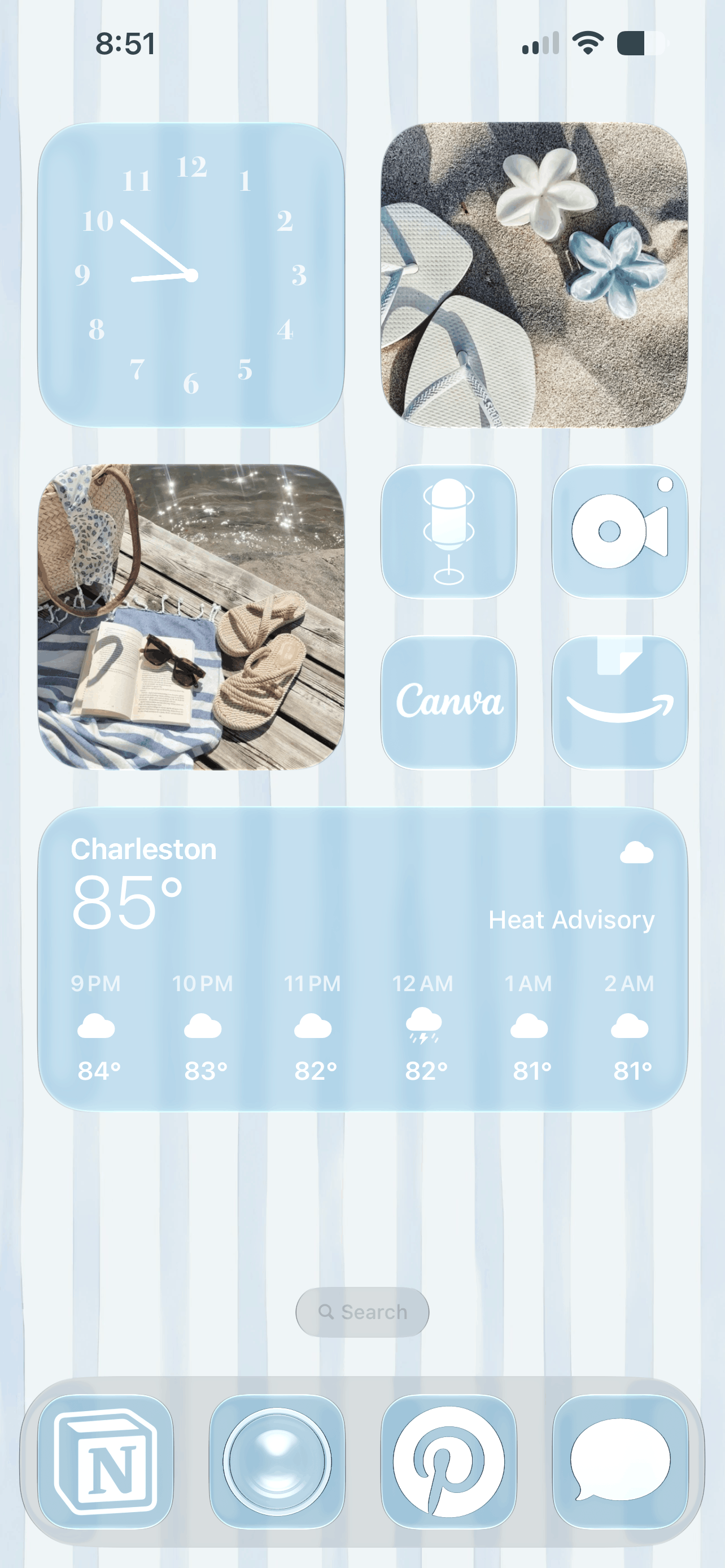
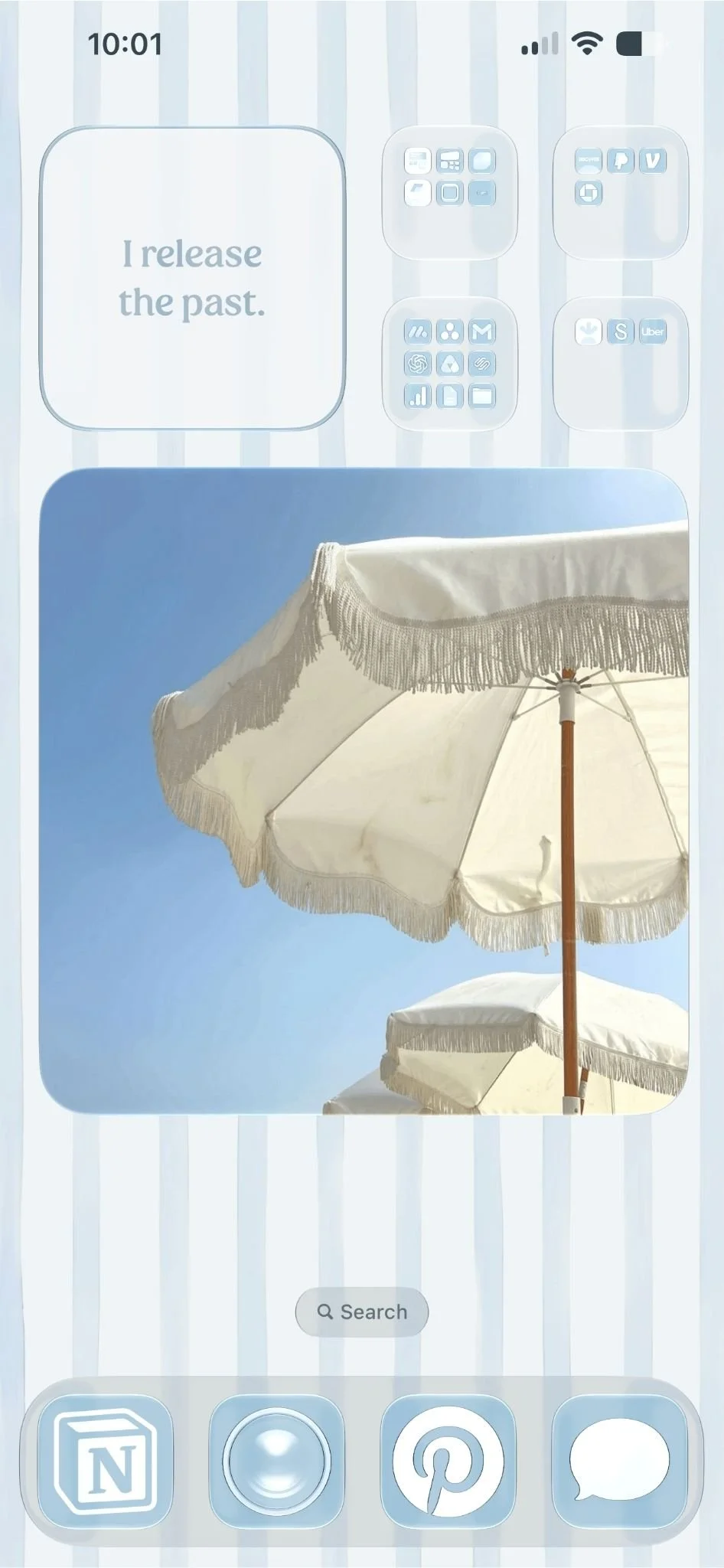
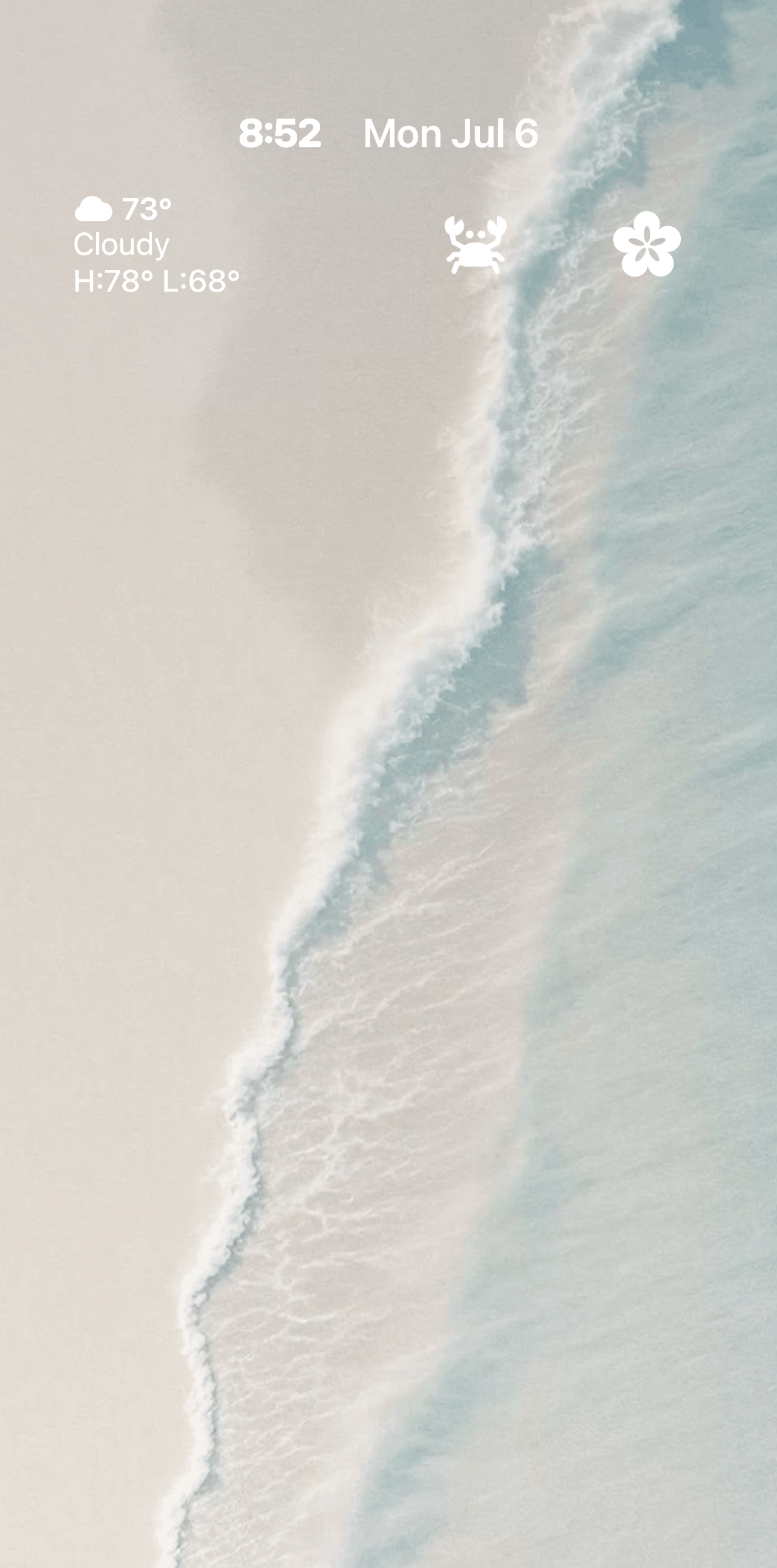
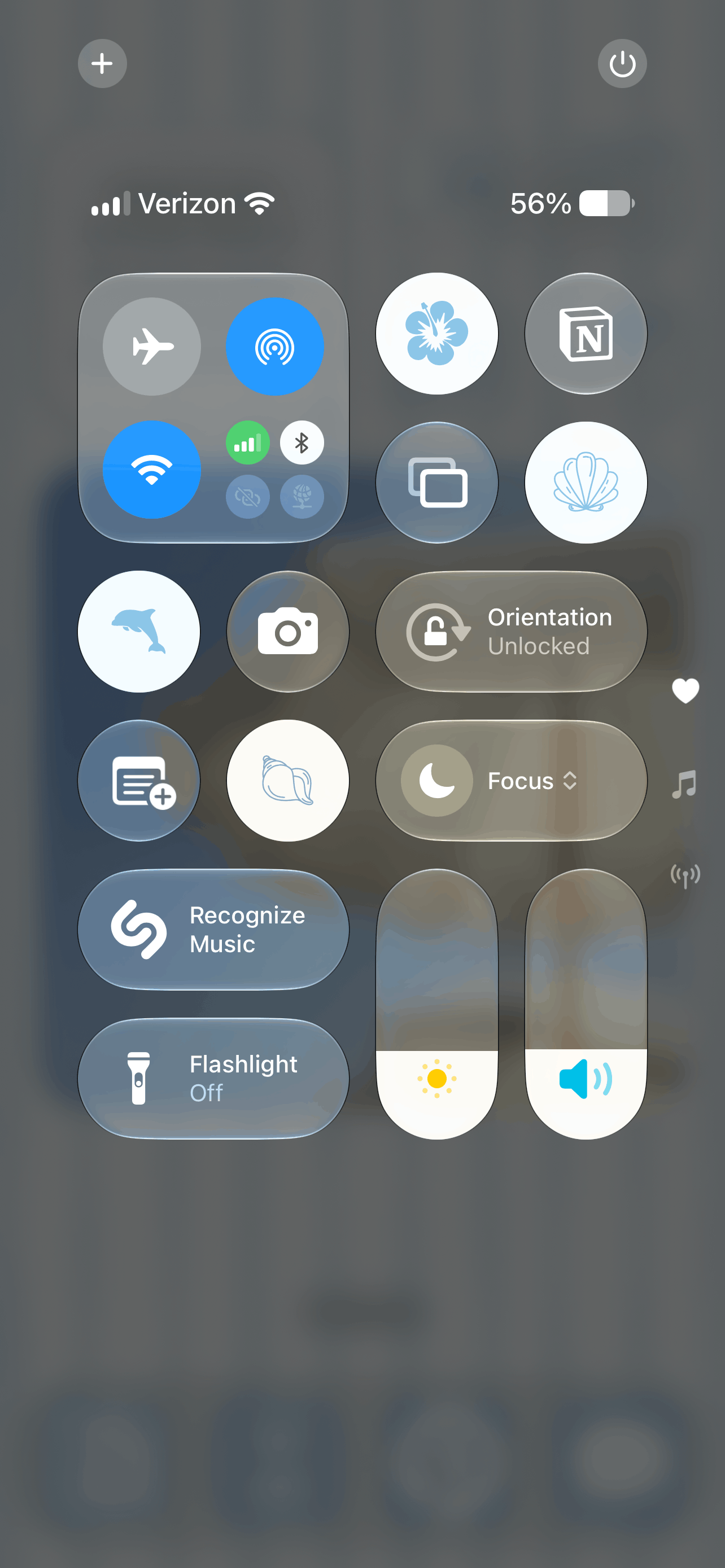
This post will teach you how to customize your iPhone with iOS 27 using this aesthetic coastal phone theme. But of course, you can still follow these steps using any theme! I’ll also be including all the wallpapers and widget images I used for this theme so you can use them too if you want. Here’s what the theme looks like:
How To Customize Your iPhone With iOS 27
#1: Download Your Wallpapers, Widget Images, And Widget Apps
Before you start, I recommend having all of your assets downloaded and saved in your camera roll. I’ve included ready-to-go assets that you can use as is, including wallpapers and all the images I’ll be putting in my widgets.
For the widgets in this tutorial, I’ll be using several free widget apps: Mico, WidgetClub, I Am, and Widgetsmith. So, go ahead and download those apps before starting.
LOCK SCREEN WALLPAPER:

HOME SCREEN WALLPAPER:

WIDGET IMAGES:


Download them all or mix and match and save them to your camera roll!
#2: Add Your Wallpapers
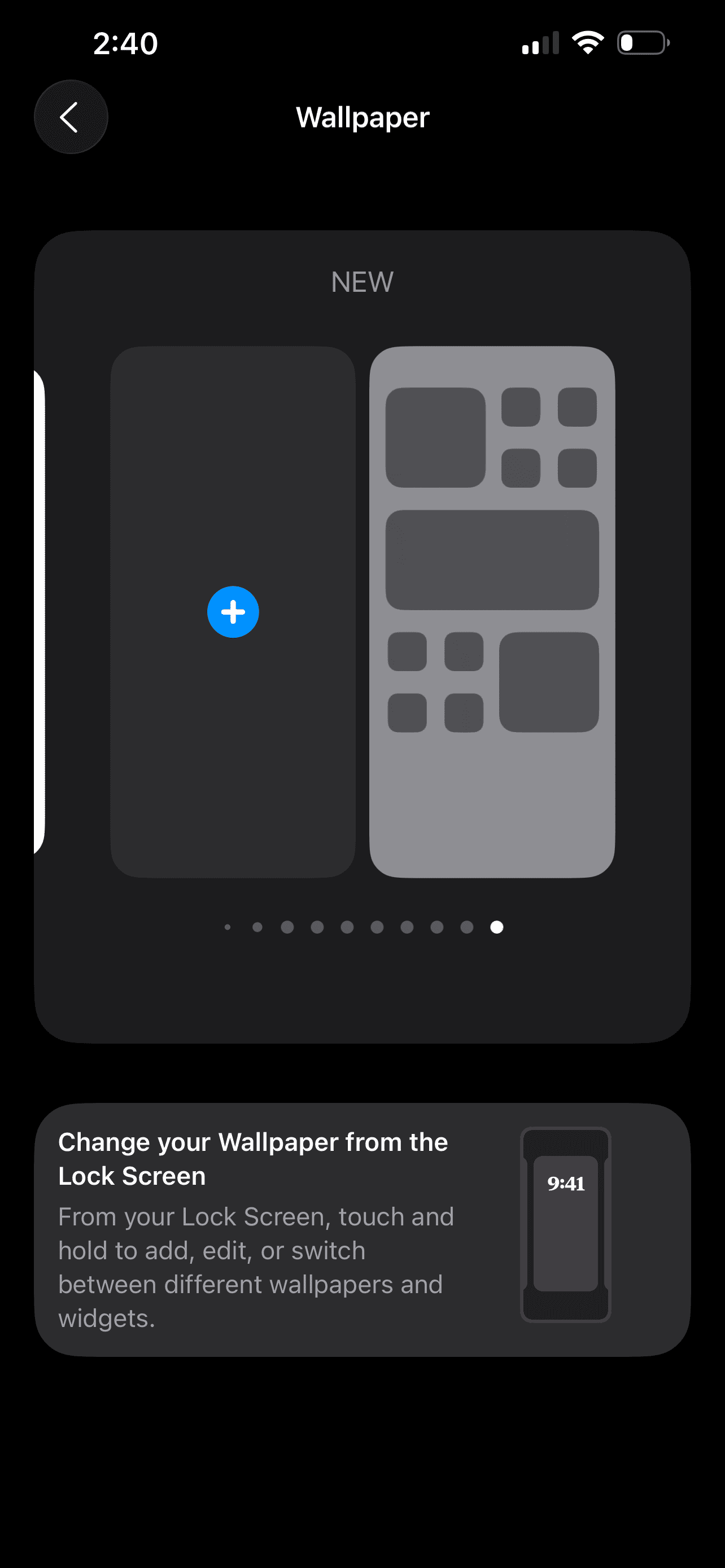
Now that you have all your assets downloaded, go ahead and change your lock screen and home screen wallpapers. Go to settings > wallpaper > new.
#3: Upload And Customize Your Lock Screen Wallpaper
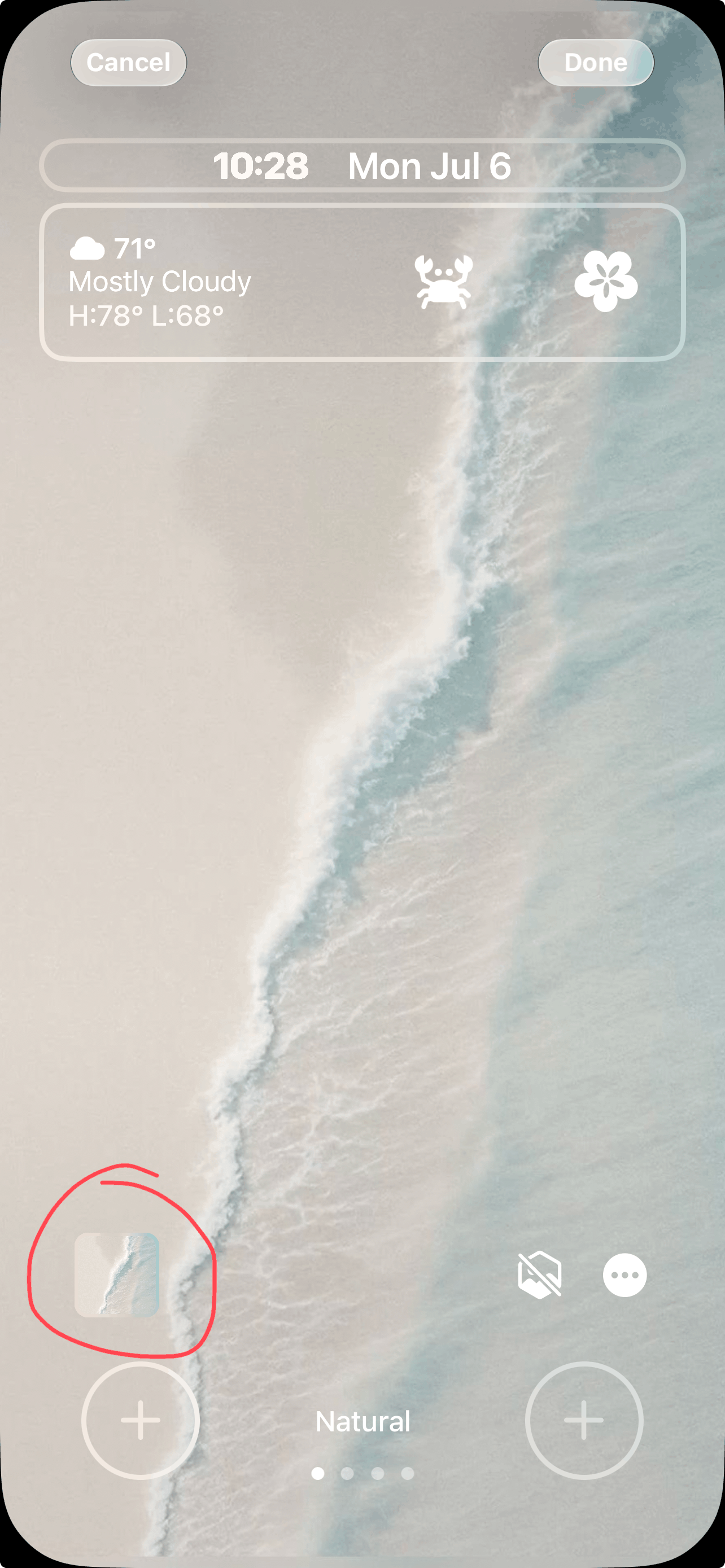
Tap photos, upload your lock screen wallpaper from your camera roll, and tap done.
Related: How To Customize Your MacBook With macOS 27 Golden Gate (Easy Tutorial)
#4: Customize Your Home Screen Wallpaper
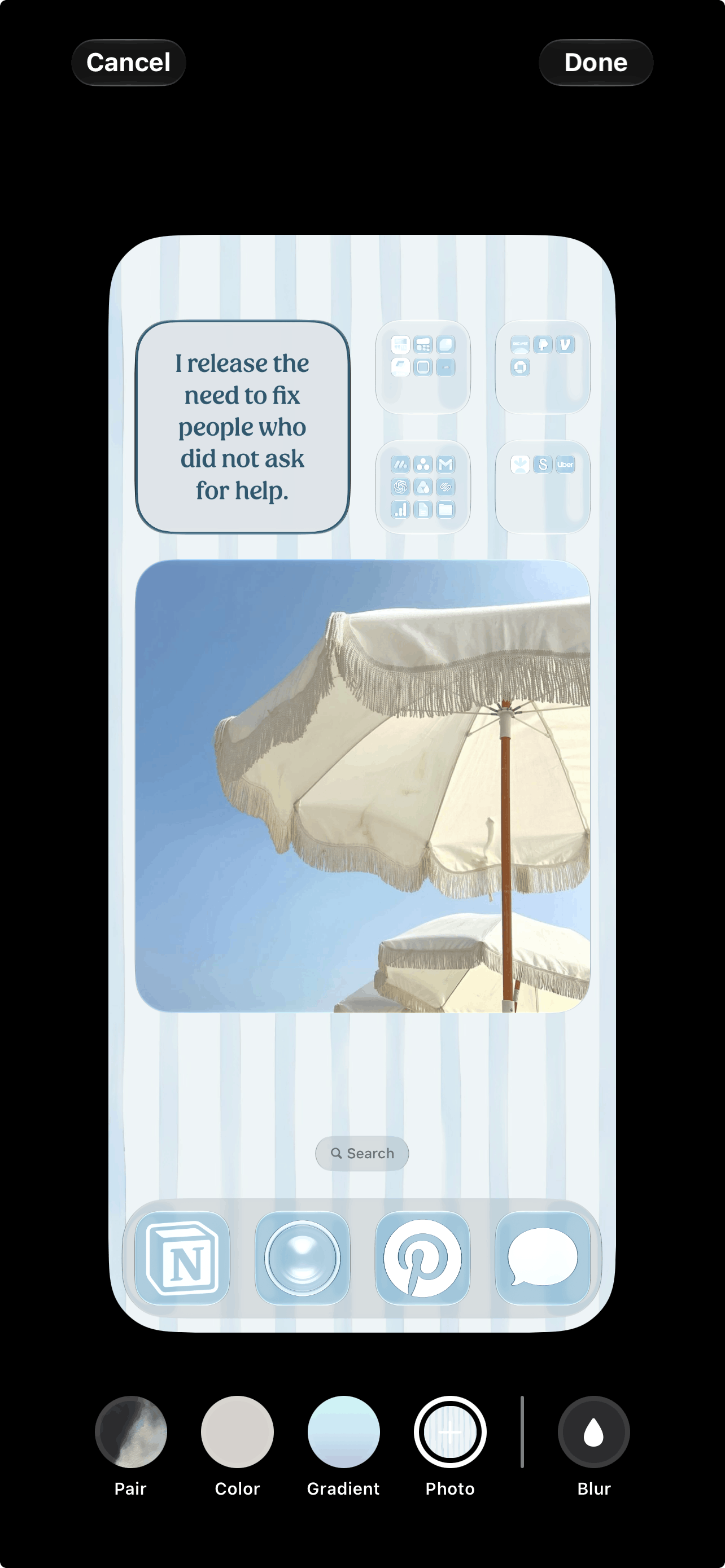
After you customize your lock screen, it’s time to do your home screen. Once you tap “done” to save your new lock screen, tap “customize home screen.” Then upload your home screen wallpaper from your camera roll. Then your wallpapers are set!
#5: Customize The Time On Your Home Screen
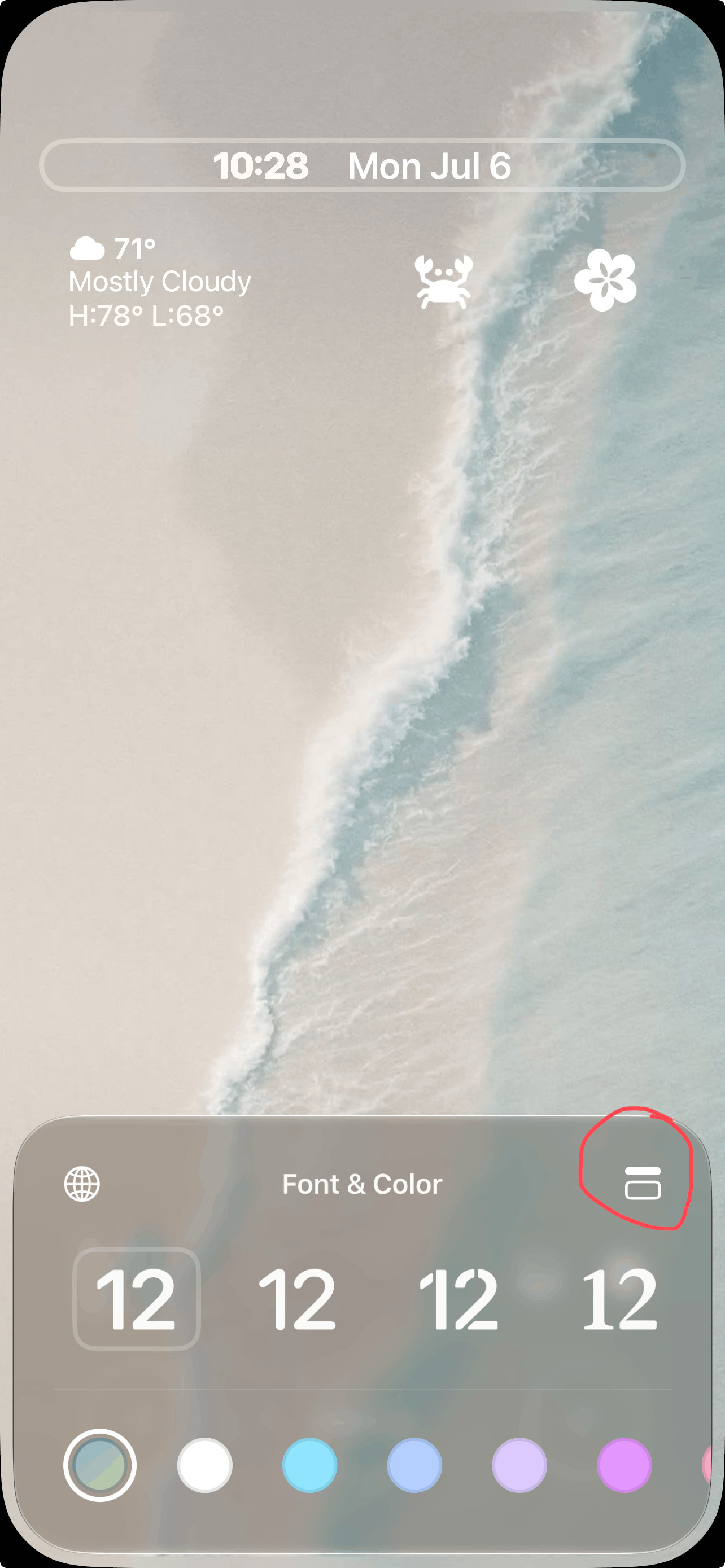
New feature for iOS 27! To make the time small, go to your lock screen > tap the time > tap the two little rectangles in the upper right corner of the menu.
#6: Customize Your Widgets

Now that your wallpapers are set, it’s time to add widgets. First, we have to customize and set our widgets in the apps before we can add them to our home/lock screens.
Once you open the apps, browse the widget library and select your favorites. In each app, customize them to your liking and then tap “save” The apps I’m using along with the widgets they have (that I’m using) plus the widget names/sizes/categories are below.
Mico:
Home screen widgets: Photo-CCD camera (medium)
Lock widgets: Heart (tap on it then select “more” to find the rest of the icon options)
Control widgets: Bowknot (tap on it then select “icon library” to find the rest of the icon options)
WidgetClub: Clock Widget (small)
Apple native widgets: Already in your phone, no need to download additional apps. Weather (long press > tap paintbrush in upper left corner > add widget > search “weather”)
I Am: This one is the quote widget you see on the homepage with the umbrella image (the quote changes automatically too)! Download the I Am app and customize the widget in the app for this one.
Widgetsmith: This is the app I use for the plain photo widgets.
#7: Add Your Widgets To Your Lock Screen
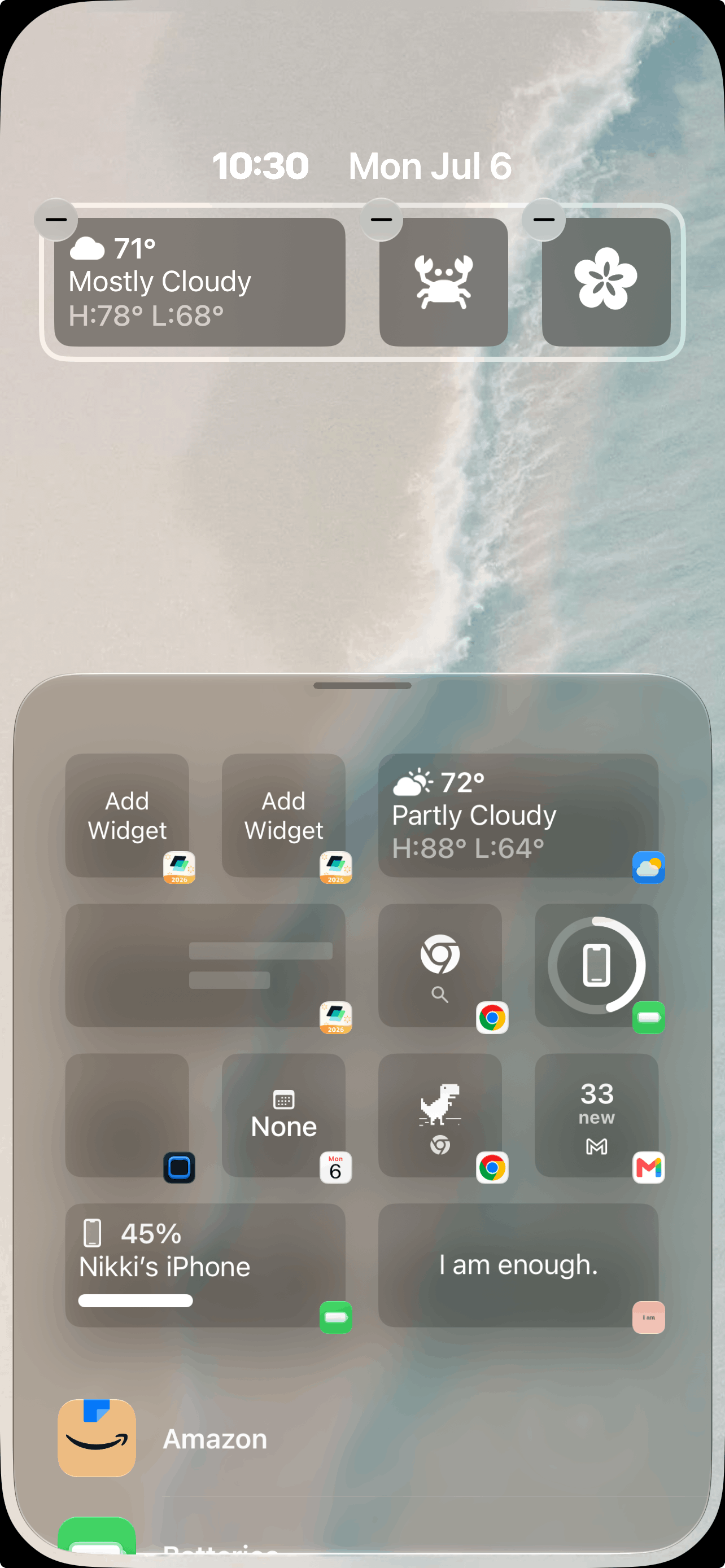
Go to your lock screen and long press, then select “customize.” Long press where you want to add your widget and then scroll down until you see “Mico” in the menu that comes up. Tap it! Then, select the size of the widget you want to add.
Mico will add a default widget where you specified. To add your custom widget, tap the default widget and select your custom widget from the menu that pops up.
To add non-Mico widgets, long press on your home screen, select “customize,” and select your widget from the menu that comes up.
#8: Add Your Widgets To Your Home Screen
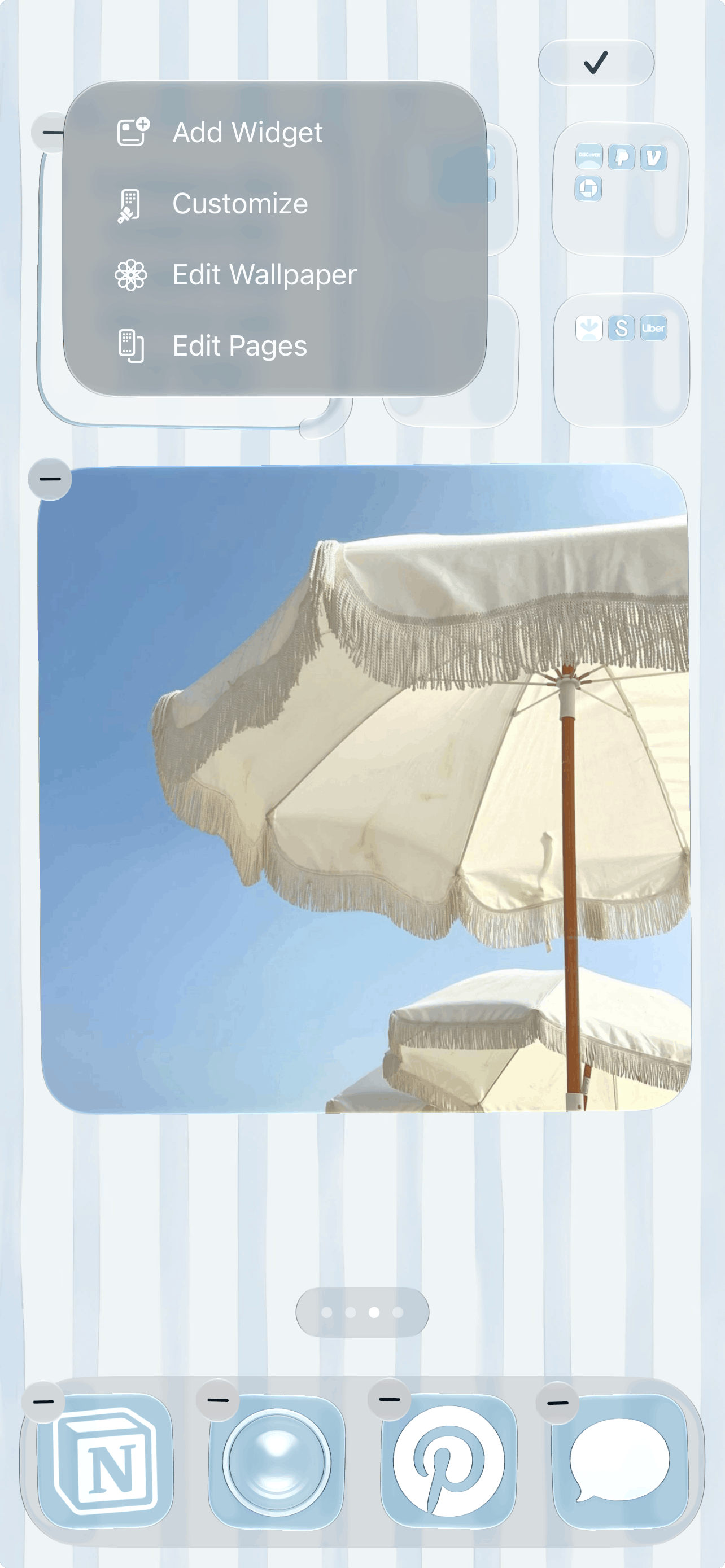
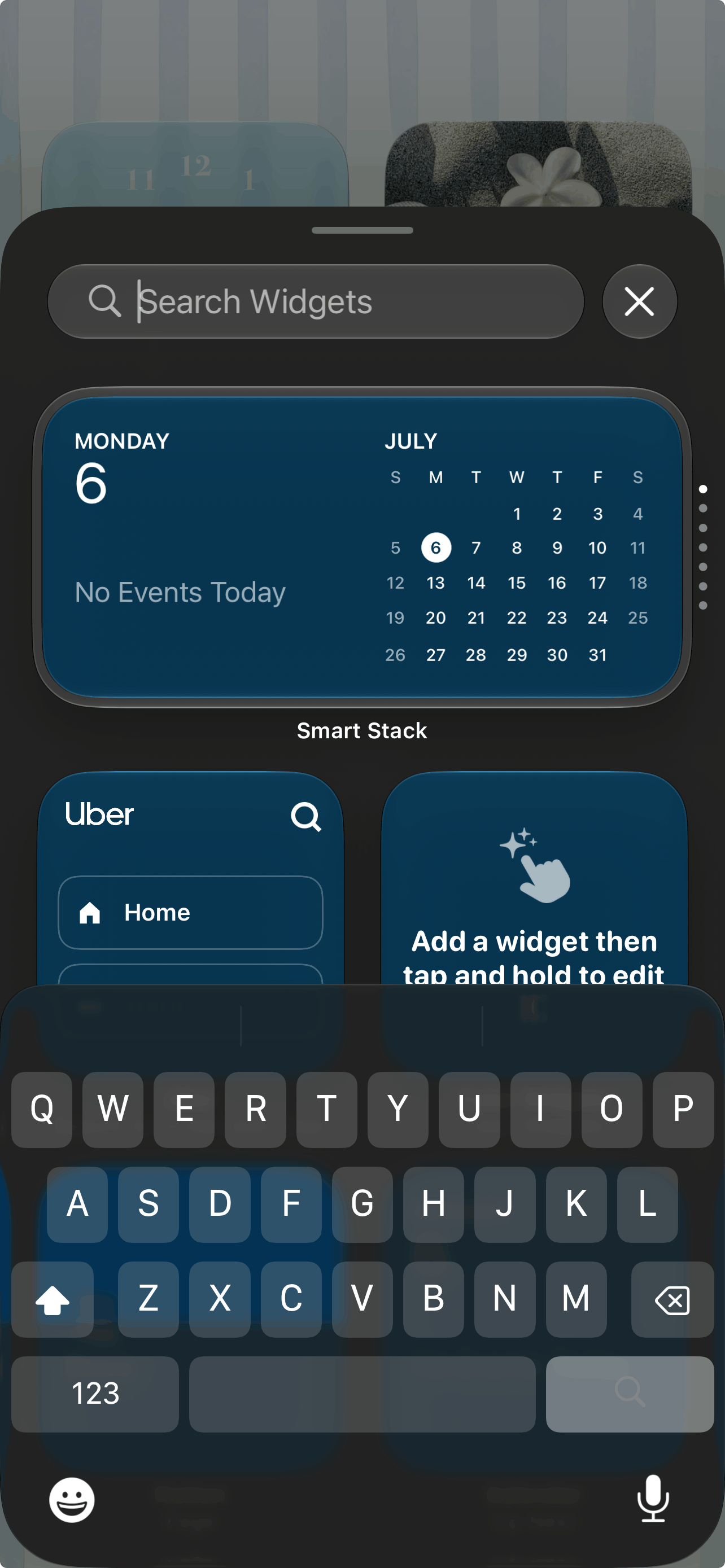
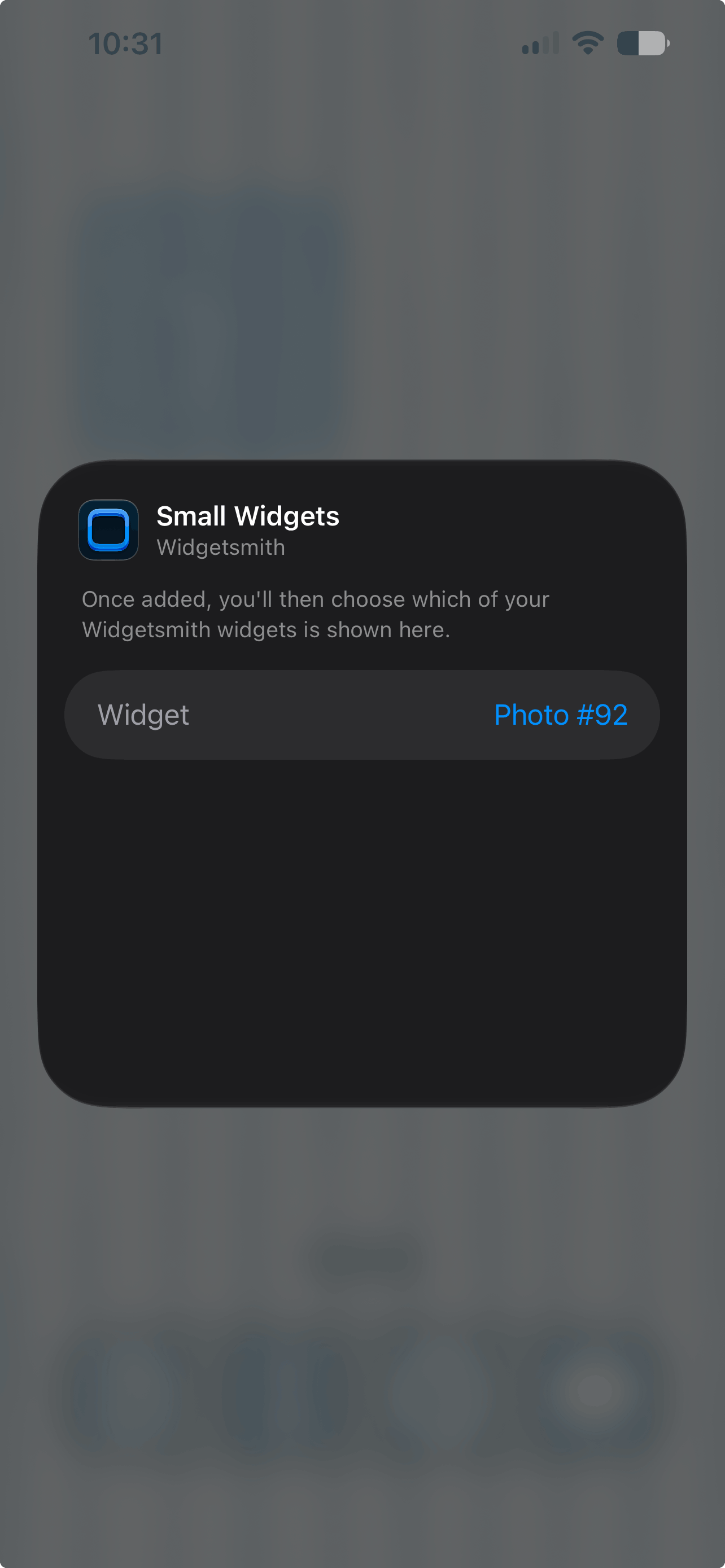
Now that your widgets are in your app, you can add them to your home screen. Long press > “add widget” > search for the app > choose your widget size > choose “add widget.” Repeat for all widgets.
Related: 8 NEW Ways To Customize Your iPhone In iOS 27 (Fun & Aesthetic Features)
#9: Customize Your Widgets
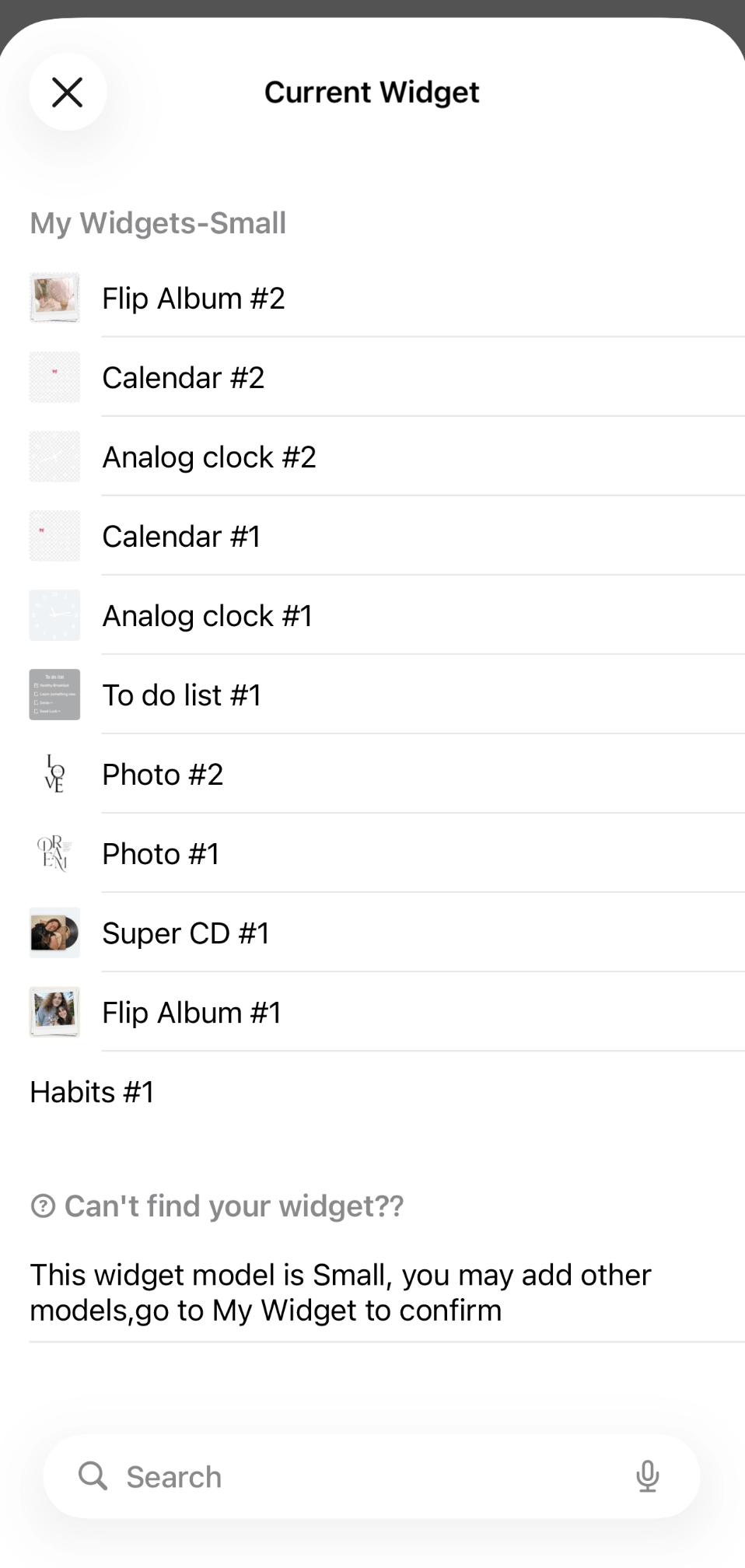
Drag and drop your widgets to arrange them how you like, then go ahead and add your custom images to your widgets. Do this by long pressing on each widget > choose “edit widget” > choose your widget. Repeat for all your widgets and you’re set!
Related: iOS 26 iPhone Customization Tutorial! (With Free Aesthetic Coastal Phone Theme)
#10: Add/Arrange Your Apps
Add any apps to your home screen by scrolling all the way to the right until you reach the app library. Long press on an app you want to add and select “add to home screen.” On your home screen, long press and drag your apps where you want them.
#11: Customize Your App Icon Color
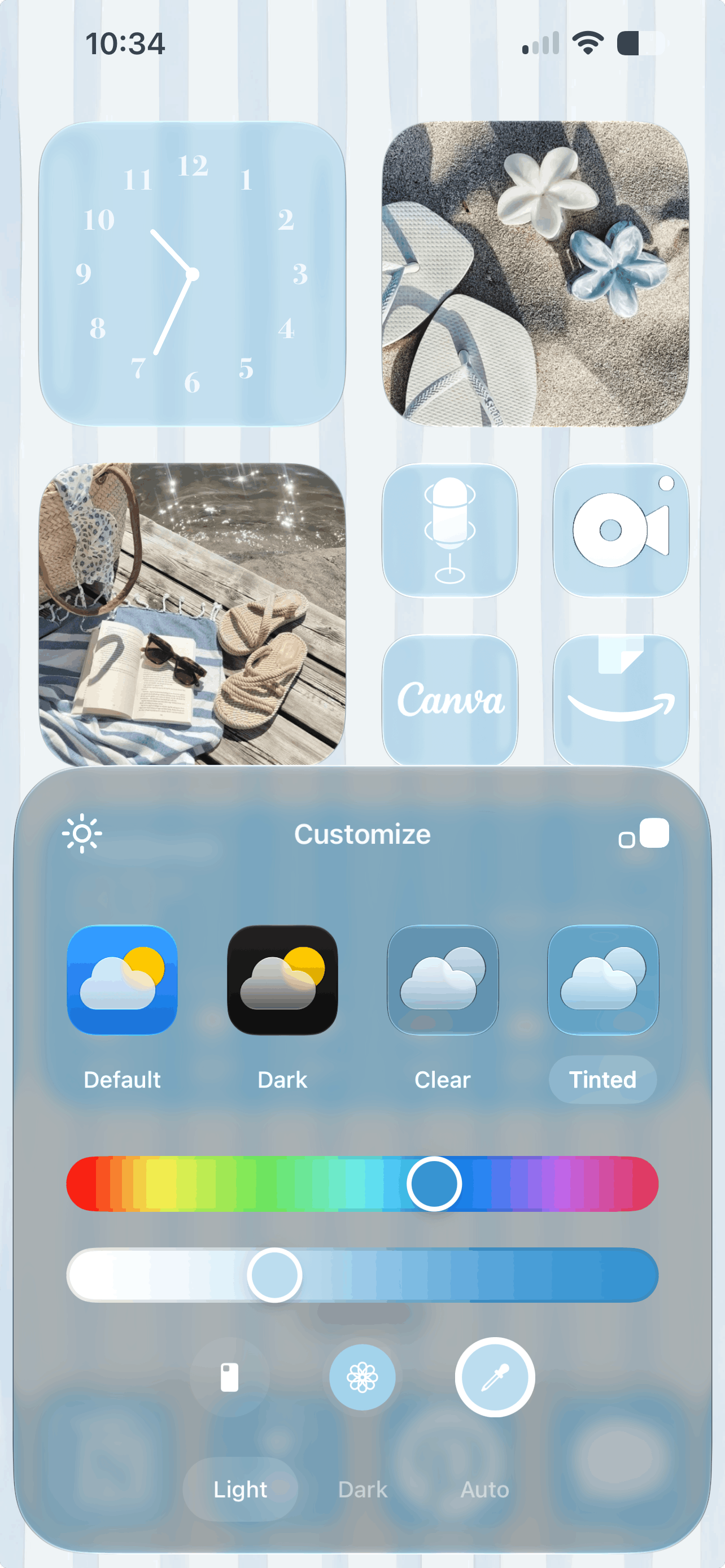
Long press your home screen and tap edit > paintbrush > customize. Use the sliders to find your perfect color. Or, a helpful tip is to use the little eye dropper tool to choose a color from your wallpaper. This helps create a cohesive look for your phone and is what I did to get that soft brown color for my apps.
The other customization options I selected were “tinted” and “light mode.” I kept the light background by tapping the little sun icon. I also made the icons bigger/removed the app names by tapping the icon with the two little squares in the upper right corner.
#12: Customize Your Control Center
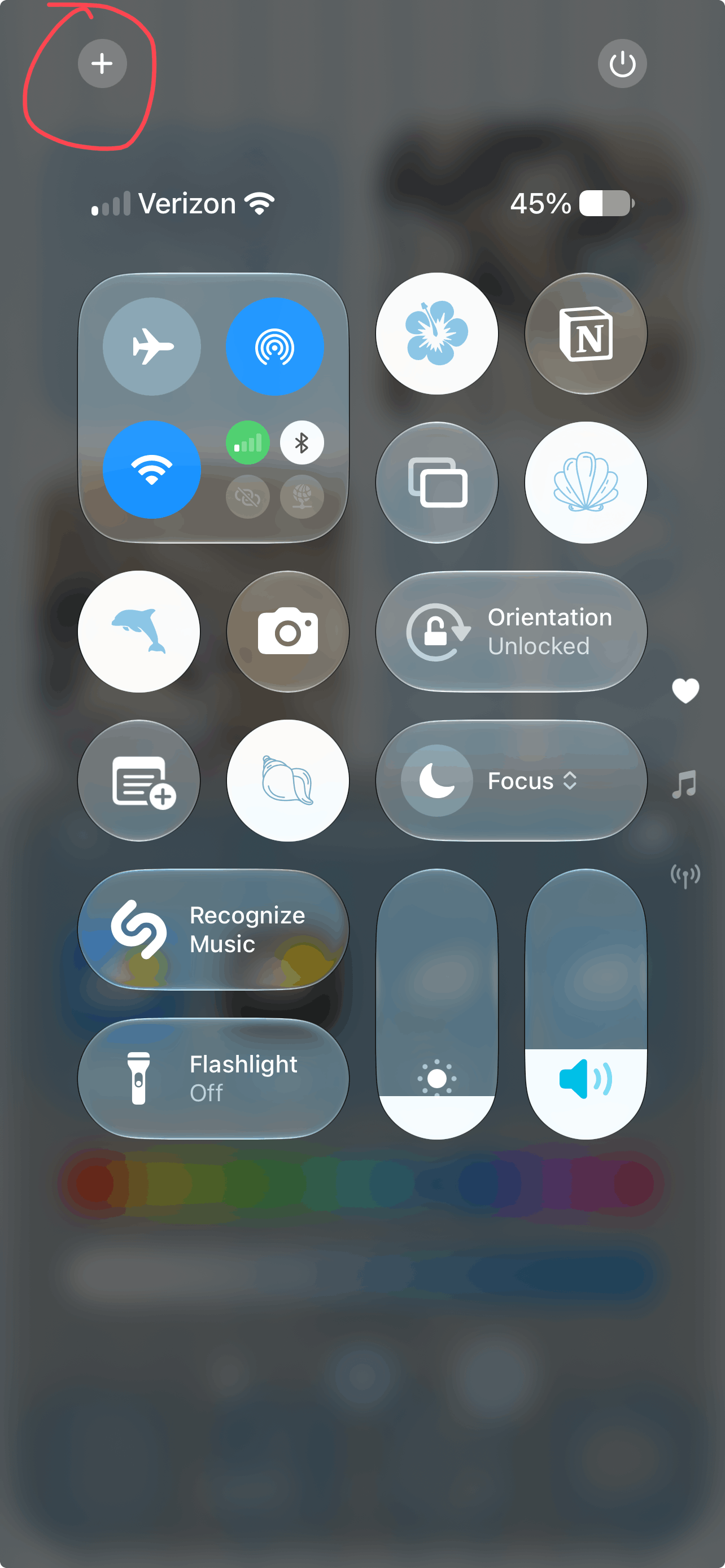

Drag down in the upper right side of your screen to open your control center. Then tap the plus icon in the upper left hand corner to access the customization page. Tap “add a control” at the bottom and then scroll to/search for “Mico.” Tap it, tap “choose,” then tap on the control you want to add.
To further customize, long press and drag your controls around. You can also drag the corners of certain controls to make them longer/shorter. Then you’re done!
Closing Thoughts
Thanks for reading my iOS 27 customization tutorial! Hopefully this guide helped you get more comfy with some of the new customization settings or that you found some inspiration to decorate your home and lock screen.
Read this next: 24 Brown Aesthetic Wallpaper Downloads For Your Phone! (Adorable & High Quality)
For handmade digital art prints, icon packs, wallpapers, & more designed by me, be sure to stop by my digital boutique: Designed By Nikki Lo.
Connect with me!