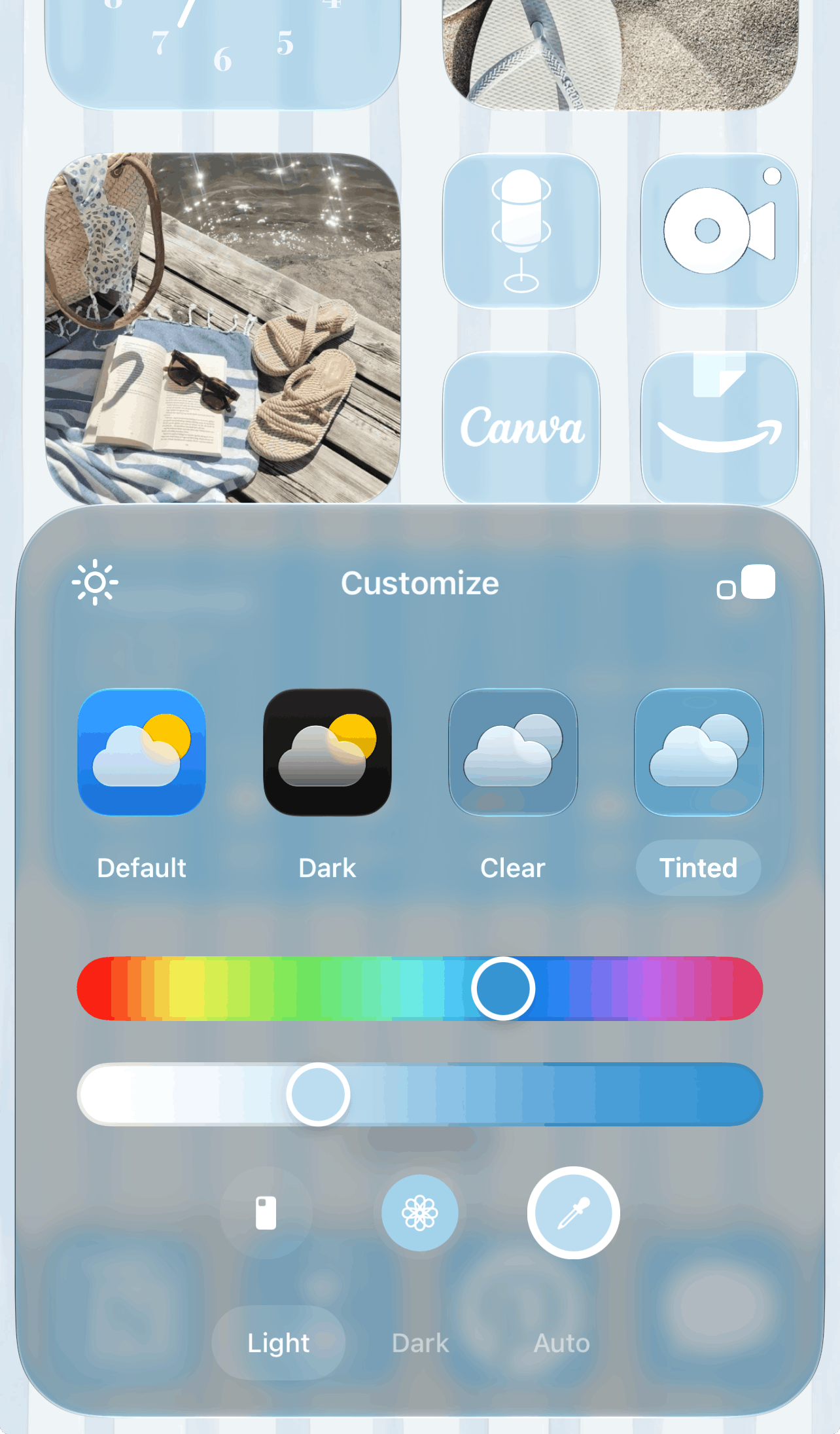
This article is about new customization features in iOS 27.
iOS 27 is here and there are some new customization features you need to know about! I’m talking liquid glass customizations, new photo editing and Safari features, wallpaper customizations, Genmoji updates, and more.
In this post, I’m covering the newest ways you can make your iPhone look aesthetic and more fun to use, and showing you how to use them, where to find them, etc.
Overall, the focus of iOS 27 has been refining last year’s major update in iOS 26 and making things smoother and faster for users - as opposed to the dramatic redesign we got last year. Let’s hop in!
8 Fun New iPhone Customization Features in iOS 27
#1: Liquid Glass Intensity Slider
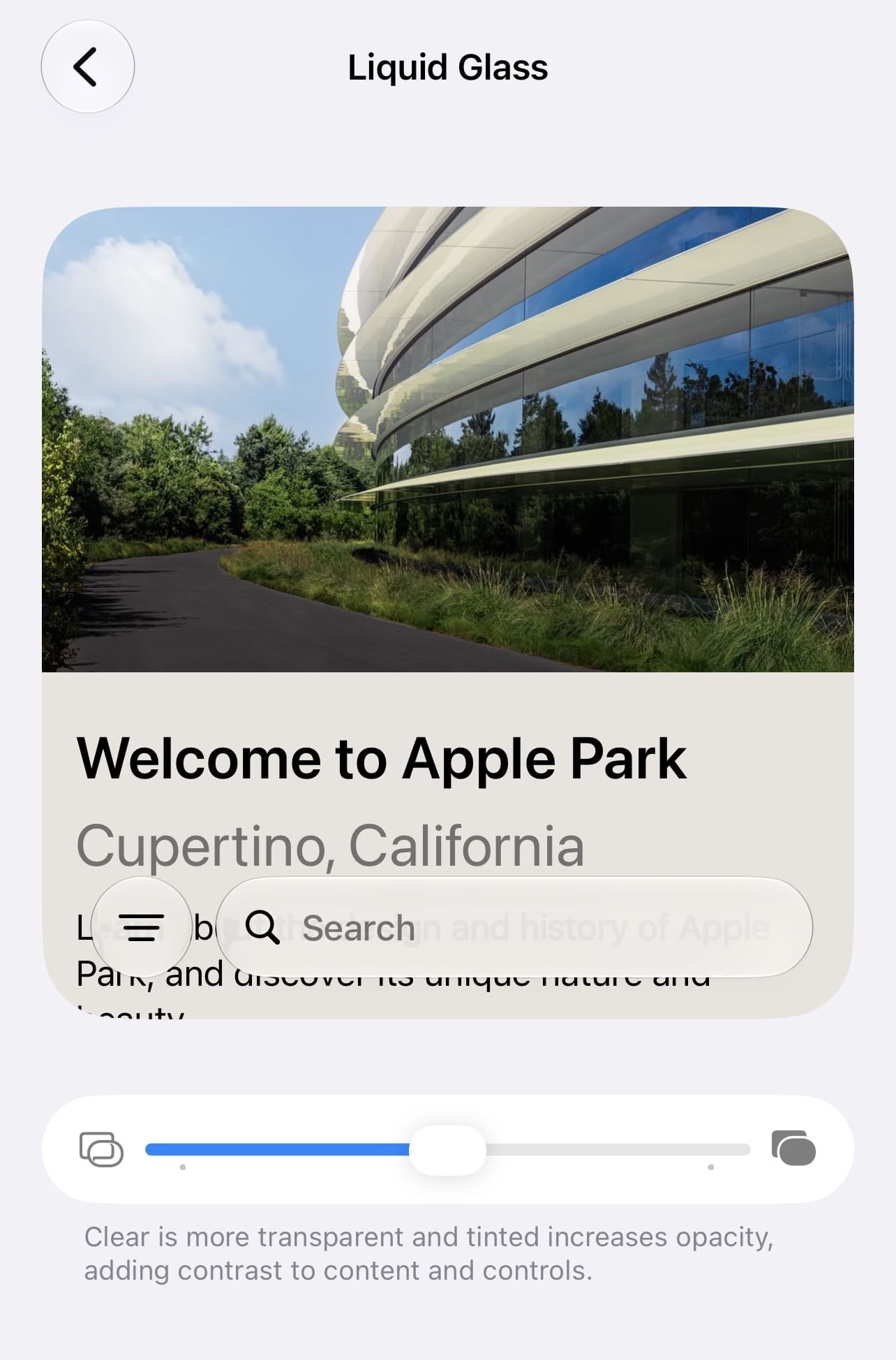
This is probably the biggest customization feature brand new to iOS 27! Last year, we got the liquid glass interface redesign with beautiful transparent visuals, but a lot of people found the transparency made things harder to see/read.
So now, we have a slider where you can adjust the intensity of liquid glass on your iPhone and make it more or less transparent. I think this is such a great addition in terms of accessibility and general personalization!
Find the slider in settings > appearance > liquid glass. Slide to the left to make liquid glass more intense (more clear/transparent) and to the right to make it less intense (less transparency). There’s also a helpful visual preview to see what each transparency level looks like.
#2: Super Small Lock Screen Clock
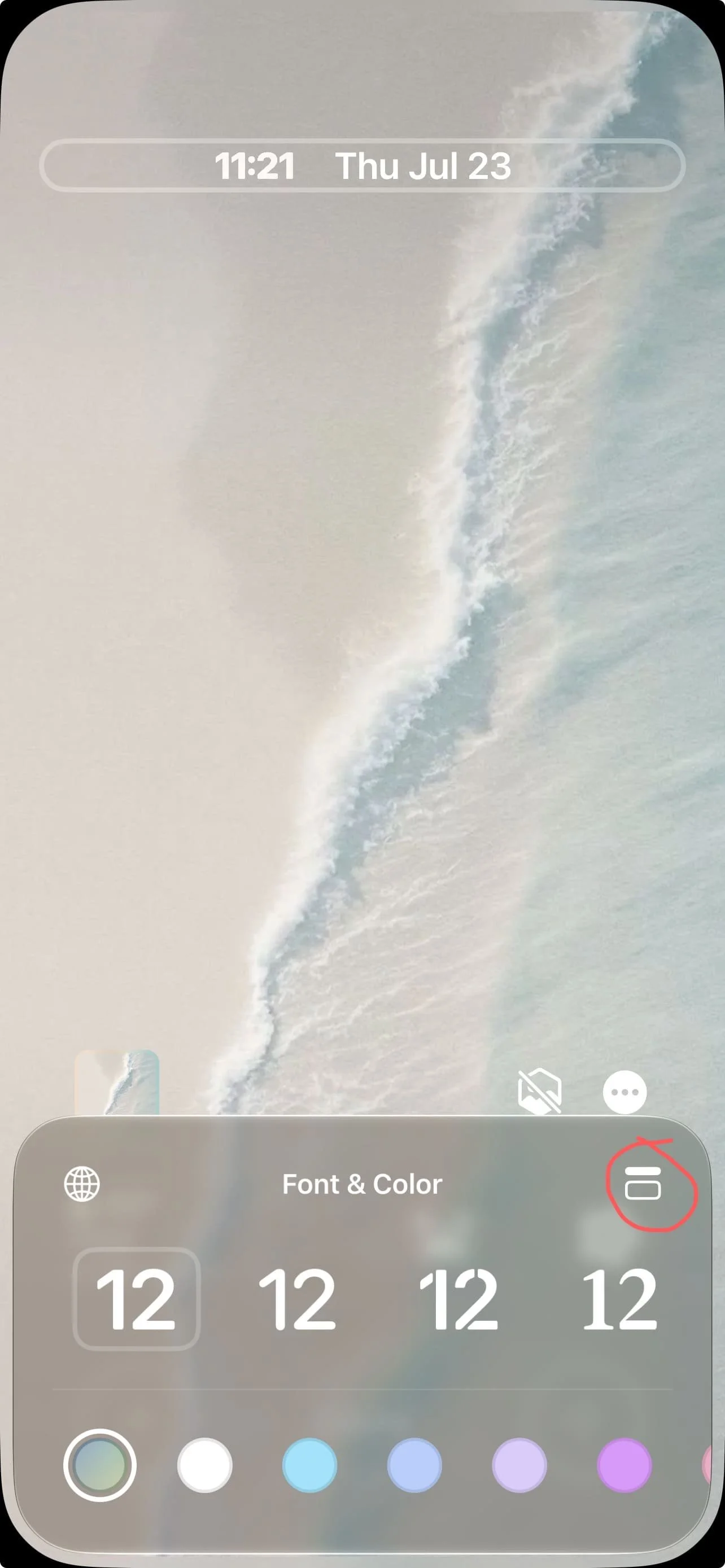
On your lock screen, you can now make the time super tiny and have it sit at the top next to the date. This gives your lock screen a really clean and minimal look that I’m a big fan of, but I find it does make the time harder to see (at least at first when you’re still getting used to it).
To make your time small, go to your lock screen > long press > customize > tap the time > tap the rectangle icon in the upper right corner of the menu.
Related: 20 FREE Aesthetic iPhone Apps You NEED! (Planning, Productivity, Mindfulness, & More)
#3: New XL Widget Size
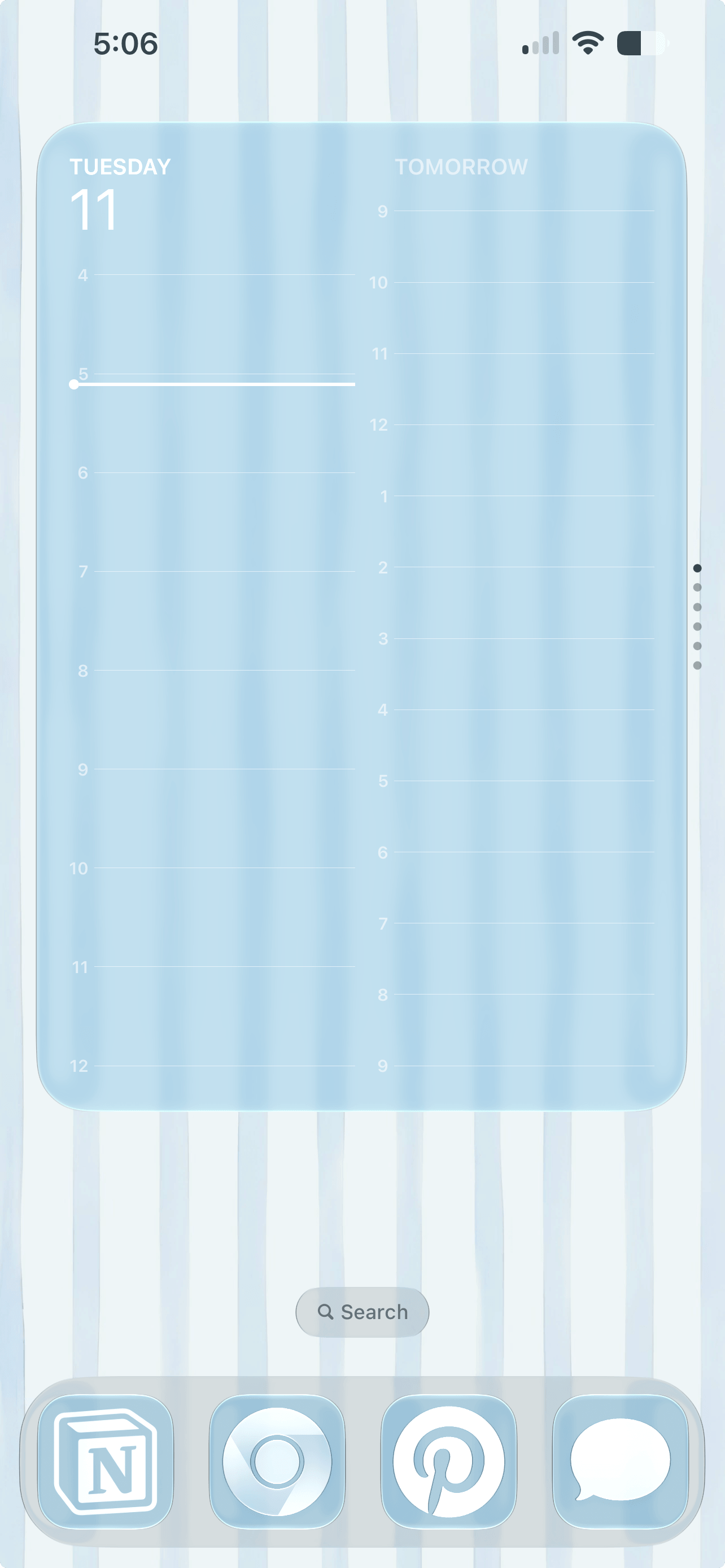
We have a new widget size in iOS 27!! This one is an XL widget that takes up a whole page - great for widgets that hold lots of info like notes or calendars so you can see more of your info at once.
Use the handle bars on the corners on certain widgets to drag and extend the widget.
#4: AI-Generated Lock Screen Wallpapers
Another new iOS 27 customization feature is AI-generated lock screen wallpapers. Using Image Playground, you can type a prompt like "mountains at sunset," or "pink watercolor cherry blossoms” and iOS will generate a custom wallpaper for you.
I’m not sure how I feel about this one as I have more fun designing my own wallpapers, using my photos, or using designs/photos from other artists. But, it’s interesting to play around with!
To find it, go to settings > wallpaper > add new wallpaper > image playground, then enter your prompt. Just keep in mind that this feature is only available on iPhones that support Apple Intelligence.
#5: Extend Your Wallpaper
Also new in iOS 27 is the ability to extend your wallpaper! iOS can intelligently fill in the edges of certain images so they fit your screen better without awkward cropping, which is especially helpful for portrait photos or wallpapers that don't perfectly match your display size.
To find it, go to settings > wallpaper > add new wallpaper > choose a photo > tap the extend option. Note, this feature is only available on iPhones compatible with Apple Intelligence.
Related: How To Customize Your iPhone With iOS 27 (Tutorial With Aesthetic Blue Coastal Theme)
#6: Create Custom Safari Extensions
One of the coolest new Safari features in iOS 27 is Describe an Extension, which basically lets you make your own Safari extensions with AI.
So instead of hunting for the perfect extension or figuring out how to code one yourself, you just tell Safari what you want it to do, and Apple Intelligence (yes, this is another Apple Intelligence only feature) builds it for you!
To find it, open Safari > tap the menu button next to the address bar > go to manage extensions > and choose create an extension (or describe an extension, depending on the beta version). Then just type what you want it to do.
Fun extension prompts:
Create an extension that saves aesthetic images from webpages into a mood board
Create an extension that highlights all color hex codes used on a website
Create an extension that turns every website into a pastel aesthetic theme
Create an extension that adds a Pinterest-style save button to images
Create an extension that reminds me to take a break every 30 minutes
Create an extension that automatically switches websites into dark mode
#7: Genmoji Updates

Source: pinterest.com
Genmoji is getting a major upgrade in iOS 27! Instead of creating a Genmoji once and starting over every time you want a change, you can now keep editing the same design using prompts.
For example, you can create a cute character and then ask it to add a pink bow, change the outfit, make it look more like a sketch, or add new accessories. You can also start creating a Genmoji in more ways, including from an existing emoji, a photo from your camera roll, or a person.
To find it, open messages > tap the emoji keyboard > select Genmoji > describe what you want to create. After generating one, use “describe a change” to keep customizing it. Keep in mind that Genmoji requires a device with Apple Intelligence.
Related: 19 Aesthetic Ways To Customize Your MacBook With macOS 27 Golden Gate
#8: New Photo Editing Features
iOS 27 is making the Photos app feel a lot more like a mini photo studio! With spatial reframing, you can actually change the composition of a photo after you’ve taken it by dragging the image and shifting the perspective, almost like you could move your camera around the original scene.
The new extend tool is perfect for creating the ideal crop whether you want more space around a subject, a straighter horizon, or a different aspect ratio, iOS can intelligently fill in the extra space for you.
Plus, the upgraded clean up tool makes it easier to remove those unwanted distractions from your photos. All of these features require Apple Intelligence as well.
Related: 11 Easy Ways To Make Your MacBook Feel Less Chaotic (Organization Hacks)
Closing Thoughts
Thank you for reading “8 NEW Ways To Customize Your iPhone In iOS 27 (Fun & Aesthetic Features).” Happy customizing!
Read this next: How To Customize Your MacBook With macOS 27 Golden Gate (Easy Tutorial)
For handmade digital art prints, icon packs, wallpapers, & more designed by me, be sure to stop by my digital boutique: Designed By Nikki Lo.
Connect with me!