This post is about easy organization tricks to make your MacBook feel less chaotic.
Between random screenshots, overflowing downloads, dozens of browser tabs, and messy file names, it's easy for your MacBook to start feeling a little…chaotic.
The good news? I’m gonna help you fix that! You don't need to spend hours organizing everything from scratch. A few simple tweaks can make your MacBook feel cleaner, calmer, and much easier to use every day.
From hidden macOS features to quick organization hacks, these 11 easy tricks will help you declutter your digital space and give your Mac a fresh start.
11 MacBook Organization Tips Everyone Should Know!
#1: Use Groups
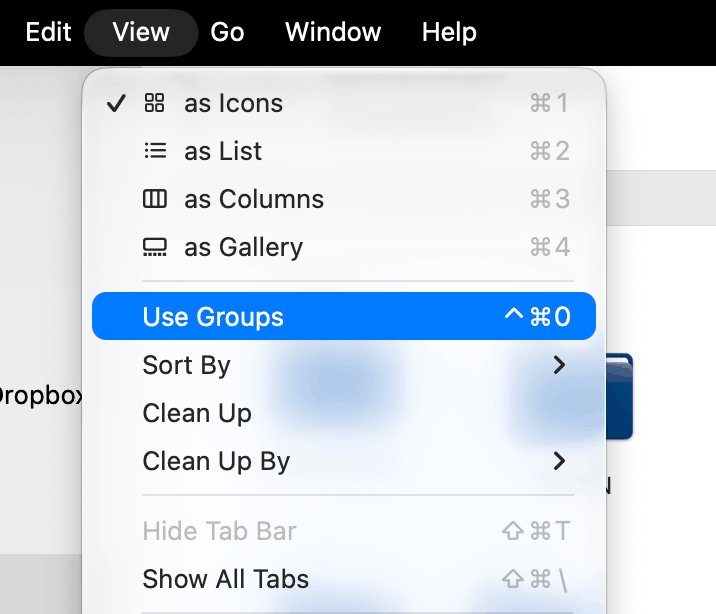
Groups is such an underrated macOS feature! It automatically organizes the files on your desktop into neat groups, so you don't have dozens of icons scattered everywhere.
For example, instead of seeing this:
Screenshot 1
Screenshot 2
Screenshot 3
PDF
PDF
Image
Word document
You'll see organized groups like:
Screenshots (3)
Images (1)
PDFs (2)
Documents (1)
Use groups by going to the menu bar > view > use groups. You can also click on “group by” to choose how you want your files sorted. Click on “show less” to expand it and see all the files inside, then click again to collapse it.
#2: Keep Colors Simple
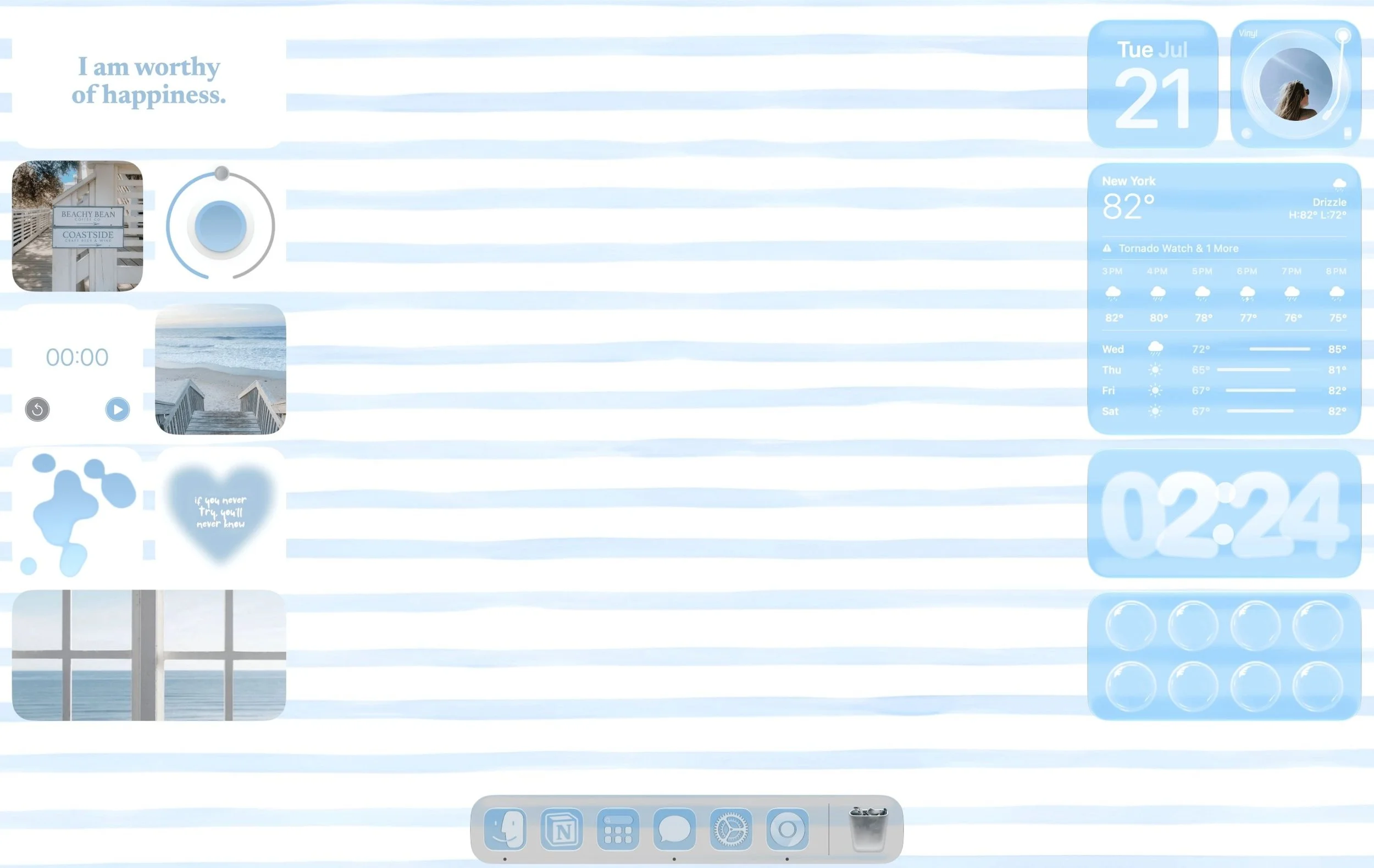
A stress-free MacBook setup works best when you choose one clear visual theme. Neutral tones, soft blue, dark mode, or a seasonal palette all work beautifully.
Mixing too many colors breaks the visual flow and instantly makes your screen look busy. My usual rule? Pick one main color and one to two accents max.
#3: Keep Your Dock Practical

Your dock should hold your most essential and commonly used apps. Right click and quit any apps you don’t need right now.
For apps you don’t want on your dock, right click > options > remove from dock. When you open an app, it will automatically be added to your dock.
Related: 13 Genius Ways To Fix Your Chaotic iPhone (And Make It Aesthetic)
#4: Hide Your Dock Until You Need It
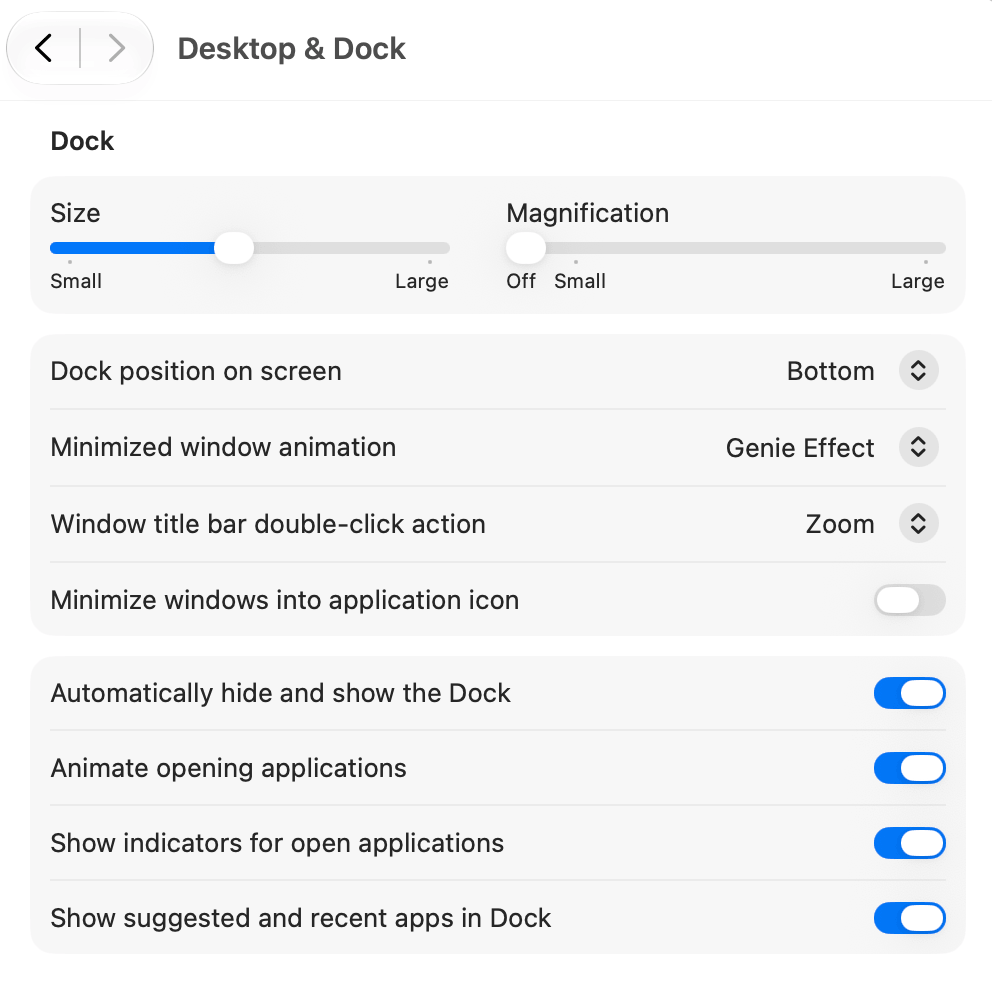
If your dock always feels like it's taking up valuable screen space, you can set it to disappear when you're not using it. It will automatically slide off-screen and reappear whenever you move your cursor to the bottom of your screen.
To do this, go to system settings > desktop & dock > toggle on “automatically hide and show the dock.” This makes for a much cleaner and less cluttered screen!
#5: Simplify Your Menu Bar

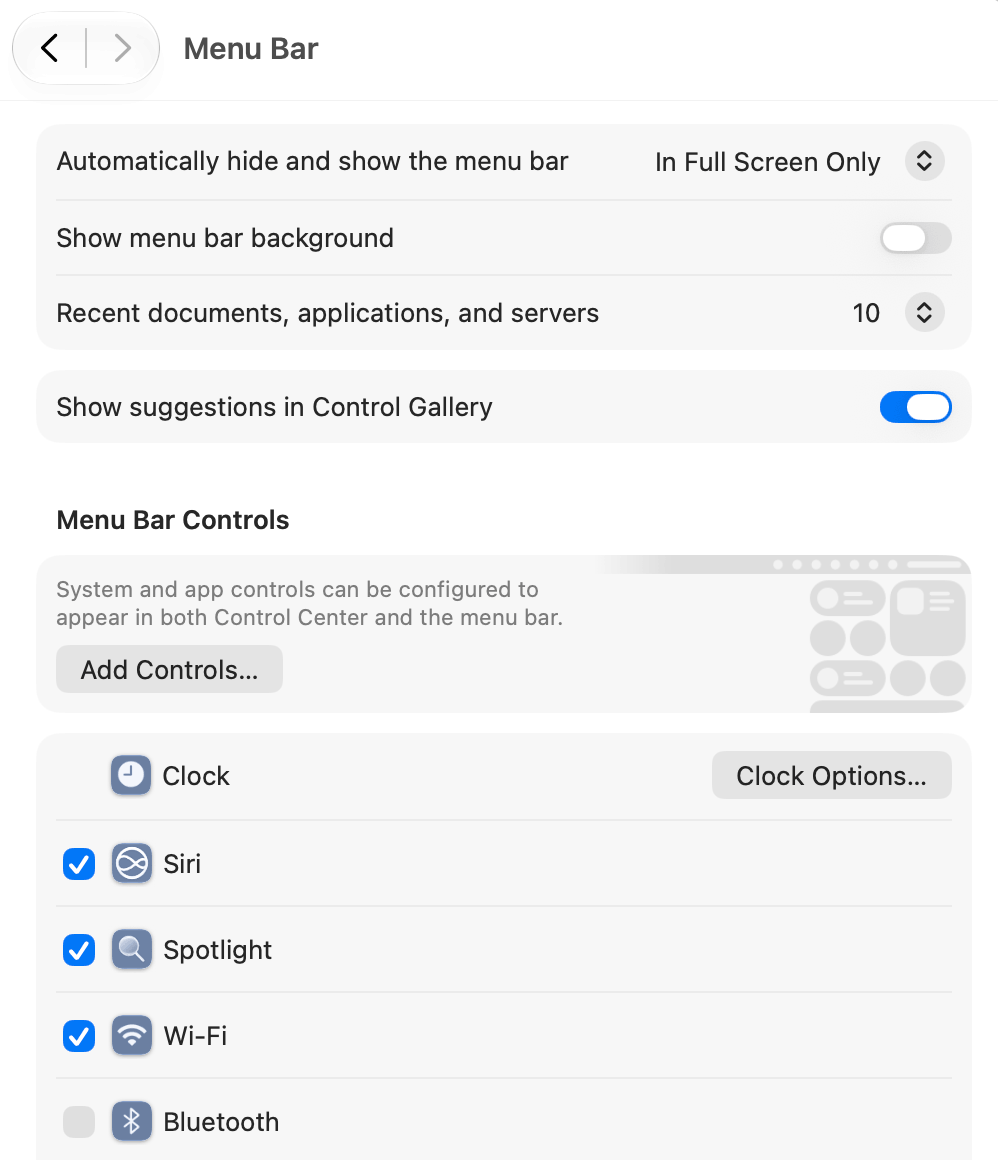
Your menu bar is the black bar across the top of your MacBook screen. To customize your menu bar, go to system settings > menu bar and choose which controls you want to show in your menu bar.
Turn on options like battery, sound, wi-fi, bluetooth, focus, or screen mirroring to keep your most-used features easily accessible.
You can also hold command (⌘) and drag menu bar icons around to rearrange their order. Directly on your menu bar, you can also right click > remove to delete things from your bar.
Related: 15 Ways To Reset & Refresh Your iPhone (Digital Declutter & Organization Routine)
#6: Keep Things In A Grid
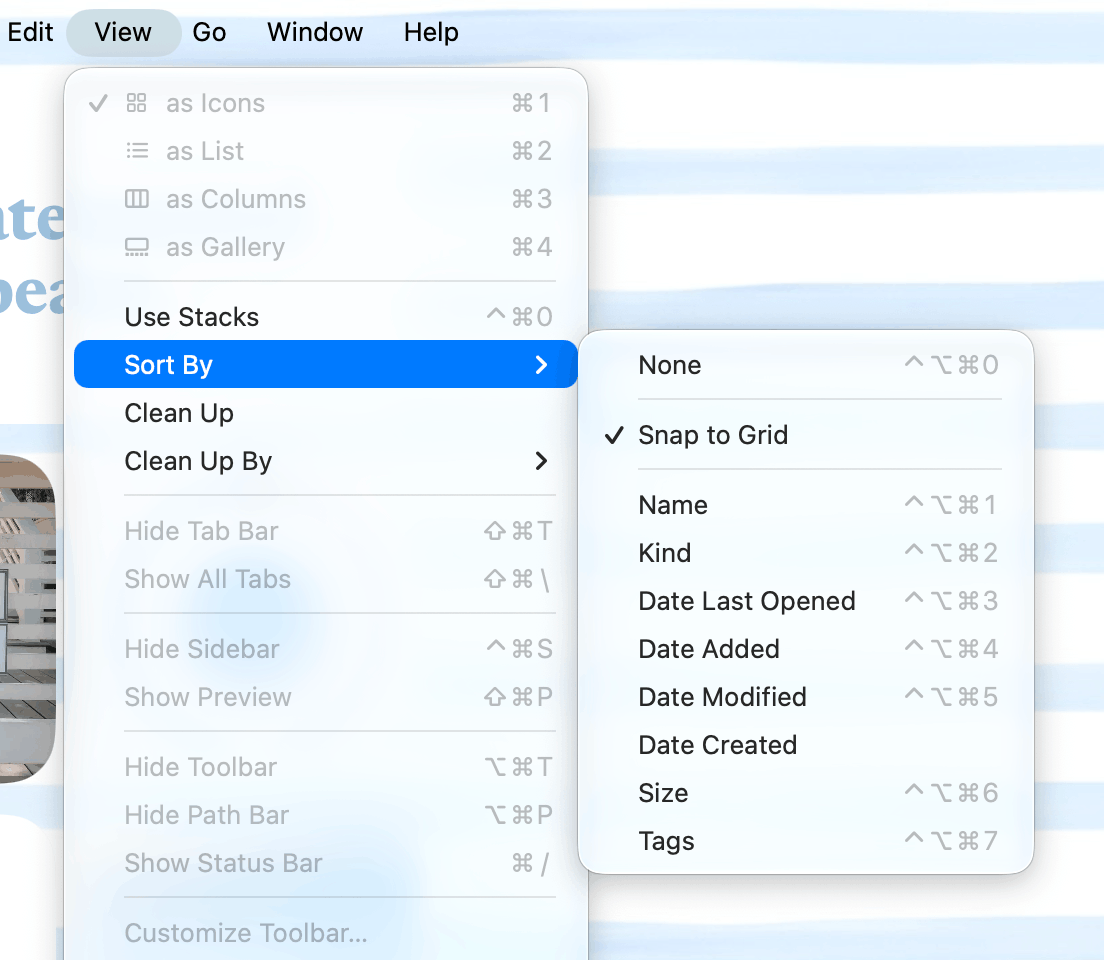
No more randomly placed apps, folders, and widgets! If your desktop icons always end up scattered everywhere, macOS has a built-in feature that automatically lines them up in neat rows and columns.
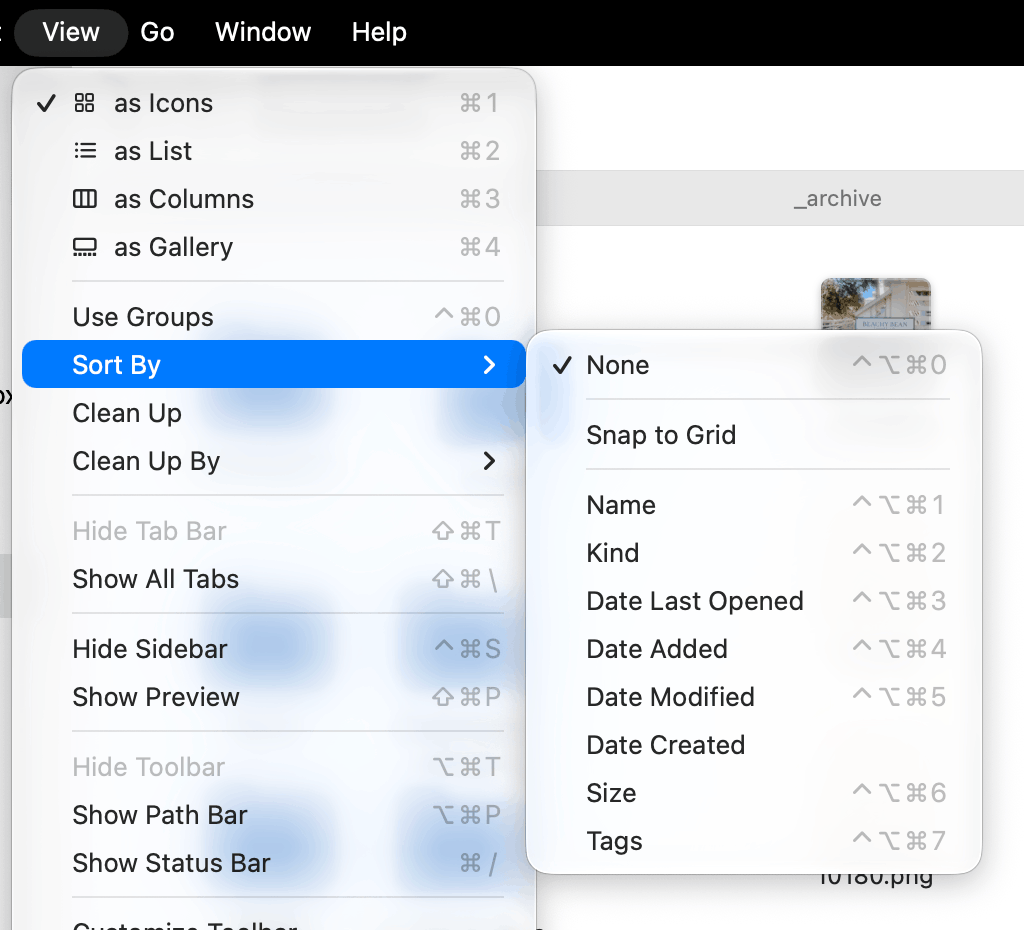
Every time you move a file, it'll "snap" into place a clean grid. Turn on this feature by going to the menu bar > view > sort by > snap to grid.
#7: Color-Code Your Files/Folders
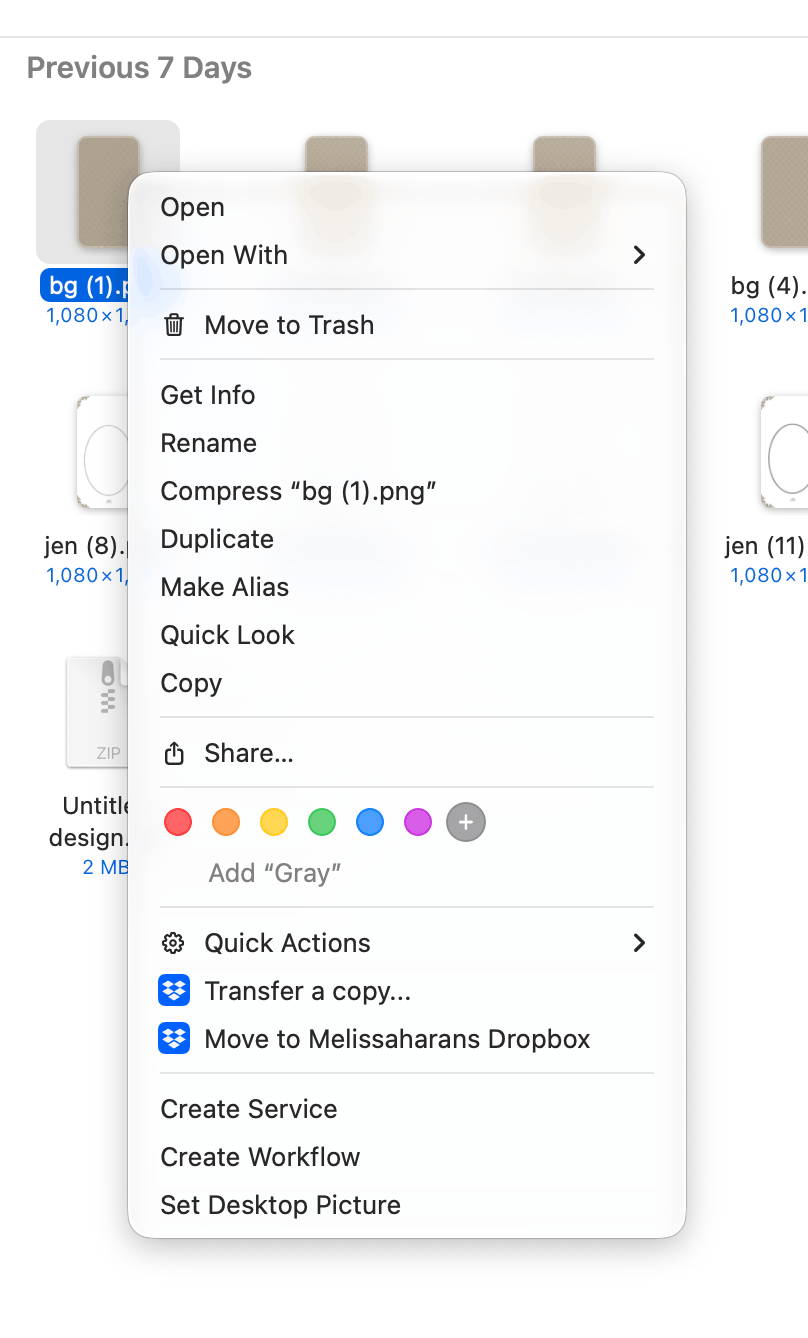
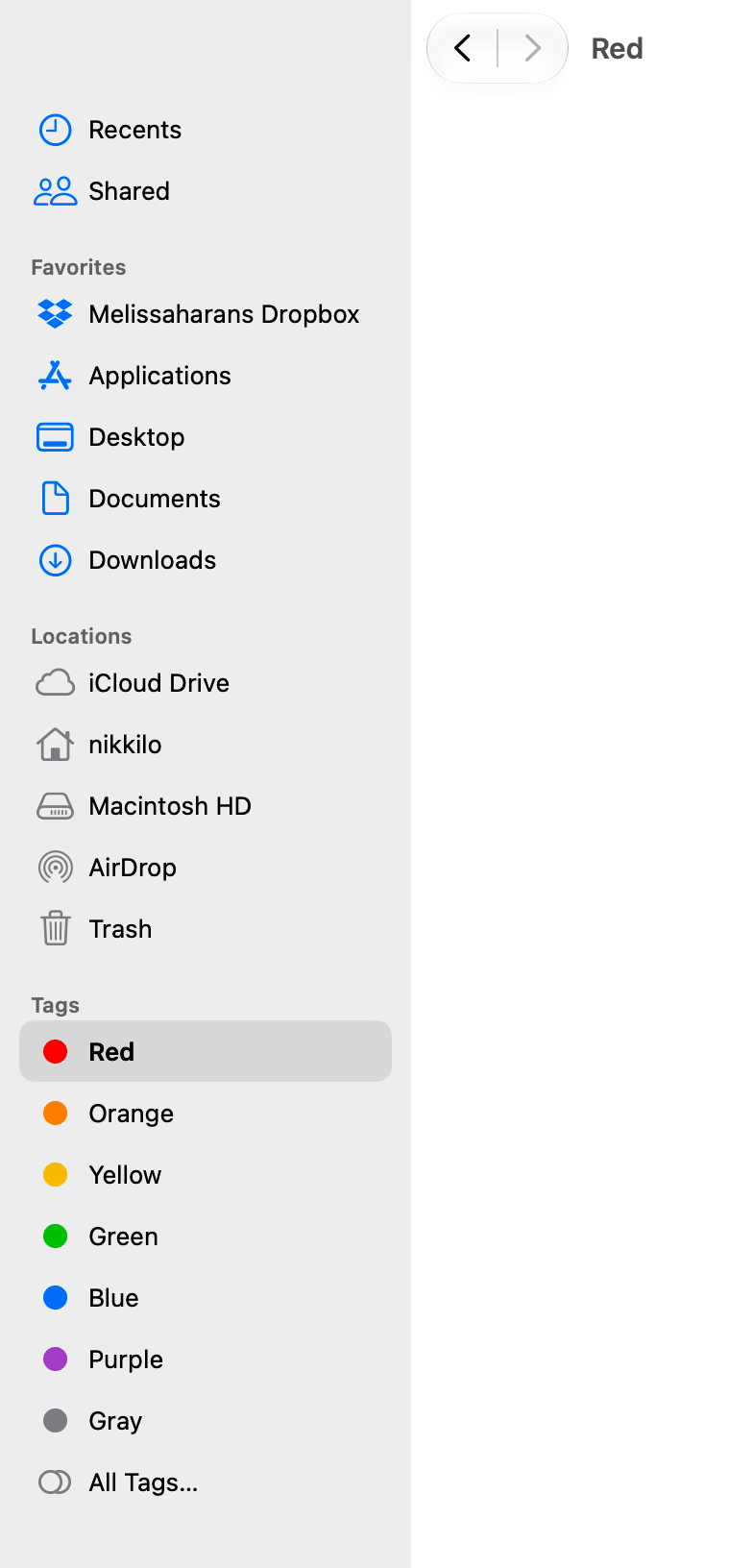
You can assign a colored tag to any file or folder and quickly pull up everything with that tag in Finder. For example, orange for work and blue for personal. This makes things so much faster and easier to find - plus a file can have multiple tags, too!
Add a color tag by right clicking on a folder or file in Finder > choose one of the colored dots under tags, or click tags… to see more options.
View your tagged files/folders by going to the sidebar in Finder > tags > click a color tag to instantly see every file and folder you've assigned that tag to, no matter where it's stored on your Mac.
You can also customize your tags! Open Finder, then on the menu bar go to settings > tags to rename tags, create new ones, or choose which tags appear in the Finder sidebar.
Related: How To Customize Your MacBook With macOS 27 Golden Gate (Aesthetic Tutorial)
#8: Use Consistent File Naming
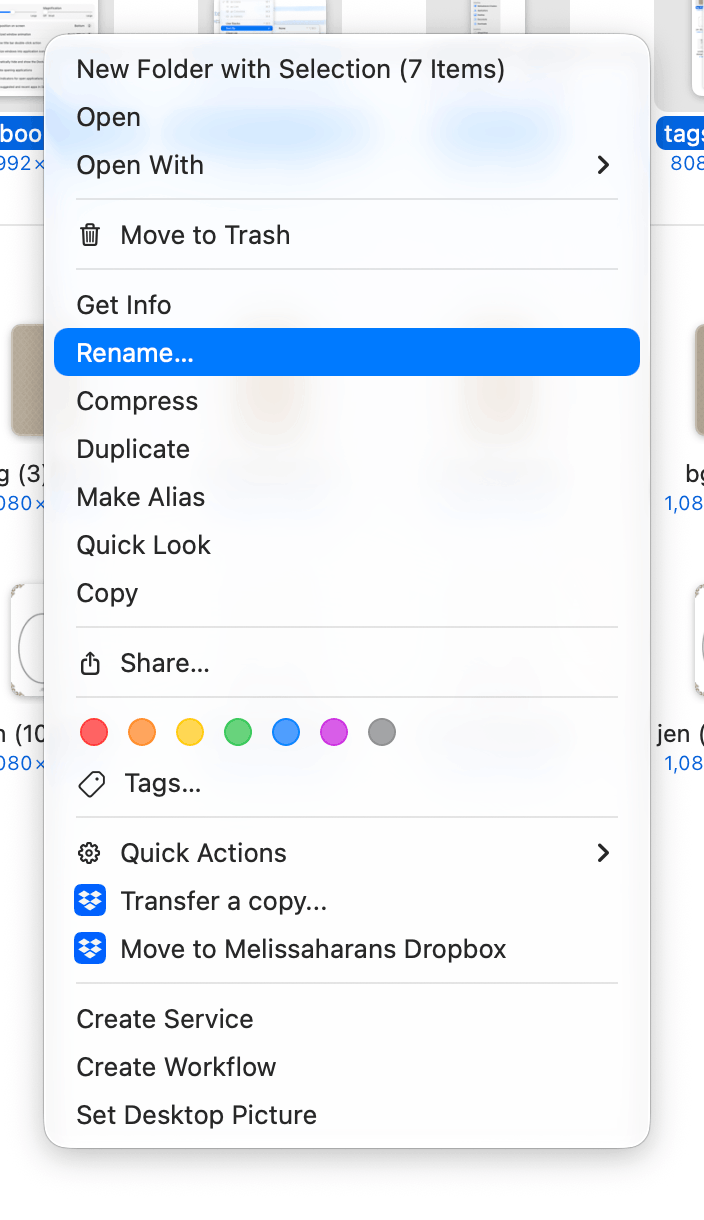
Instead of names like IMG_4827 or Final Final v3 (guilty!), use clear naming conventions that make files easier to find.
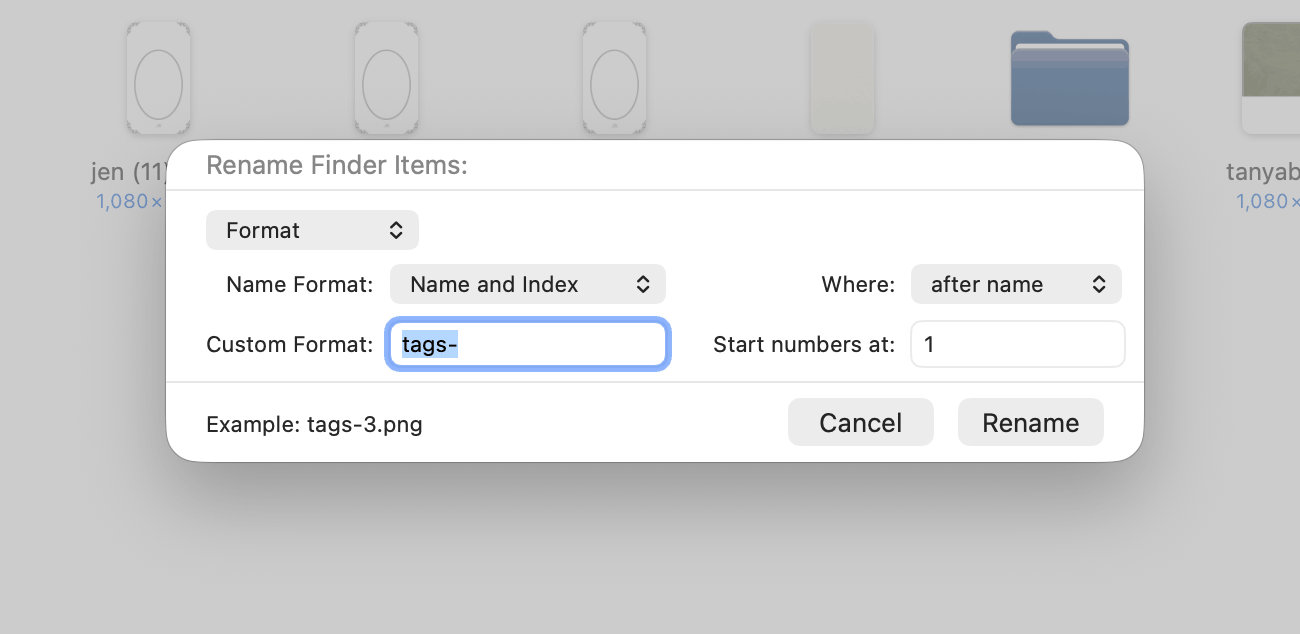
If you have several files to rename at once, select them all in Finder > right-click > rename. macOS lets you batch rename files by replacing text, adding a date, or numbering them automatically, saving you a ton of time when organizing large groups of files.
#9: Use Separate Browser Profiles To Stay Organized
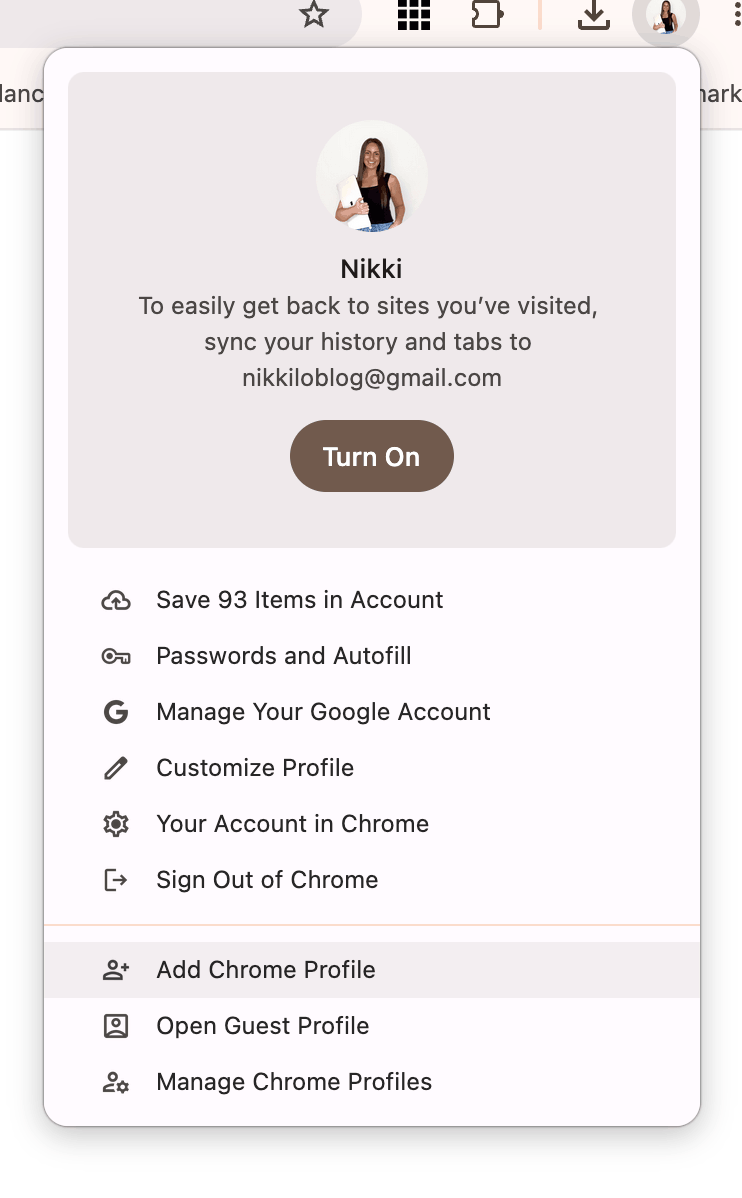
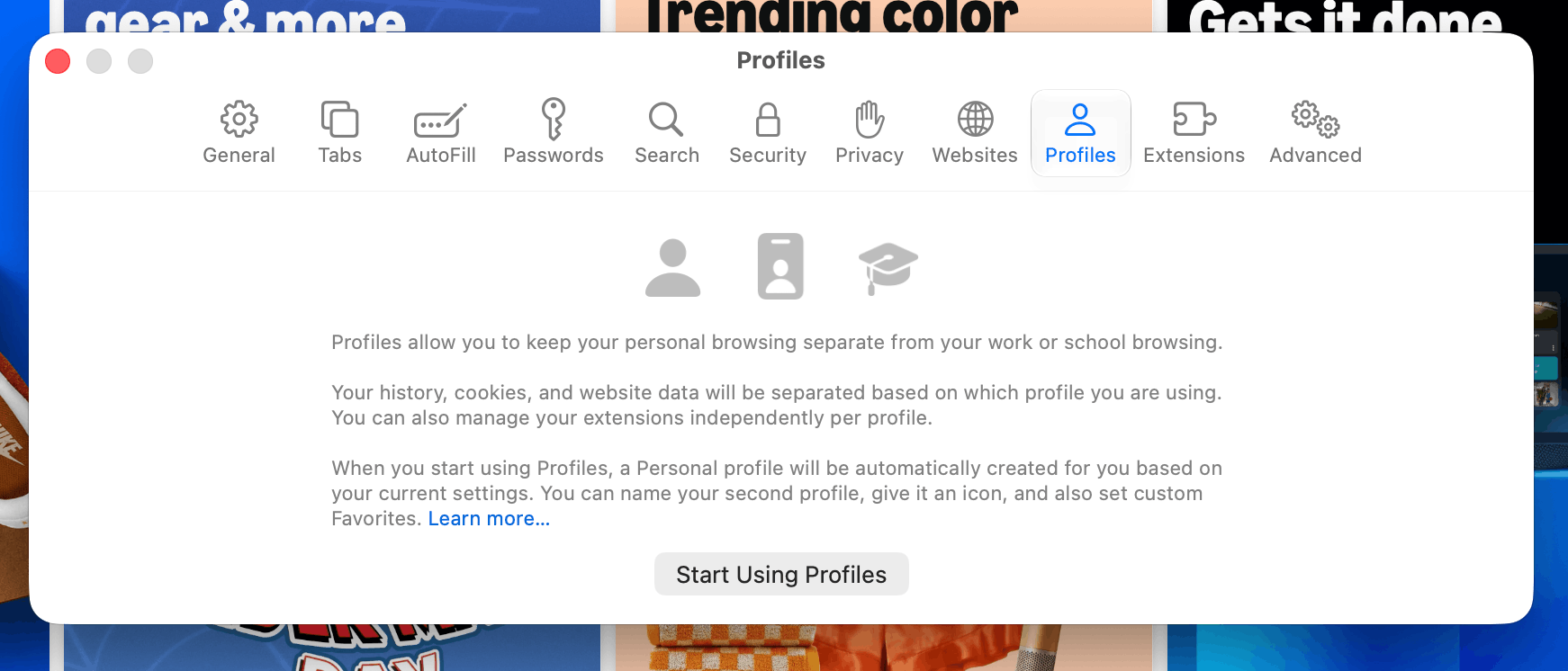
If you constantly have dozens of tabs open, using separate browser profiles can make your Mac feel much less chaotic!
A browser profile keeps your bookmarks, browsing history, saved passwords, extensions, and open tabs separate, allowing you to create different spaces for different parts of your life like work, school, personal, etc.
How to create a browser profile in Safari: open Safari > in the menu bar, click settings > profiles > start using profiles > create profile > customize > create profile.
How to create a browser profile in Google Chrome: open Chrome > profile icon (top-right corner) > add Chrome profile > follow the steps from there.
#10: Keep Fewer Browser Tabs Open
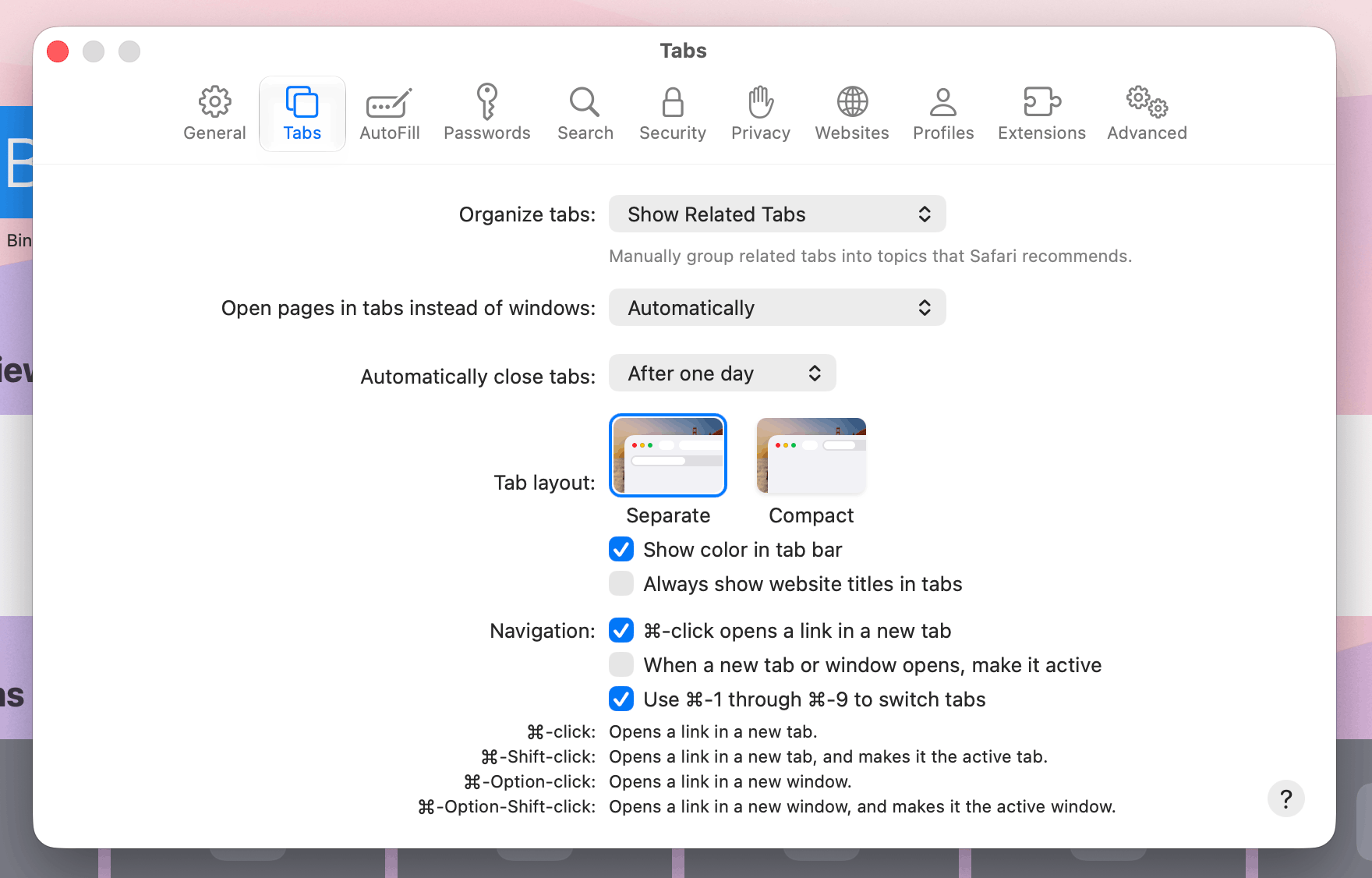
Having too many tabs open is one of the biggest culprits for having a chaotic Mac! Close a Safari/Chrome tab by clicking the x icon on the left or right of a tab.
Safari users listen up! This trick is life-changing. Open Safari and from the menu bar, go to Safari > settings > tabs > customize the settings to keep your tabs organized. The best feature here (in my opinion) is automatically close tabs > choose manually/after one day/week/month.
This lets your MacBook automatically clean them up for you so you never have to manually do a massive tab purge again.
Related: 19 Aesthetic Ways To Customize Your MacBook With macOS 27 Golden Gate
#11: Use Smart Folders
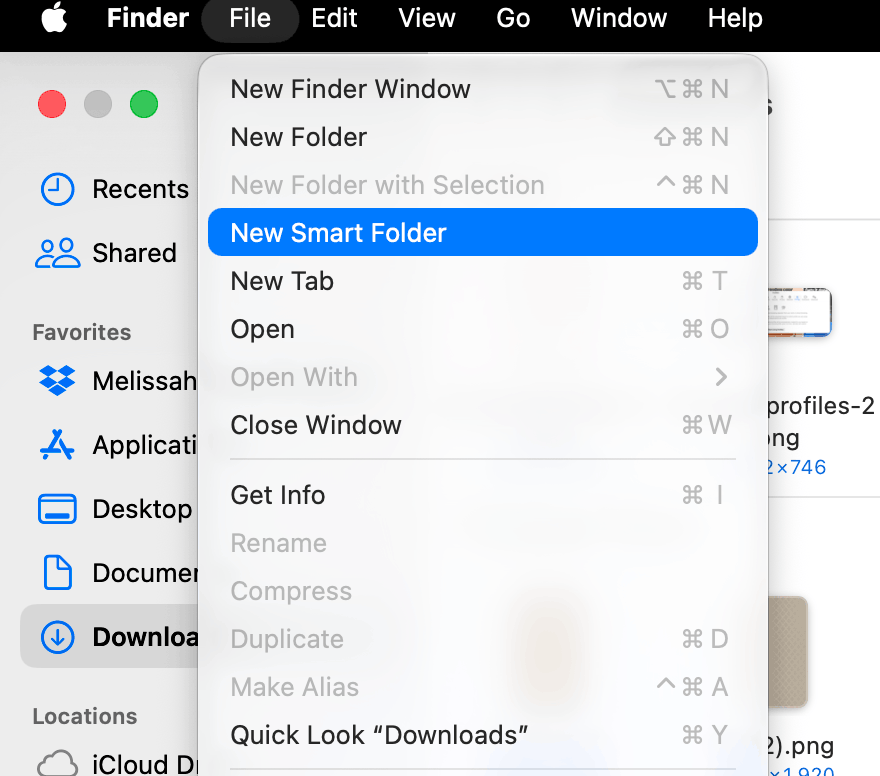

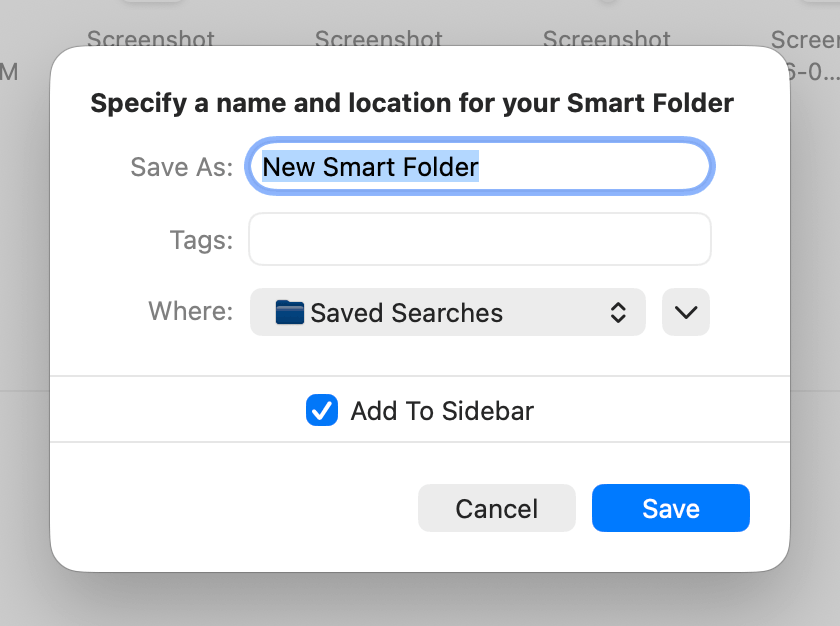
Smart folders are folders that automatically collect files based on rules you choose, like file type, date modified, or tags. They don’t move or duplicate your files, but simply create a shortcut to quickly find files that match your criteria.
For example, you can create a smart folder for screenshots, PDFs, documents created in the last 7 days, files larger than 1 gb, etc.
How to create a smart folder: Finder > (on menu bar) file > new smart folder. At the top of the window, choose where you want the smart folder to search/pull files from: this mac > searches your entire computer. A specific folder (like documents or downloads) > only searches files in that location.
Then, click the plus underneath the save button (top-ish right) and use the field on the top-ish left to choose the criteria for your smart folder > click save when done (top-ish right).
Closing Thoughts
Thanks for stopping by my post “11 Easy Ways To Make Your MacBook Feel Less Chaotic (Organization Hacks).”
Read this next: 5 BEST MacBook Productivity Tricks (That Will Save You SO Much Time! Must-Know!)
For handmade digital art prints, icon packs, wallpapers, & more designed by me, be sure to stop by my digital boutique: Designed By Nikki Lo.
Connect with me!