15 Ways To Reset & Refresh Your iPhone (Digital Declutter & Organization Routine)
This post is about how to do a complete iPhone reset + declutter.
If your iPhone feels overwhelming, distracting, or visually messy, you probably don’t need a factory reset. You just need a good decluttering + organizing sesh!
This is my iPhone reset routine that I’m trying to do on a more regular basis. Sometimes I do the whole routine and sometimes I just do parts of it depending on my decluttering needs. You can do the same and take what you need from this routine.
So, here are 15 quick, easy, and practical ways to reset your iPhone and make it feel calm again. Trust me, you’ll feel so much better when you’re done.
Ultimate iPhone Reset & Digital Declutter Routine
#1: Turn On “Offload Unused Apps”
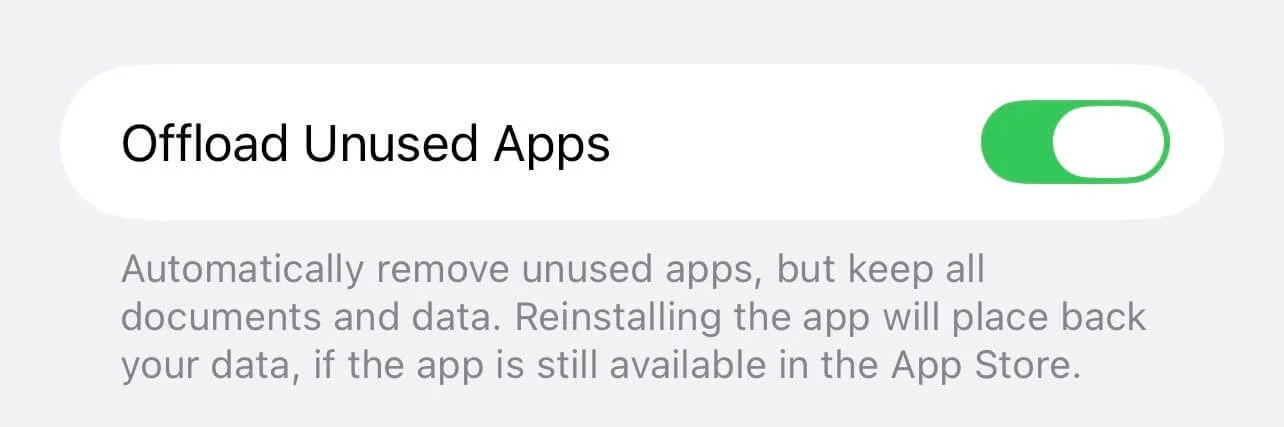
Offloading means your iPhone automatically removes apps you don’t use but keeps the data, so you won’t lose any important info. You can redownload your apps any time. Plus, it’s frees up a ton of storage space!
To do this, go to settings > apps > app store > offload unused apps.
#2: Turn On Scheduled Notification Summary
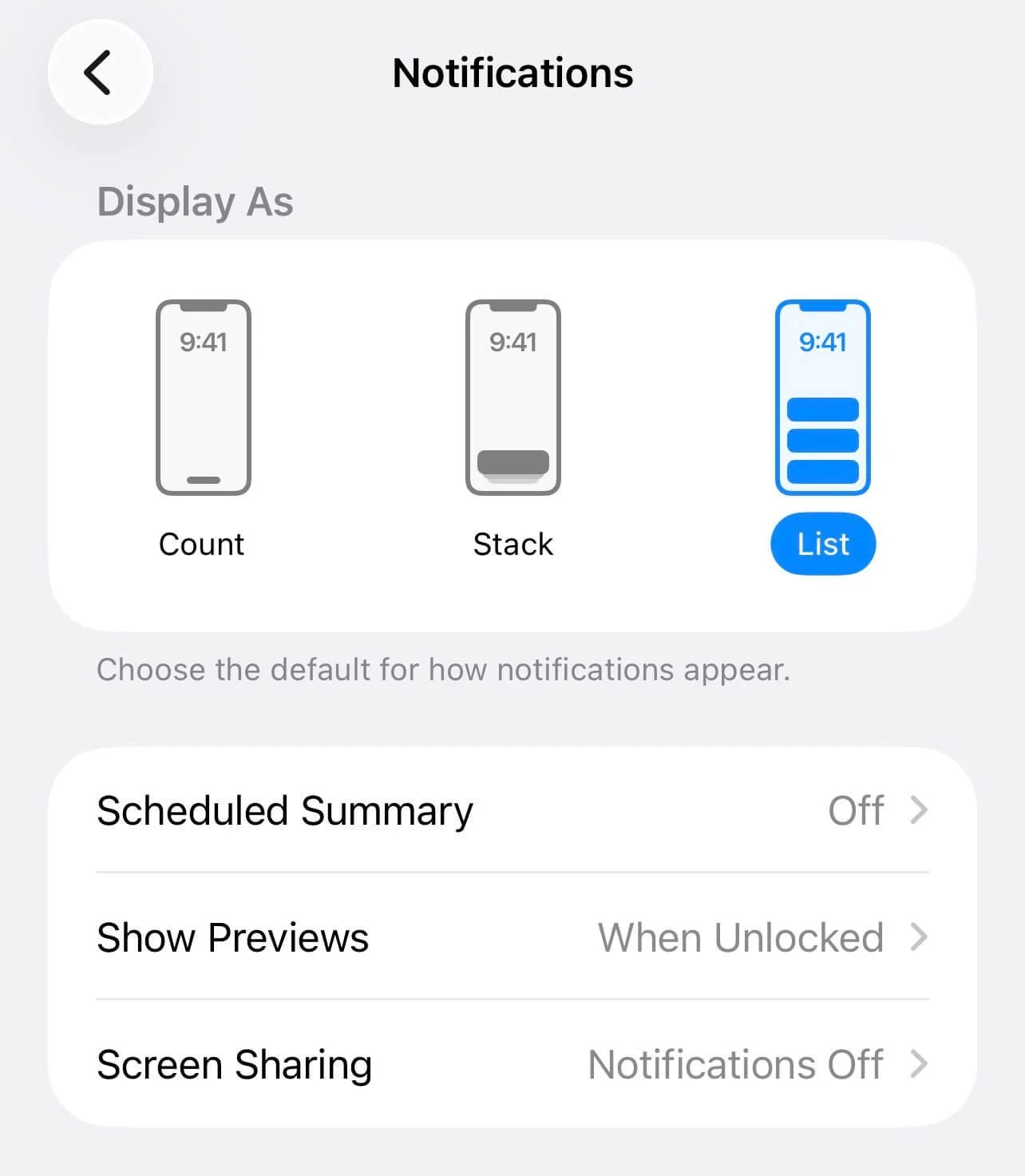
A bundled notification summary means instead of being constantly bombarded with notifications throughout the day, you can make it so you’re getting a summary of notifications say, once a day. So much less noise!
To do this, go to settings > notifications > scheduled summary.
#3: Delete Large Message Attachments
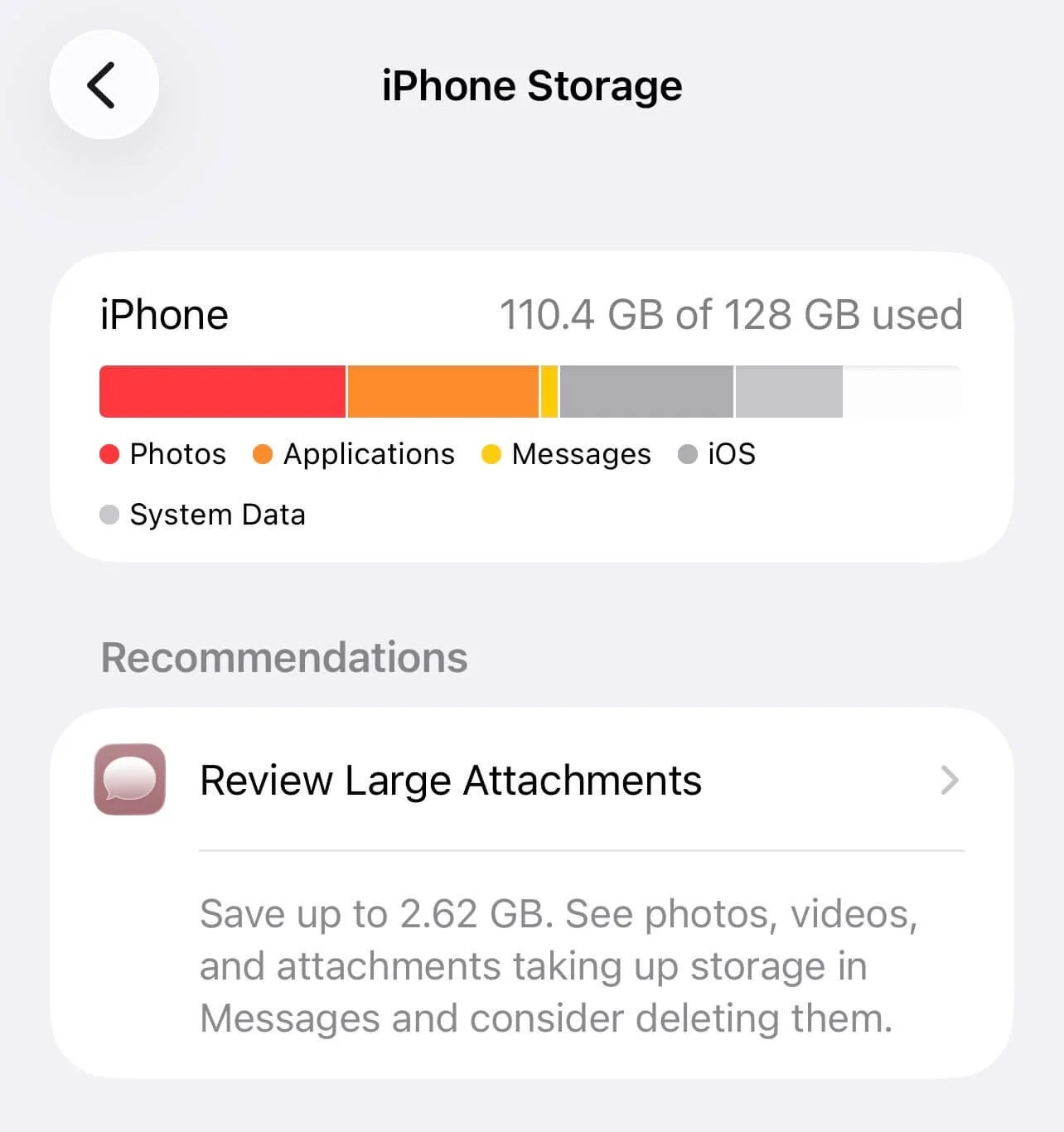
Need a quick way to free up some storage? You’d be surprised at how much some message attachments take up. Here’s away to delete those large photos and videos in your messages without deleting entire conversations.
To do this, go to settings > general > iPhone storage > messages > review large attachments.
Related: 30 Ways To Customize Your Apple Calendar (EASY Tricks To Make It Aesthetic)
#4: Close Your Browser Tabs
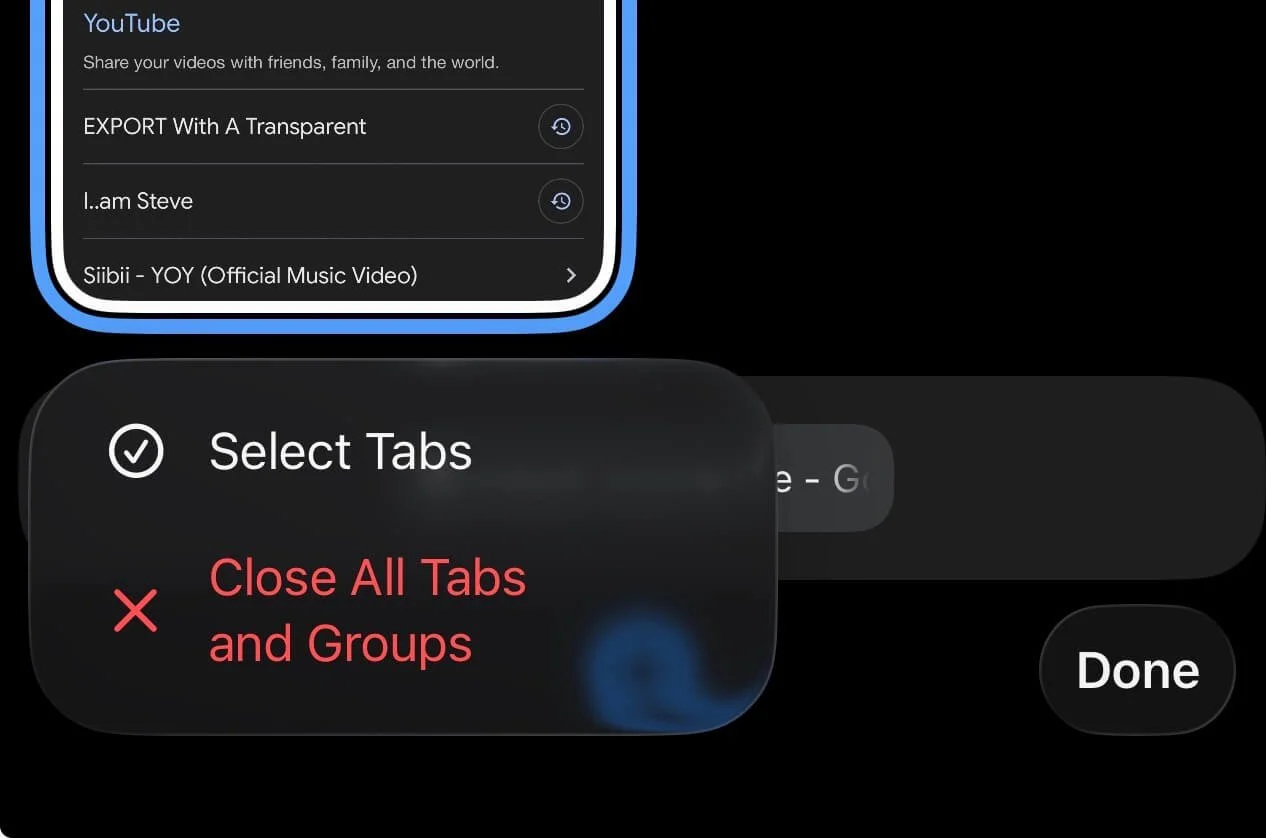
Yeah, my boyfriend loveeees to make fun of me for this one! I’m one of those crazy people who regularly has so many Chrome tabs open that instead of having a number where your number of open tabs are displayed, I have a smiley face (aka having at least 100 tabs open).
If you don’t want to be like me, close all your tabs by opening Chrome > tapping the number at the bottom > edit > close all tabs and groups. Or, you can select the tabs you want to close if you still need some open.
Safari users listen up! This trick is life-changing. Go to settings > apps > safari > close tabs > after one day/week/month and let your iPhone automatically clean them up for you so you never have to manually do a massive tab purge again.
#5: Close Open Apps
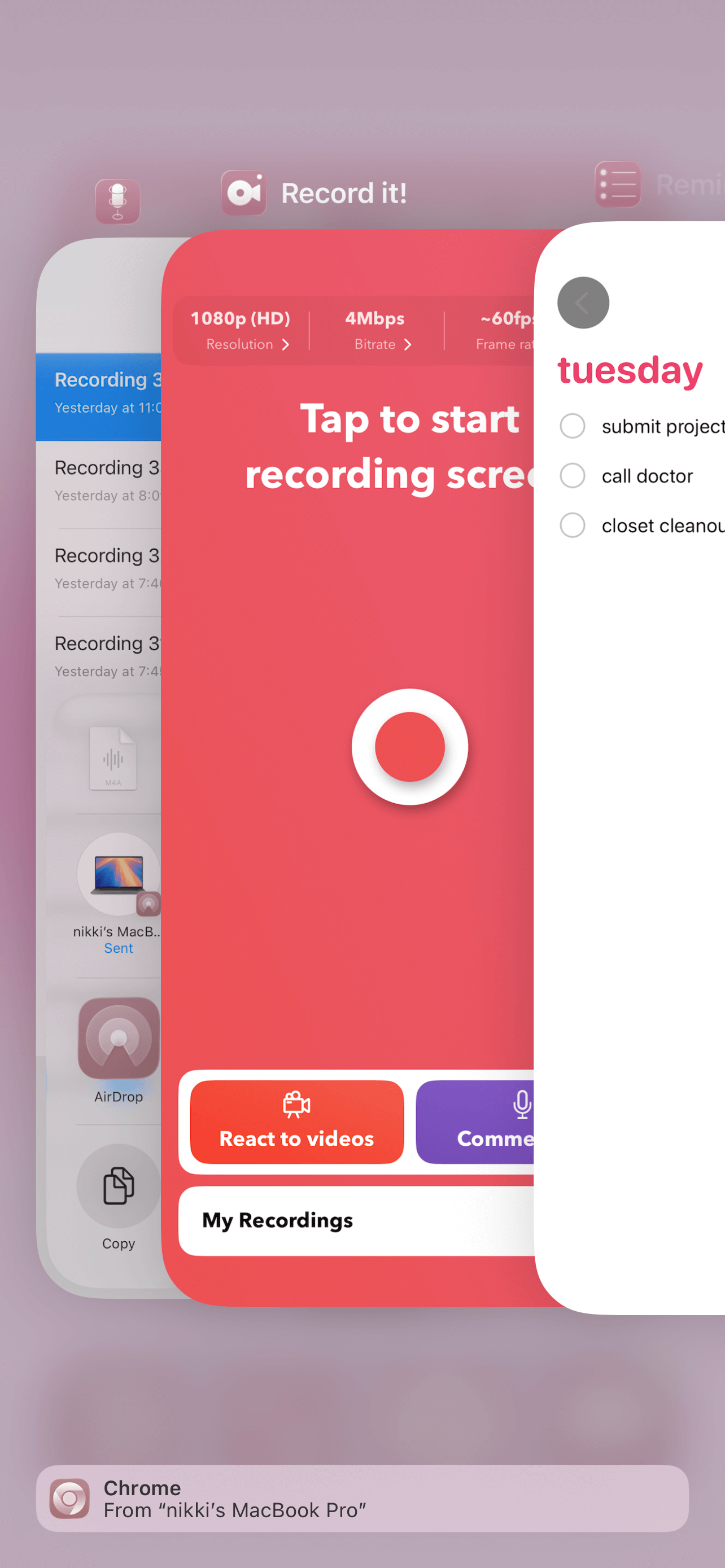
On a similar note, close your open apps! This is a good way to restart and refresh any apps that are bugging out too.
To do this, go to your home screen > swipe up and to the right from the bottom left corner > swipe up on each open app to close.
#6: Clean Up Your Contacts
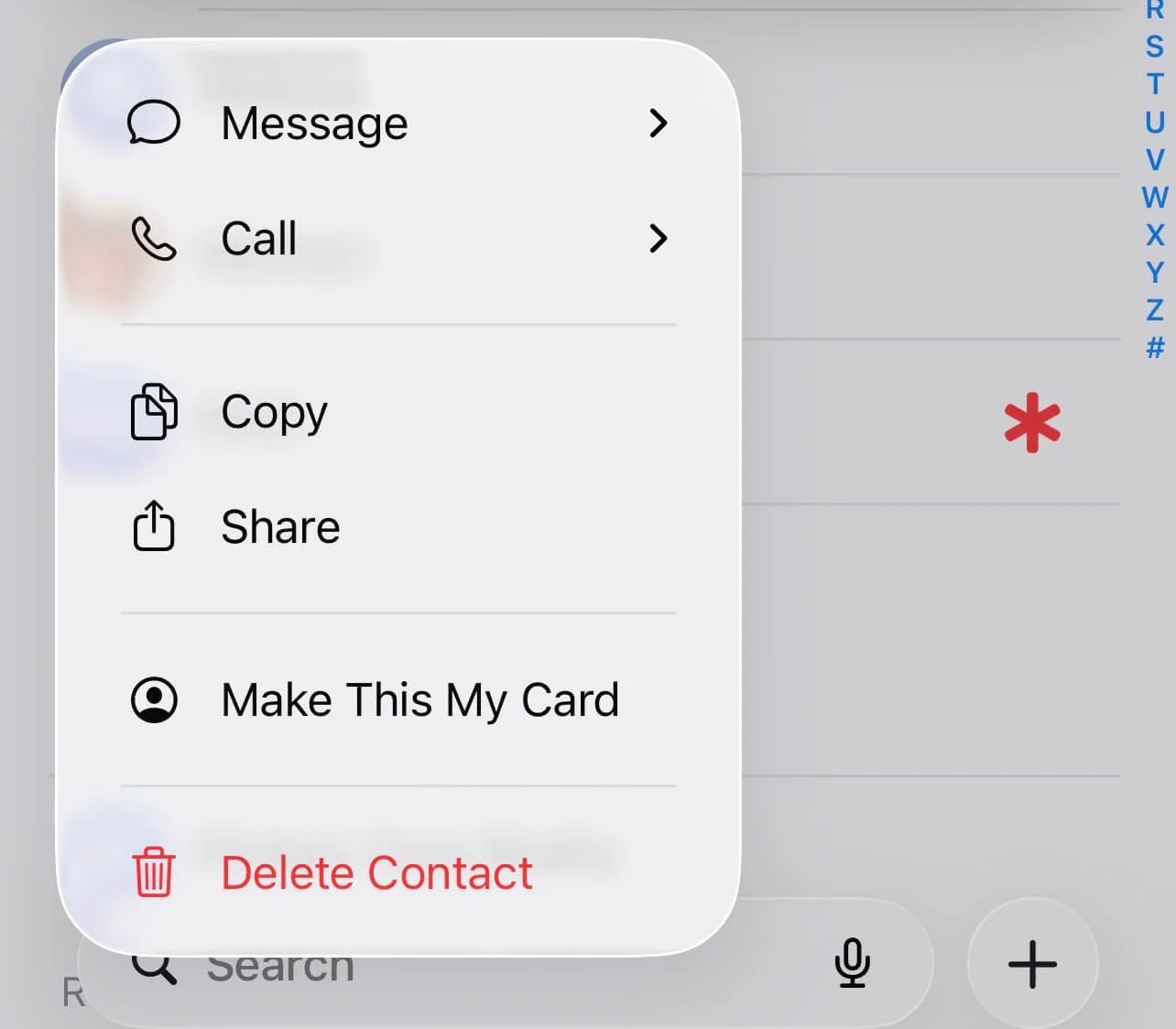
I forget this one a lot. Delete any contacts you haven’t used in a while, duplicates, etc. You can do this straight from your contacts apps.
#7: Organize Your Photos/Videos
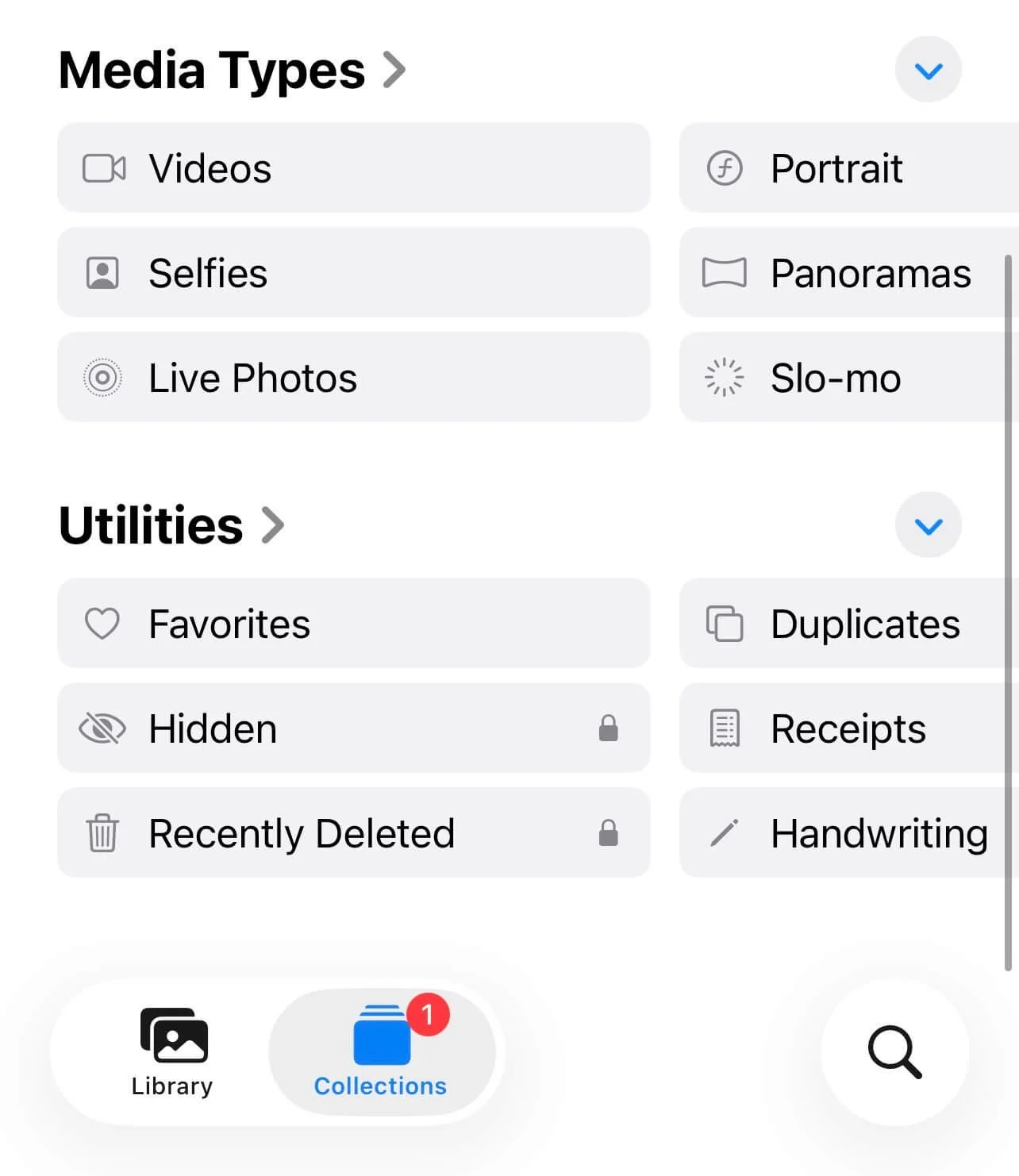
This is a biggie for a lot of people. Personally, vast majority of my storage is eaten up by videos. You could go through each picture/video one by one and decide whether or not to keep it, but if you have thousands of files like me, that gets super overwhelming fast and takes forever.
Instead, you can still do a pretty thorough (and much quicker) declutter by using the utilities folder. Go to photos > collections > scroll down until you see “utilities.” Here, you’ll see categories of all your media, and you can go through them and delete files that way instead.
For example, there’s a folder with duplicates automatically detected (this is a really good way to instantly clear storage). Under the “media types” section, I also suggest looking through the video and screenshot folders since these are usually huge storage eaters.
Related: 3 Simple Tech Upgrades You'll Wonder How You Lived Without (For A More Organized & Efficient Setup)
#8: Remove App/Widget Names
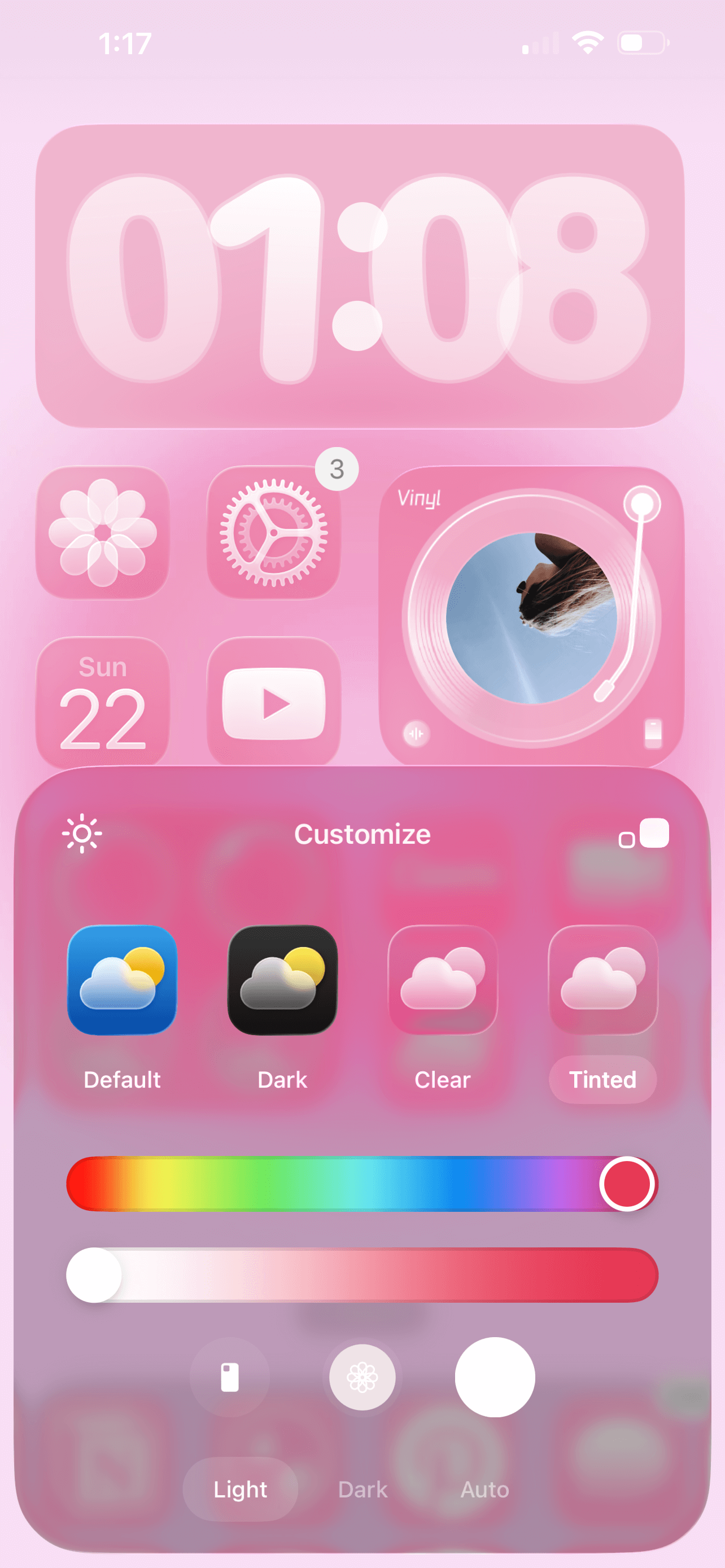
Those labels underneath your apps and widgets can really clutter up your home screen! But did you know you can get rid of them?
I find removing these labels makes for a calmer, cleaner, phone layout. To remove them, long press on your home screen > edit > customize > tap the two squares in the upper right corner of the customization menu.
#9: Delete Apps You Don’t Use
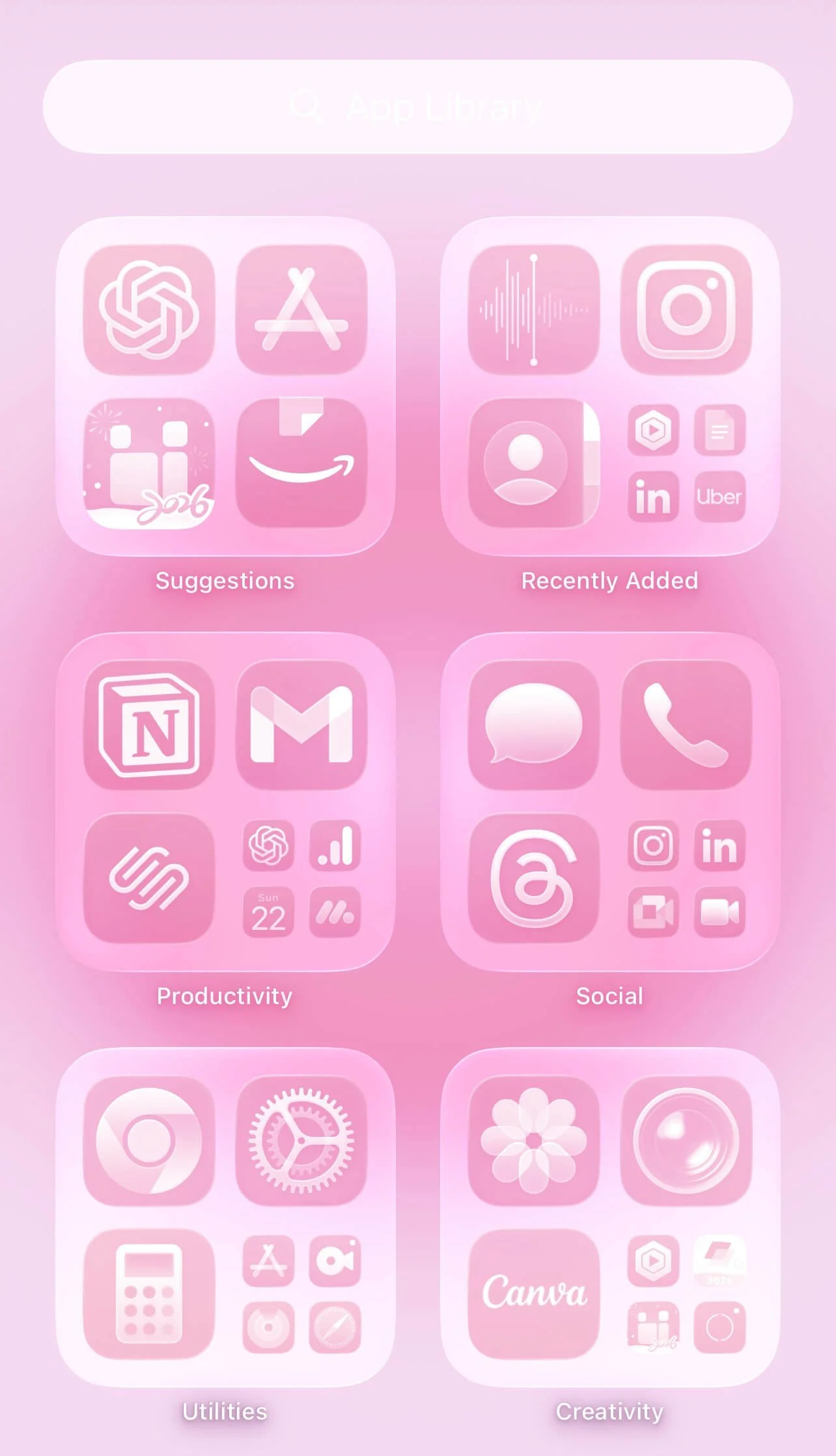
Apps are another thing that take up a lot of storage, so going through your apps to delete ones you don’t use anymore is an essential part of any iPhone reset routine.
I usually like to do this by going to my app library so I can see all my apps there. Access your apps library by going to your home screen and then scrolling all the way to the right.
#10: Organize Apps With App Folders
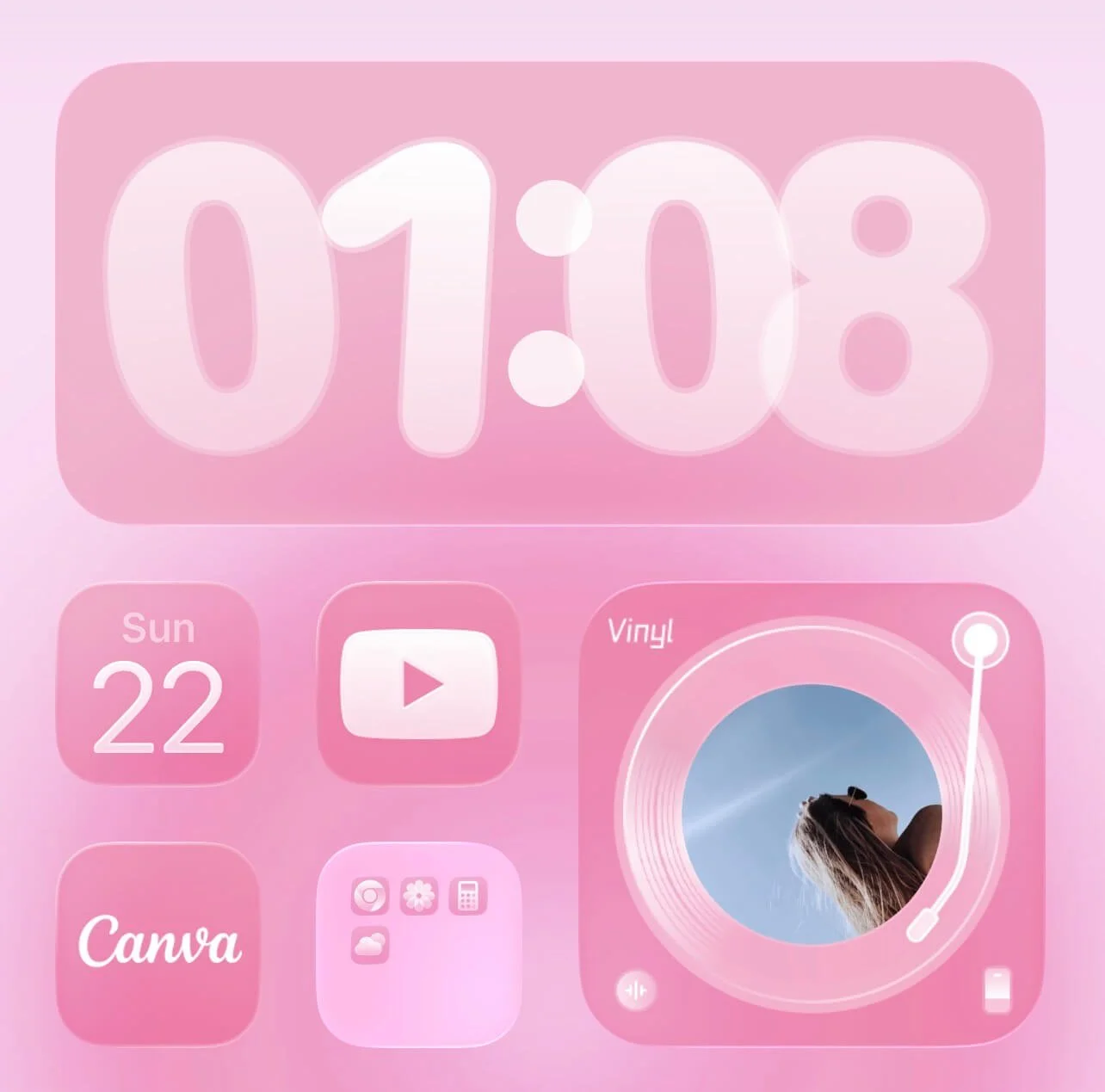
Instead of random apps all over your home screen, keep things organized and easy to find by utilizing app folders. Create a folder by long pressing on an app and dragging it over another app. A folder will automatically be created with both apps.
Some folder ideas are social media, finance, work, communication, creative, health, planning, etc.
#11: Hide Entire Home Screens
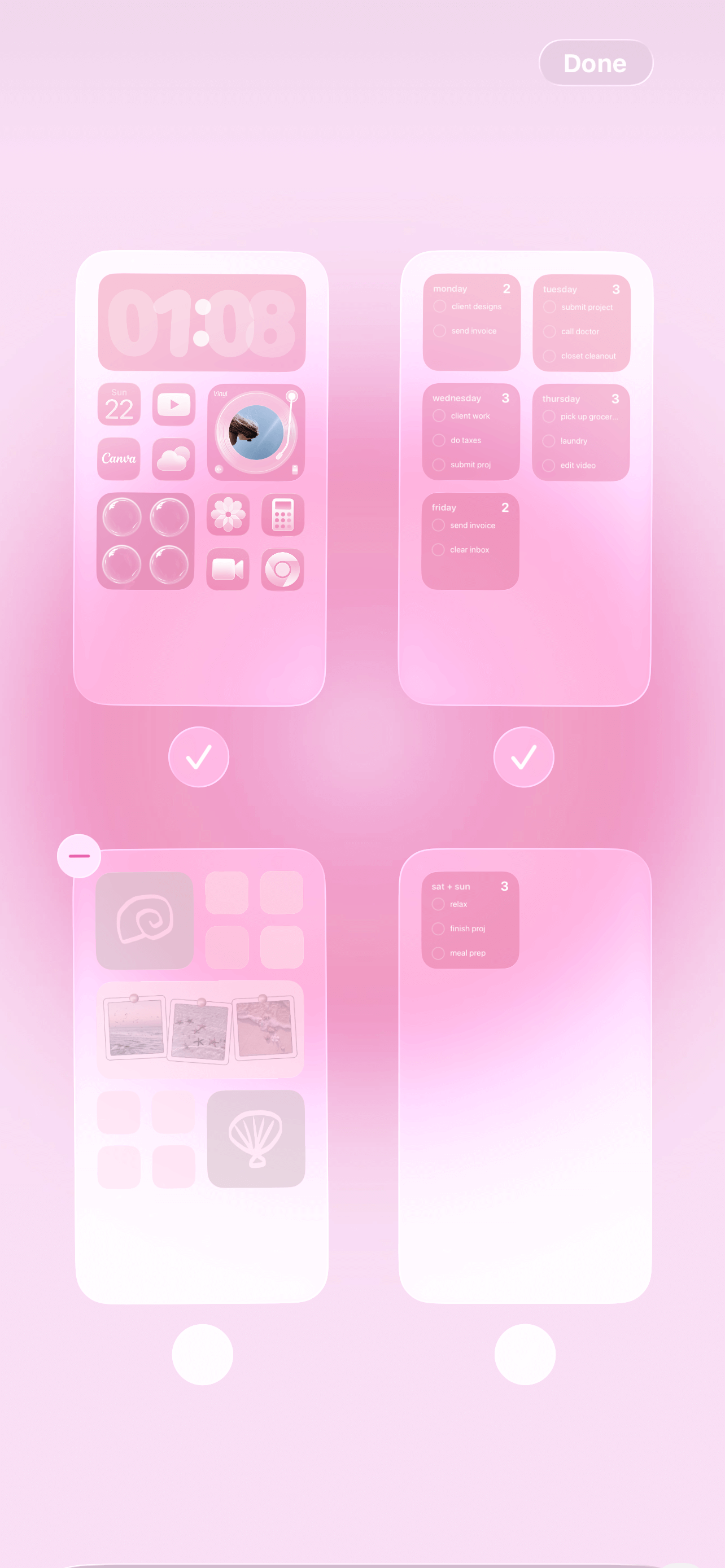
Most people don’t realize you can hide full home pages without deleting anything. Your apps stay installed, they just move out of sight into the app library. This is perfect if you want one clean, minimal front page and everything else tucked away.
It’s one of the fastest ways to make your iPhone feel instantly calmer without doing a dramatic purge. To hide a home page, long press > edit > edit pages > uncheck pages you want hidden > done.
#12: Delete Old Voice Memos
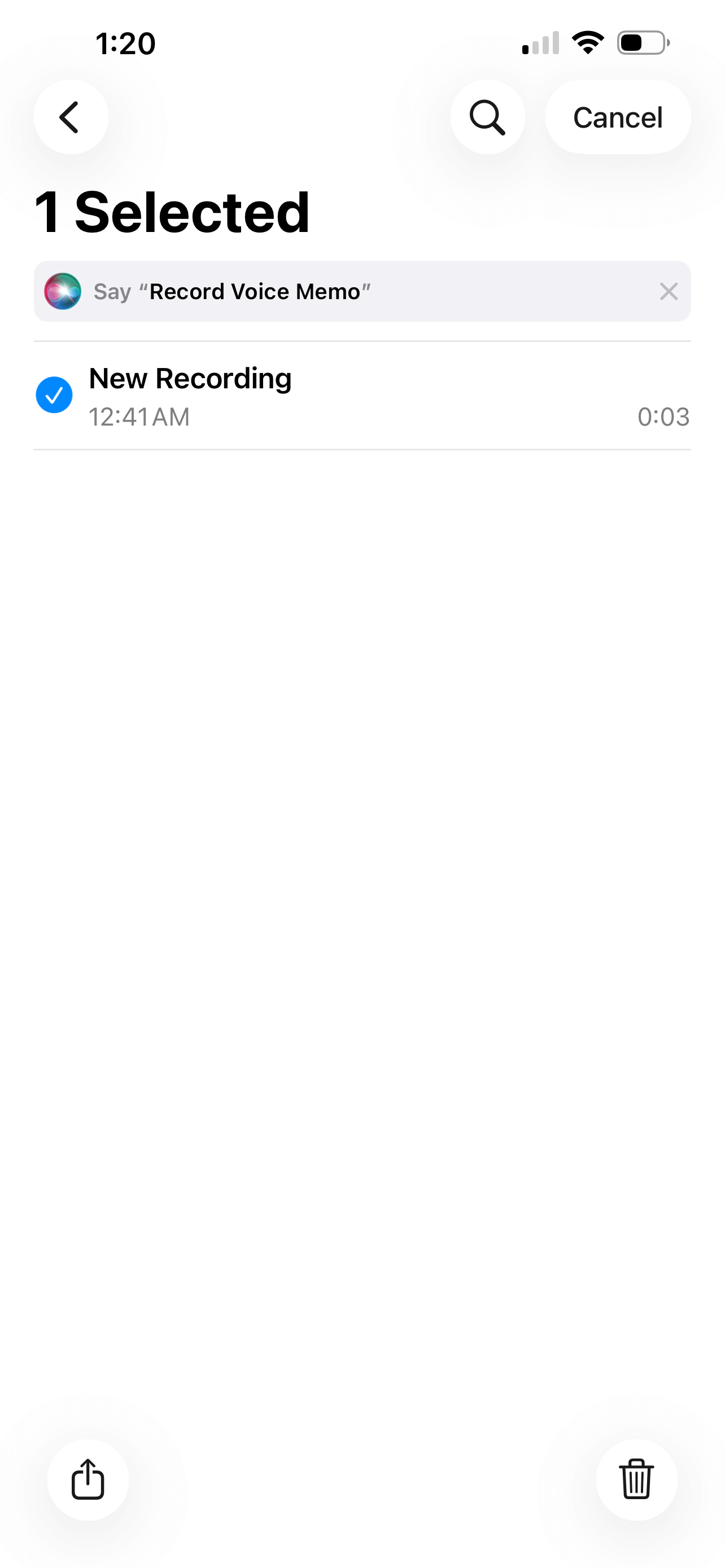
Open the Voice Memos app and scroll all the way back. You might be surprised what’s in there! Random thoughts, test recordings, accidental pocket memos, ideas you already used (they add up fast).
This is a small cleanup step, but it makes your storage (and your digital life) feel instantly lighter. Open voice memos > select > tap trash icon to delete.
Note, the voice memo will be moved to “recently deleted” for 30 days, so go to the voice memos app home page > recently deleted > select > trash icon to permanently delete it.
Related: How To Customize Your iPhone With iOS 26 (Aesthetic Pink Aura Theme + Tutorial!)
#13: Turn Off App Badges
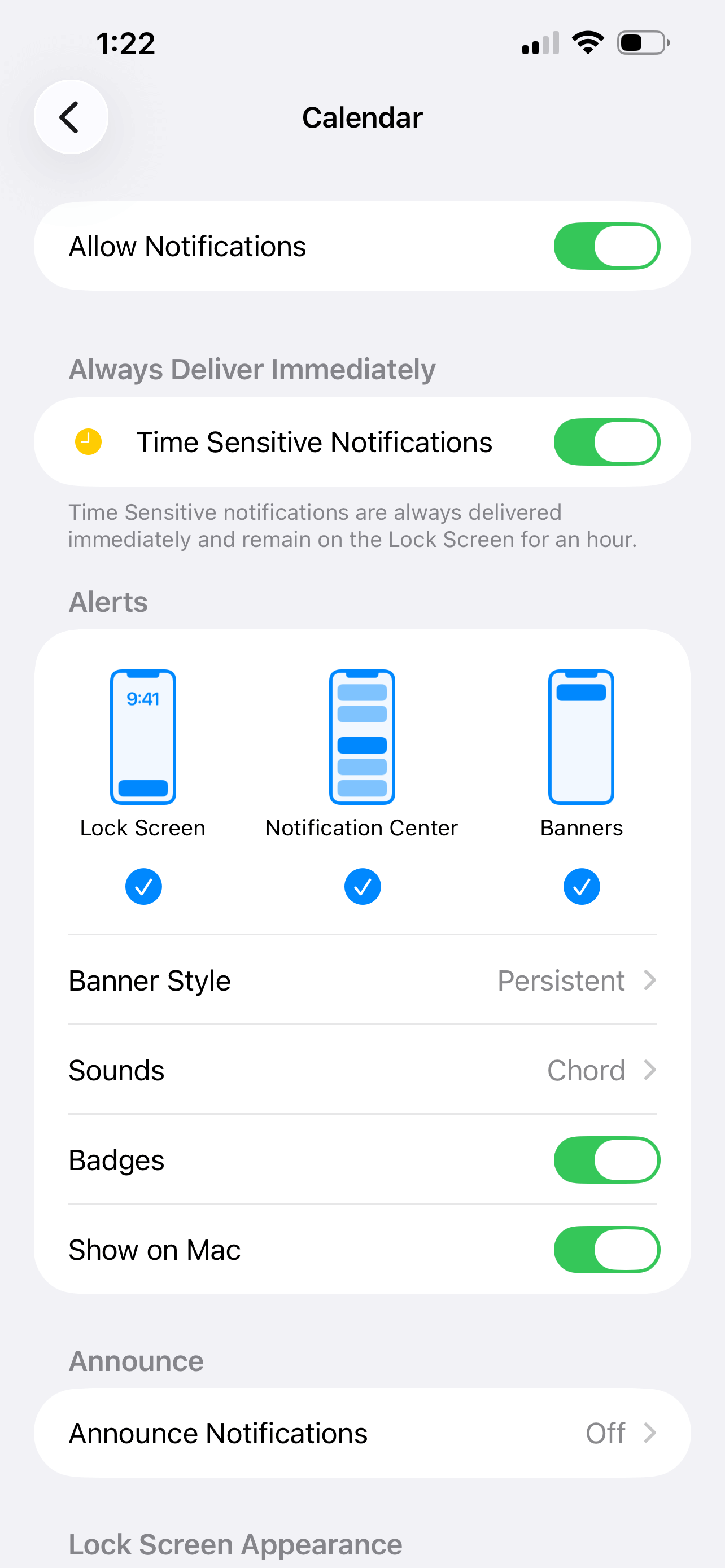
Those little red notification bubbles? They’re tiny but weirdly stressful. Seeing “27” or “143” every time I unlock my phone creates a subtle sense of urgency that I’d rather not have, personally. Plus, my phone looks a lot cuter and cleaner without them.
Turn them off by going to settings > notifications > select the app > turn off badges for anything that doesn’t truly need your attention. If you want, you can keep badges for essentials (like messages), and remove them everywhere else.
#14: Change Your Wallpaper
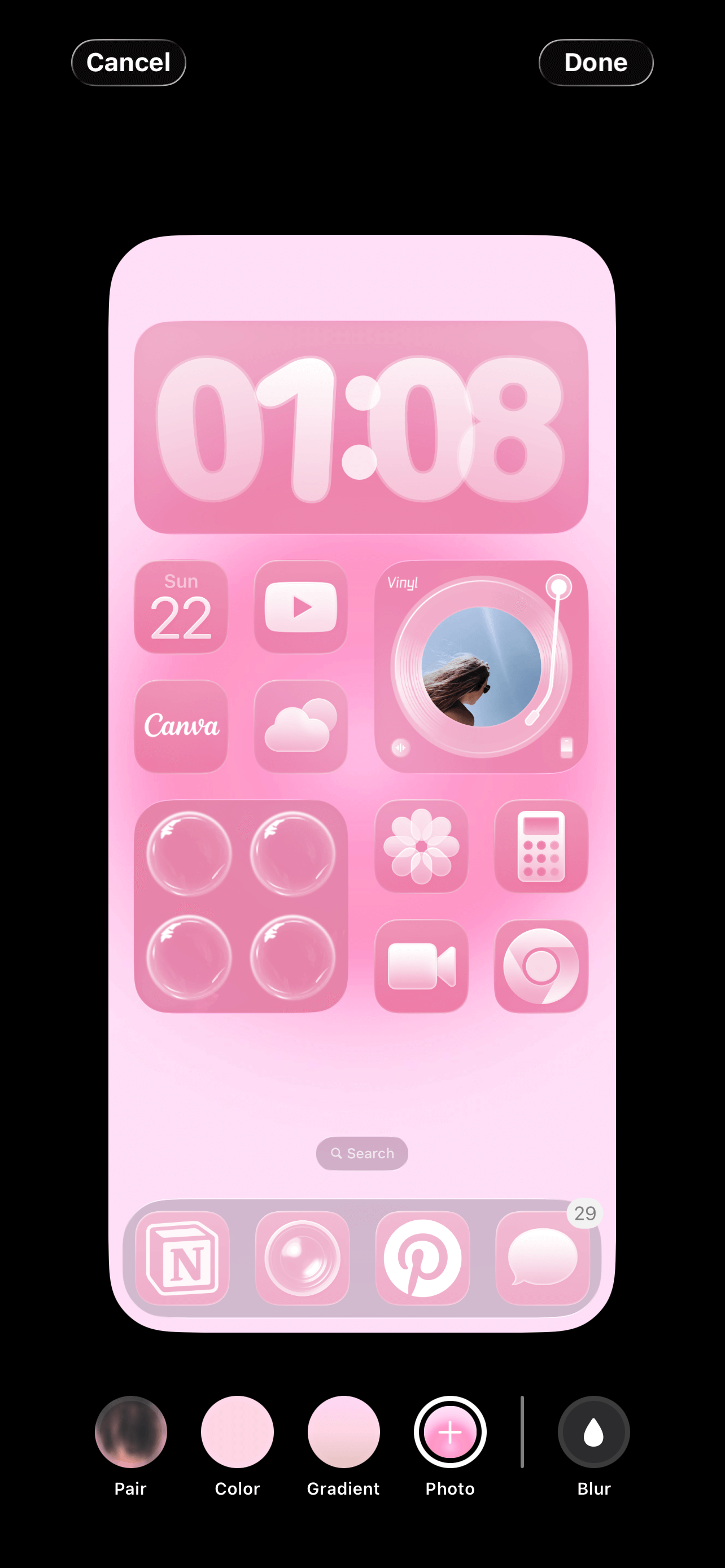
A wallpaper change is such a fun way to instantly refresh your iPhone and make it feel a little bit new again. Change your wallpaper by long pressing > edit > edit wallpaper.
From there, you can set a wallpaper from your photo library, choose a solid color, create a gradient, or tap “pair” at the bottom to match your home and lock screen wallpapers.
#15: Turn Off “Background App Refresh”
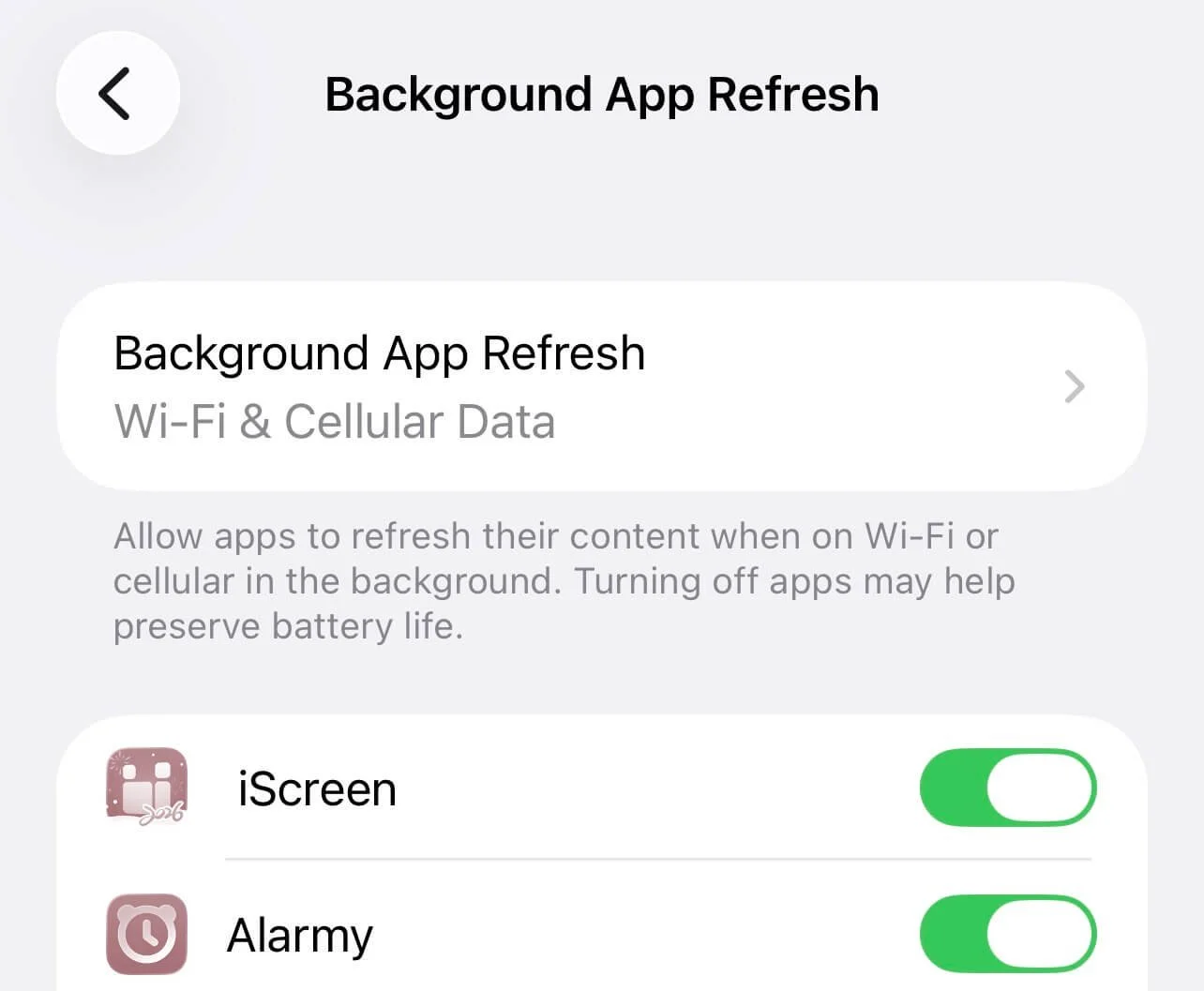
Background app refresh allows apps to update content even when you’re not actively using them. Helpful? Sometimes. Necessary for every app? Absolutely not.
Head to settings > general > background app refresh and scroll through the list. Turn it off for social media, shopping apps, games, or anything that doesn’t need to constantly update in the background.
Not only can this help battery life, but it also reduces behind-the-scenes activity that makes your phone feel busy. Fewer apps running quietly in the background makes for a lighter, simpler iPhone experience overall.
Closing Thoughts
You didn’t need a dramatic factory reset. You just needed a little digital spring cleaning! Your iPhone is basically your sidekick. You check it all day. It should feel cute, calm, and organized (not like a junk drawer with Wi-Fi).
Thanks for stopping by my post “15 Ways To Reset & Refresh Your iPhone (Digital Declutter & Organization Routine).”
For handmade digital art prints, icon packs, wallpapers, & more designed by me, be sure to stop by my digital boutique: Designed By Nikki Lo.
Connect with me!