This article is about easy apple calendar customization tricks for beginners.
If you know how to use it properly, Apple Calendar can be an absolute game-changer for your productivity workflow. There are a ton of ways to customize it exactly how you want so it works perfectly for your planning needs - all while making it look aesthetic.
I’m sharing 30 Apple Calendar tips, tricks, and hidden features to help you plan your schedule more efficiently, customize your calendar layout, and build a streamlined productivity workflow.
From aesthetic customization to advanced planning techniques, these must-try Apple Calendar hacks will completely change how you organize your day. Let’s get started!
30 Apple Calendar Customization Tricks
#1: Use Different Calendars To Organize Your Life
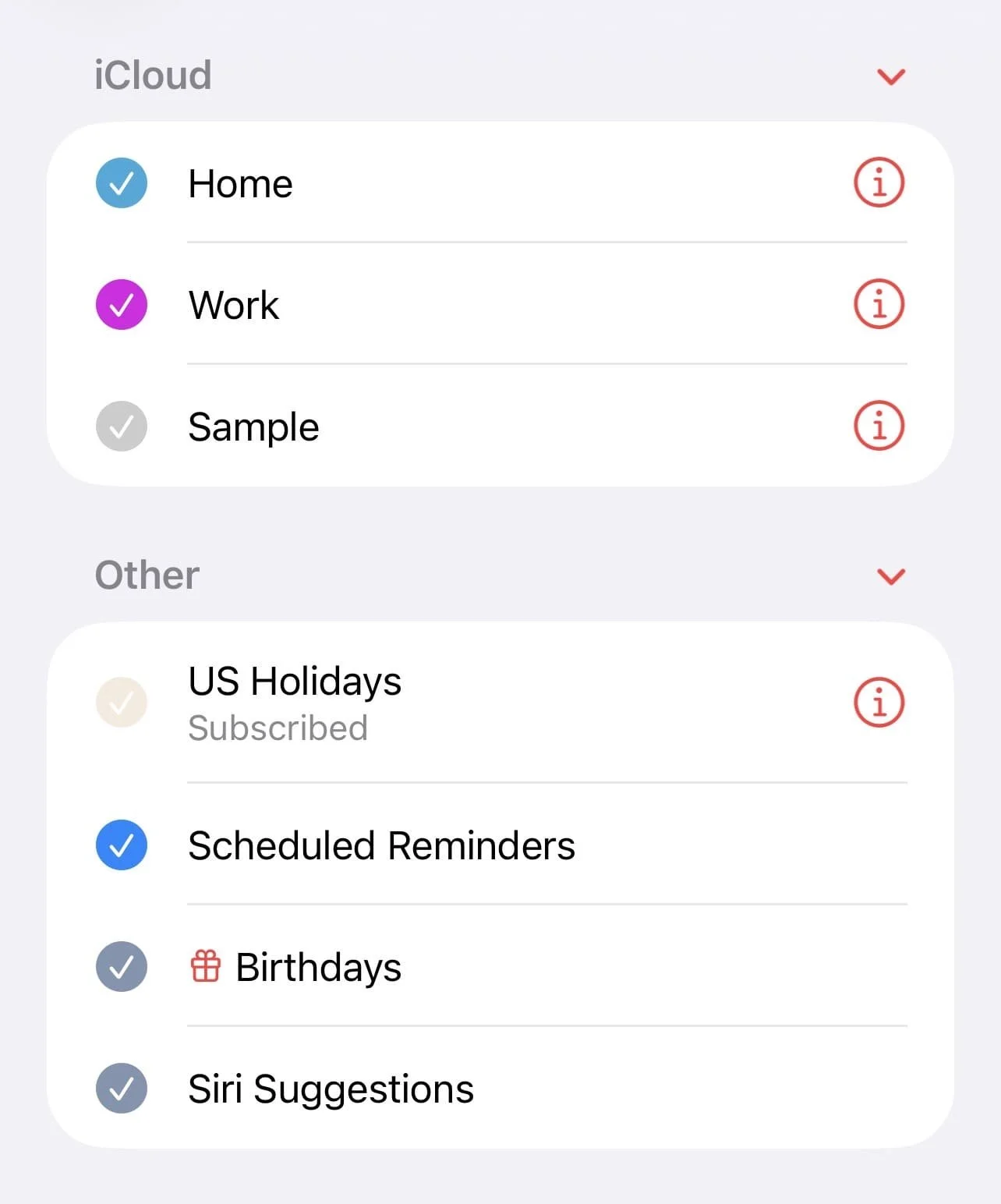
We’re starting off with a very basic tip but this is absolutely essential knowledge for anyone who uses this app and this will give you important context for the rest of the tricks in this post.
In Apple Calendar, you can have separate calendars for whatever you want - for example, things like work, personal, extracurriculars. You can choose to have all these display on your main calendar at once or turn off specific calendars to reduce clutter.
You can find all your different calendars by tapping the calendar icon at the bottom of the screen. Once you’re on this page, add a new calendar by scrolling to the bottom and tapping “add calendar.”
#2: Hide Specific Calendars
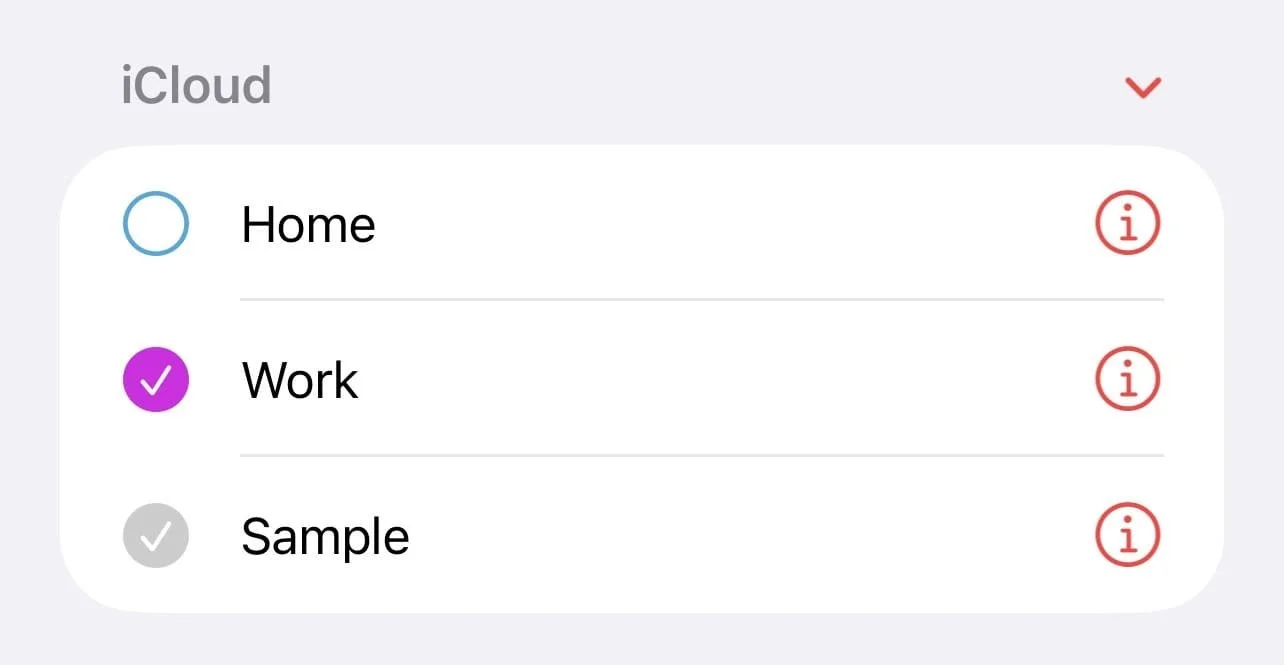
Like I just mentioned, you can hide specific calendars to reduce visual clutter in your app.
How to do it:
To do this, tap the calendar icon at the bottom of your screen. This will take you to a list of all your calendars.
Simply tap the check to hide it, or tap it again to re-enable it.
#3: Use Emojis/Symbols Instead Of Color Dots
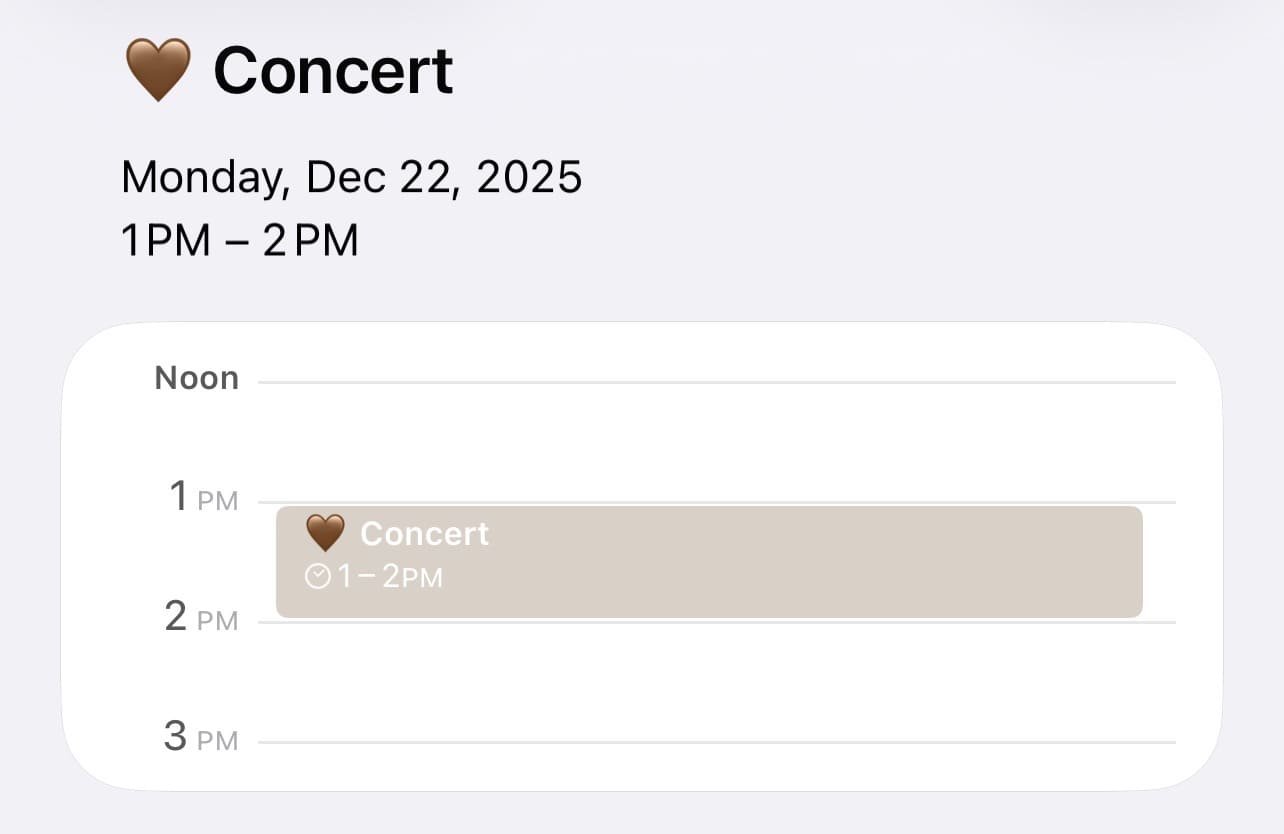
You know the colored dots that appear in Apple Calendar at the start of events? If those are getting a little boring, replace them with emojis or symbols!
How to do it:
To do this, tap on an event and tap edit in the upper right corner.
Tap on the title to type and add your emoji, and then press the check mark to save.
Calendar will automatically replace the color dot with your emoji.
#4: Use Emojis/Symbols For Categorization

Emojis and symbols can serve more than just aesthetic purposes. They also make for a great way to visually categorize different things in your Apple Calendar. For example, use a unique symbol for different types of tasks like personal or work or whatever else you want to organize.
Related: 13 iPhone Layout Rules To Fix Your Chaotic Phone (And Make It Aesthetic)
#5: Add Context Tags In Brackets or Parenthesis
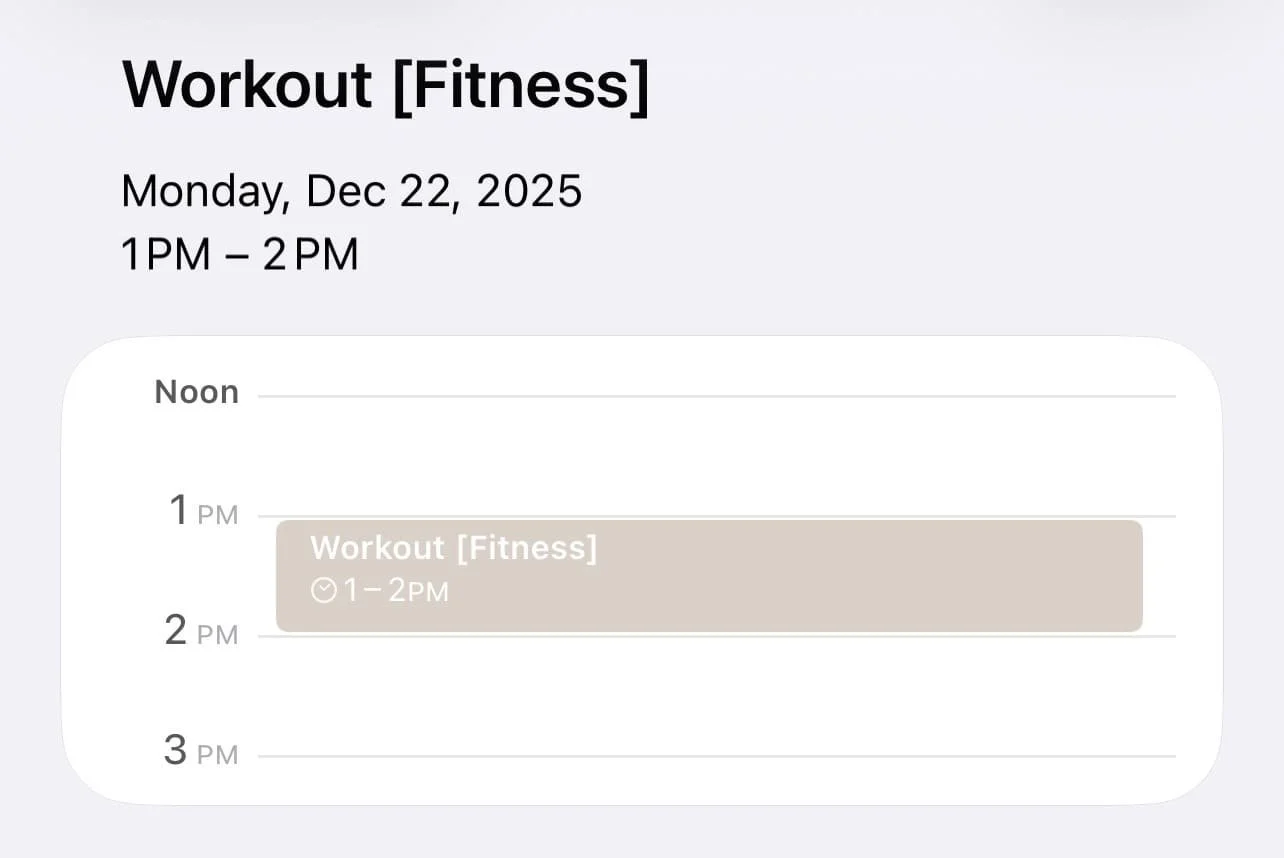
Another way to add some quick-reference customization is by adding a context tag to event titles. Here’s what I mean by this: let’s say for fitness-related events in your calendar, you add something like (fitness) or [fitness] in your event title.
Create a new event by simply tapping the plus icon in the upper right corner of your Apple Calendar app and tap to type in the title box.
#6: Use Invisible Titles For Calendars/Events

Did you know you can create calendar and event titles that are completely blank by using invisible characters? This trick works really great if you want to create a blank colored bar on your calendar as a visual divider.
How to do it:
Copy an invisible character from this site and then open Apple Calendar.
Then press the plus to create a new event.
In the title field, paste your invisible character and then tap the checkmark to save.
#7: Keep Calendar And Event Titles Short
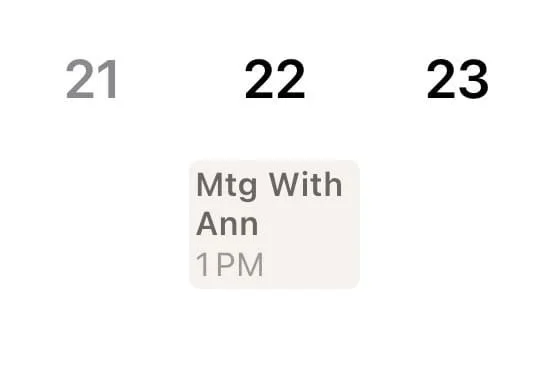
Just a general tip to help keep your calendar clean and avoid visual clutter: keep your titles short yet descriptive. For extra details, make use of the “notes section” which you can find if you scroll to the bottom of the event creation/editing pages.
#8: Create Aesthetic Dividers

Need another aesthetic divider idea? Use pretty emoji and symbol combos! I recommend keeping it six to nine characters and under, depending on how large the characters are.
How to do it:
Tap the calendar icon, scroll down and tap “add calendar.”
Where it says “calendar name,” name it something like “divider.”
Don’t forget to add a custom color and also press the checkmark to save.
Now, go back to your Apple Calendar and press the plus to create a new event. In the name field, type or paste your custom combo.
Here are some of my fav combos for dividers (copy and paste):
✦ .. ⁺ .. ✦
─ ·✶· ─
︶︶୨୧︶︶
☆ *.☽ .* ☆
Related: iOS 26 iPhone Customization Tutorial! (With Free Aesthetic Coastal Phone Theme)
#9: Remove Default Alerts
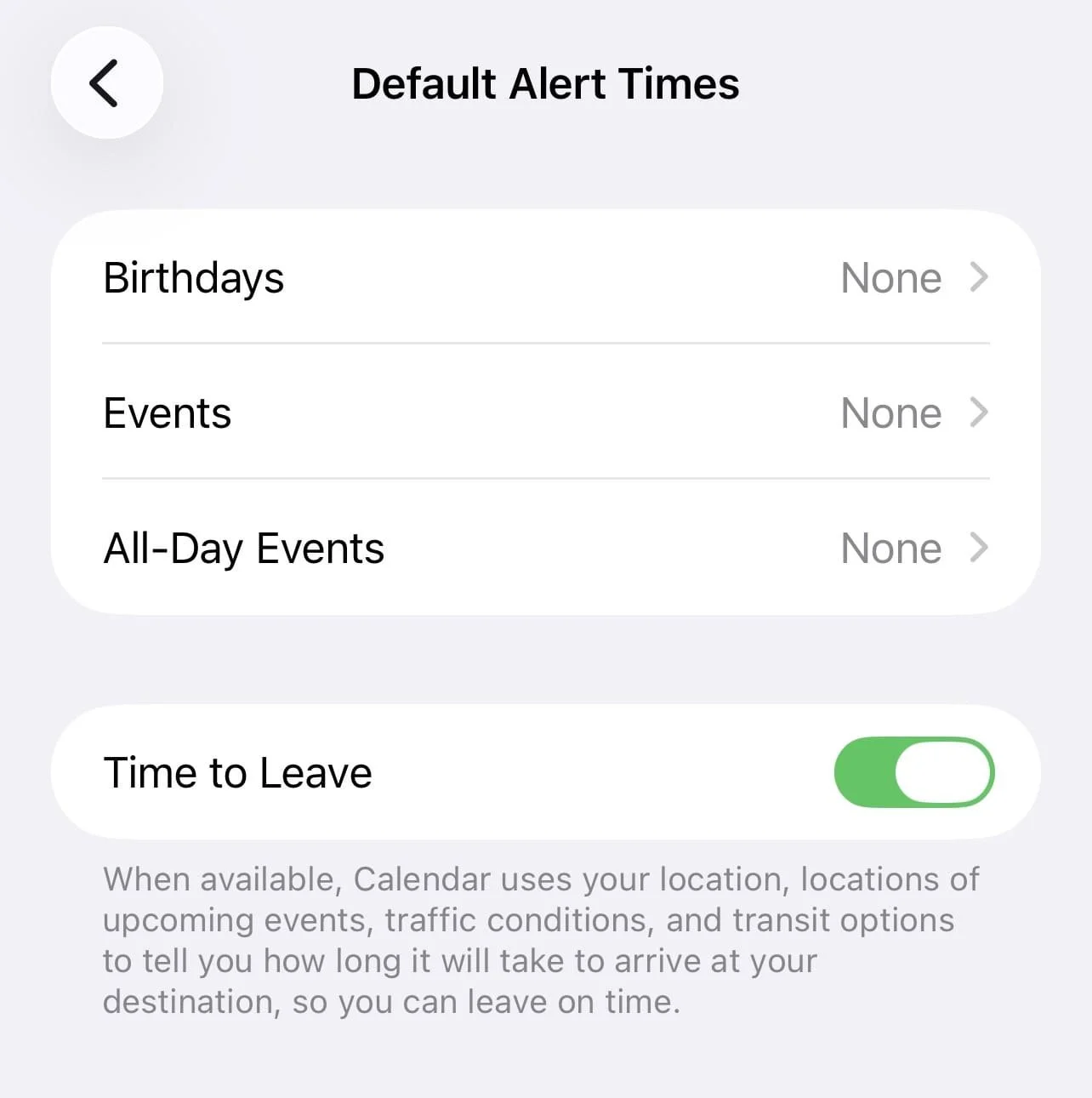
Remove any unnecessary alerts and calendar notifications you don’t want clogging up your phone.
How to do it:
Open your iPhone settings app and go to “apps” then “calendar.”
Tap “default alert times.”
Tap each option and set to “none.”
Toggle off “time to leave.”
#10: Switch Between Calendar Views
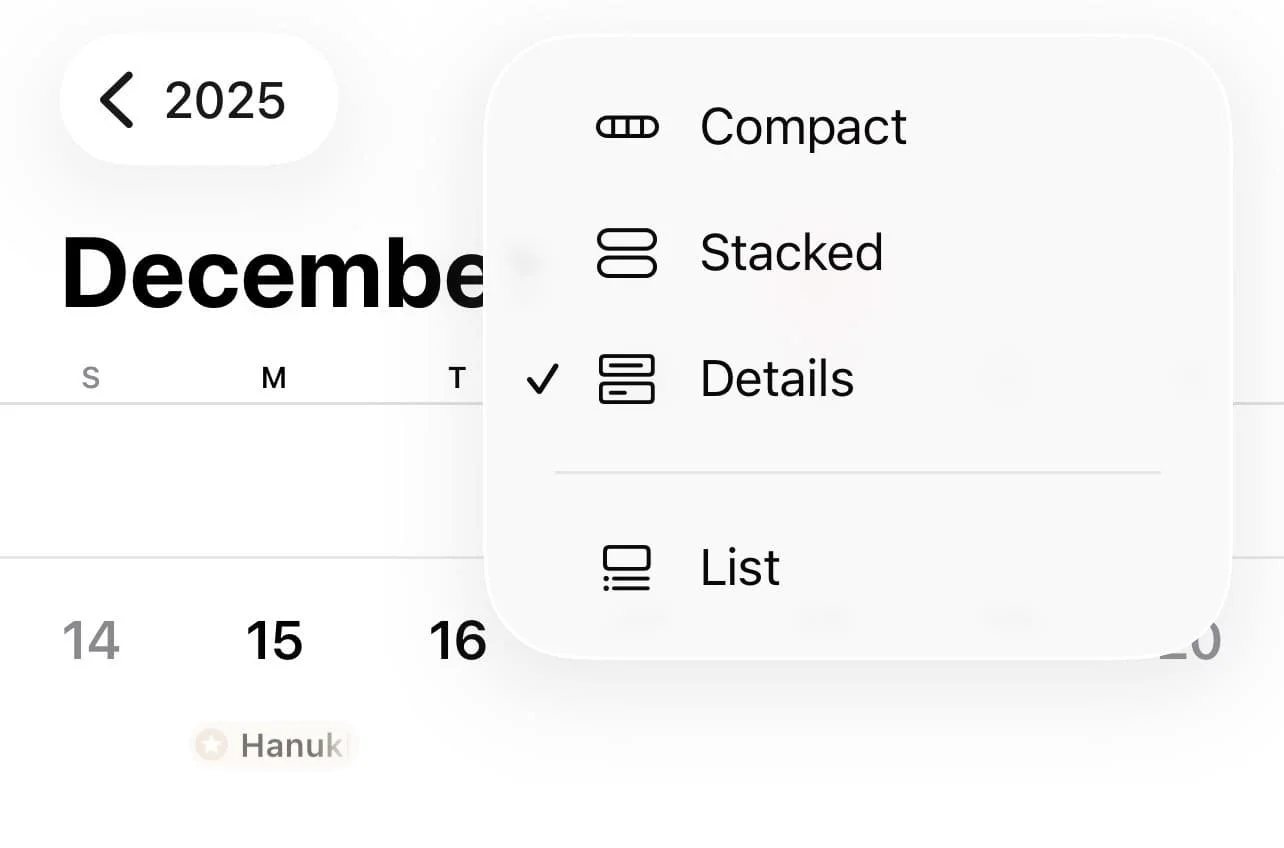
Another must-know Apple Calendar trick! At the top of your app, look for an icon with one or two little bars (this differs depending on your current calendar view) right next to the magnifying glass emoji.
Tap it and you’ll see different options for calendar views come up. Experiment and see which you like best!
#11: Pinch And Drag To Adjust Spacing
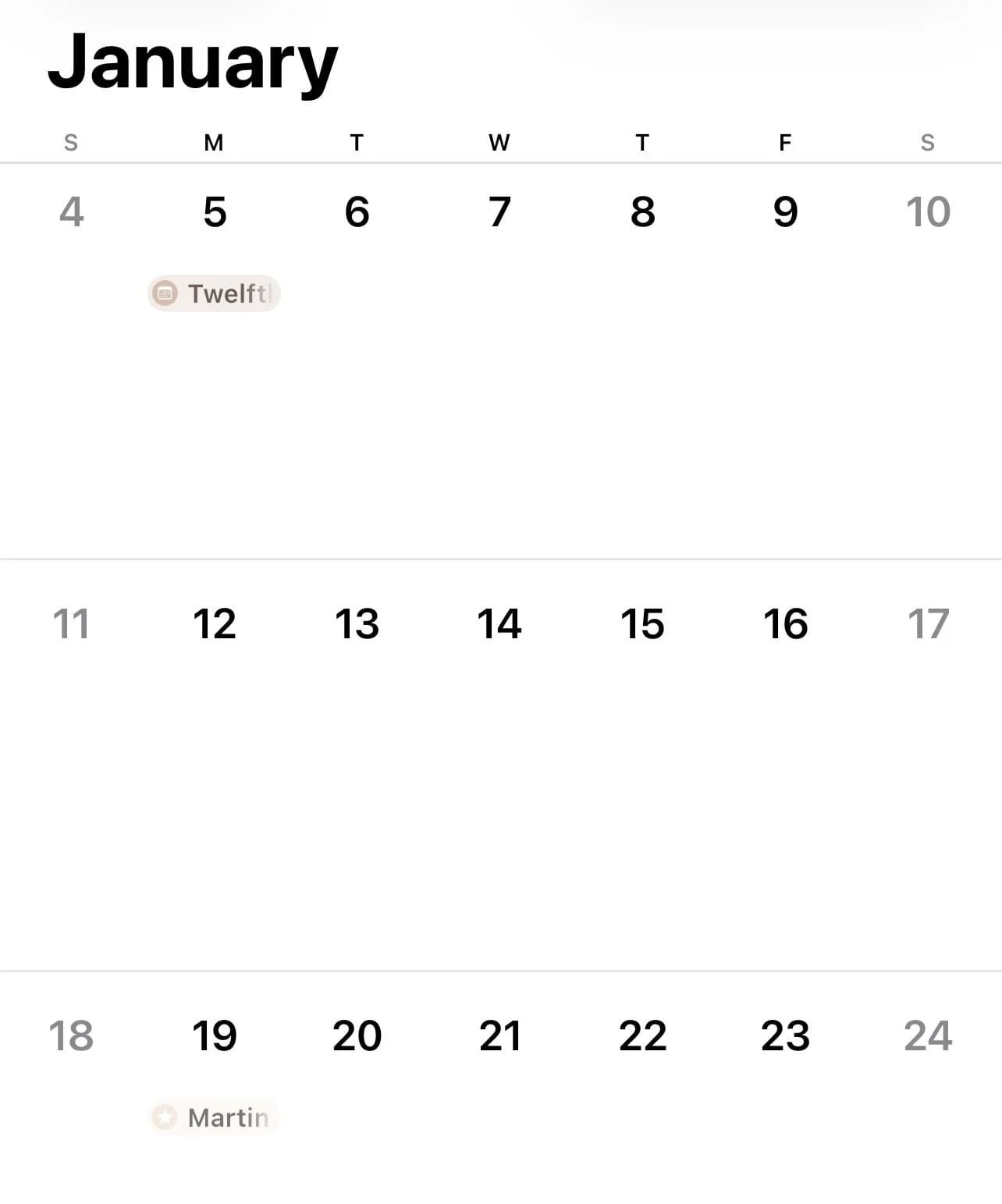
In any calendar view, use your fingers to pinch and drag. This will zoom the calendar in and out, changing your calendar view in the process.
#12: Turn On Time Zone Override To Prevent Time Shifts When Traveling
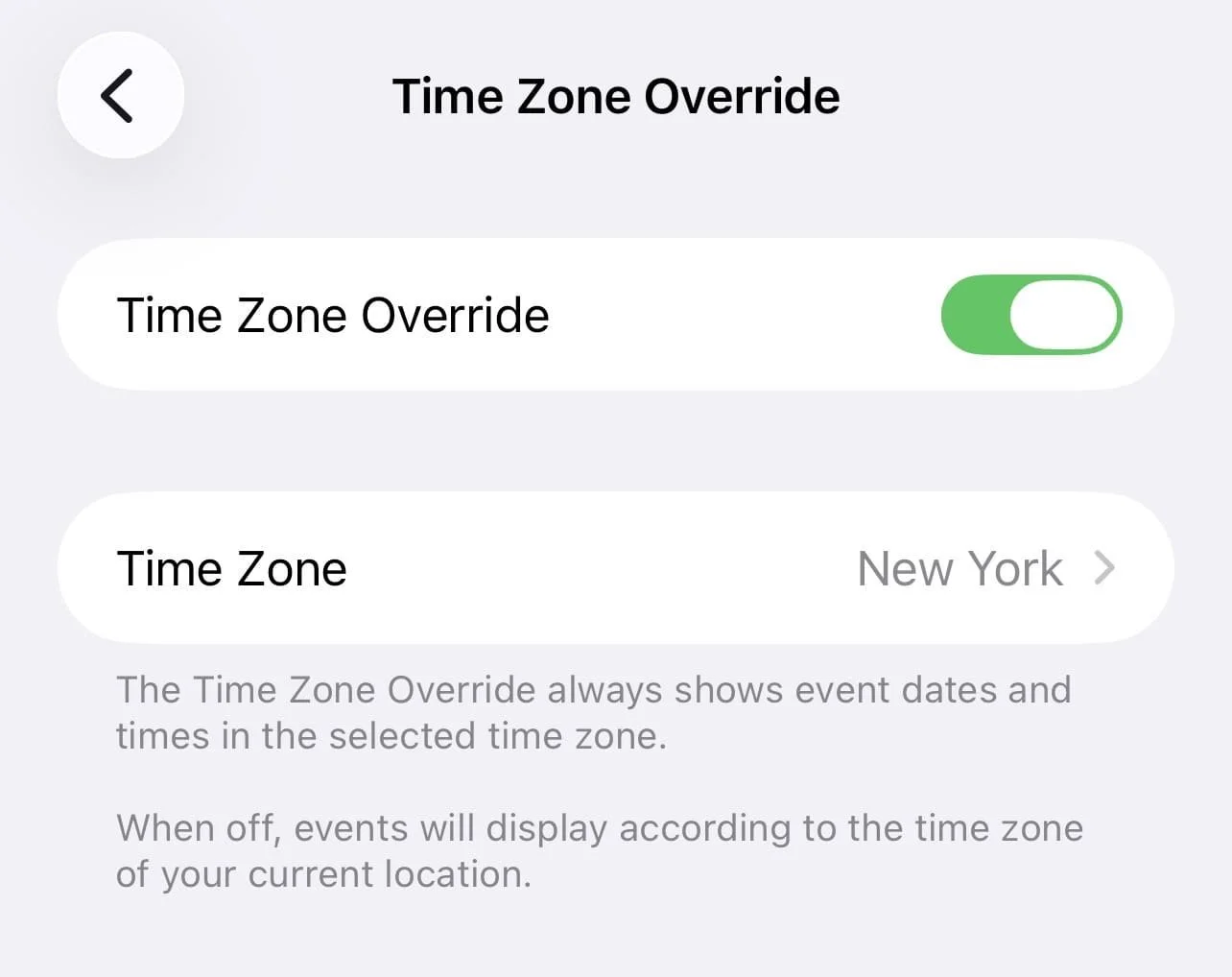
This is a super useful trick when traveling across time zones as it basically locks your calendar in one time zone. Let’s say you were traveling from New York to London.
Your calendar would shift the time of an event from 7 am to 12 pm. With this option, it stays on 7 am even when you’re in London.
How to do it:
Open your iPhone settings app and go to “apps” then “calendar.”
Tap “time zone override.”
Toggle on.
#13: Change Your Default Calendar
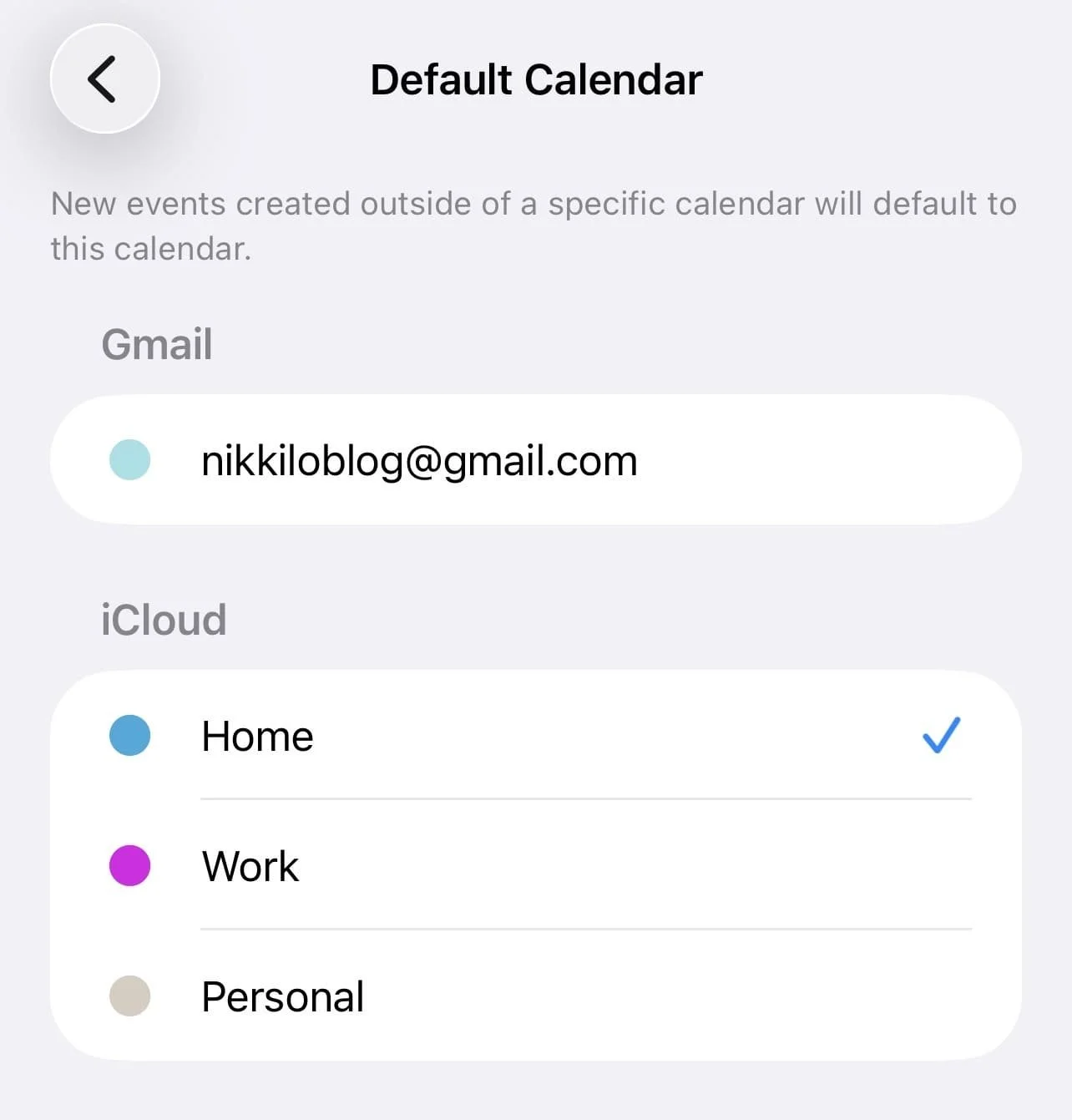
You can set your default calendar so that any new events you create are automatically added to the right calendar. For example, if your default calendar is set to “work” you can ensure that any new meeting events are automatically categorized as “work” and are also color-coded correctly.
How to do it:
Open iPhone settings and tap “apps” then tap “calendar.”
Tap “default calendar.”
Choose your default calendar.
#14: Use Aesthetic Color Palettes
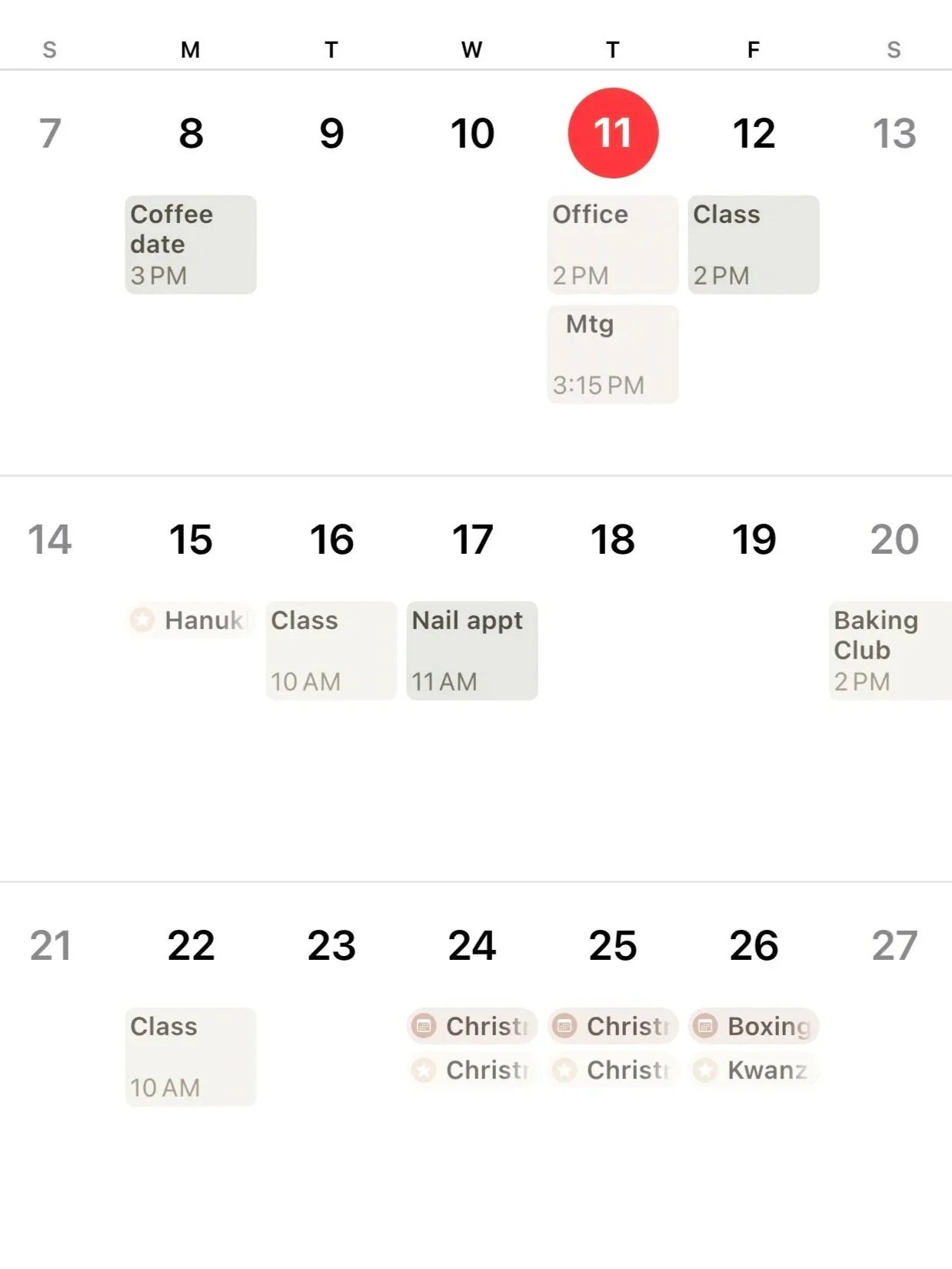
Colors are an absolute game changer when it comes to making your Apple Calendar aesthetic. When it comes to colors, you can choose the app’s default colors or choose totally custom ones.
How to change colors:
Press the calendar icon at the bottom of the screen.
Either tap the “i” next to a calendar or tap “add calendar” at the bottom.
Tap “color.”
Tap on a default color or tap “custom” to add a custom color.
Use the different options to add a color.
My fav color combos to use:
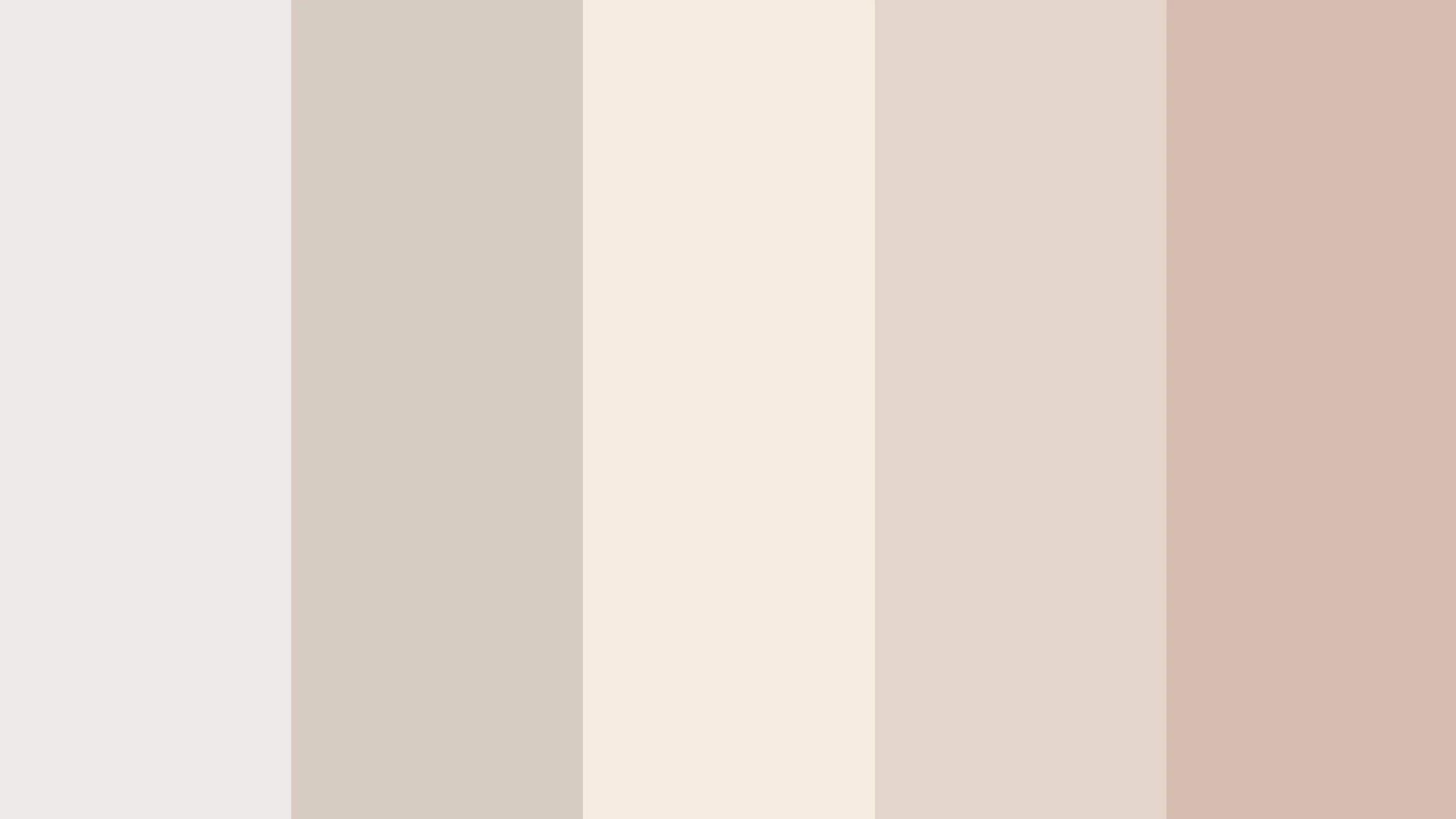
Hex codes (from left to right):
#EDEDE9, #D6CCC2, #F5EBE0, #E3D5CA, #D5BDAF

Hex codes (from left to right):
#FEF0D6, #FACFCF, #D9CFDE, #D2DAE9, #E7E4F1
#15: Sync Calendar Colors With Wallpaper
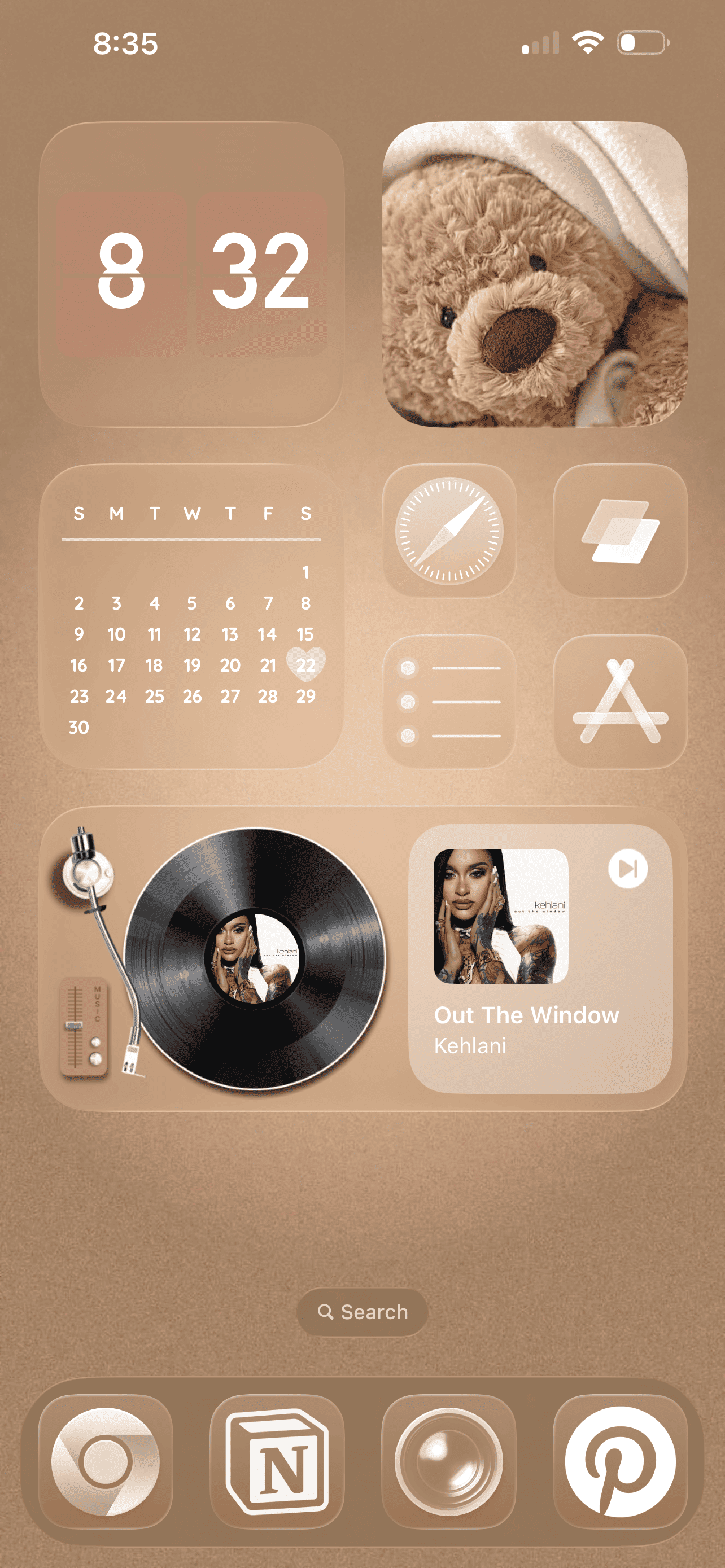
Match your calendar and your phone wallpaper for a cohesive device-wide aesthetic. To do this, either set your wallpaper first and then adjust your calendar colors to match or choose a wallpaper that matches your existing calendar theme.
#16: Use Notes Instead Of Event Titles To Store Info
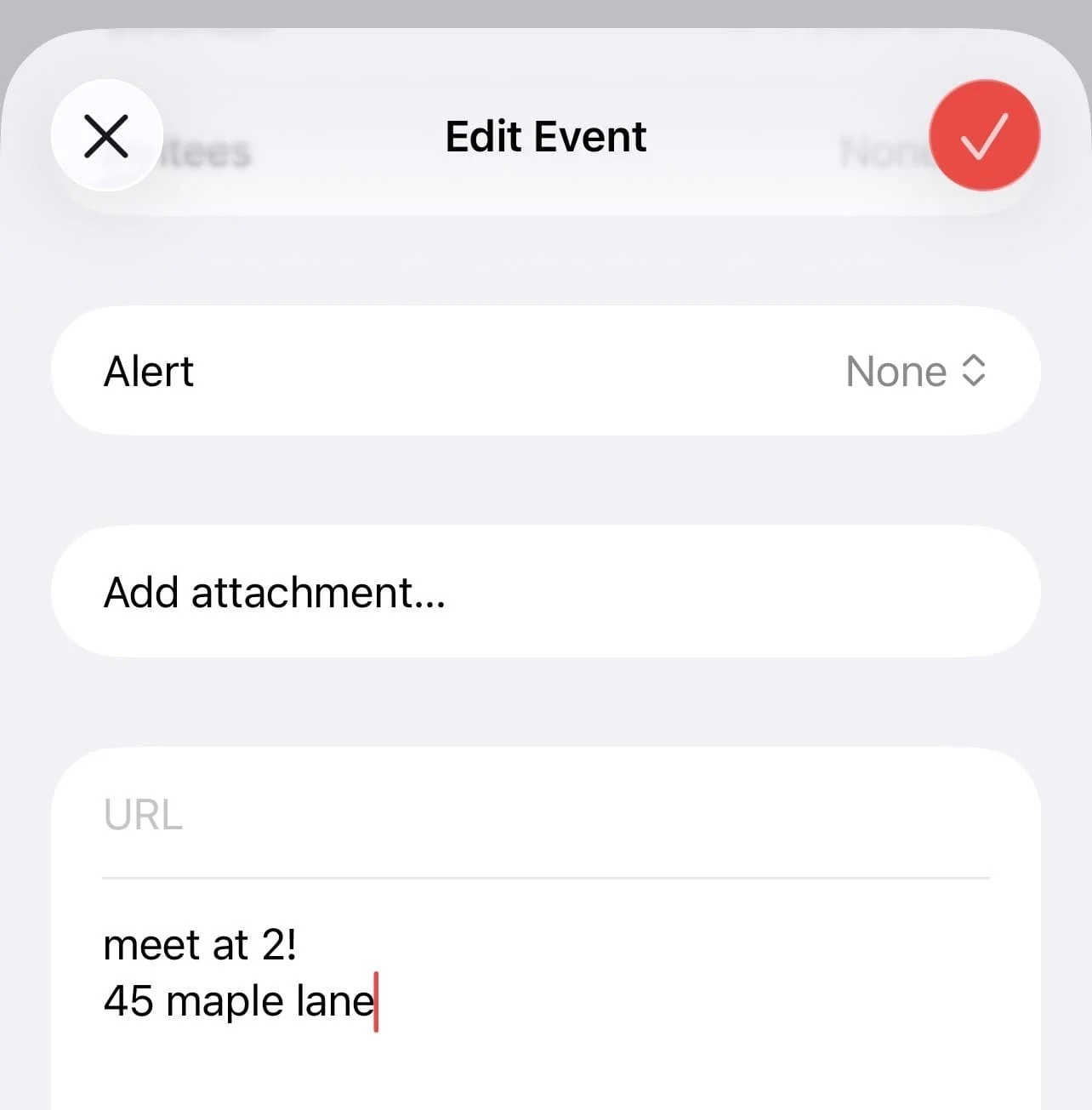
Extra long and cluttered titles can make for a messy calendar. Avoid that by putting those extra details like zoom links, addresses, and agendas in the notes section instead of the title.
Related: 10 MUST-KNOW Planning Hacks That'll Make You Feel Like You Have Your Life Together
#17: Use The Repeat Feature
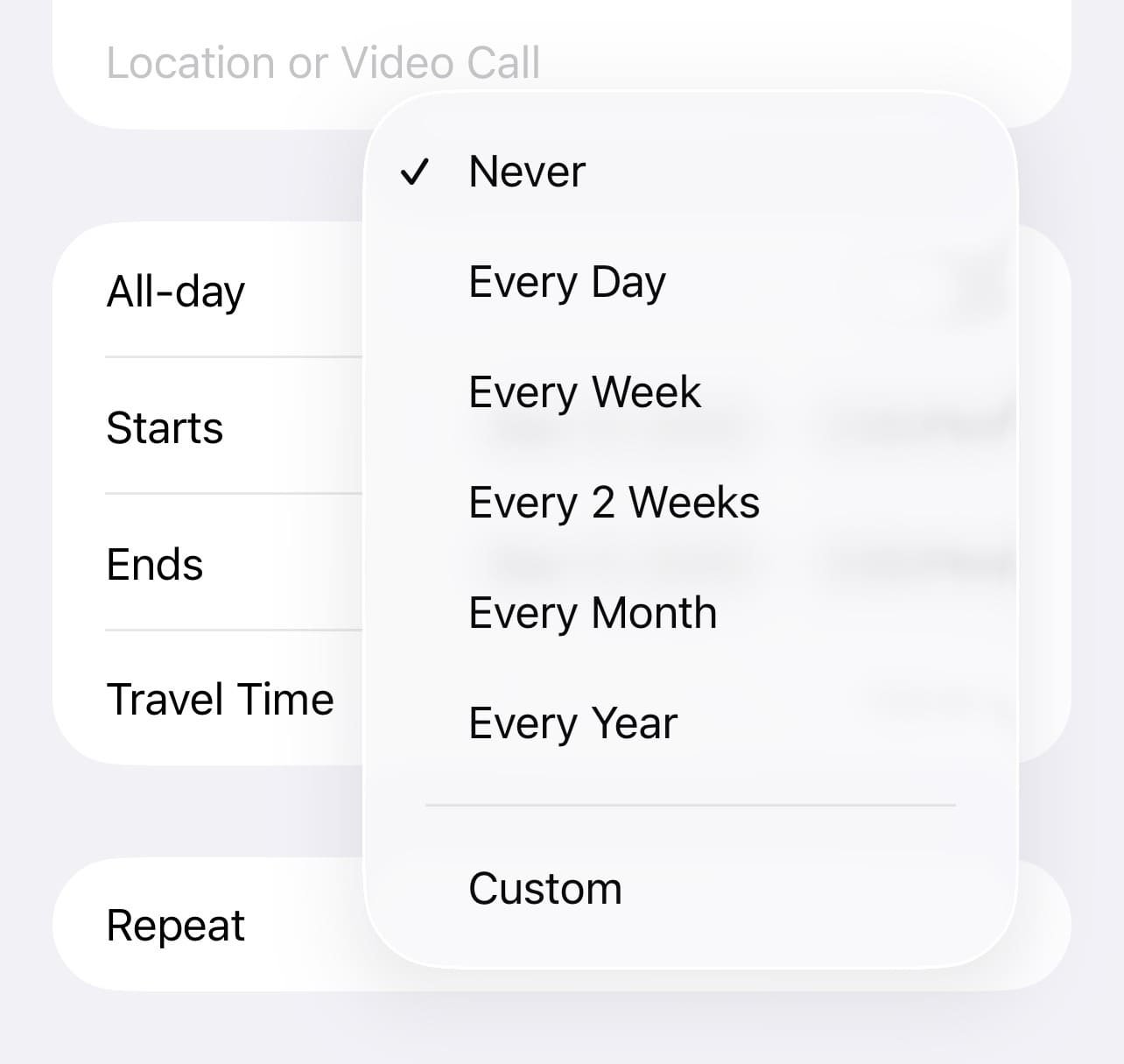
For reoccurring events, make sure to use the repeat feature so you don’t have to keep adding a new event. To do this, make a new event and tap “repeat,” then choose your desired option from there.
#18: Enable Or Disable Week Numbers
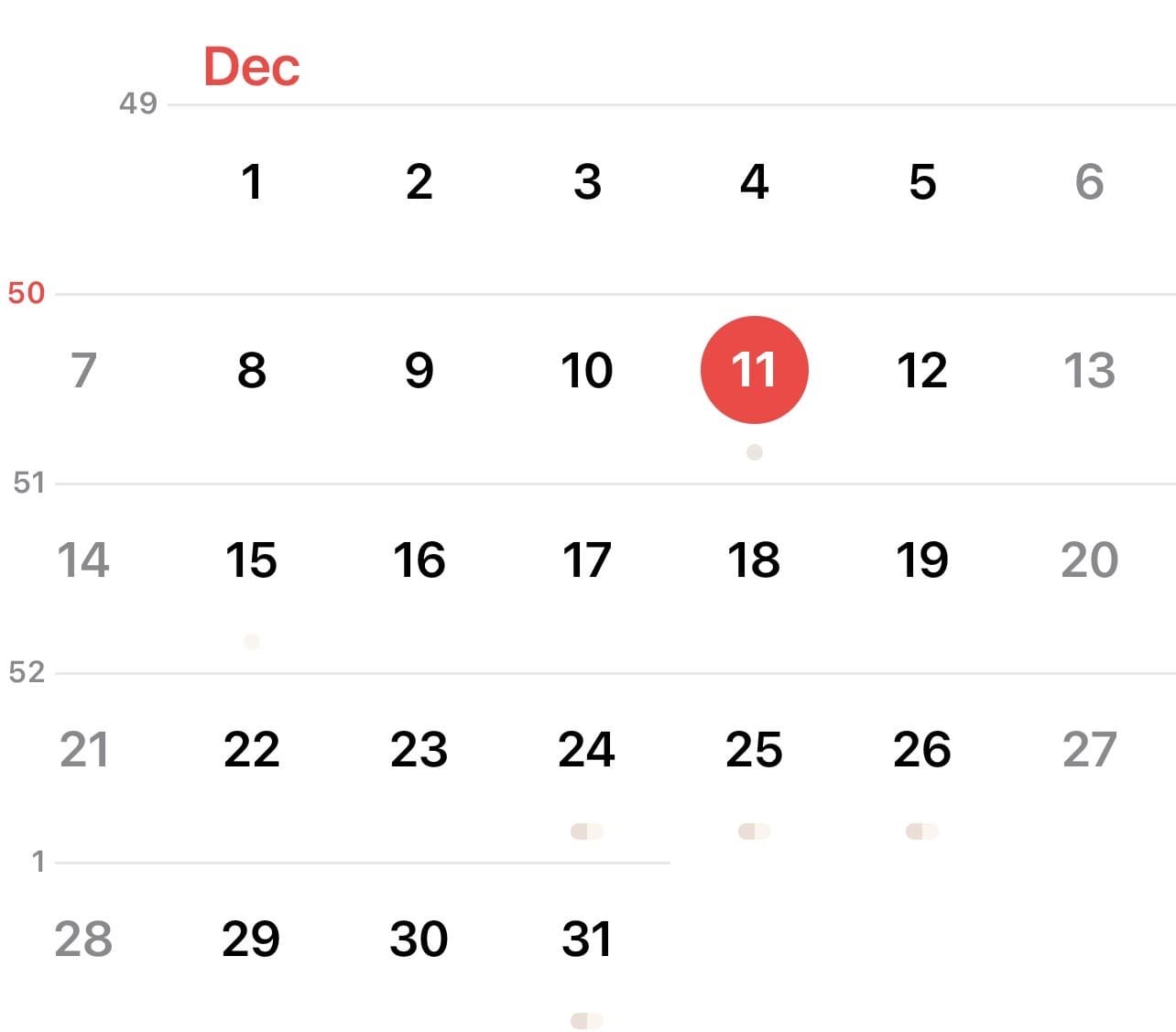
Apple calendar has the ability to display week numbers. To adjust this, go to iPhone settings > apps > calendar > toggle on/off “week numbers.”
#19: Dark Mode Vs Light Mode
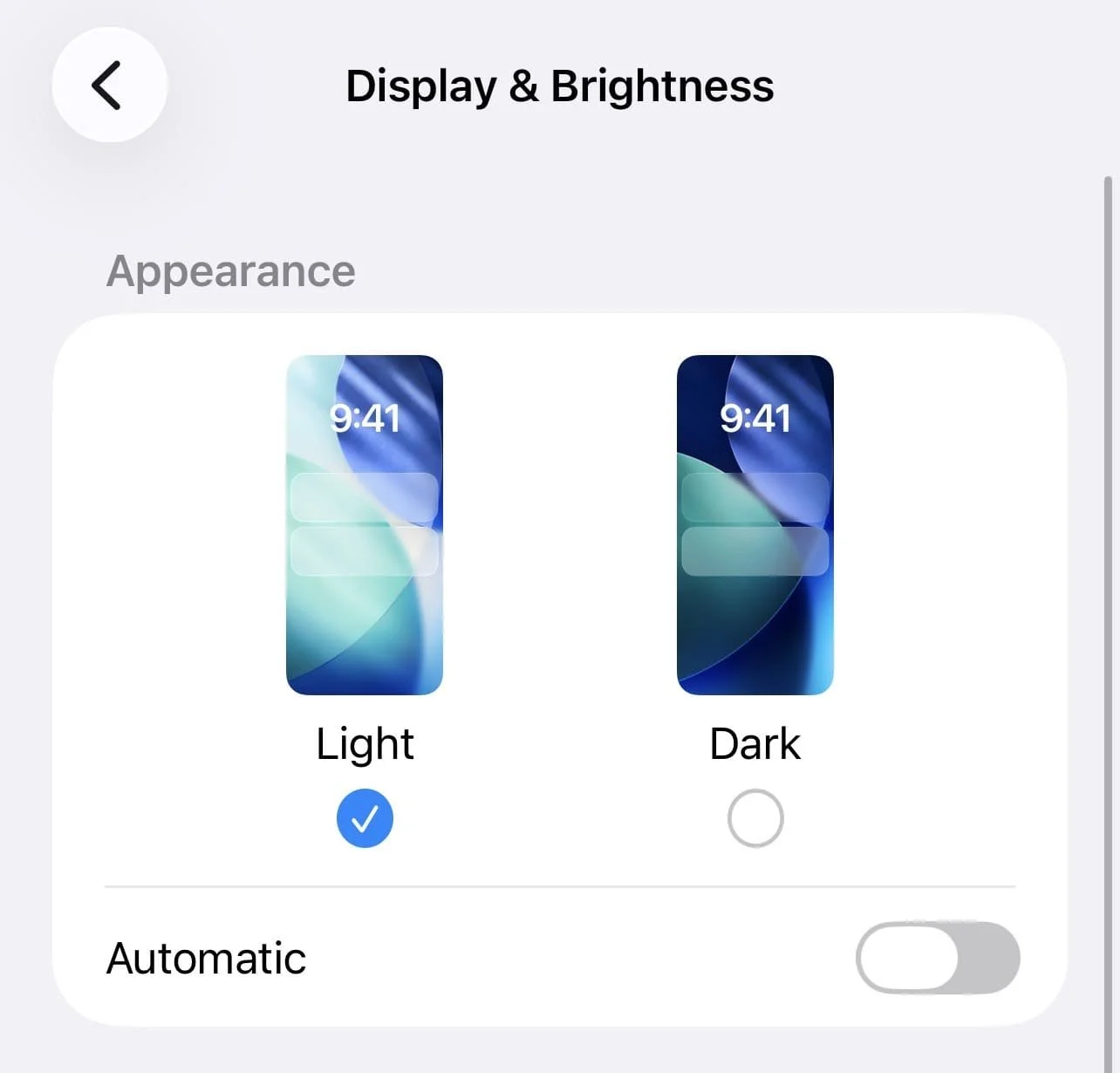
Changing your calendar from light mode to dark mode and vice versa is a super easy way to switch up the aesthetic! To switch, go to iPhone settings > display & brightness > toggle on “light” or ”dark.”
#20: Hide Invite Declines
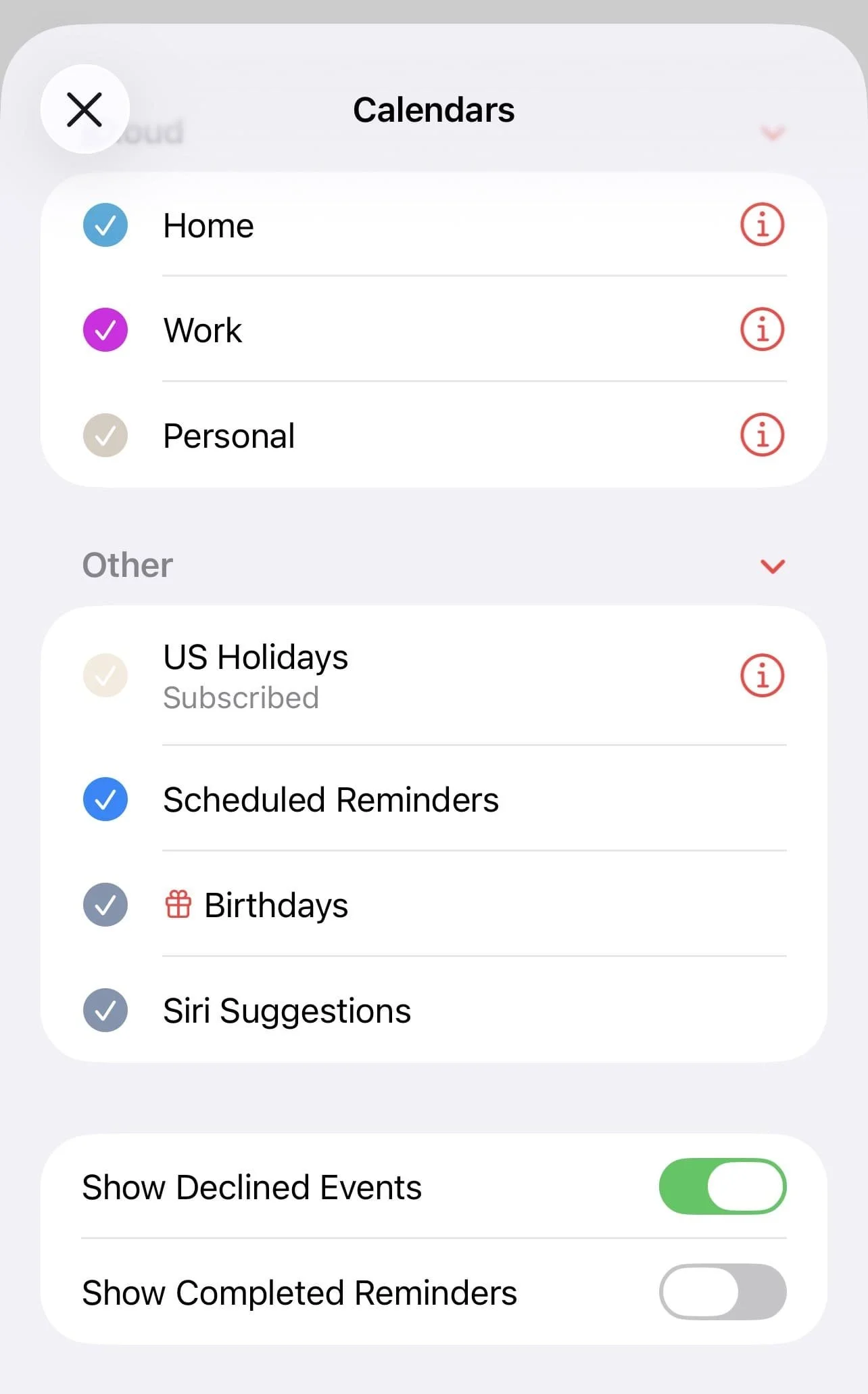
Decrease visual clutter by hiding events you’ve declined. Do this by tapping “calendars” at the bottom and toggling off “show declined events.”
#21: Add Prefix Numbers For Daily Flow
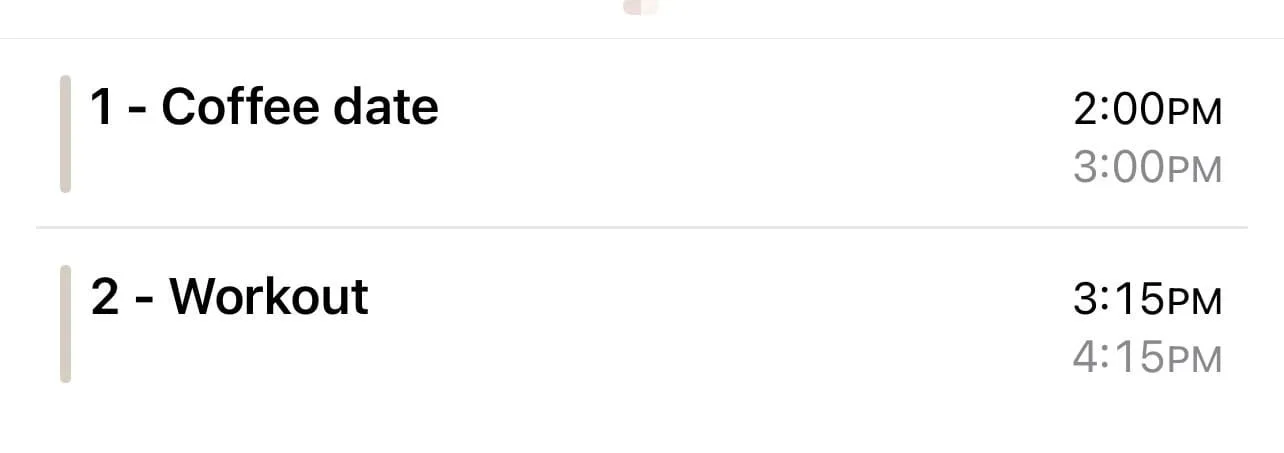
If you’re someone who likes having a clear order in their planner, try adding prefix numbers to your event titles. All this means is using numbers in front of your titles to notate the order you want to do those tasks or events in (example above).
#22: Use Focus Mode Filters
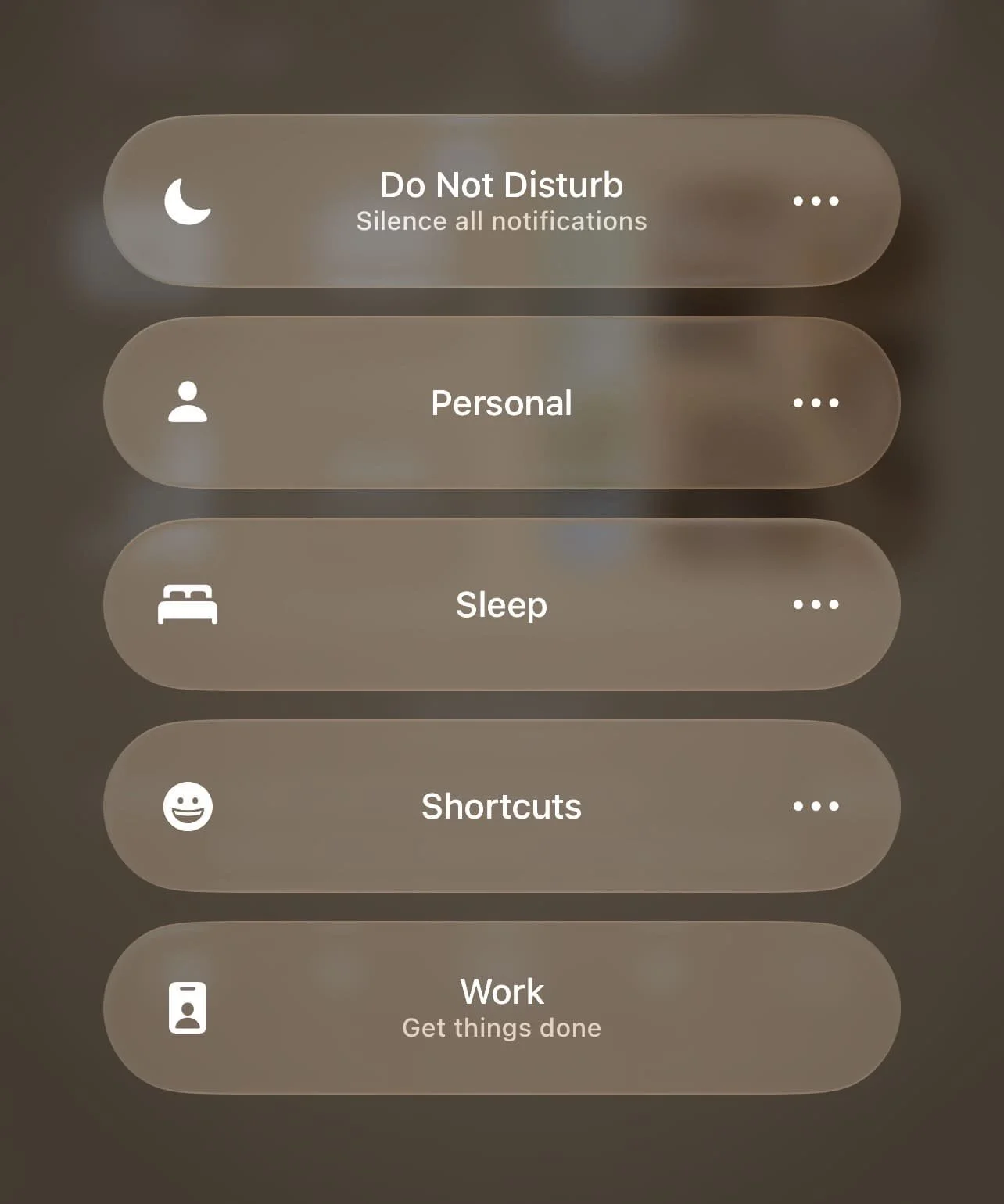
You can use focus modes to show or hide specific calendars in Apple Calendar. A great example of this is switching focus modes after work so your work calendar is hidden.
How to do this:
Open iPhone settings and tap “focus” and then tap the plus icon
Tap “custom” or choose your focus from the list
Tap “next” and then tap “customize focus”
Scroll down and tap “add filters”
Tap “calendar”
Check the calendars you want shown when this focus mode is active
Tap “add”
#23: Add A Calendar Widget To Your Home Screen

For quick calendar access (and a cute addition to your home page), add your calendar as a widget on your home screen.
How to do this:
Long press on home screen
Tap “edit”
Tap “add widget”
Tap “calendar”
Choose your size and tap “add widget”
Long press and drag the widget to place where you want
#24: Enable or Disable “Week View Starts On Today”
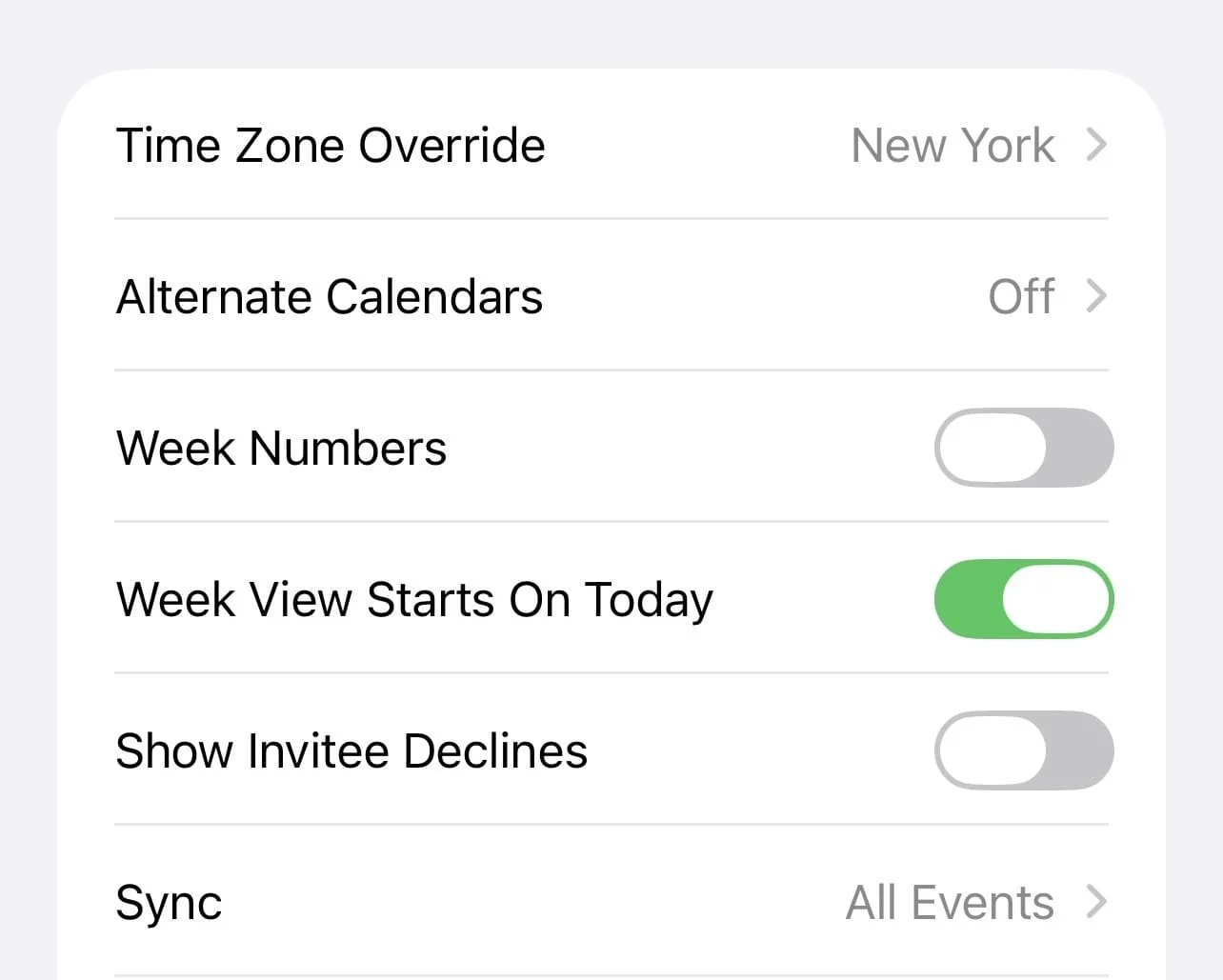
With this toggled on, the weekly calendar view will always start on the current day. Some people like this because they can always see a week ahead. But to toggle this off, go to iPhone settings > apps > calendar > toggle off “week view starts on today.”
Related: 27 Ways To Make Apple Notes Aesthetic (MUST-KNOW Customization Tricks)
#25: Customize The “Start Week On” Option
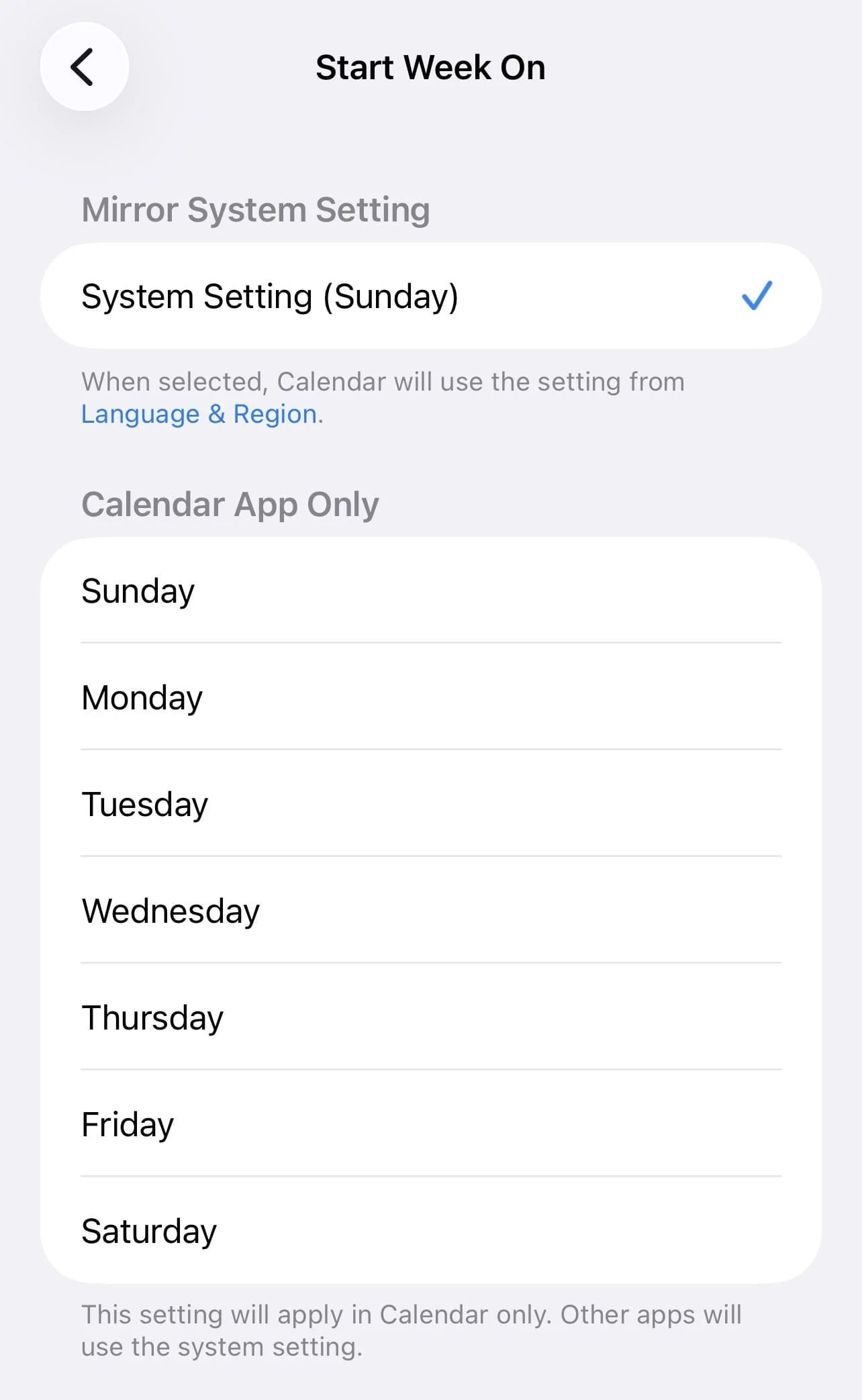
This options lets you choose which day of the week the weekly calendar view starts on. To edit, go to iPhone settings > apps > calendar > “start week on” and then choose your desired day.
#26: Use Location-Based Color Coding
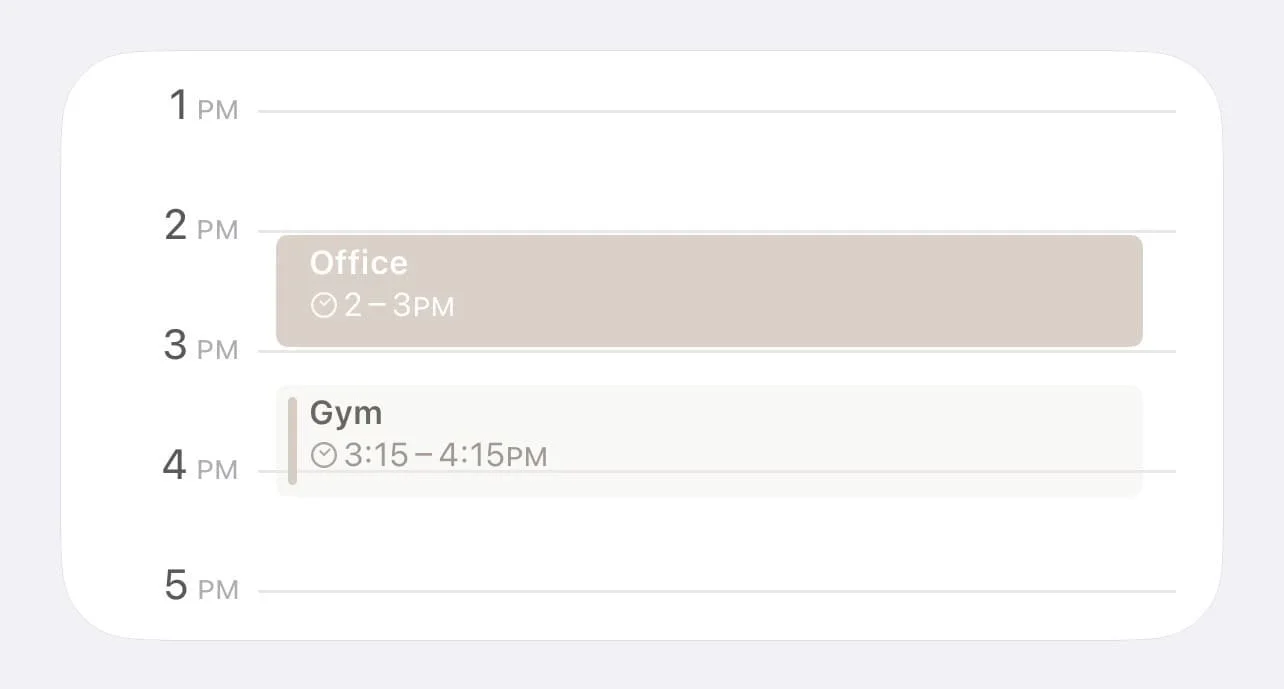
Here’s another little visual categorization idea to try! You might like the idea of color coding your events by location. For example, blue for gym-related events and purple for office-related events.
Related: 26 Ways To Make Apple Journal Aesthetic! (Customization Tricks To Romanticize Your Journal)
#27: Indent Titles For Nesting
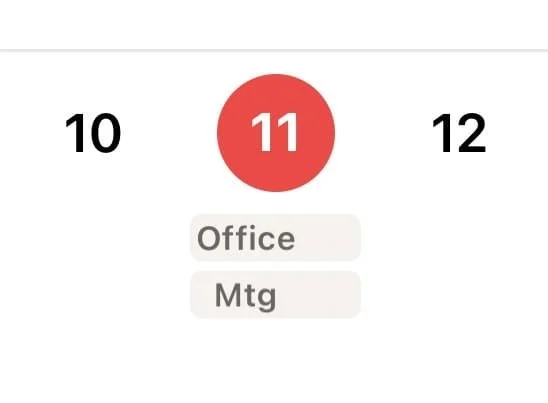
Even though Apple Calendar doesn’t support nesting, here’s an easy way to create some visual hierarchy using leading spaces.
How to do it:
Edit event and tap title
Add one space before title
Add two spaces before title for sub-events
And so on!
#28: Use URL Field To Link Directly To Apps
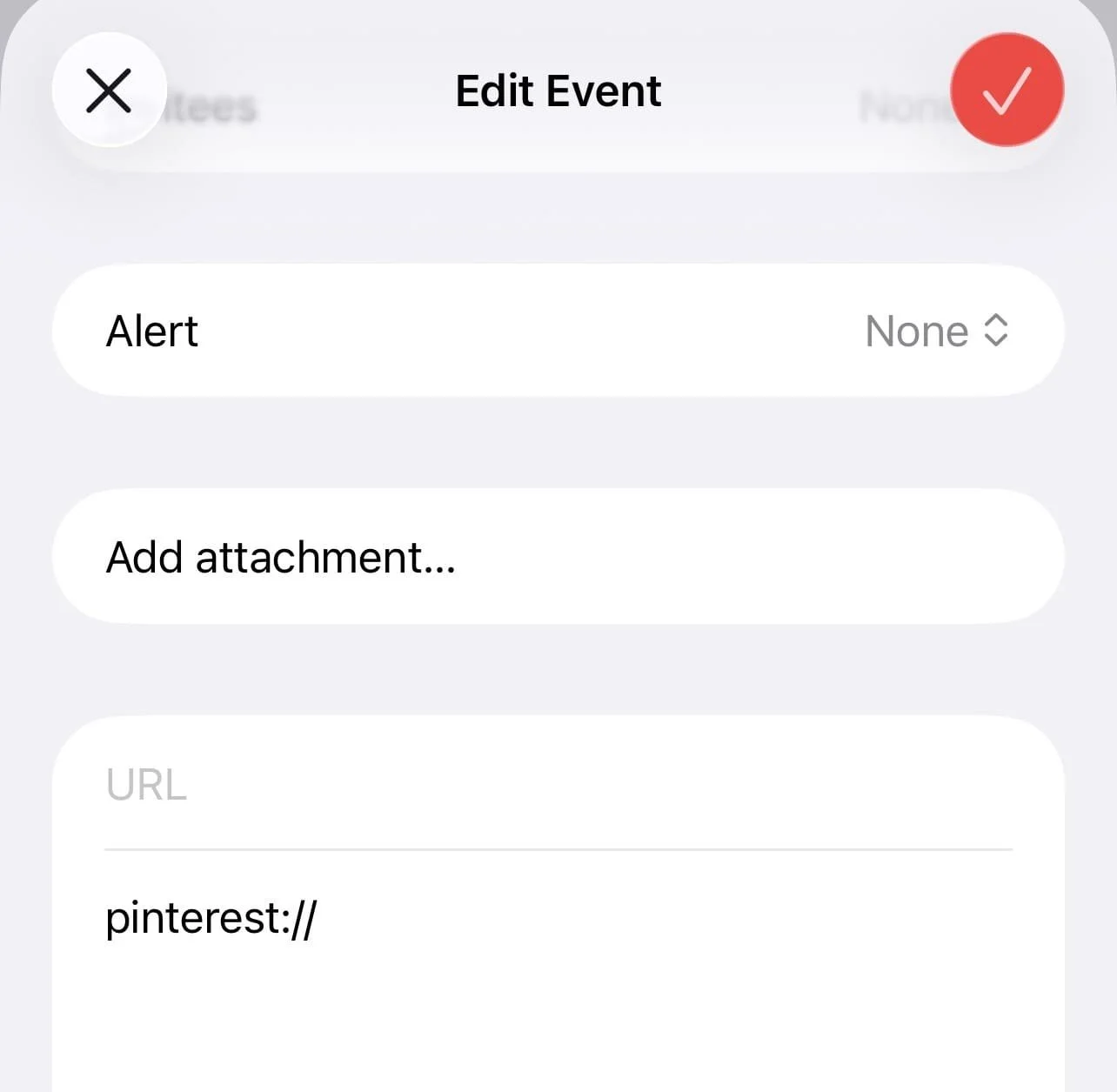
When creating and editing an event, there’s a URL field towards the bottom which is super helpful for adding relevant links - but did you know you can link directly to an app?
Use the formula appname:// and put it in the URL field to link directly to an app. For example, to link Pinterest, type pinterest://
When tapped, the linked app will open automatically.
Related: How To Customize Your iPhone With iOS 26 (Aesthetic Pink Aura Theme + Tutorial)
#29: Change Default Event Length
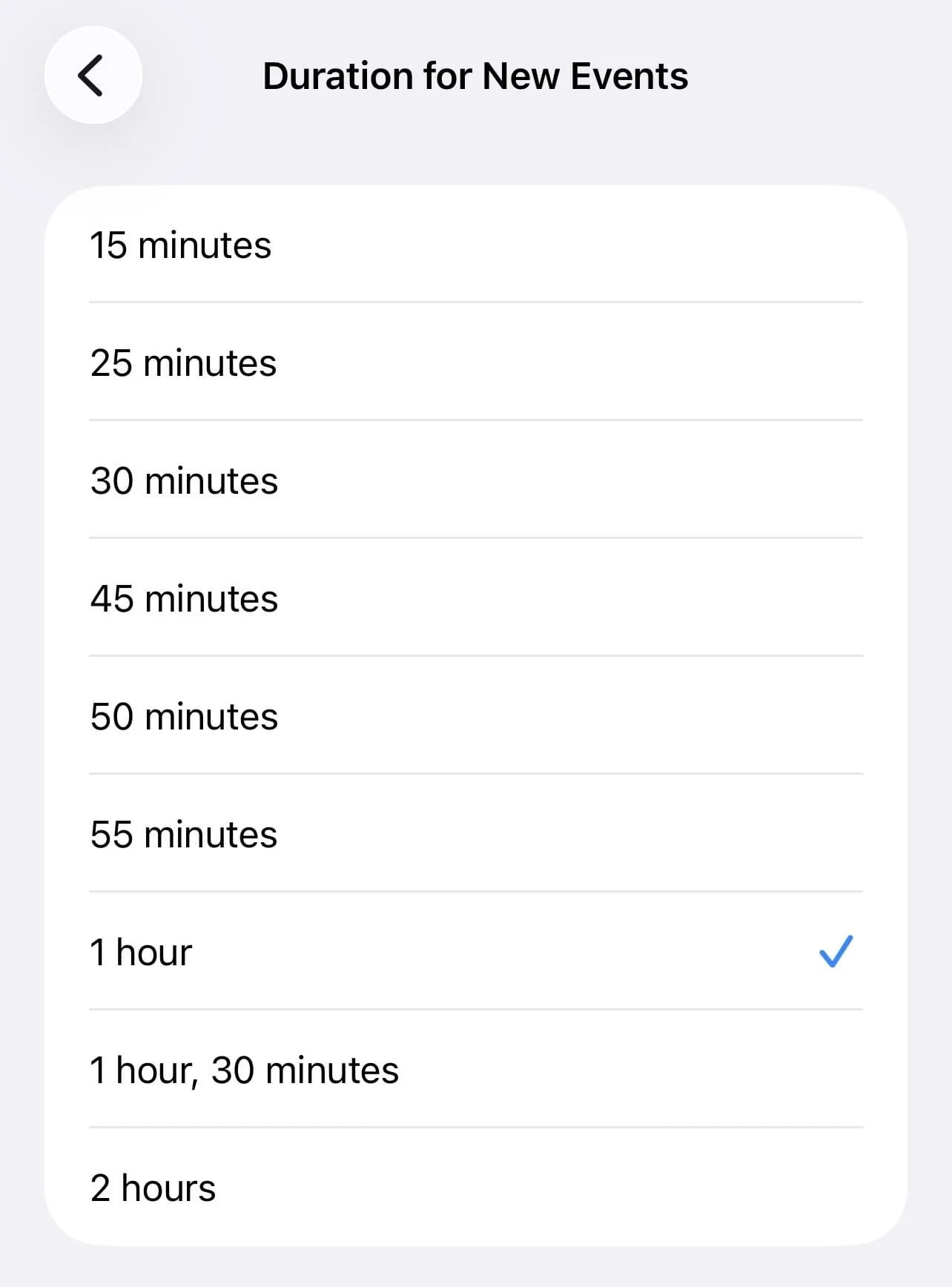
When adding a new event, Apple Calendar automatically adds it in as one hour long, but you can change this to a variety of preferred default lengths.
How to do it:
Open your iPhone settings app and go to “apps” then “calendar.”
Tap “duration for new events.”
Tap your preferred time length.
#30: Add An Event From Reminders
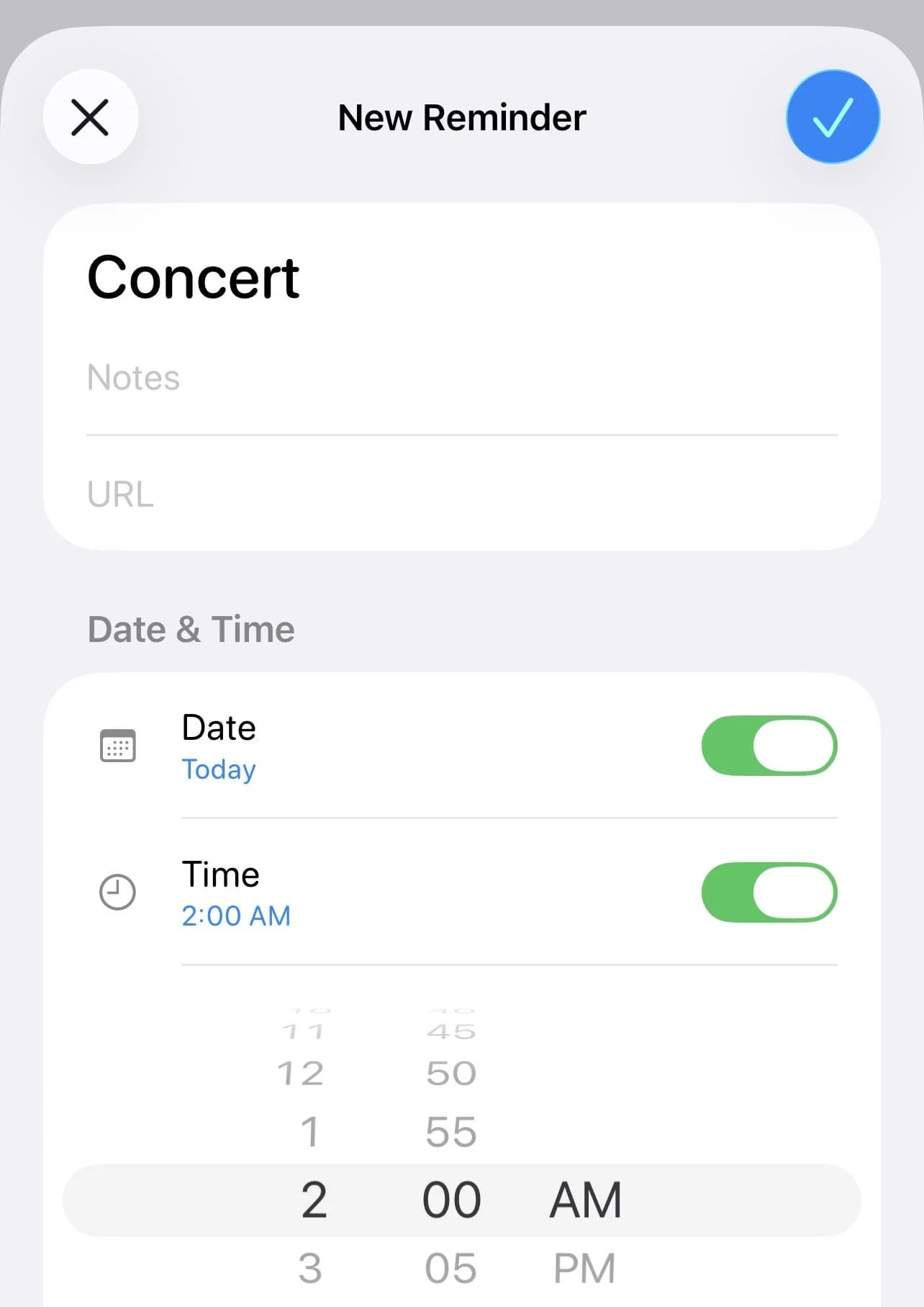
You can also add a calendar event directly from Apple Reminders.
How to do it:
Open Apple Reminders
Tap the plus icon in the lower right corner
Toggle on “date” and “time”
Add your date and time
Press the checkmark in the upper right corner
Your event will automatically show up on your Apple Calendar
Closing Thoughts
Thank you for reading my post “30 Ways To Customize Your Apple Calendar (EASY Tricks To Make It Aesthetic).”
Read this next: How To Customize Your MacBook With macOS 27 Golden Gate (Easy Tutorial)
For handmade digital art prints, icon packs, wallpapers, & more designed by me, be sure to stop by my digital boutique: Designed By Nikki Lo.
Connect with me!