New iPhone? Change These 9 Settings FIRST! (For A Better Experience)
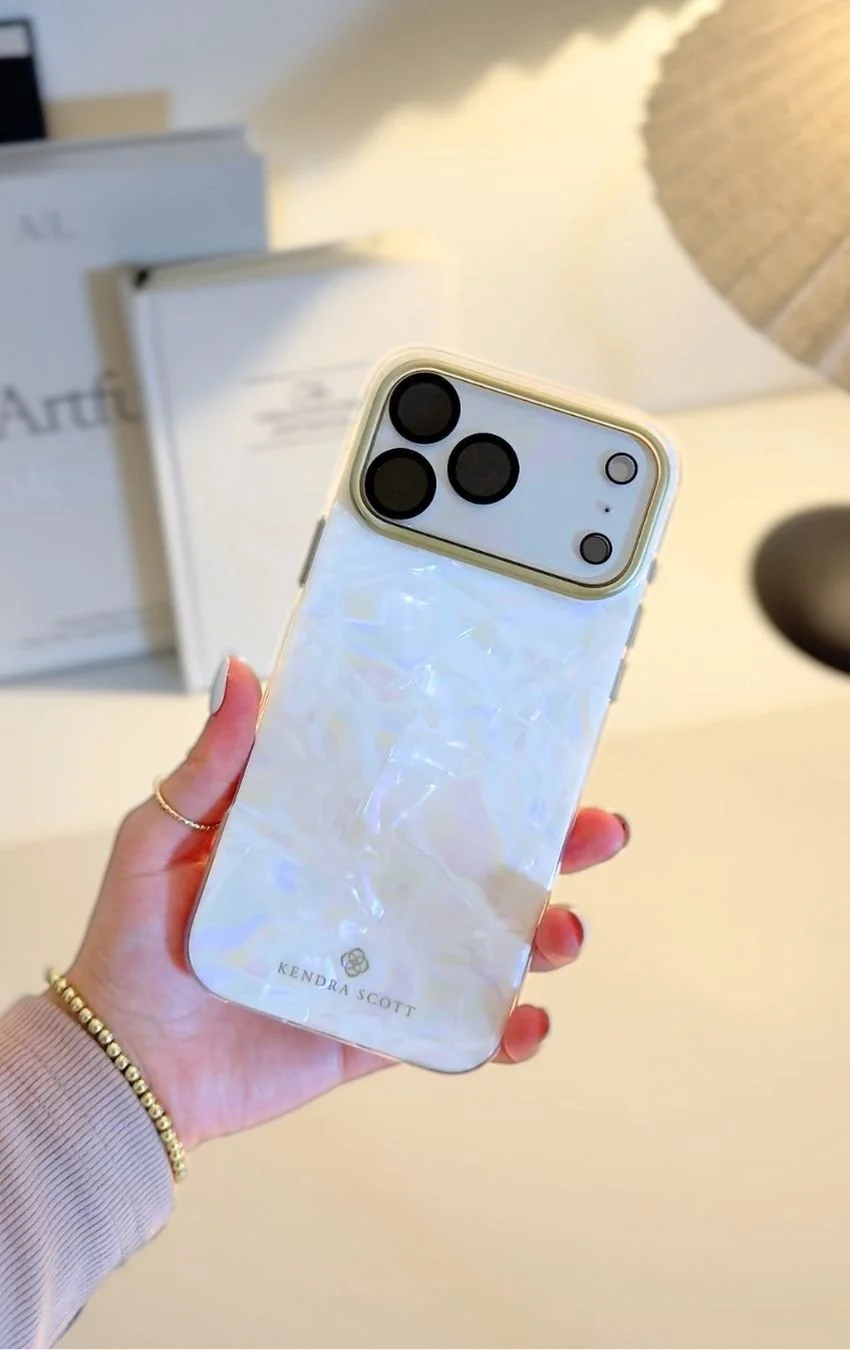
This post is about settings to change first when you get a new iPhone and other things to set up immediately.
I just picked up my new iPhone 18 pro max, so the process of setting up a new iPhone is very fresh in my mind!
I thought it’d be helpful to create a little guide of the most important settings to go through on a new iPhone and other things you should set up and change. Let’s hop in.
9 Settings To Change When You Get A New iPhone
#1: Set Your Default Apps
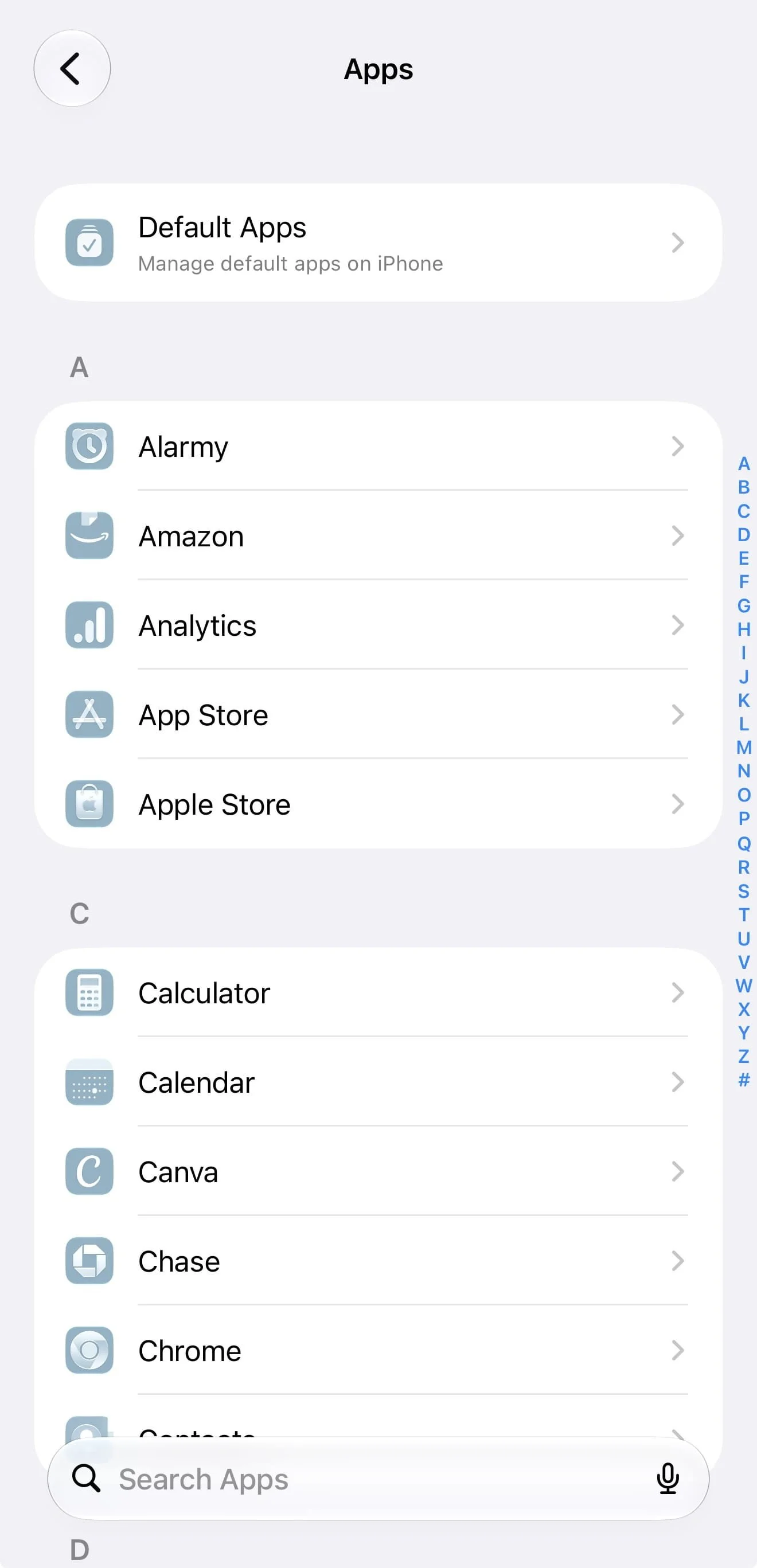
Setting my default apps is a must for me! My priorities are making sure my default browser is Chrome and my default email is Gmail. To configure this, go to settings > apps > default apps.
#2: Customize Notification Settings
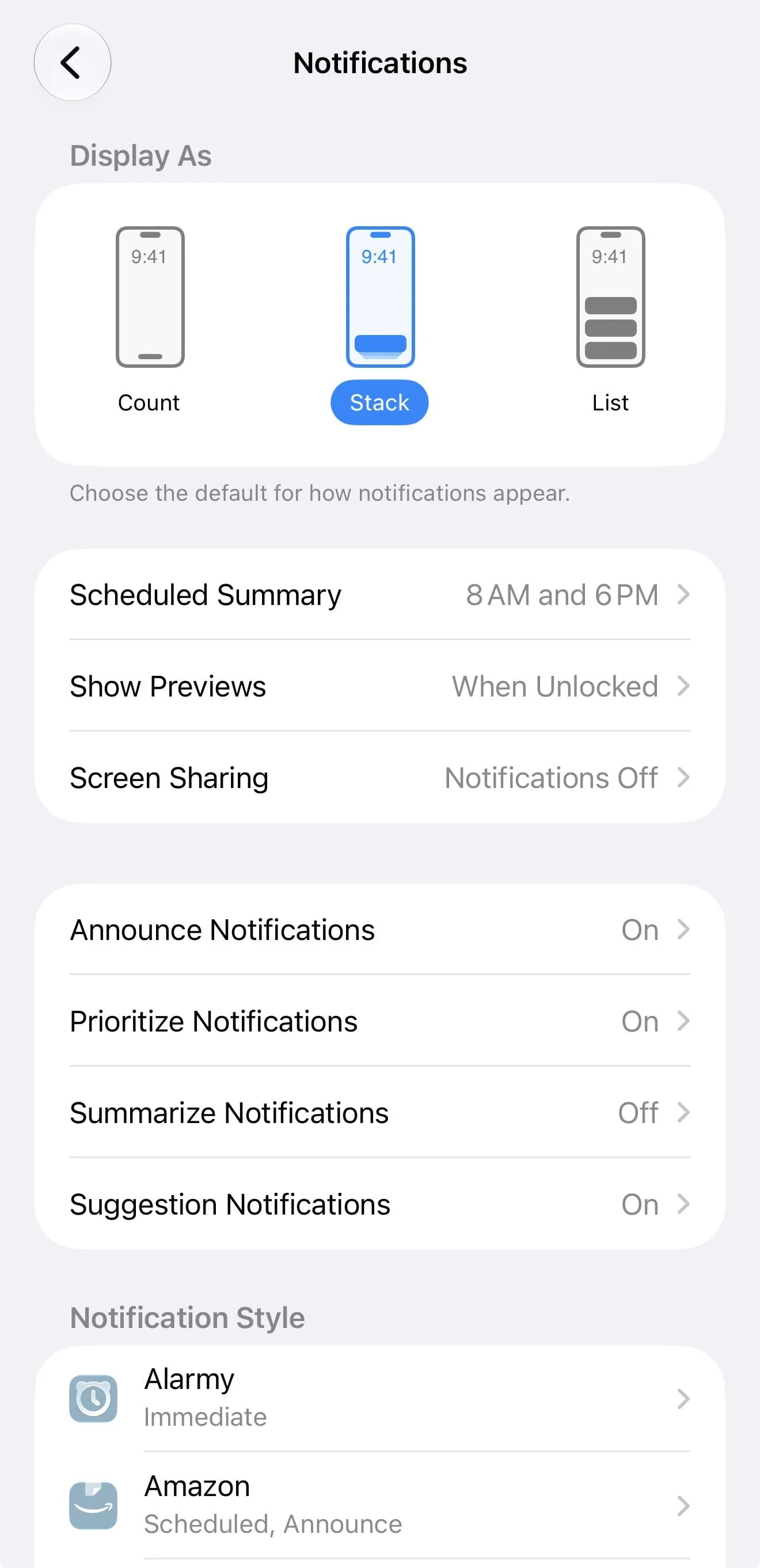
For all notifications settings, go to settings > notifications. First thing I like to adjust is how my notifications are displayed - we can choose between count, stack or list. I like stack best!
I also like to turn on something called scheduled notification summary, which you can find in settings > notifications > scheduled summary.
This lets you bundle non-urgent notifications and have them delivered at a specific time in the day. Essentially, you get them in one summary and in my experience it makes for a quieter phone overall.
I also like to make sure ‘show previews > when unlocked’ is on - this makes sure details of a notification don’t show until your iPhone is unlocked. Great for privacy reasons!
And finally, I like to turn on ‘announce notifications’ to have Siri read out notifications when my iPhone is connected to headphones. This is especially helpful when my hands are busy or my phone is across the room.
Related: 5 BEST MacBook Productivity Tricks (That Will Save You SO Much Time! Must-Know!)
#3: Customize Your Action Button
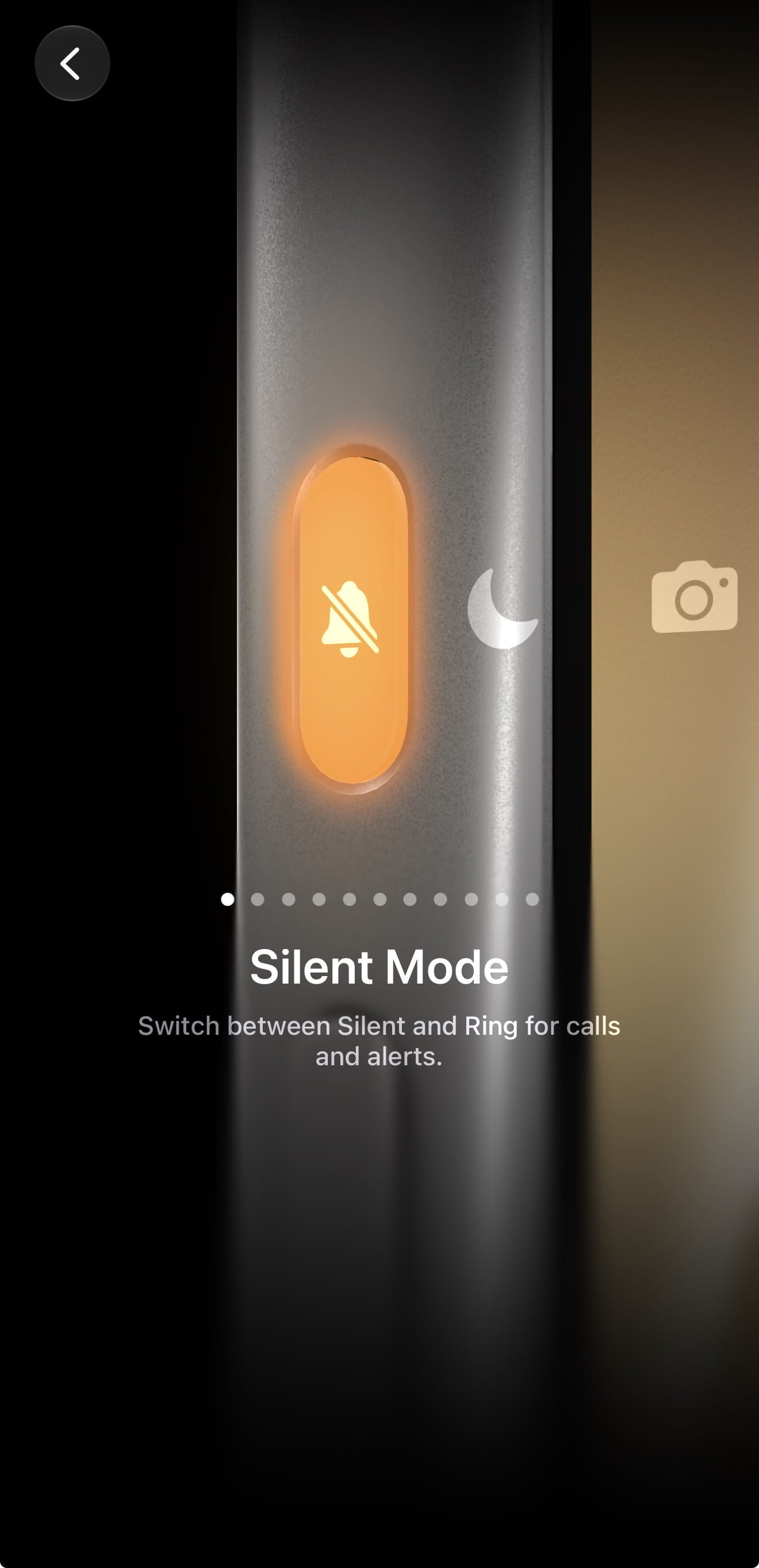
Your action button is the top button on the left side of your phone, and you can customize it to do different actions in settings > action button.
The options: silent mode, focus mode, open camera, visual intelligence, flashlight recognize music, choose custom controls, run shortcuts, accessibility, no action. Lots of helpful things!
Related: 13 Genius Ways To Fix Your Chaotic iPhone (And Make It Aesthetic)
#4: Customize Back Tap
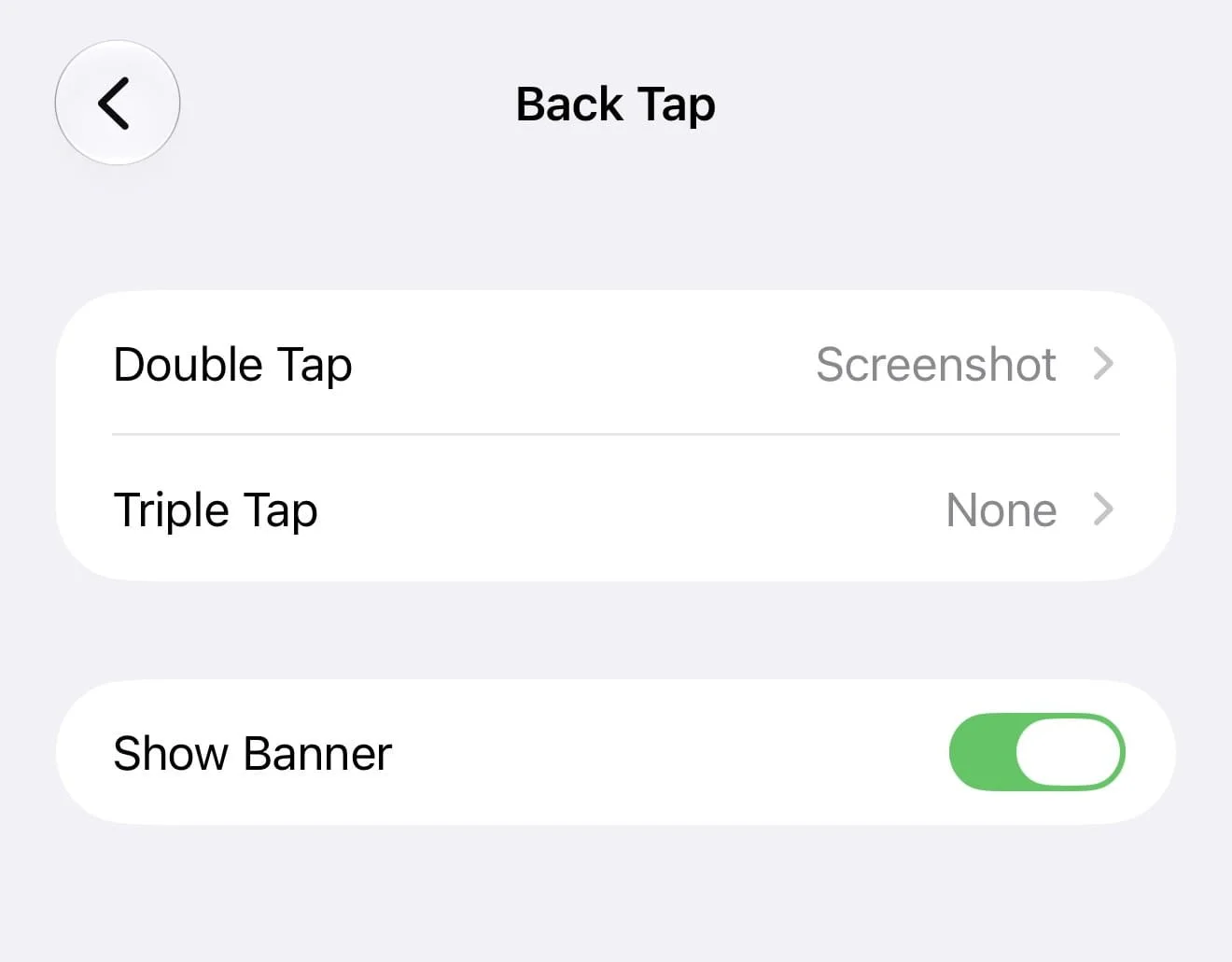
On a similar note, did you know you can customize it so double or triple tapping the back of your phone performs an action? For example, you can do things like take a screenshot, turn on the flashlight, open the camera, etc.
Configure this in settings > accessibility > physical & motor > touch > back tap. I like setting double tap to take a screenshot!
#5: Set Up Find My
If you’re doing a data transfer from an old iPhone, most of FindMy should transfer over, but always best to check and make sure everything’s working properly.
Do this by simply opening the FindMy app and making sure anything connected to the app is still there, making sure you’re signed in, the location is correct, etc.
#6: Set Up Stolen Device Protection
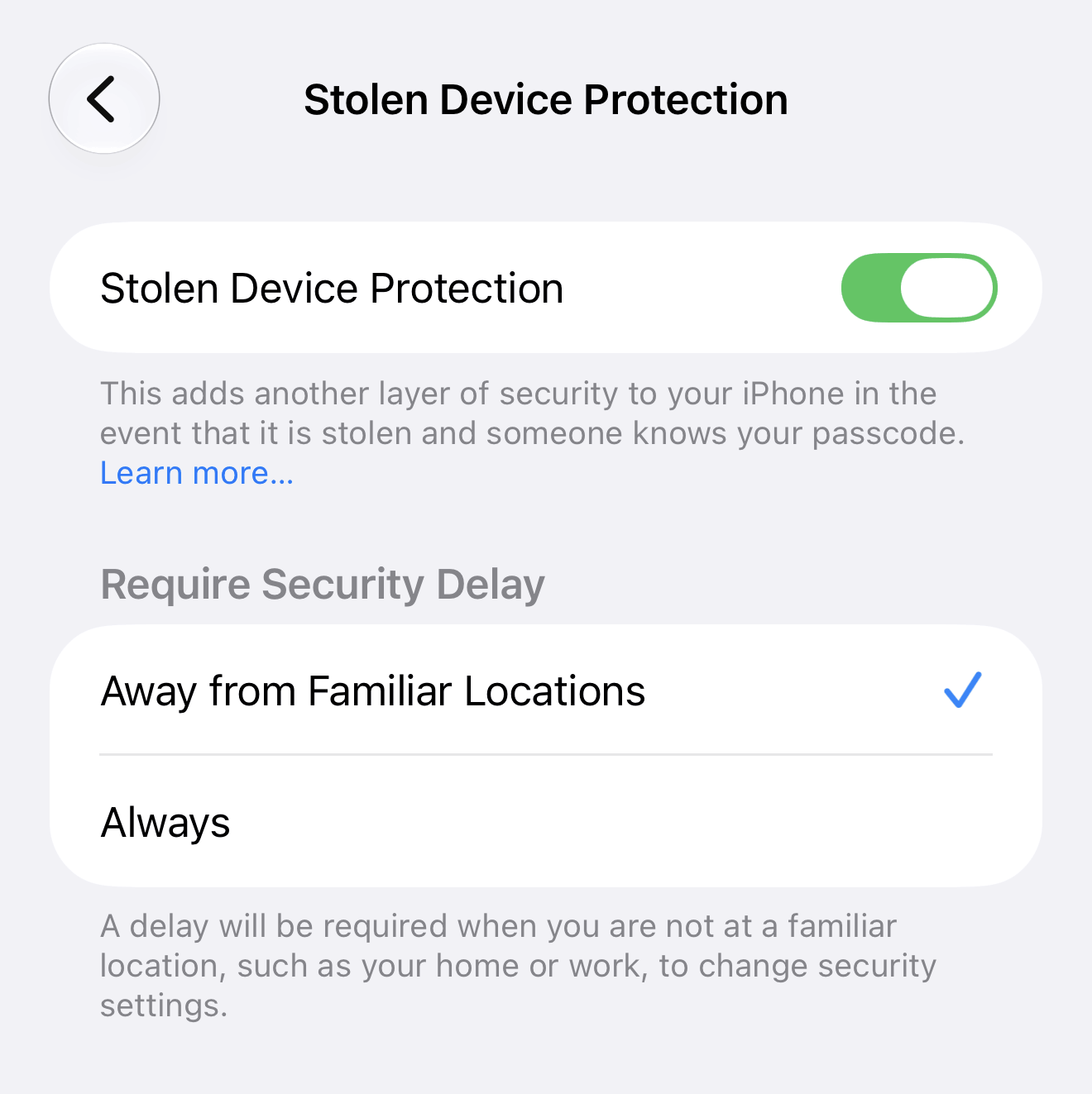
This is another must for me! Set this up in settings > face ID & passcode > stolen device protection.
I also like to turn on security delay > away from familiar places or always (I choose away from familiar places). This puts a one hour lock on iPhone to lock high-security settings like Apple Pay or changing passwords.
#7: Customize Location Settings
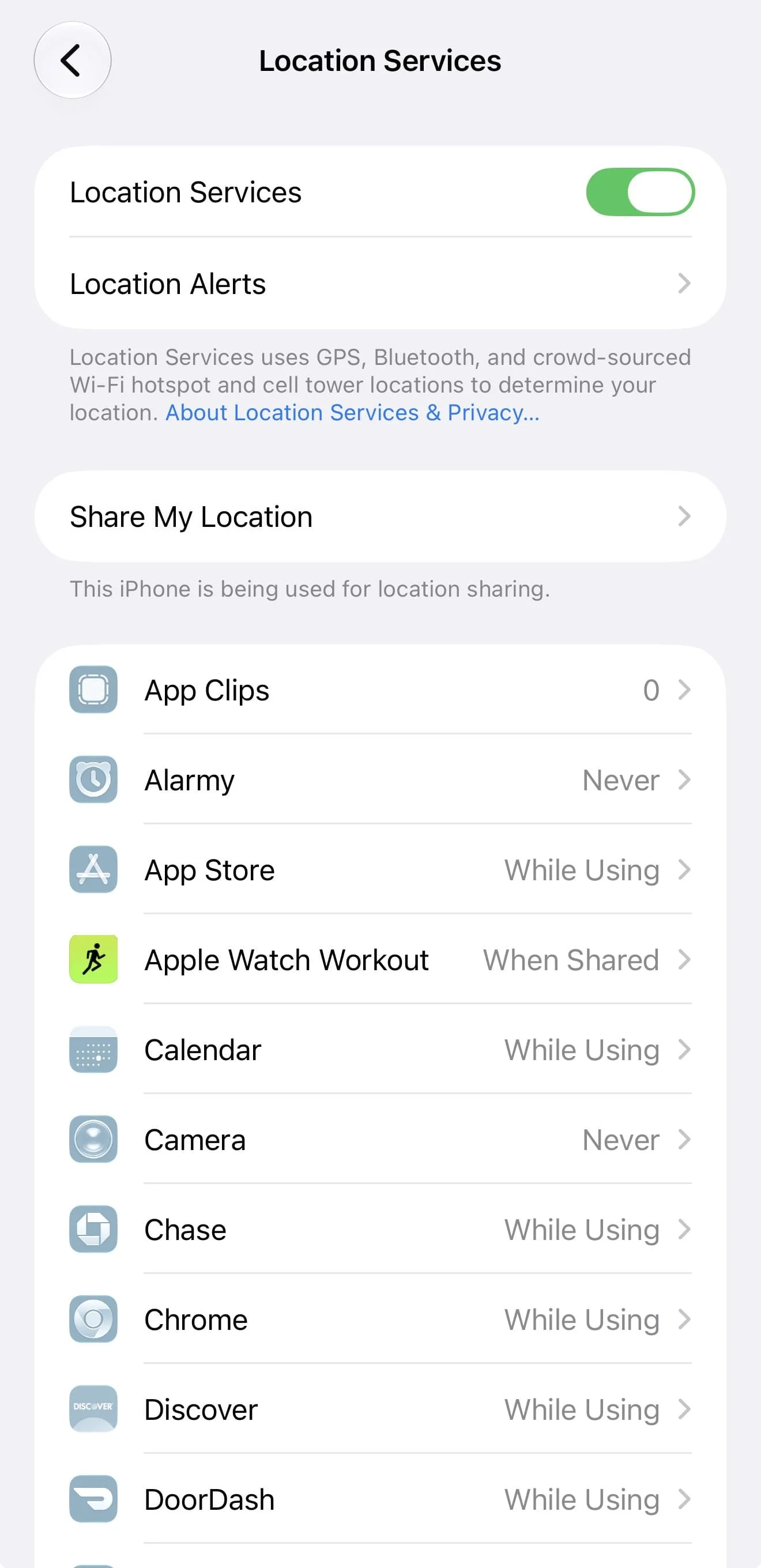
Configure this one in settings > privacy & security > location services. I like to go into each app and customize when each can use location. For example, my alarm clock app never really needs my location so I make sure that one’s set to ‘never.’
Related: 15 Ways To Reset & Refresh Your iPhone (Digital Declutter & Organization Routine)
#8: Set Up iCloud Backup
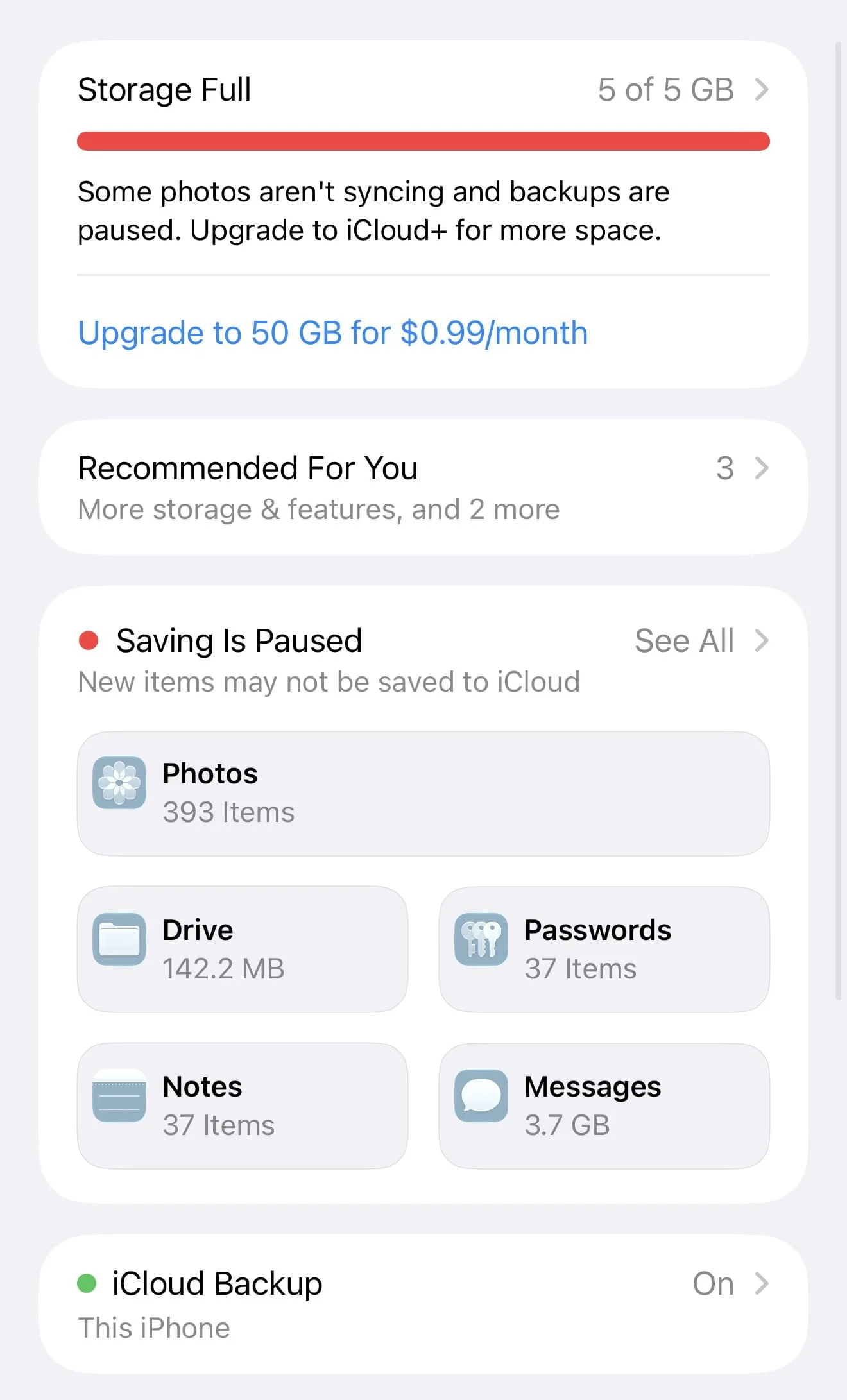
You definitely want to make sure everything is backing up correctly when you get a new iPhone - just in case! Set this up in settings > name > iCloud > iCloud backup > back up this iPhone. You can also tap ‘back up now’ to back up your iPhone manually.
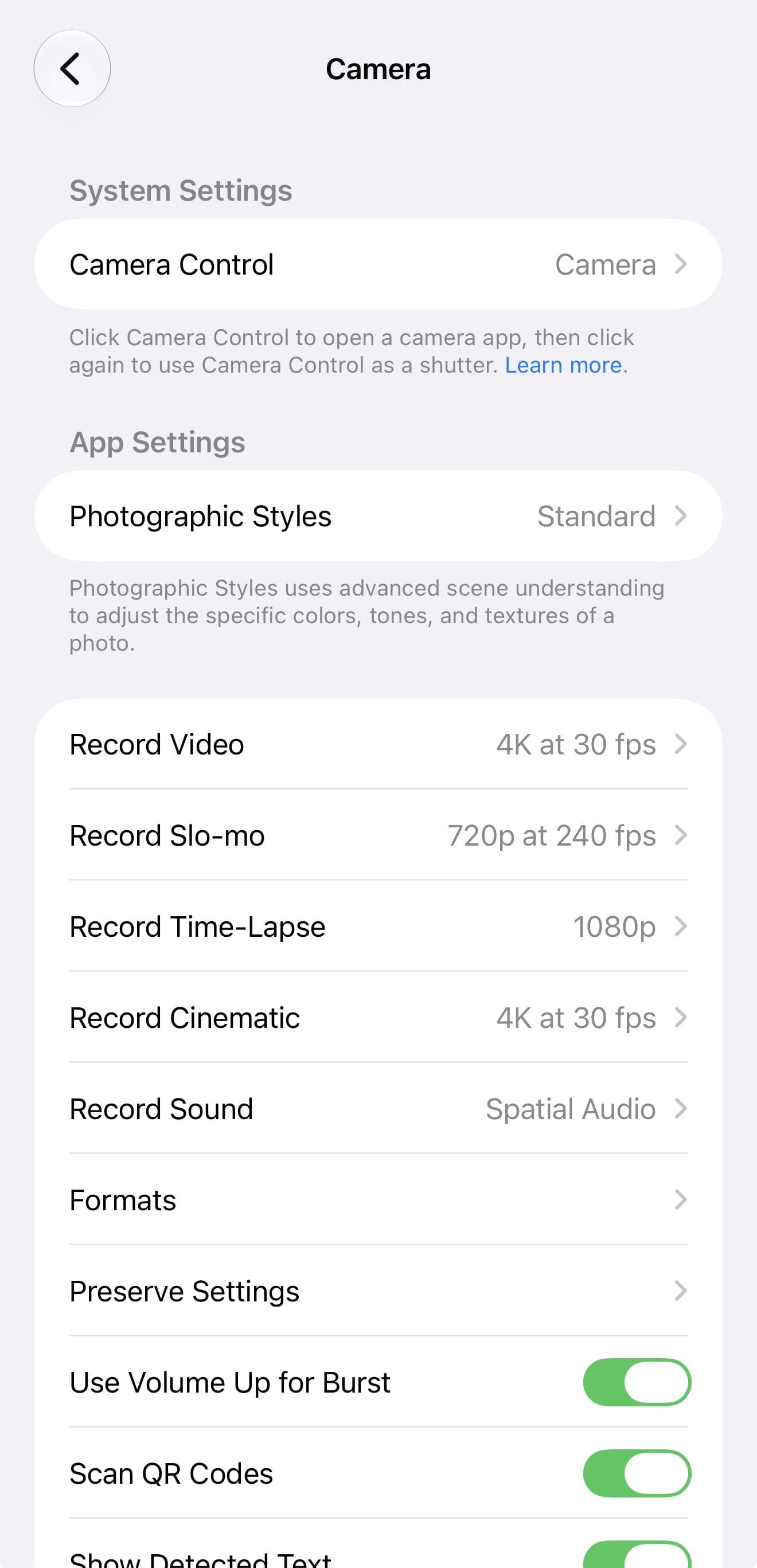
#9: Customize Your Camera Settings
If you’re anything like me, you probably have a bunch of old bookmarks from years ago you don’t use anymore. Let’s fix that!
On Chrome, you can delete a bookmark by right clicking > delete. You can click and drag bookmarks around on your bookmark bar to customize the order they appear in.
To see all your bookmarks and manage them even more, open the bookmarks manager by clicking on bookmarks (menu bar) > open bookmarks manager. Click the three dots on each bookmark for options like delete, copy, etc.
Related: How To Customize Your MacBook With macOS 27 Golden Gate (Aesthetic Tutorial)
Closing Thoughts
I hope this helped! Thanks for stopping by my post “New iPhone? Change These 9 Settings FIRST! (For A Better Experience).”
For handmade digital art prints, icon packs, wallpapers, & more designed by me, be sure to stop by my digital boutique: Designed By Nikki Lo.
Connect with me!