How To Customize Your MacBook To Be Aesthetic! (Tutorial With Free Wallpapers & Icons)
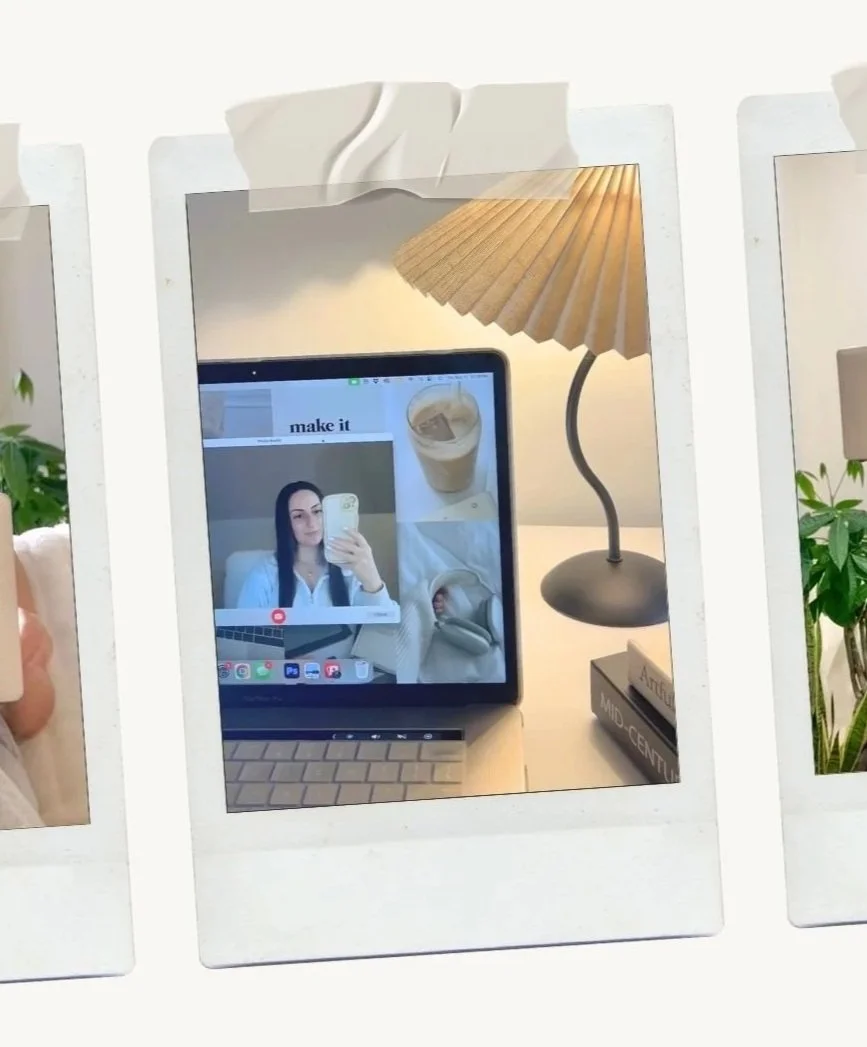
I’m obsessed with making my MacBook feel as pretty as it is practical, so I decided to turn my desktop into a little slice of aesthetic heaven!
In this MacBook customization tutorial, I’m breaking down exactly how I customize my Mac with Pinterest-inspired vibes. I’m talking cute app/folder icons, personalized wallpapers, pretty accent colors and more.
Plus, I’ve got all the free wallpapers, templates, and icons for you to use to decorate your own Mac. Let’s get started!
Video Tutorial
Wallpapers!


Related: 27 Ways To Make Apple Notes Aesthetic (MUST-KNOW Customization Tricks)
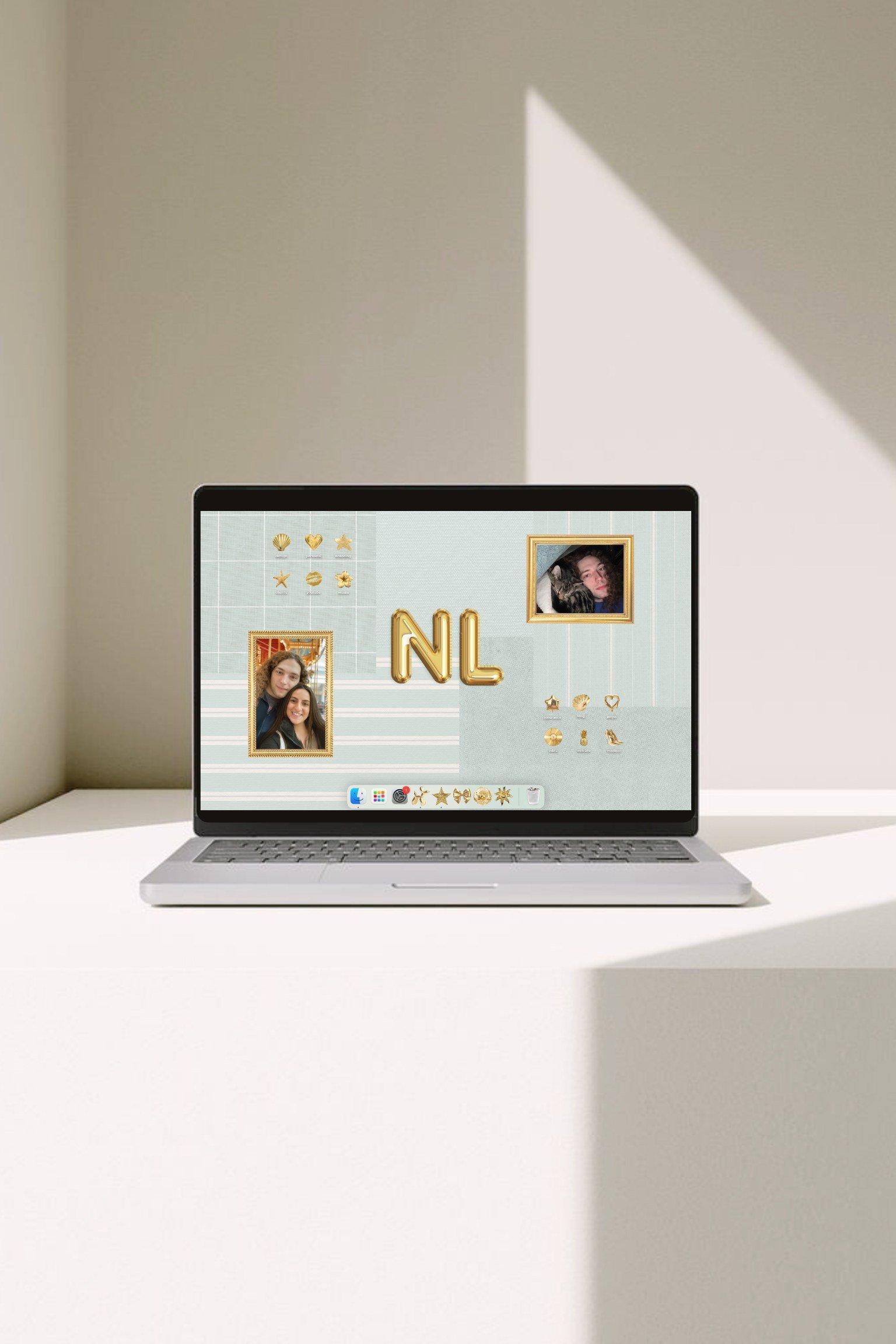
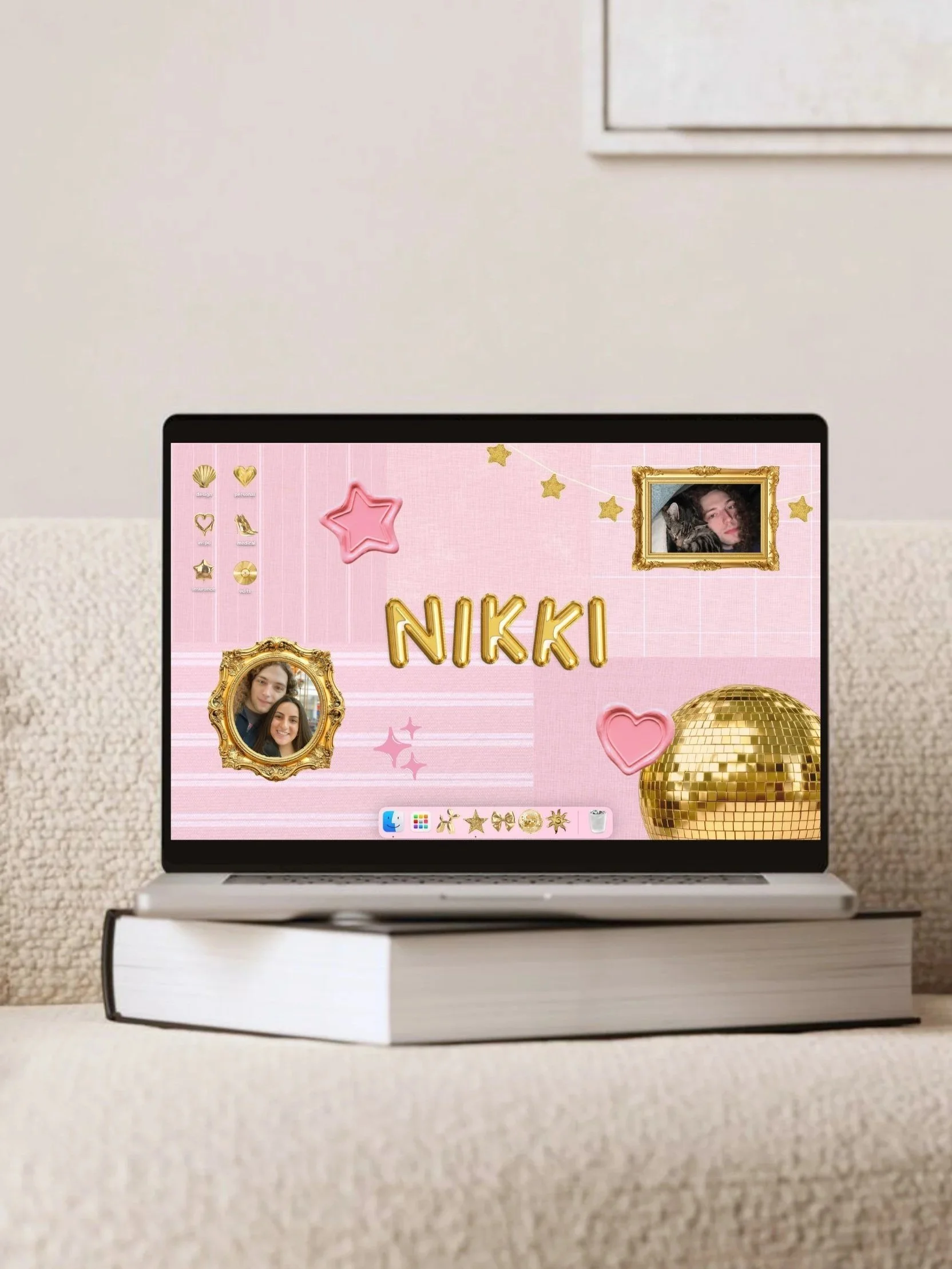
Wallpaper Canva Templates
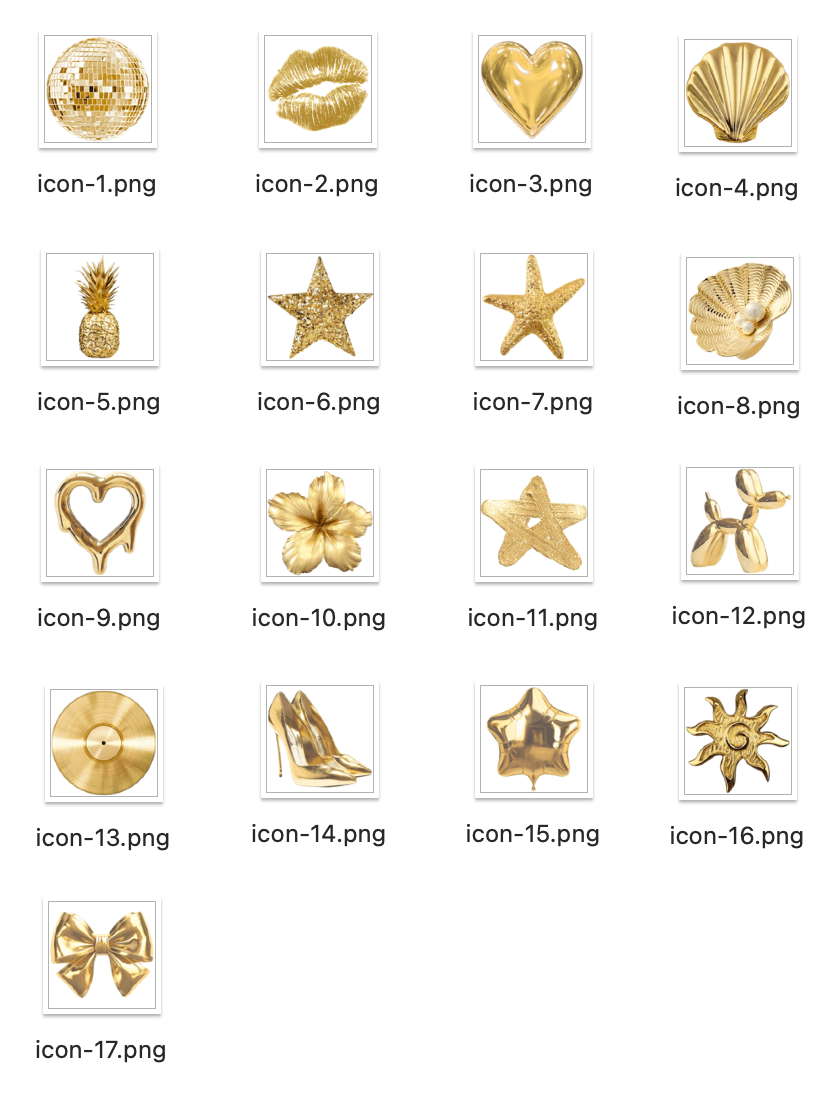
Gold App + Folder Icon Pack
#1: Set Your Wallpaper
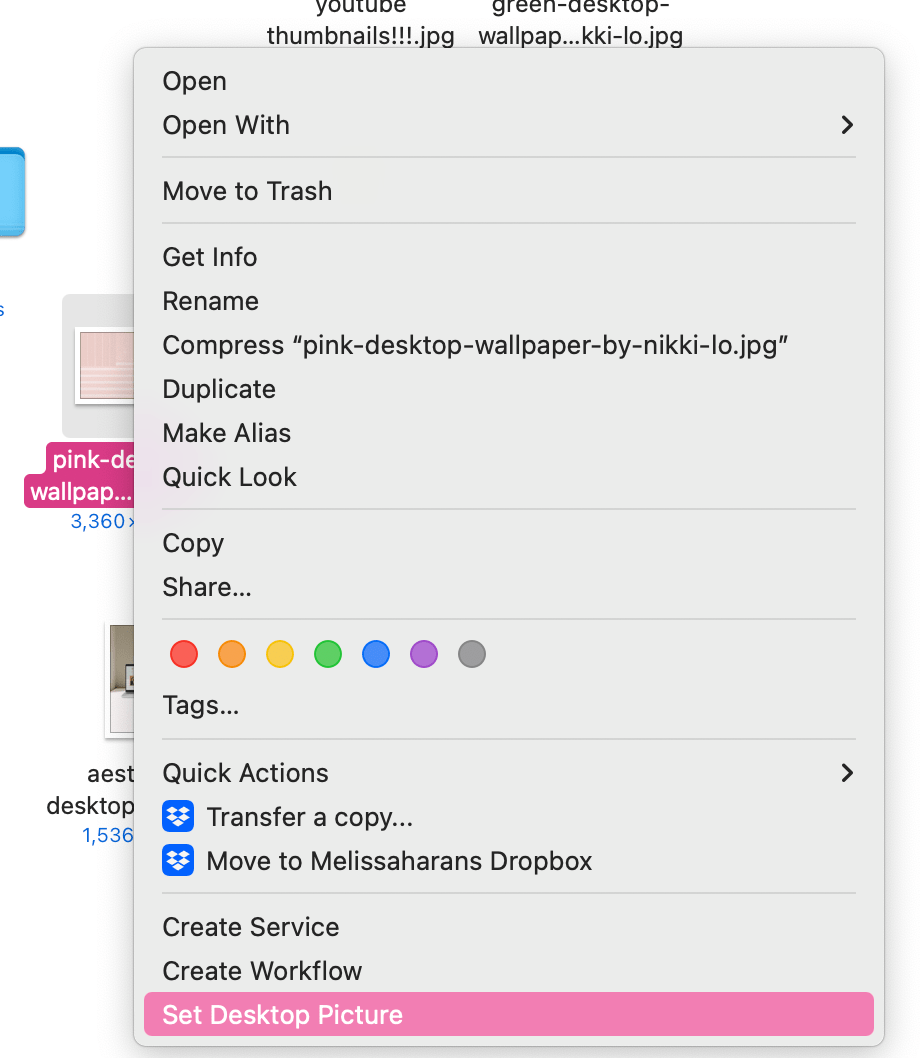
Now that you’ve downloaded your wallpaper image, locate it in Finder. Right click (tap the trackpad with two fingers) on it and select “set desktop picture” to make the image your wallpaper.
Related: How To Customize Your MacBook With macOS 27 Golden Gate (Easy Tutorial)
#2: Customize Your Dock
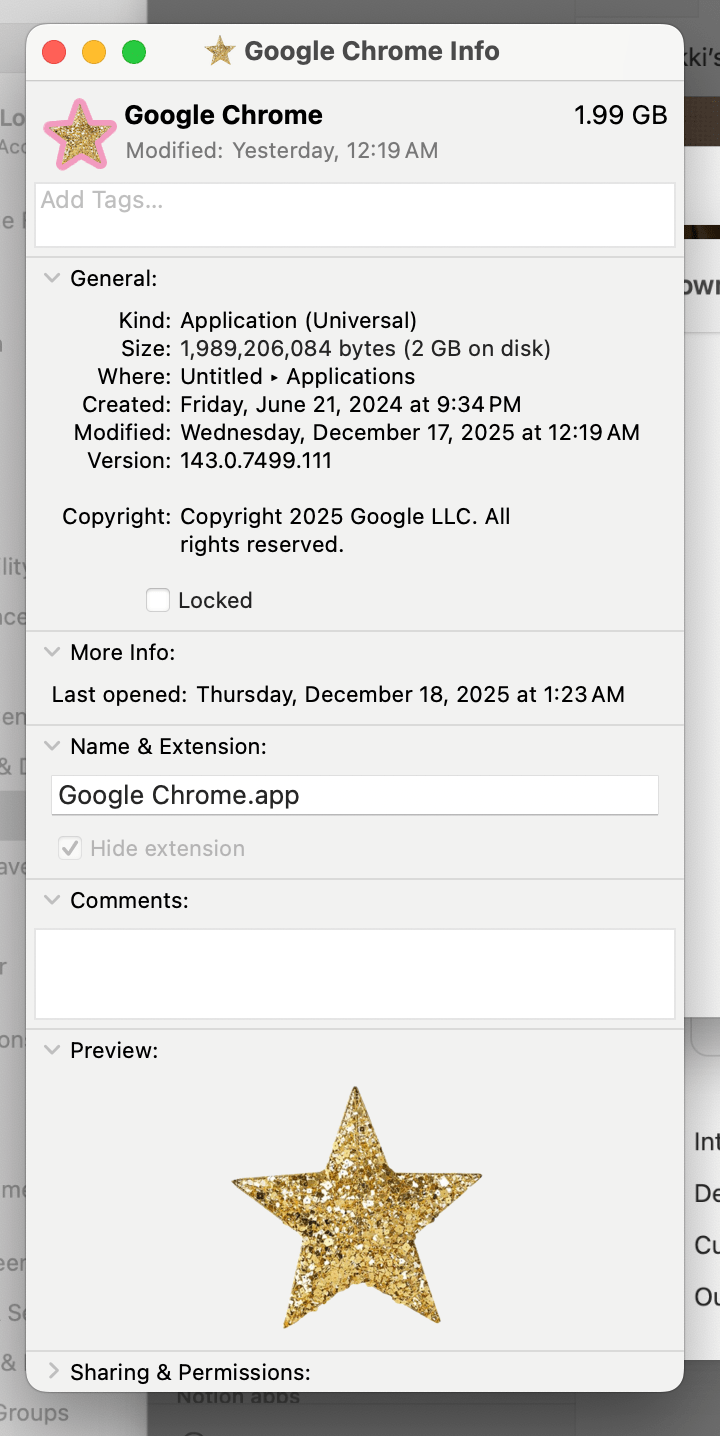
Download or create the custom app image you want, then copy it from Finder. In Finder, locate the app whose icon you want to change in your applications folder. Right-click the app, choose “get info,” click the small app icon at the top (upper left) of the info window, and paste (command V) or drag in your custom image.
Once applied, the new icon will appear in the dock after you quit and reopen the app (or restart the dock).
#3: Add & Customize Folders On Your Desktop
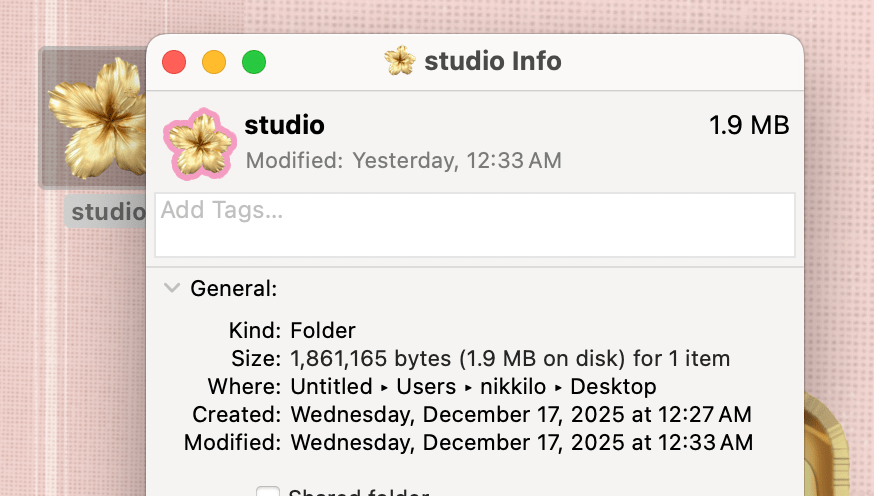
To add a folder to your desktop, go to your desktop, right click, and select “new folder” at the top. To customize the folder icon, right-click the folder and select get info.
From there, you can click the small folder icon at the top left of the info window to paste (command V) a custom image, and rename the folder in the name field to match your setup.
You can also organize multiple folders by color-coding, grouping, or arranging them (click and drag) neatly to keep your desktop both functional and visually appealing.
#4: Set Accent Color
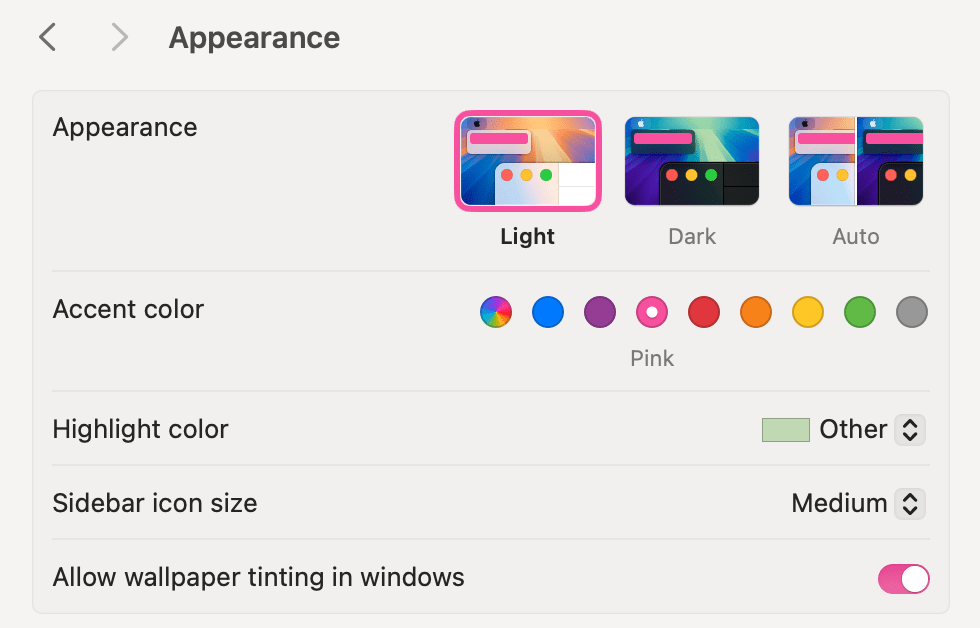
Open system settings and go to “appearance.” Choose an accent color from the list, or select a custom color if available. The change will apply immediately across buttons, highlights, and other interface elements across your MacBook.
Related: 30 Ways To Customize Your Apple Calendar (EASY Tricks To Make It Aesthetic)
#5: Customize Mouse
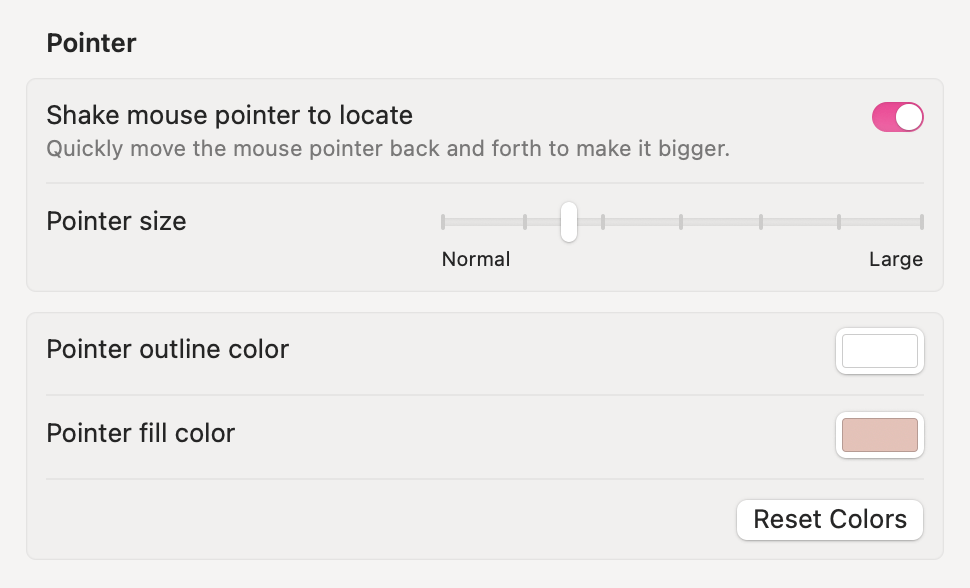
Open system settings and go to “accessibility,” then select “display.” Scroll down to the pointer section and adjust the pointer size slider to make your cursor larger or smaller.
Use the color options to change the pointer fill and outline. Your changes will apply instantly, making the cursor easier to see and match your aesthetic!
Related: 19 Aesthetic Ways To Customize Your MacBook With macOS 27 Golden Gate
Closing Thoughts
And that’s it! With these simple tweaks, my MacBook feels organized, aesthetic, and totally personalized. I hope this inspires you to give your own desktop a little glow-up. Have fun customizing and making it truly yours!
Thank you for reading “How To Customize Your MacBook To Be Aesthetic! (Tutorial With Free Wallpapers & Icons).”
Read this next: 15 Ways To Customize Your Phone With iOS 26 (And Make It Aesthetic!)
For handmade digital art prints, icon packs, wallpapers, & more designed by me, be sure to stop by my digital boutique: Designed By Nikki Lo.
Connect with me!