FREE Cozy Notion Template With Weekly Planners, Reading Tracker, Wishlist, And Mood Board
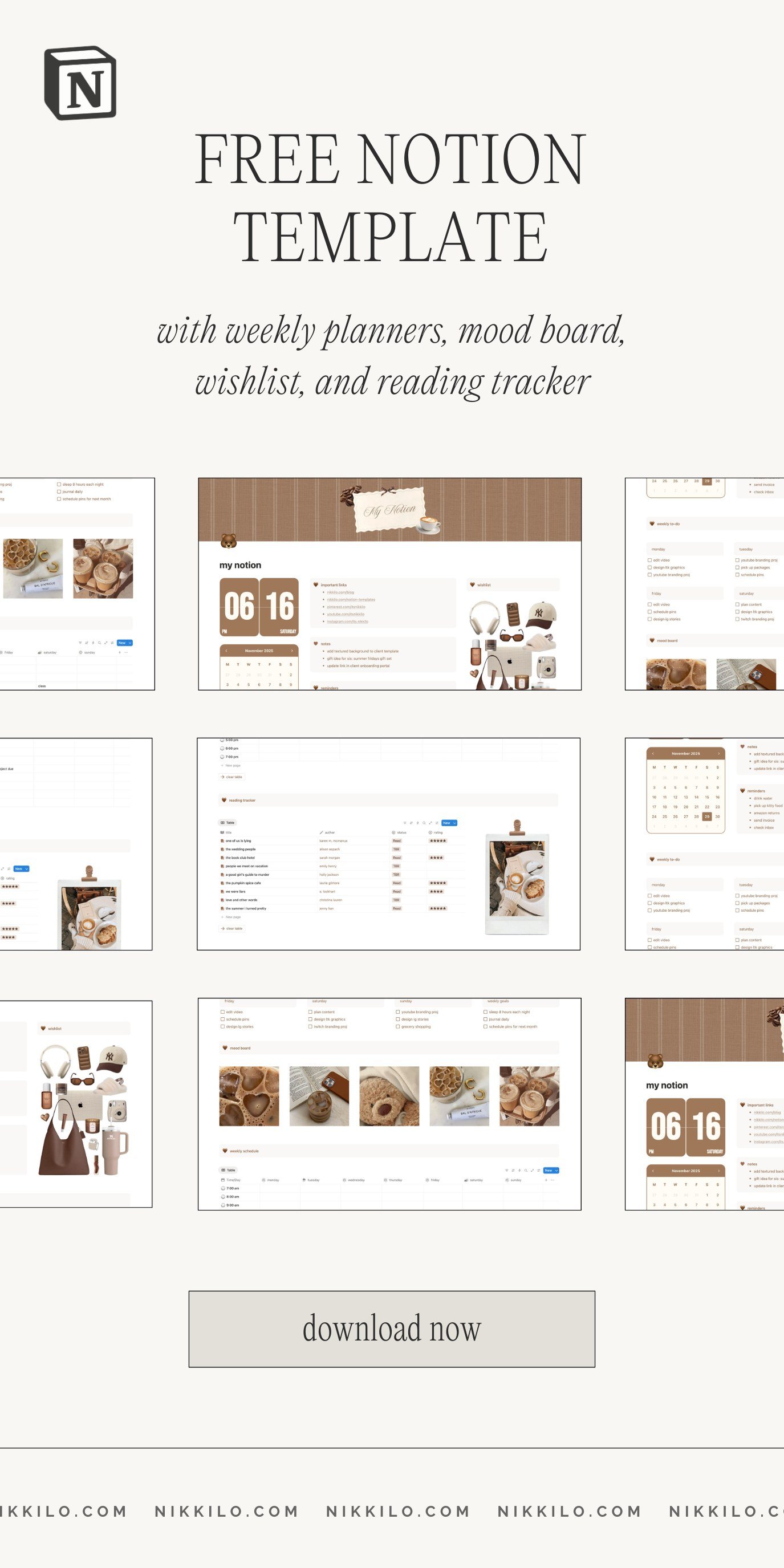
Hi guys! In this post you’re getting the full tour of my cozy brown Notion template. I’m breaking down each section in this template so you know exactly what’s inside as well as giving you mini tutorials and tips on how to customize it exactly to your liking.
Oh, and besides this free notion template, I’ve got free templates for the banner and widgets! Let’s get started.
Template Overview
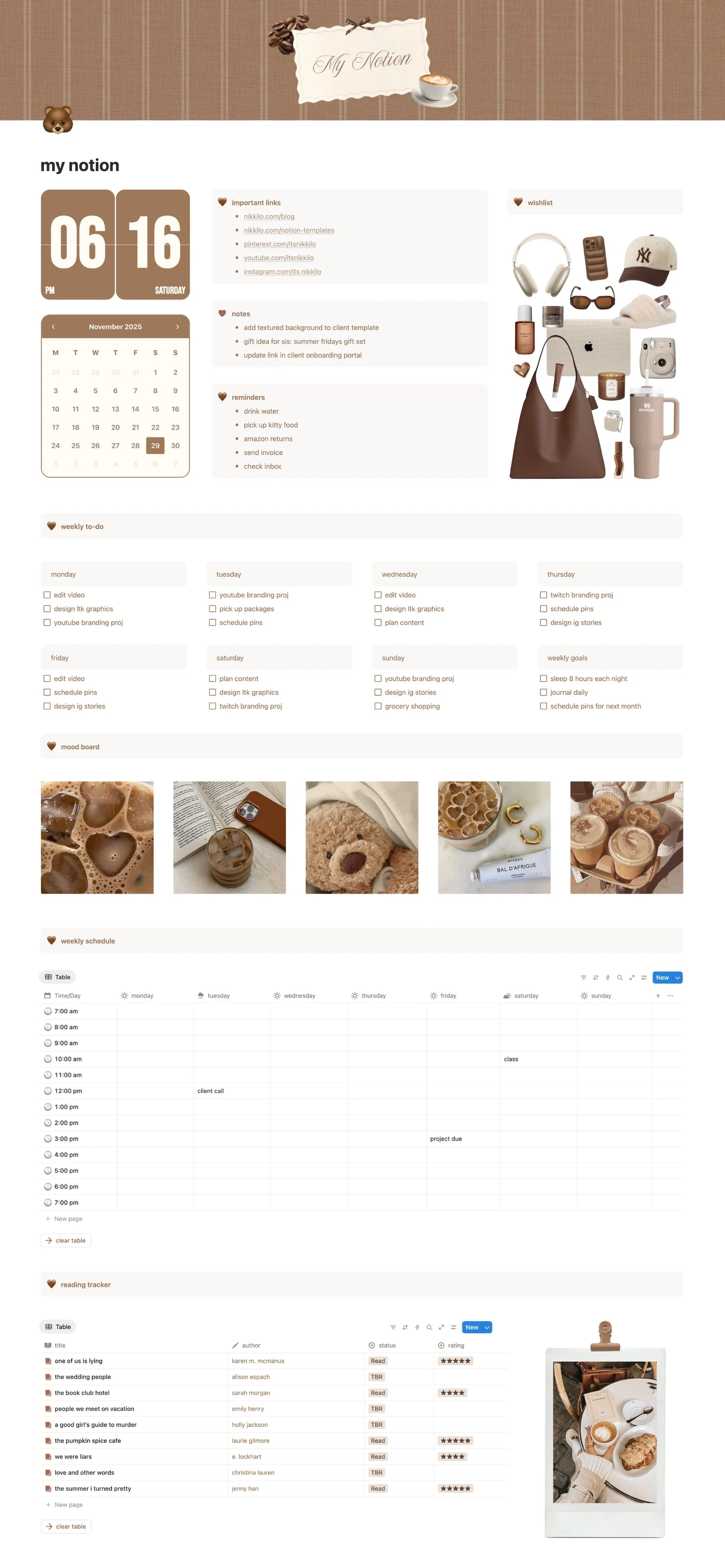
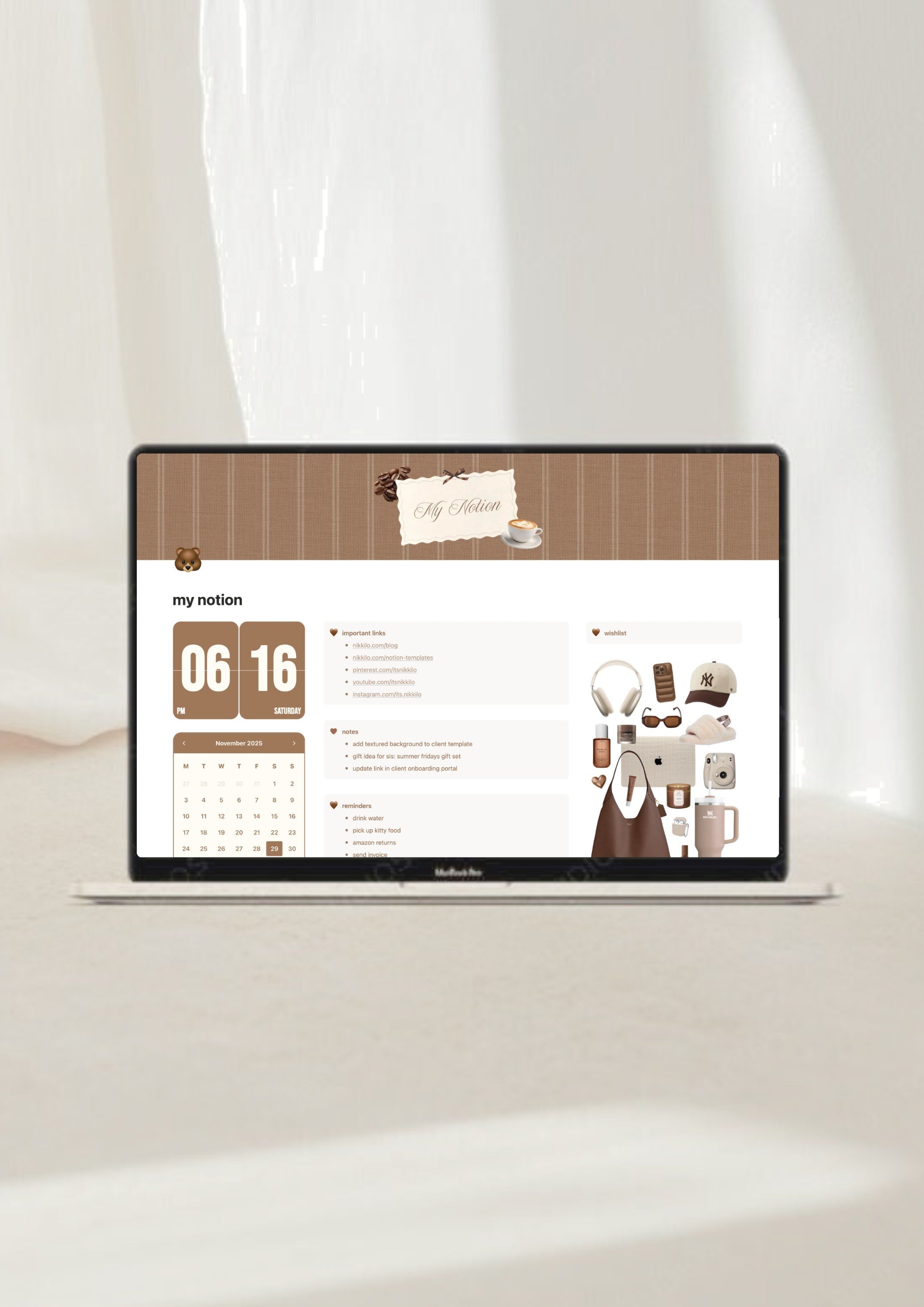
So, here’s an overview of what this Notion template looks like. As you can see, I went for the cutest, coziest brown theme this time.
This template contains a welcome section with widgets and notes/reminder sections, a mood board, a weekly to-do list, a weekly schedule, and a reading tracker.
“Welcome” Section
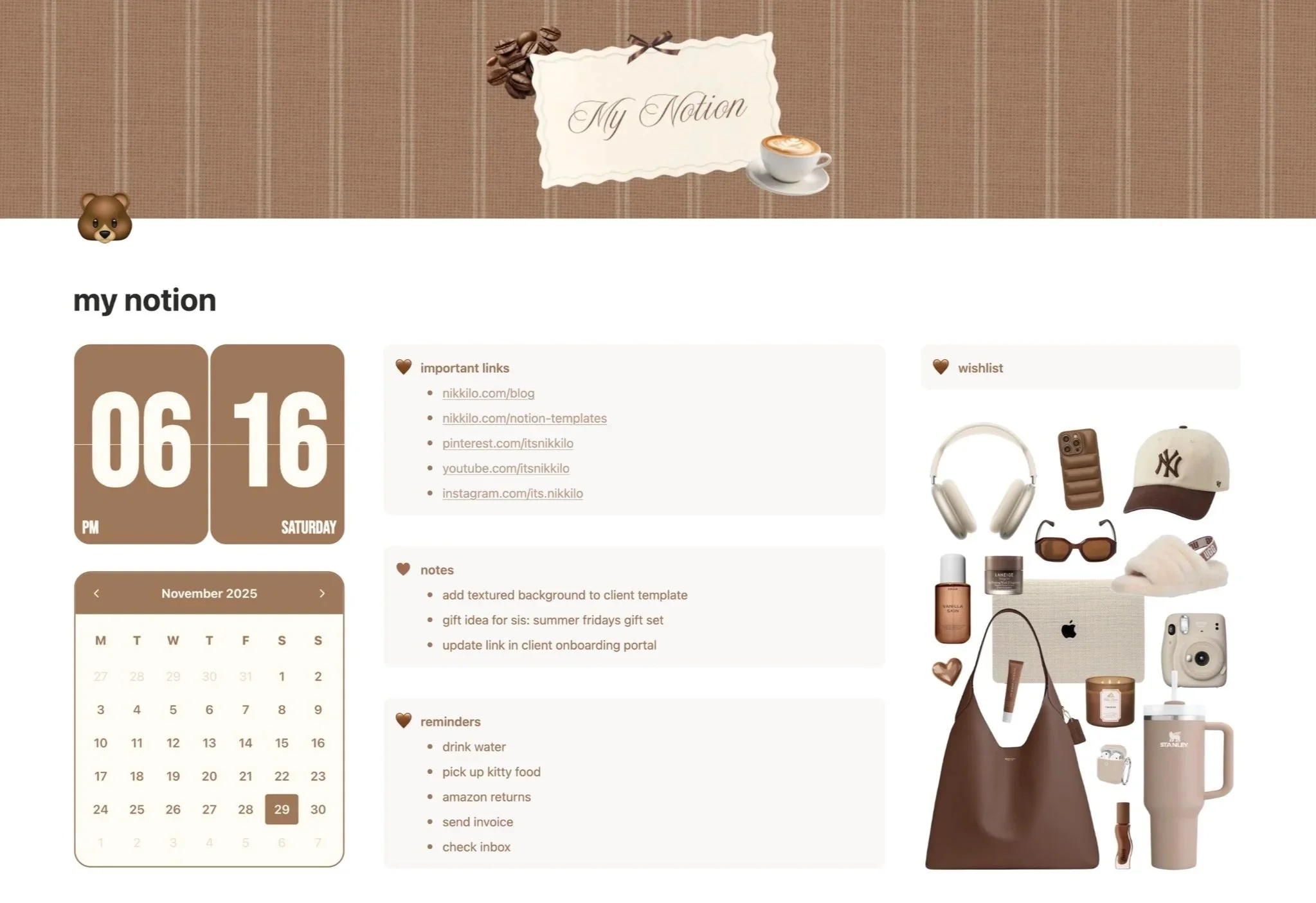
This top section is where you have your little clock widget so you always know what time it is. I also put a calendar widget right below it. You can use the arrows on it to go back and forth between months.
Then we’ve got little sections for reminders, important links, and notes. Next to that is a spot for a wishlist collage! I’ve added a fun collage of some things I’ve been eyeing, but linked at the bottom of this post is a free template where you can customize your own.
Weekly To-Do
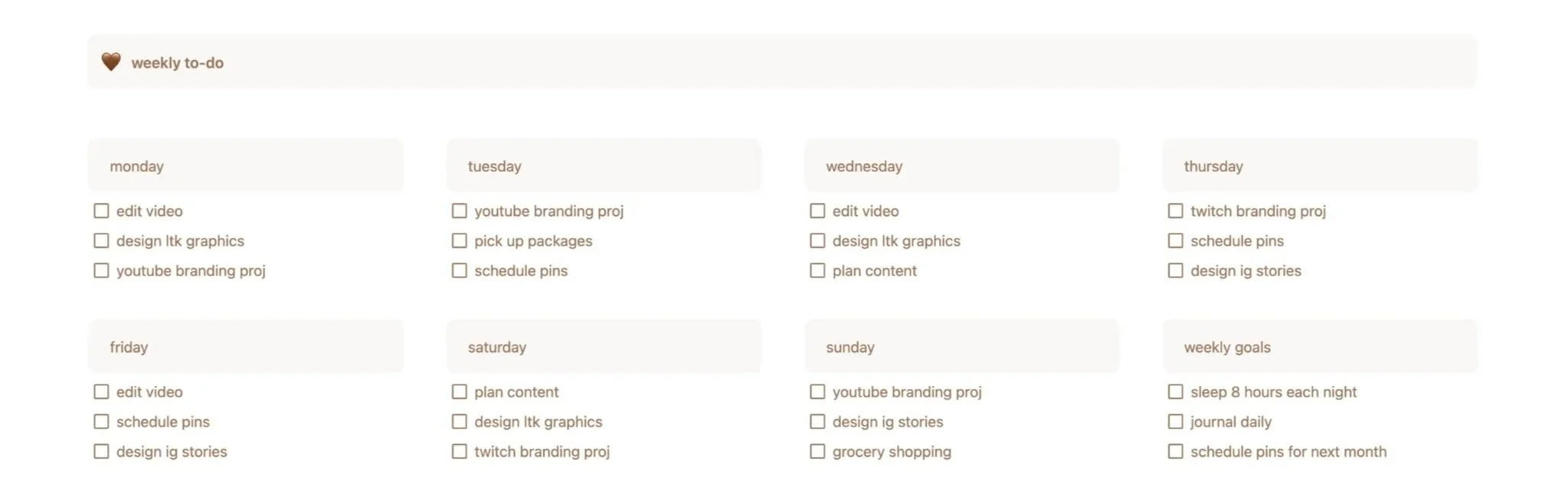
Here’s where you’ll keep your to-do list for each day of the week. To add a new box to a day, place your cursor at the end of a line and press enter. There’s also a spot for you to add some goals you have for the week.
Related: This FREE Notion Template Organizes Your Life With A Neutral, Minimal Aesthetic
Mood Board
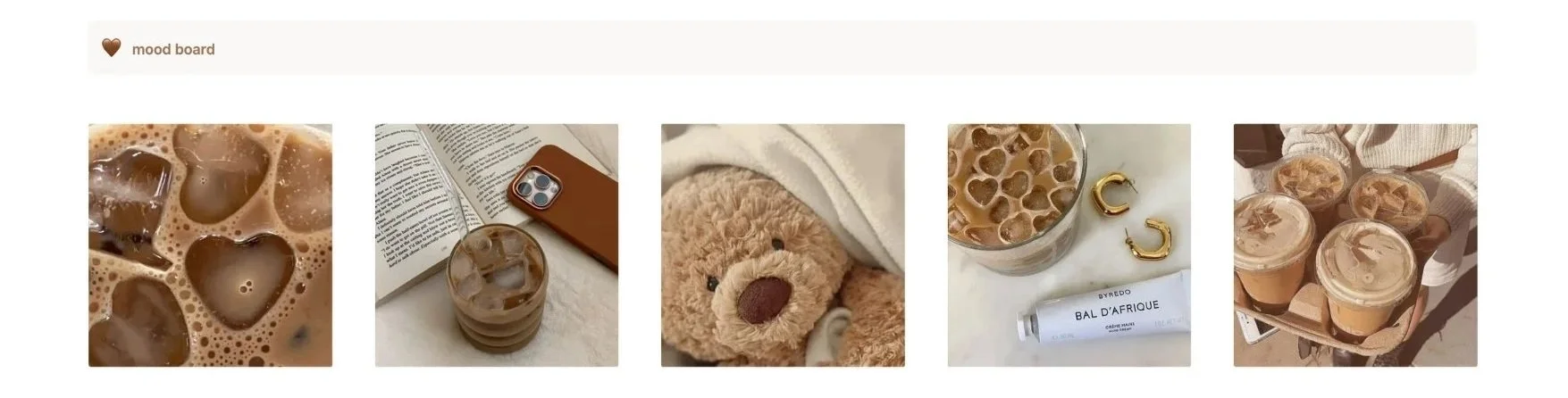
Next we have a cute little mood board section. Leave as is or swap out the images with your own.
To replace images, mouse over each image > click the three dots > click “replace image” > upload your image. Pinterest is my top spot to find cute pictures for my Notion!
Weekly Schedule
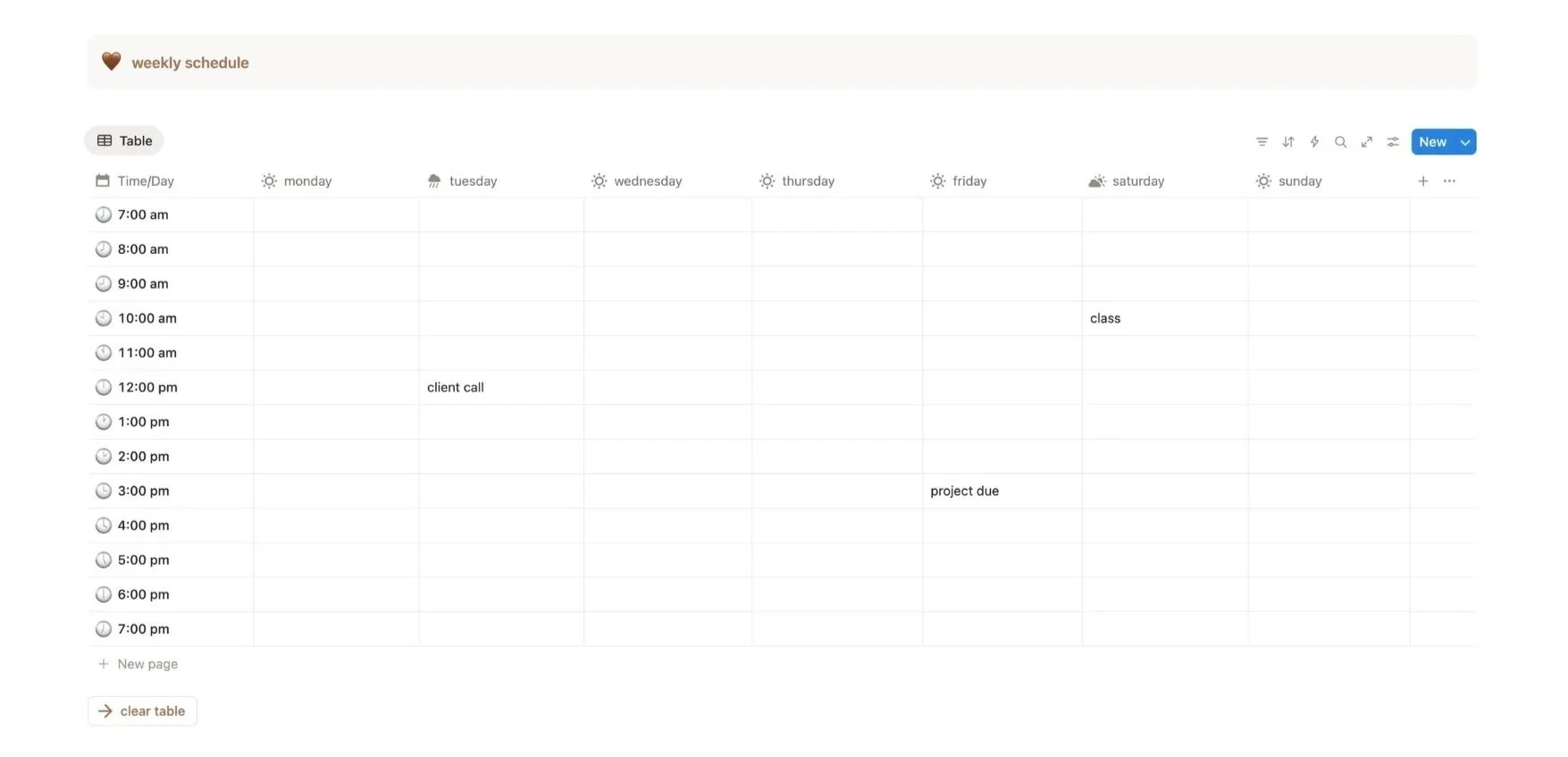
This section is the weekly schedule section. If you like planning out your days/weeks in small increments like an hour, 30 minutes, etc., then you’ll love this!
Feel free to change the times or time increments (for example, having boxes for every half hour instead of every hour). You can also add more boxes by mousing over each row and clicking the plus icon all the way on the left.
To remove boxes, mouse over the row and then click on the dots (all the way on the left). Then, click “delete.” To clear the whole table, click the “clear table” button.
You’ll also notice little weather icons by each day of the week so you can reference what the weather will be like. To change these, click on the icon, and then click on it again in the menu that comes up. From there, select your new icon.
Related: The Cutest (FREE) Notion Template For Anyone Obsessed With PINK!
Reading Tracker
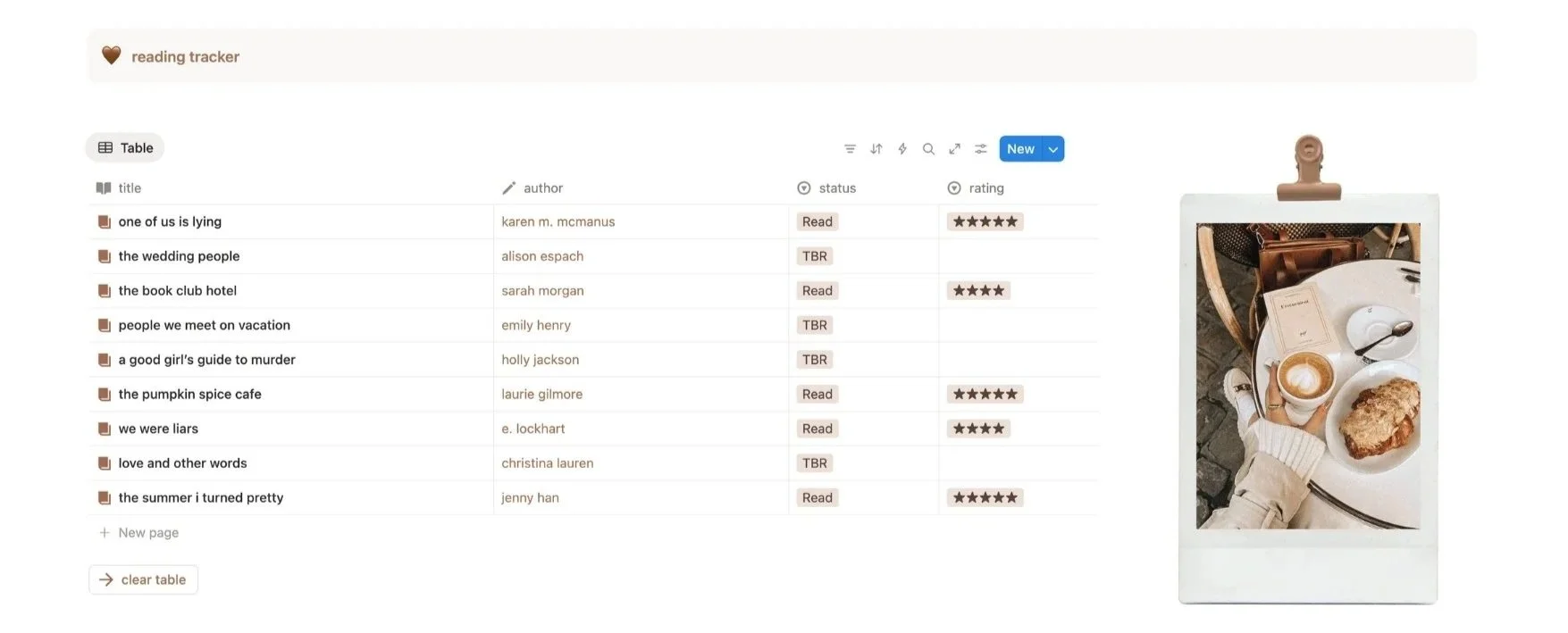
And here’s our reading tracker! You’ve got columns for title, author, status (read or TBR), and rating. To choose your status, simply click on the box and select from the option. If you start typing, you can also add a new status from here. Click “clear table” below the tracker to clear it.
All The Assets In This Notion


Learn How To Build This Notion From Scratch!
More Cute Digital Stuff In The Shop


Closing Thoughts
Be sure to save this free notion template to Pinterest so you can come back to it later. Thank you for stopping by and I hope this helps you out. Happy planning!
Read this next: 19 EASY Ways To Make Your Notion Aesthetic For Beginners
For handmade digital art prints, icon packs, wallpapers, & more designed by me, be sure to stop by my digital boutique: Designed By Nikki Lo.
Connect with me!